Introduction
This manual provides detailed instructions for the TEWELL T-K82 Retro Typewriter Mechanical Gaming Keyboard. Please read this manual carefully before using the product to ensure proper operation and longevity. This keyboard combines a classic typewriter aesthetic with modern gaming features, including tactile blue mechanical switches and customizable RGB lighting.
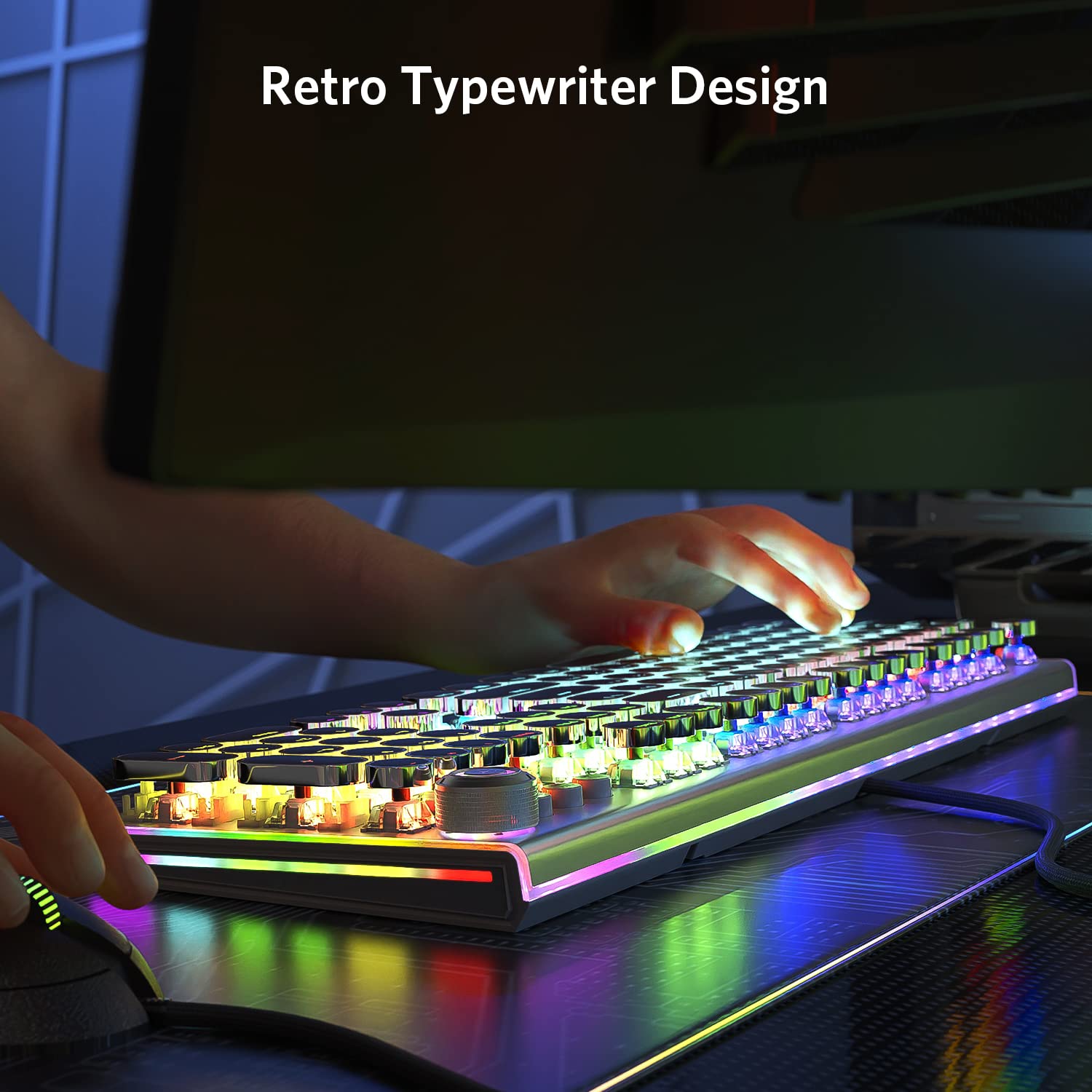
Image: A user typing on the TEWELL T-K82 keyboard, showcasing its retro typewriter design and illuminated keys.
Package Contents
- 1 x TEWELL T-K82 Mechanical Gaming Keyboard
- 1 x USB Cable
- 1 x Keycap Puller (for maintenance)
Setup
- Connect the USB Cable: Locate the USB-A cable provided. Connect the smaller end to the keyboard's USB port and the larger end to an available USB port on your computer.
- System Recognition: The keyboard is designed for plug-and-play functionality. Your operating system (compatible with Windows 10) should automatically detect and install the necessary drivers. This process may take a few moments.
- Initial Test: Once connected, test the keyboard by typing in a text editor to ensure all keys are functioning correctly.

Image: A close-up view of the durable, braided USB cable, which connects the keyboard to the computer.
Operating Instructions
Basic Functions
The TEWELL T-K82 features a full 104-key layout with N-key rollover (NKRO) and 100% anti-ghosting. This ensures that every key press is registered accurately, even during rapid input, which is crucial for gaming and fast typing.
Backlighting and RGB Side Lights
The keyboard is equipped with vibrant rainbow backlighting for the keycaps and dynamic RGB side lights. These lighting effects can be customized to enhance your user experience.

Image: The TEWELL T-K82 keyboard displaying its illuminated keys and dynamic RGB lighting along the sides.
Adjusting Lighting and Volume
A dedicated multi-function knob is located on the keyboard for quick adjustments. Rotate the knob to control the backlighting brightness and switch between various lighting modes. This knob also allows for convenient adjustment of your system's sound volume.
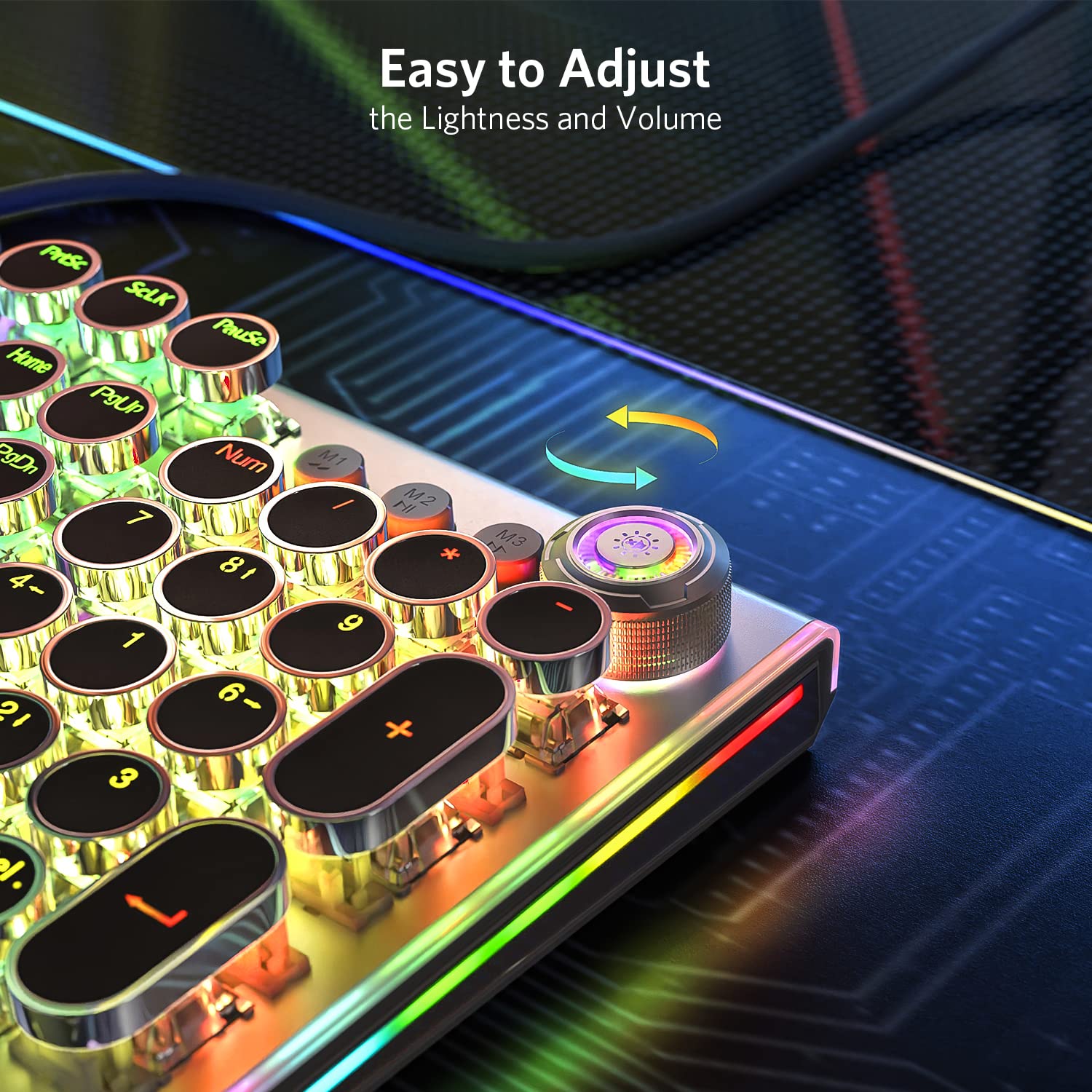
Image: A close-up of the multi-function knob on the keyboard, indicating its use for adjusting lightness and volume.
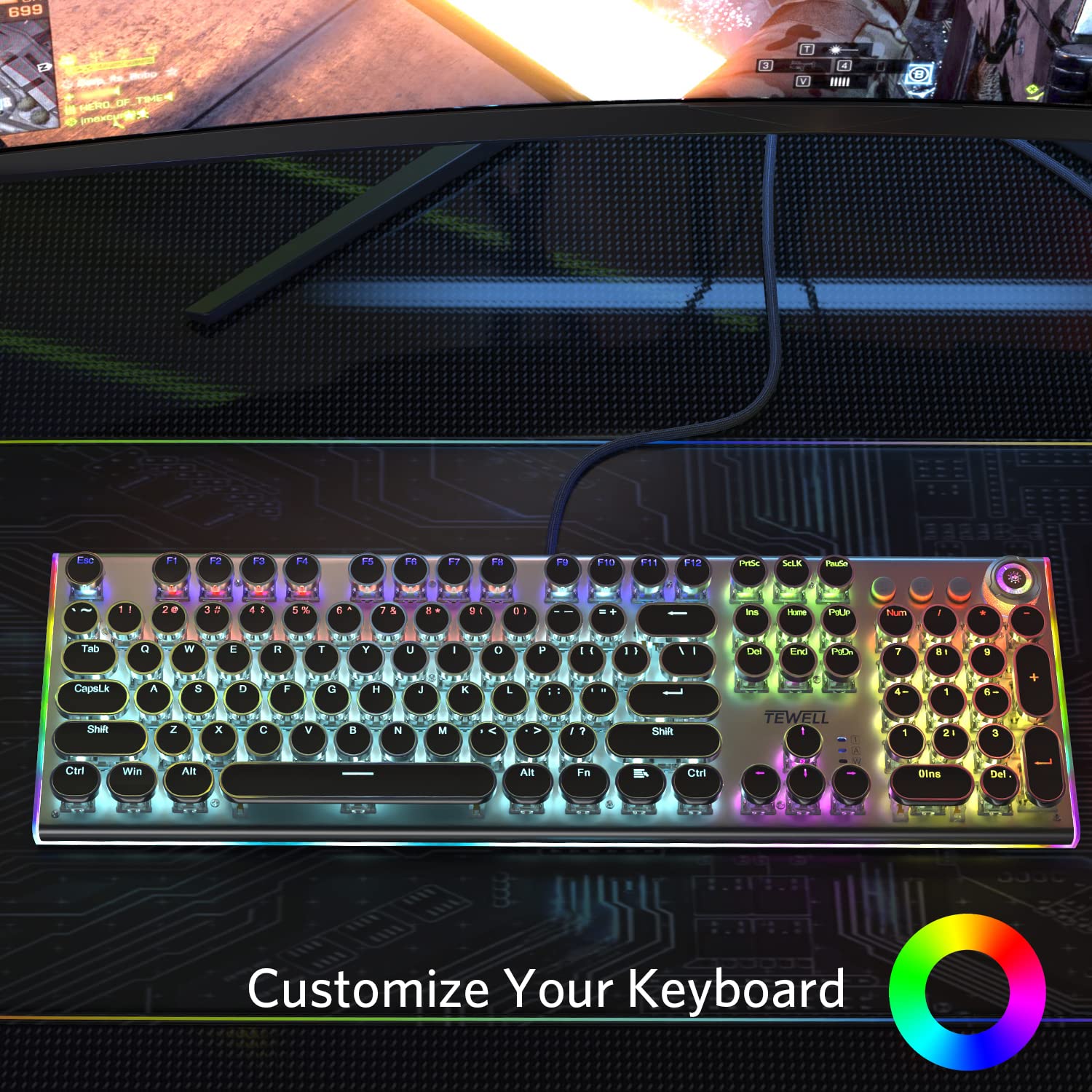
Image: A full view of the TEWELL T-K82 keyboard, suggesting customization options for its lighting.
Mechanical Switches
The TEWELL T-K82 is equipped with high-performance blue mechanical switches. These switches provide a distinct audible click and a tactile bump with each key press, offering precise actuation and a responsive typing experience. They are designed for a lifetime durability of 50 million keystrokes.

Image: A detailed view of the blue mechanical switches, highlighting their tactile and clicky nature for superior key response.
Maintenance
Regular maintenance helps preserve the keyboard's performance and appearance.
- Cleaning the Surface: Disconnect the keyboard from your computer. Use a soft, dry, lint-free cloth to wipe the surface of the keyboard. For stubborn marks, a slightly damp cloth can be used, followed by a dry cloth.
- Cleaning Under Keycaps: For deeper cleaning, use the included keycap puller to carefully remove keycaps. Use compressed air or a small brush to remove dust, crumbs, and debris from the switch area. Reinstall keycaps by pressing them firmly onto the switch stems.
- Avoid Liquids: Do not immerse the keyboard in any liquid. Avoid spraying cleaning solutions directly onto the keyboard.
- Avoid Harsh Chemicals: Do not use harsh chemicals, abrasive cleaners, or solvents as they may damage the keyboard's finish or components.
Troubleshooting
- Keyboard Not Responding:
- Ensure the USB cable is securely connected to both the keyboard and your computer.
- Try connecting the keyboard to a different USB port on your computer.
- Restart your computer.
- Specific Keys Not Working:
- Carefully remove the keycap of the non-functioning key using the keycap puller.
- Check for any visible obstructions, dust, or debris beneath the keycap or around the switch. Clean if necessary.
- Reinstall the keycap firmly. If the issue persists, contact customer support.
- Backlighting Not Working or Adjusting:
- Ensure the keyboard is properly connected and powered.
- Use the multi-function knob to adjust brightness and cycle through lighting modes.
- Check if any software or system settings are overriding keyboard lighting controls.
Specifications
| Brand | TEWELL |
| Model | T-K82 |
| Keyboard Description | Gaming, Mechanical |
| Switch Type | Blue Mechanical Switches (Tactile and Clicky) |
| Backlighting | Rainbow Backlit with RGB Side Lights |
| Anti-Ghosting | Full N-key Rollover (NKRO) |
| Connectivity Technology | USB-A (Wired) |
| Compatible Devices | Laptop (Windows 10 Operating System) |
| Item Weight | 1.14 kg (approx. 1 kg 140 g) |
| Package Dimensions | 45.72 x 17.65 x 5.08 cm |
Warranty and Support
For specific warranty information, terms, and conditions, please refer to the documentation included with your product packaging or visit the official TEWELL website. Keep your purchase receipt as proof of purchase for any warranty claims.
For technical support, troubleshooting assistance beyond this manual, or service inquiries, please contact TEWELL customer service through their official channels. Contact details are typically found on the product packaging or the manufacturer's website.