1. Product Overview
The SOLAKAKA SK961 is a versatile 60% wireless mechanical gaming keyboard designed for a seamless user experience across multiple devices. It features triple-mode connectivity (Bluetooth 5.0, 2.4GHz wireless, and USB-C wired), vibrant RGB backlighting, and hot-swappable switches for personalized customization. Its compact design saves desk space while offering full functionality for gaming, work, and learning.

Image: The SK961 60% Wireless Gaming Keyboard, showcasing its compact layout and included 2.4GHz USB dongle.

Image: An overview of the SK961 keyboard's key features, highlighting its compact design, multi-mode connectivity, RGB lighting, and hot-swappable switches.
2. Setup and Connectivity
The SK961 keyboard offers three versatile connection modes: Bluetooth 5.0, 2.4GHz wireless, and USB-C wired. It can save up to 5 devices simultaneously, allowing for easy switching.
2.1. Charging the Keyboard
Before first use, ensure the keyboard is fully charged. Connect the provided USB-C cable to the keyboard's port and the other end to a USB power source (e.g., computer USB port, wall adapter). The charging indicator will show the charging status.
The keyboard is equipped with a 2000 mAh rechargeable battery.
2.2. Triple Mode Connection
- USB-C Wired Mode: Connect the keyboard directly to your device using the provided USB-C cable. The keyboard will automatically switch to wired mode.
- 2.4GHz Wireless Mode:
- Insert the 2.4GHz USB dongle into an available USB port on your computer.
- Press FN + Q to switch the keyboard to 2.4GHz wireless mode. The indicator light will confirm the connection.
- Bluetooth 5.0 Mode (BT1, BT2, BT3): The keyboard supports connecting to up to three Bluetooth devices.
- Press FN + E for BT1, FN + R for BT2, or FN + T for BT3 to select a Bluetooth channel.
- Hold the selected FN + (E/R/T) key combination for 3-5 seconds until the indicator light flashes rapidly, indicating pairing mode.
- On your device (PC, laptop, Macbook, mobile phone), search for Bluetooth devices and select "SK961" to pair.
- Once paired, the indicator light will stop flashing.

Image: Visual representation of the keyboard's three connection modes: Bluetooth, 2.4GHz wireless, and USB-C wired.

Image: The keyboard's multi-device connectivity, allowing users to switch between up to five saved devices across different platforms.
3. Operation and Features
3.1. RGB Backlighting and Side Lighting
The SK961 features 20 adjustable RGB backlight effects and 10 RGB side light effects, offering a wide range of customization with 16 million custom colors. These lighting effects enhance the user experience and provide illumination in dark environments.
- Press FN + \ | to switch between different RGB backlight effects.
- Press FN + M to switch between different RGB side lighting effects.
- Press FN + TAB to switch the main backlight color.
Video: Demonstration of the SOLAKAKA SK961 keyboard's RGB lighting effects, showing how to switch between various backlight and side light patterns using FN key combinations.

Image: The SK961 keyboard illuminated with its dynamic RGB backlighting, showcasing the colorful key illumination.

Image: A visual display of the keyboard's extensive RGB lighting capabilities, including various effects and customization options.
3.2. Hot-Swappable Switches
The SK961 keyboard supports 3-pin hot-swappable switches, compatible with Cherry-style hot-swap mechanisms. This allows users to easily replace mechanical switches and keycaps without soldering, enabling personalized typing feel and sound.
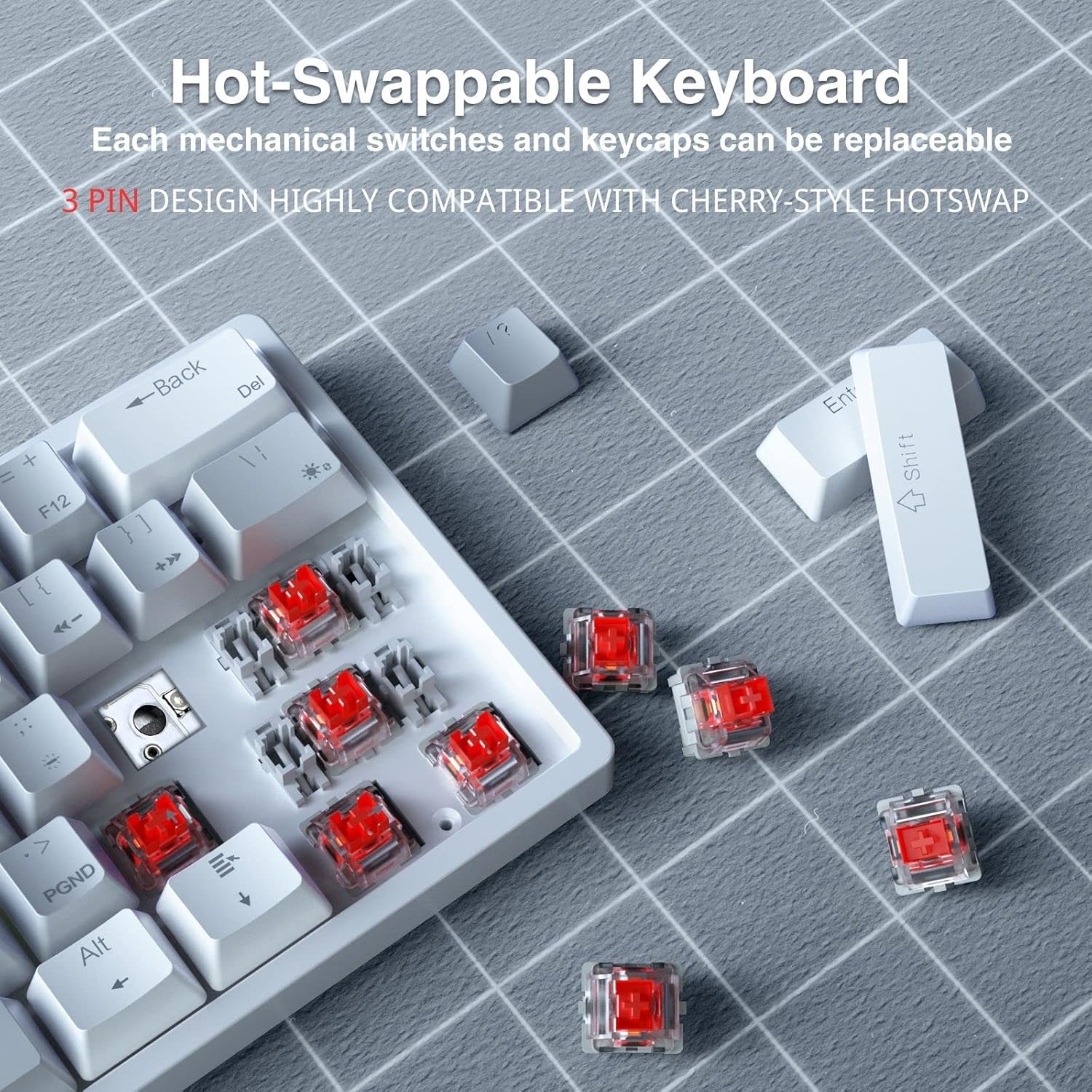
Image: A close-up view demonstrating the hot-swappable feature, with individual key switches easily removable from the keyboard.

Image: The keyboard with keycaps and switches detached, illustrating the ease of customization and maintenance provided by the hot-swappable design.
3.3. Programmable and Macro Driver
The SK961 supports macro settings and custom software, allowing users to personalize RGB backlight and side light effects, key functions, and create custom macros. This feature provides extensive control over the keyboard's behavior to suit individual preferences and workflows.
The keyboard is widely compatible with Windows 7/8/10/XP/VISTA, MAC OS, etc. The USB interface is plug-and-play, and driver software is not required for basic functionality.

Image: The keyboard shown with a display illustrating the custom software interface, which allows users to define lighting, shortcuts, and macros.
3.4. Compact Design and Ergonomics
The 60% compact design of the SK961 keyboard optimizes desk space without compromising essential keys. It is slim, lightweight, and easy to carry, making it ideal for various environments. The keyboard also features adjustable stands for ergonomic positioning.
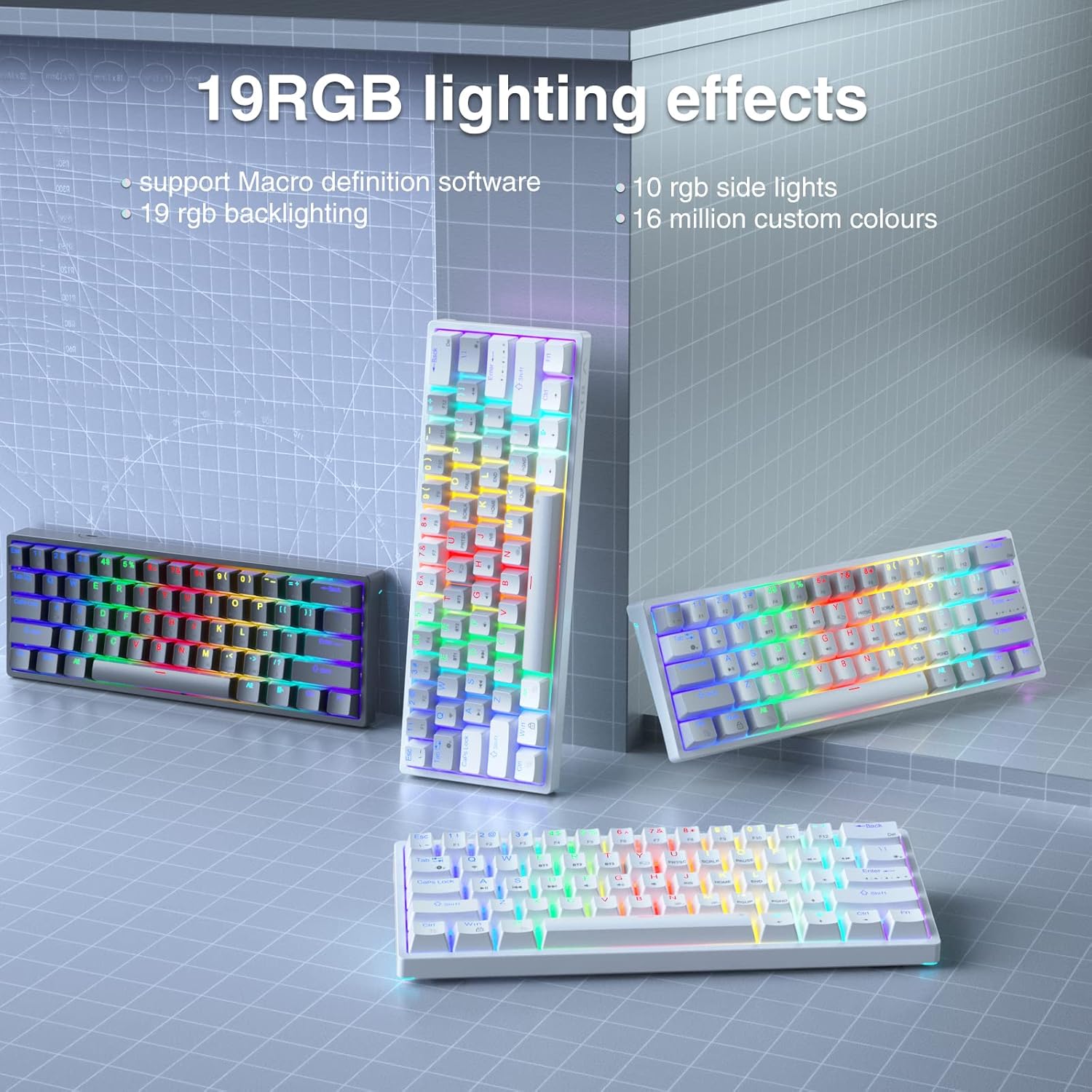
Image: Three SK961 keyboards in various color schemes, emphasizing their compact form factor and diverse RGB lighting options.

Image: An icon illustrating the 60% compact layout of the keyboard, designed to save desktop space.

Image: An icon depicting the ergonomic adjustable stand feature, allowing users to set the keyboard to a comfortable angle.
4. Maintenance
Proper maintenance ensures the longevity and optimal performance of your SK961 keyboard.
- Cleaning: Use a soft, dry cloth to wipe down the keyboard. For deeper cleaning, remove keycaps and use compressed air to clear debris from between switches. Avoid using harsh chemicals or abrasive materials.
- Battery Care: To maximize battery life, avoid fully discharging the keyboard frequently. Charge it when the battery low indicator appears. Store the keyboard in a cool, dry place when not in use for extended periods.
- Switch and Keycap Handling: When replacing switches or keycaps, use the provided tools to avoid damaging the components. Apply gentle, even pressure.
5. Troubleshooting
If you encounter issues with your SK961 keyboard, refer to the following common solutions:
| Problem | Possible Cause | Solution |
|---|---|---|
| Keyboard not connecting via Bluetooth/2.4GHz. | Low battery, incorrect mode selected, interference, device not in pairing mode. |
|
| RGB lighting not working or stuck. | Incorrect lighting mode, software glitch. |
|
| Keys not responding or double-typing. | Loose switch, debris under keycap, software issue. |
|
6. Specifications
| Feature | Detail |
|---|---|
| Product Dimensions | 11.54 x 4.02 x 1.57 inches |
| Item Weight | 1.37 pounds |
| Manufacturer | SOLAKAKA |
| Item Model Number | SK961 |
| Batteries | 1 Lithium Ion batteries required (included) |
| Connectivity Technology | Bluetooth, USB-C, Wi-Fi (2.4GHz) |
| Keyboard Description | Gaming |
| Recommended Uses | Business, Gaming |
| Special Features | Backlit, Customizable Display Keys, Lightweight |
| Color | SK961-greywhite-redswitch (variant specific) |
| Number of Keys | 59 |
| Keyboard Backlighting Color Support | RGB |
| Style | Modern |
| Compatible Devices | Laptop, PC, Smartphone |
What's in the Box:
- SK961 60% Wireless Gaming Keyboard
- USB Cable
- 2.4GHz USB Dongle
- Keycap Puller (implied by hot-swappable feature)
- Switch Puller (implied by hot-swappable feature)
7. Warranty and Support
For detailed warranty information and customer support, please refer to the official SOLAKAKA website or contact their customer service directly.
You can also find additional information and resources, including a PDF version of the Instructions for Use, at the following links:
- Official User Guide (PDF): Download PDF
- SOLAKAKA Brand Store: Visit Store


