
1. Introduction
The Duex Mobile Pixels Geminos is a vertically stacked dual 24-inch monitor system designed to enhance productivity and provide an ergonomic viewing experience. This manual provides detailed instructions for setting up, operating, and maintaining your Geminos monitors, along with troubleshooting tips and product specifications.

Image 1.1: The Mobile Pixels Geminos Dual 24-inch Stacked Computer Monitors in a typical setup.
2. Product Overview
The Geminos system features two 23.8-inch backlit IPS monitors arranged vertically, offering a minimalistic bezel design. It integrates an all-inclusive docking station to streamline your desktop setup.
Key Features:
- Dual-Stacked 24" Displays: Two 23.8" 1080P IPS screens for expanded workspace.
- Ergonomic Design: Infinitely adjustable viewing angles and height for optimal comfort.
- Integrated Workstation: Built-in Full HD camera, 3W speakers, and a 10-in-1 docking station.
- Simplified Connectivity: Supports various connection methods, including single-cable solutions with an optional driver.
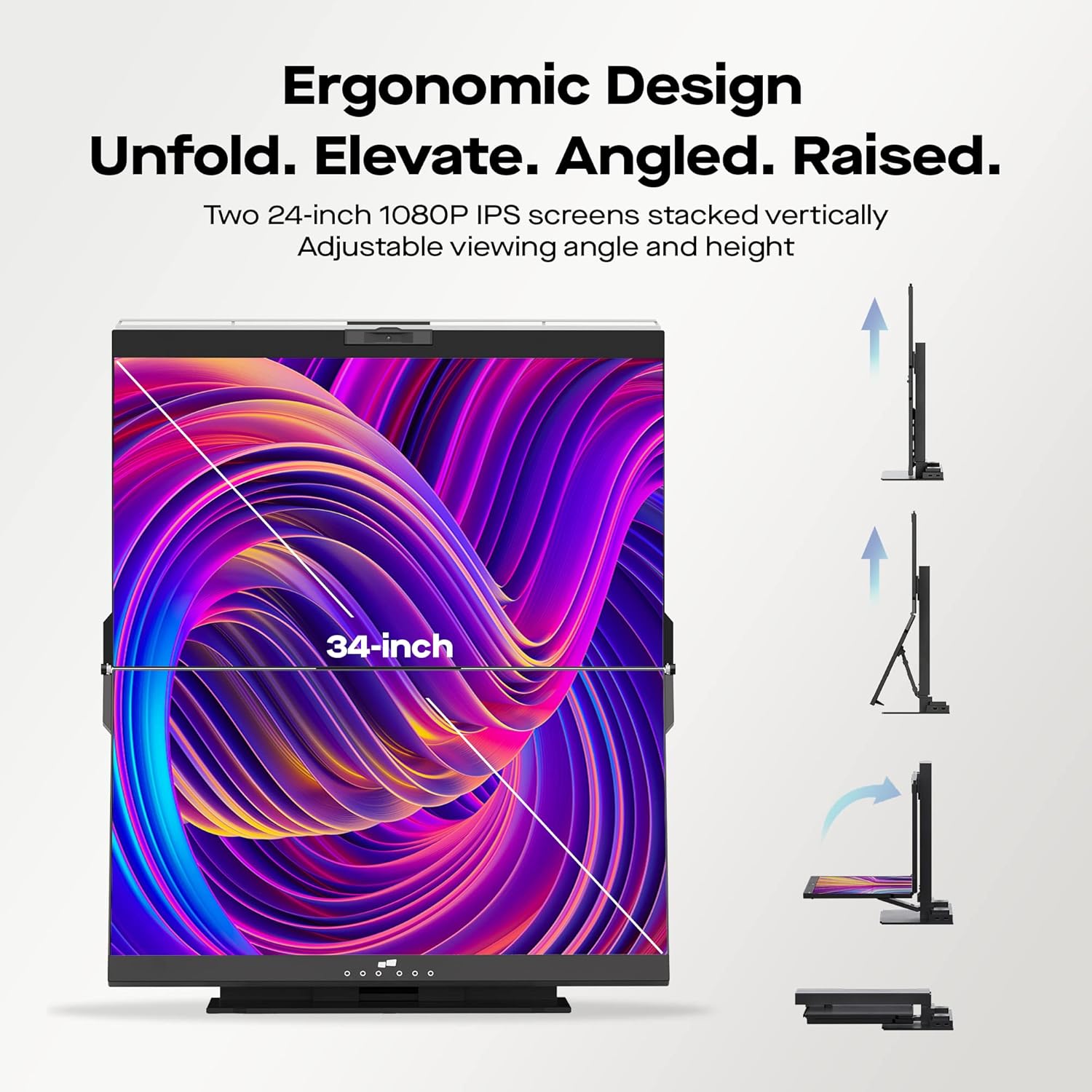
Image 2.1: Illustration of the Geminos' ergonomic design, highlighting adjustable height and angle for comfortable viewing.

Image 2.2: Comparison demonstrating the space-saving and ergonomic benefits of the Geminos stacked monitor setup over traditional side-by-side monitors.
3. Components and Ports
Familiarize yourself with the various components and connection ports on your Geminos monitor system.

Image 3.1: Detailed diagram illustrating the various ports and features of the Geminos monitor system.
- USB-A x 2
- Headphone Jack
- Top Display HDMI in
- Top Display USB-C/DP in
- Ethernet Connection (Must connect to activate USB hub)
- Bottom Display USB-C/DP in
- Bottom Display HDMI in
- Power Input
- Built-in Speakers x 2
- SD/TF Card Slot
- 1080P Webcam
4. Setup Instructions
Follow these steps for initial setup and connection of your Geminos monitors.
4.1 Unpacking and Placement
- Carefully remove the Geminos monitor system from its packaging.
- Place the unit on a stable, flat surface. Ensure adequate space for ventilation around the monitors.
4.2 Connecting to Your Device
The Geminos offers multiple connection methods. Choose the one that best suits your device.
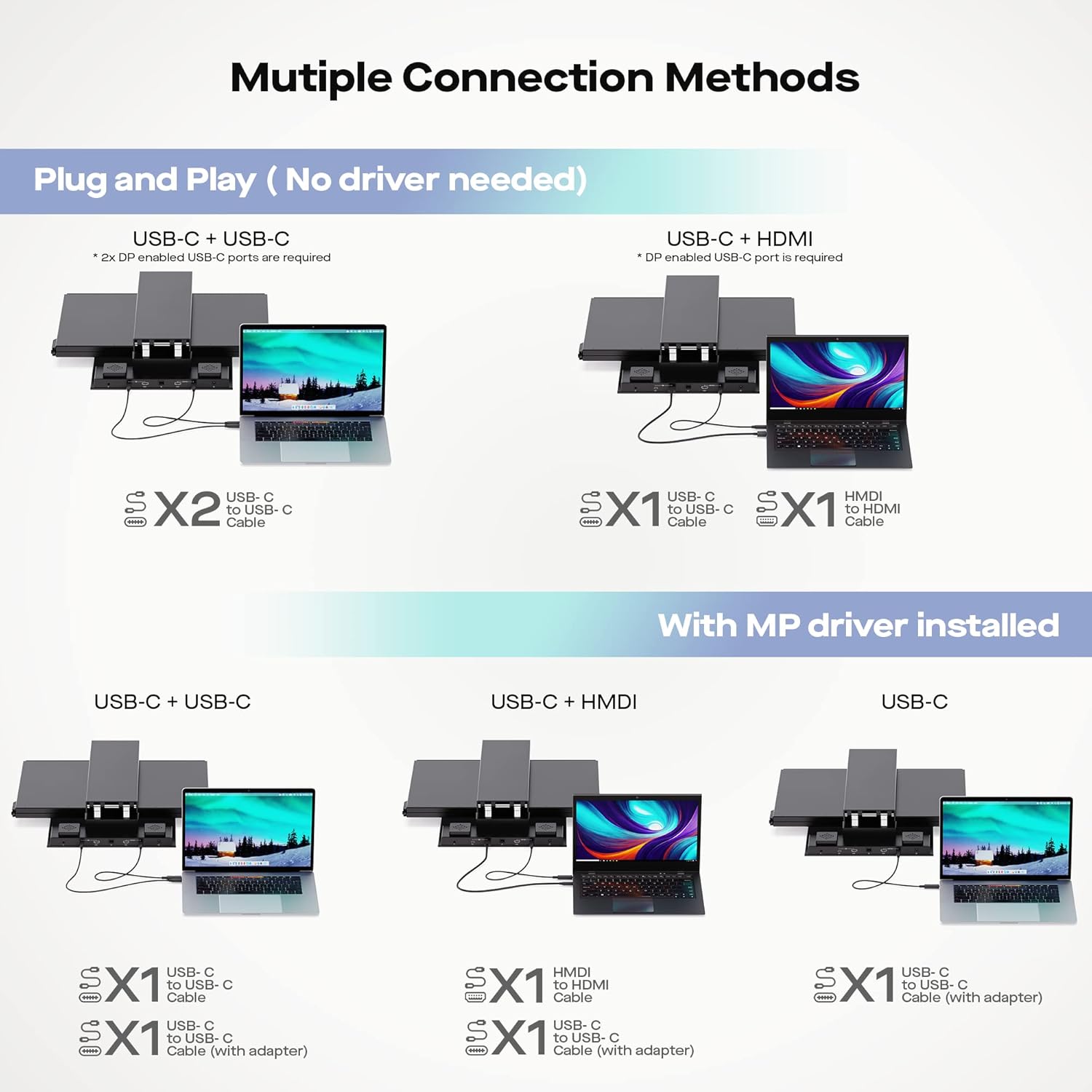
Image 4.1: Visual guide to various connection methods for the Geminos monitors, including plug-and-play and driver-assisted options.
Plug and Play (No driver needed):
- USB-C + USB-C: Connect two USB-C to USB-C cables from your device to the Top Display USB-C/DP in (4) and Bottom Display USB-C/DP in (6). Requires 2x DP enabled USB-C ports on your device.
- USB-C + HDMI: Connect one USB-C to USB-C cable to the Top Display USB-C/DP in (4) and one HDMI to HDMI cable to the Bottom Display HDMI in (7). Requires a DP enabled USB-C port.
With MP Driver Installed:
For single-cable solutions or specific configurations, install the Mobile Pixels (MP) driver from the official website.
- USB-C + USB-C (with adapter): Connect two USB-C to USB-C cables (one with a USB-A adapter) to your device and the monitors.
- USB-C + HDMI (with adapter): Connect one USB-C to USB-C cable (with a USB-A adapter) and one HDMI to HDMI cable.
- Single USB-C Cable: Connect one USB-C to USB-C cable (with a USB-A adapter) to your device and the monitor. This configuration requires the MP driver for both displays to function.
4.3 Power Connection
- Connect the provided power adapter to the Power Input (8) on the Geminos unit and then to a power outlet.
5. Operating Instructions
Learn how to effectively use your Geminos monitors for various tasks.
5.1 Adjusting Monitor Position
- The top monitor can slide up and down.
- The bottom monitor pivots in and out.
- Adjust both monitors to achieve your preferred viewing angle and height, whether sitting or standing.
Image 5.1: A user demonstrating the sit-to-stand flexibility and angle adjustments of the Geminos monitors.
5.2 Using the Integrated Webcam and Speakers
- The 1080P webcam (11) is located at the top of the upper monitor. It features up to 15 degrees of tilt rotation.
- The built-in 3W speakers (9) provide audio output. Ensure your computer's audio settings are configured to use the Geminos speakers.

Image 5.2: Close-up view of the integrated Full HD camera with tilt rotation and built-in speakers on the Geminos monitor.
5.3 Display Modes
The Geminos supports various display configurations depending on your needs:
- Extended Display: Extend your desktop across both monitors for maximum screen real estate.
- Mirrored Display: Duplicate your primary screen on one or both Geminos monitors.
- Individual Displays: Use each monitor independently for different applications.

Image 5.3: Examples showcasing diverse applications of the Geminos monitors, including gaming, programming, teaching, and video editing.
6. Compatibility
The Mobile Pixels Geminos monitors are compatible with a wide range of devices and operating systems.
- Operating Systems: macOS, Windows
- Devices: Laptops, Desktop PCs, Xbox, PlayStation
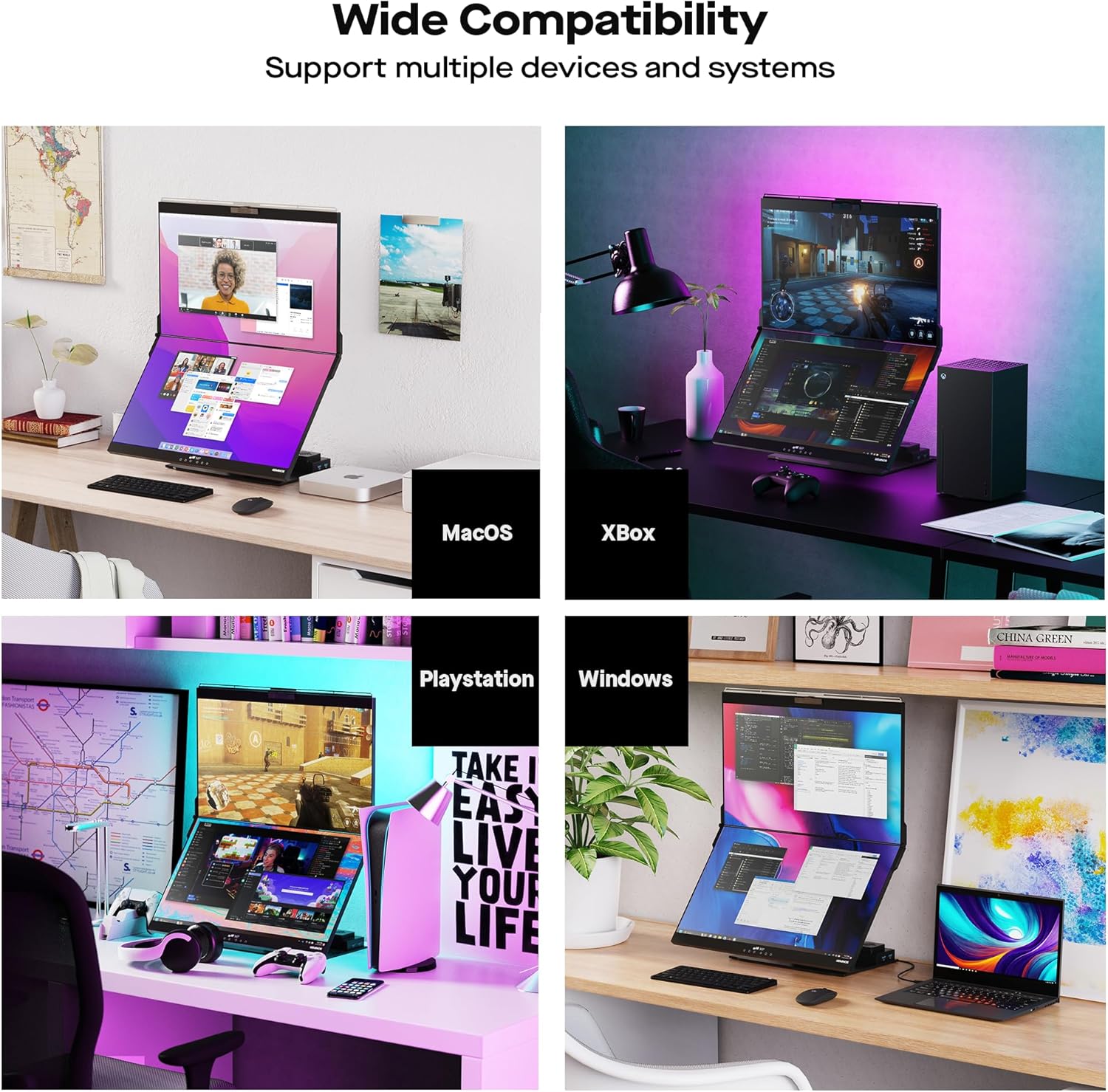
Image 6.1: The Geminos monitors demonstrating compatibility with macOS, Windows, Xbox, and PlayStation devices.
7. Maintenance
Proper care and maintenance will ensure the longevity and optimal performance of your Geminos monitors.
7.1 Cleaning the Screens
- Always power off and unplug the monitors before cleaning.
- Use a soft, lint-free cloth lightly dampened with water or a screen-cleaning solution.
- Do not spray liquid directly onto the screen.
- Avoid using abrasive cleaners, alcohol, or ammonia-based products.
7.2 General Care
- Keep the monitors away from direct sunlight, excessive heat, and moisture.
- Ensure proper ventilation to prevent overheating.
- Avoid placing heavy objects on the monitors or stand.
- Handle the monitors carefully to prevent physical damage.
8. Troubleshooting
This section addresses common issues you might encounter with your Geminos monitors.
8.1 No Display / Flickering Screen
- Check Power: Ensure the power cable is securely connected to the monitor and the power outlet.
- Check Cables: Verify that all video cables (USB-C, HDMI) are firmly connected to both the monitors and your computer. Try re-seating the cables.
- Input Source: Confirm that the correct input source is selected on the monitor (if applicable).
- Driver Installation: If using a single USB-C cable connection, ensure the Mobile Pixels driver is correctly installed and updated.
- Try Different Ports/Cables: If one screen is flickering or not displaying, try connecting it to a different port on your computer or using a different cable to rule out faulty hardware.
8.2 Webcam or Speakers Not Working
- USB Connection: Ensure the USB hub is activated. This typically requires the Ethernet connection (5) to be active or a proper USB-C connection that supports data transfer.
- Device Settings: Check your computer's operating system settings to ensure the Geminos webcam and speakers are selected as the default input/output devices.
- Privacy Settings: Verify that privacy settings on your computer are not blocking access to the webcam or microphone.
8.3 USB Ports Not Functioning
- Activate USB Hub: The integrated USB hub (USB-A x 2, SD/TF Card Slot) requires the Ethernet connection (5) to be active or a full-featured USB-C connection to your host device.
- Power Delivery: Some USB-C connections may not provide sufficient power for all hub functions. Ensure your connection supports power delivery if you are experiencing issues.
9. Specifications
Detailed technical specifications for the Mobile Pixels Geminos monitors.
Image 9.1: Overview of the technical specifications for the Geminos monitors.
| Feature | Specification |
|---|---|
| Brand | Duex |
| Model Number | Geminos |
| Screen Size | 23.8 Inches x 2 |
| Screen Type | IPS |
| Resolution | 1920 x 1080 Pixels (FHD 1080p) |
| Aspect Ratio | 16:9 |
| Refresh Rate | 60Hz |
| Image Brightness | 250 cd/m2 |
| Contrast Ratio | 1000:1 |
| Connections & Expansions | USB-A x 2, USB-C x 2, HDMI x 2, Audio out, Ethernet, TF/SD slots |
| Total USB Ports | 4 |
| Voltage | 220 Volts |
| Power Consumption | 35W total |
| Product Dimensions | 4.33 x 22.04 x 19.68 inches |
| Item Weight | 23.4 pounds |
10. Warranty and Support
Mobile Pixels Inc. is committed to providing excellent customer service.
10.1 After-sales Service
Rest assured with Geminos PC monitors, as well as having dedicated Local Customer Service Support. For any issues or inquiries, please refer to the contact information provided with your purchase or visit the official Mobile Pixels website.
10.2 Return Policy
The standard return policy allows for returns or replacements within 30 days of purchase. Please refer to your retailer's specific return policy for detailed terms and conditions.


