
Introduction
This manual provides instructions for the Mcdodo 65W USB-C to USB-C Fast Charging Cable. This cable is designed for efficient power delivery and high-speed data transfer across a wide range of USB-C compatible devices. Please read this manual thoroughly before use to ensure proper operation and longevity of the product.
Package Contents
- Mcdodo L-shaped PD 65W Fast Charging USB-C to USB-C Cable (approx. 1.8m) x 1
Key Features
- 65W Power Delivery (PD) Fast Charging: Supports high-speed charging for laptops, tablets, smartphones, and gaming consoles.
- Ultra-Thin L-Shaped Connector: Ergonomically designed to fit comfortably in hand, especially during use like gaming, and to save space when connected to laptops.
- MSC Charging Technology with Dual Chips: Features Mcdodo's proprietary MSC charging technology with two integrated chips for both rapid charging and stable power delivery, ensuring safety even during simultaneous charging and device use.
- High-Speed Data Transfer: Capable of data transfer speeds up to 480Mbps, allowing for quick synchronization of files and photos.
- LED Indicator Light: An ambient LED light illuminates during charging, providing a clear visual indication of the charging status.
- Enhanced Durability: Constructed with a two-color woven flat cable design, offering flexibility, easy storage, and superior durability. Passed over 30,000 bend tests and 5,000 plug-in/out tests.
- Thicker Copper Core: Expanded conductive area for efficient and safe high-current flow.

Image: An illustration showing the internal smart chip for safe high-speed charging and the thickened copper core wires for efficient power delivery.
Setup Guide
- Unpack the Cable: Carefully remove the Mcdodo USB-C to USB-C cable from its packaging.
- Identify Connectors: Both ends of the cable feature USB-C connectors. One end has an ultra-thin L-shaped design, and the other is a standard straight USB-C connector.
- Connect to Power Source: Insert one end of the USB-C cable into a compatible USB-C power adapter (not included) or a USB-C port on a power bank or computer.
- Connect to Device: Insert the other end of the USB-C cable into the USB-C charging port of your device (e.g., smartphone, tablet, laptop, gaming console). The L-shaped connector is ideal for use with devices held horizontally, such as during gaming, or for space-saving connections on laptops.
- Verify Connection: The LED indicator light on the L-shaped connector will illuminate when charging begins, confirming a successful connection and power flow.
Note: This cable does not support video output. Ensure your device and power adapter support Power Delivery (PD) for optimal fast charging performance.
Operating Instructions
Charging Your Device
Connect the cable as described in the "Setup Guide". The cable supports up to 65W Power Delivery (PD) for fast charging compatible devices. The LED indicator will show charging status.

Image: Mcdodo USB-C cable connected to a laptop for charging. The L-shaped connector provides a neat, space-saving connection.
For example, a MacBook Pro 16-inch can be fully charged in approximately 2 hours, and an iPad Pro 11-inch in about 2.5 hours, when used with a compatible 65W PD charger.
Data Transfer
The cable supports high-speed data transfer up to 480Mbps. To transfer data between your computer and a smartphone or tablet:
- Connect your device to a computer using the Mcdodo USB-C cable.
- On your smartphone or tablet, a prompt will typically appear with options such as "Charge only," "Photo transfer," or "File transfer."
- Select "Photo transfer" or "File transfer" to enable data synchronization.

Image: Mcdodo USB-C cable connected to a smartphone and a laptop, illustrating high-speed data transfer at 480Mbps.
Using the L-Shaped Connector
The ultra-thin L-shaped connector is designed for convenience, especially when using your device horizontally (e.g., gaming) or when connecting to a laptop where space is limited. It minimizes obstruction and allows for a comfortable grip.

Image: A user playing a mobile game with the Mcdodo L-shaped USB-C cable connected, demonstrating how the design prevents interference during use.
Maintenance
- Cleaning: Gently wipe the cable and connectors with a dry, soft cloth to remove dust or debris. Avoid using liquid cleaners or abrasive materials.
- Storage: Store the cable in a cool, dry place away from direct sunlight and extreme temperatures. The flexible, woven design allows for easy coiling and storage.
- Handling: Avoid excessive bending or twisting of the cable, especially near the connectors, to prevent internal damage. Do not pull the cable by the cord; always grasp the connector when plugging or unplugging.
- Durability: The cable is designed for durability, having passed extensive bend and plug-in/out tests. However, proper handling will further extend its lifespan.
Troubleshooting
- Problem: Device is not charging.
-
- Ensure both ends of the cable are securely connected to the power source and the device.
- Verify that the power adapter is functioning correctly and is compatible with your device's charging requirements (e.g., supports Power Delivery).
- Check if the power outlet is active.
- Try using a different power adapter or a different USB-C port if available.
- Confirm that your device's charging port is clean and free of debris.
- Problem: Data transfer is not working.
-
- When connecting a smartphone or tablet to a PC, ensure you select "Photo transfer" or "File transfer" from the options presented on your device's screen. If "Charge only" is selected, data transfer will not occur.
- Verify that your device has the necessary driver access permissions for data transfer.
- Try connecting to a different USB-C port on your computer.
- Restart both your device and computer.
- Problem: Charging is slow.
-
- Ensure you are using a power adapter that supports Power Delivery (PD) and provides sufficient wattage (e.g., 65W) for your device.
- Close any power-intensive applications running in the background on your device.
- Avoid using the device heavily while charging, as this can slow down the charging process.
Specifications
| Brand | Mcdodo |
|---|---|
| Model Number | CA-6220 |
| Connector Type | USB Type-C to USB Type-C |
| Cable Type | USB |
| Max Power Output | 65W |
| Max Voltage | 20V |
| Max Current | 3.25A |
| Data Transfer Speed | Up to 480 Mbps |
| Cable Length | Approx. 1.8m |
| Color | Black |
| Material | Aluminum alloy & TPE cover, high-density nylon braid |
| Special Features | L-shaped connector, MSC charging technology, Dual protection chips, LED indicator |
| Compatibility | USB-C enabled laptops (MacBook, Lenovo, Dell, HP, Acer, Huawei, Xiaomi, ASUS), tablets (iPad, Huawei MatePad, Galaxy Tab), smartphones (iPhone 15/16/17 series, Sony, Samsung, Google, Huawei, Xiaomi, OPPO, VIVO), and other USB-C devices (Switch, wireless earphones, smartwatches, power banks). |
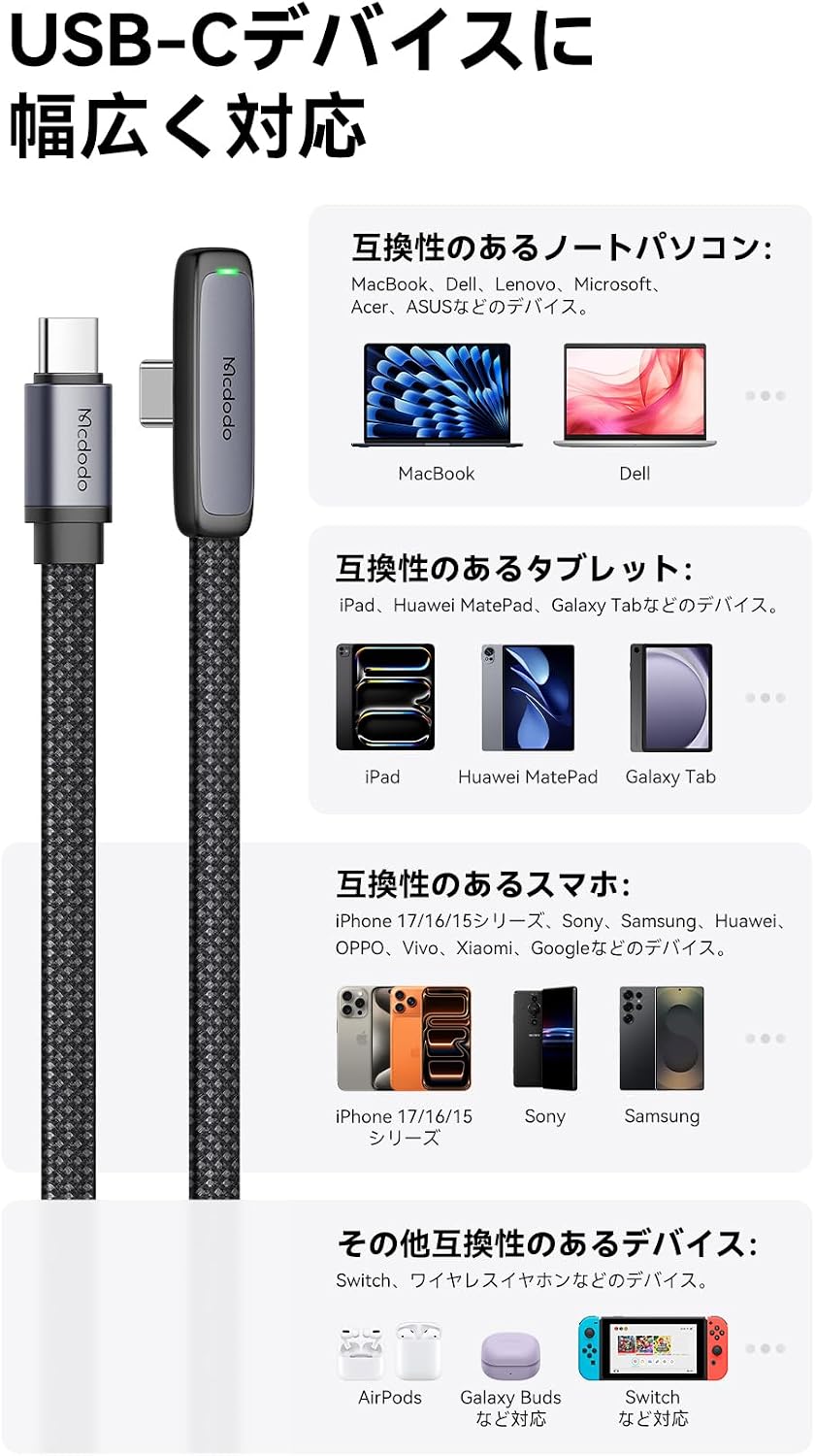
Image: A visual representation of the Mcdodo USB-C cable's broad compatibility with laptops, tablets, smartphones, and other USB-C devices.
Warranty and Support
Mcdodo products come with a 12-month warranty from the date of purchase. If you encounter any issues or have questions regarding your product, please contact Mcdodo customer support.
Your order number serves as your proof of purchase and warranty. Please keep it for reference.
Customer support aims to respond to inquiries within 24 hours.
For support, please refer to the contact information provided with your purchase or on the official Mcdodo website.