
1. Important Safety Information
Please read all instructions carefully before using the WEWATCH V50 Pro Projector. Keep this manual for future reference.
- Do not block ventilation openings. Ensure adequate airflow around the projector.
- Do not expose the projector to rain or moisture to prevent fire or electric shock.
- Use only attachments/accessories specified by the manufacturer.
- Unplug the projector during lightning storms or when unused for long periods.
- Refer all servicing to qualified service personnel.
2. Product Overview
The WEWATCH V50 Pro is a native 1080P Full HD projector designed for home cinema, gaming, and presentations. It features 5G WiFi, Bluetooth 5.1, and versatile connectivity options.
2.1 Package Contents
- WEWATCH V50 Pro Projector
- Remote Control
- Power Cable
- HDMI Cable
- User Manual
2.2 Projector Components and Ports

Figure 2.1: WEWATCH V50 Pro Projector and Accessories.
This image shows the WEWATCH V50 Pro projector in black, accompanied by its remote control. A smartphone screen is overlaid, demonstrating the projector's screen mirroring capability with a vibrant landscape image.

Figure 2.2: Connectivity Ports and Compatible Devices.
This diagram illustrates the various input and output ports available on the WEWATCH V50 Pro projector, including AUX, AV, TF card slot, HDMI, USB, and VGA. Below the ports, icons and text indicate compatible devices such as PCs, laptops, Google Chromecast, DVD players, speakers, PS5, Xbox, TV sticks, smartphones, tablets, and cameras.
The projector features multiple input ports on its side and rear panels, including HDMI, USB, AV, and VGA, allowing connection to a wide range of devices. It also includes a 3.5mm audio output for external speakers or headphones.
3. Setup
3.1 Placement
Place the projector on a stable, flat surface or mount it on a tripod, ceiling, or wall. Ensure the projector lens is perpendicular to the projection surface for optimal image quality. The ideal projection distance ranges from 5.3ft to 15ft, supporting screen sizes up to 200 inches.
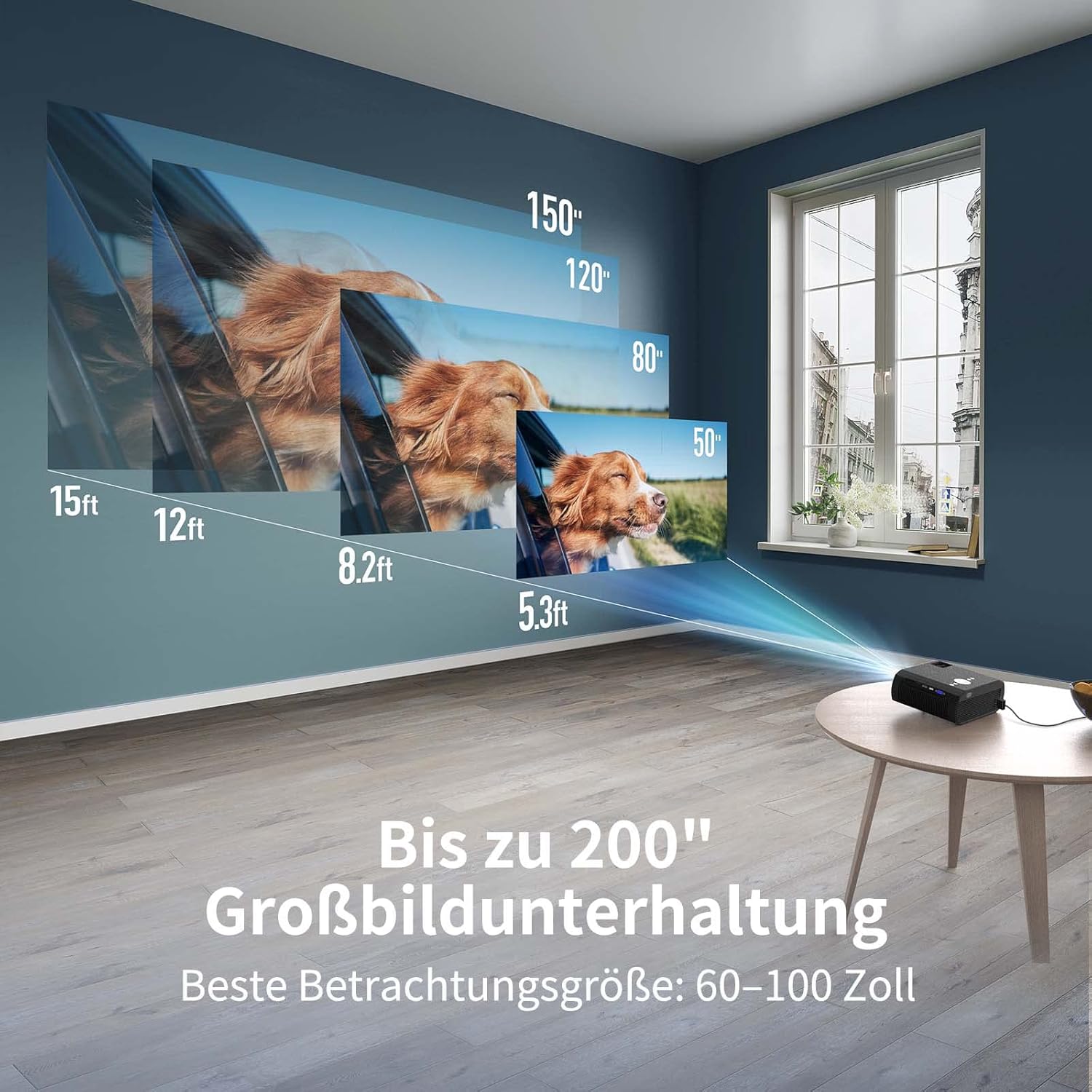
Figure 3.1: Projection Distance and Screen Size Guide.
This image illustrates the relationship between projection distance and screen size for the WEWATCH V50 Pro projector. It shows various distances (5.3ft, 8.2ft, 12ft, 15ft) corresponding to different screen sizes (50", 80", 120", 150"), with a maximum screen size of 200 inches. The recommended best viewing size is 60-100 inches.
3.2 Power Connection
- Connect the power cable to the projector's power input port.
- Plug the other end of the power cable into a power outlet.
- Press the power button on the projector or remote control to turn it on.
3.3 Focus and Keystone Correction
Adjust the image clarity and shape using the focus ring and keystone correction feature.

Figure 3.2: Manual Focus and Keystone Correction.
This image demonstrates how to adjust the projector's image. The top panel shows "Manuell Fokus" (Manual Focus) with a blurred image becoming clear. The bottom panel shows "Keystone-Korrektur" (Keystone Correction) with a trapezoidal image being squared, indicating the projector's ability to correct distorted images.
- Manual Focus: Rotate the focus ring near the lens until the projected image is sharp and clear.
- Keystone Correction: If the image appears trapezoidal (wider at the top or bottom), use the keystone correction function (typically a dial or button on the projector/remote) to adjust the image to a rectangular shape. The V50 Pro supports ±15° keystone correction.
4. Operating Instructions
4.1 Connecting Devices
The WEWATCH V50 Pro offers multiple ways to connect your devices:
- HDMI: Connect laptops, gaming consoles (PS5, Xbox), TV sticks, or DVD players using an HDMI cable. Select the corresponding HDMI input source on the projector.
- USB: Insert a USB drive to play media files directly.
- AV: Use the AV port for older devices.
- VGA: Connect computers with a VGA output.
- Bluetooth 5.1: Connect external Bluetooth speakers or headphones for enhanced audio. Navigate to the Bluetooth settings in the projector's menu to pair devices.
- 5G/2.4G WiFi Screen Mirroring: Wirelessly mirror content from your iOS or Android smartphone/tablet.
4.2 Wireless Screen Mirroring (iOS/Android)
The V50 Pro supports seamless screen mirroring via its dual-band 5G/2.4G WiFi connection.

Figure 4.1: Smooth Screen Mirroring via 2.4G/5G WiFi.
This image depicts a smartphone held in a hand, with its screen content wirelessly projected onto a wall by the WEWATCH V50 Pro projector. The image highlights the projector's 2.4G/5G WiFi capability for seamless screen mirroring, showing a vibrant waterfall scene.
- Ensure your projector and mobile device are connected to the same WiFi network.
- On the projector, select the "Screen Mirroring" or "Wireless Display" option from the main menu.
- On your iOS device, open Control Center and tap "Screen Mirroring" (AirPlay). Select the projector from the list.
- On your Android device, find the "Wireless Display," "Cast," or "Smart View" option in your settings or quick panel. Select the projector from the list.
4.3 Adjusting Settings
- Zoom Function: The V50 Pro features a 50% zoom function, allowing you to adjust the image size without moving the projector. Access this setting via the projector's menu.
- Picture Mode: Adjust brightness, contrast, color, and sharpness to your preference.
- Sound Settings: Control volume, or select audio output (internal speaker, Bluetooth, 3.5mm audio out).
5. Maintenance
Proper maintenance ensures the longevity and optimal performance of your projector.
- Lens Cleaning: Use a soft, lint-free cloth and specialized lens cleaning solution. Do not use abrasive cleaners.
- Dust Removal: Regularly clean the projector's exterior with a soft, dry cloth. Use compressed air to clear dust from ventilation openings, ensuring proper airflow.
- Storage: When not in use, store the projector in a cool, dry place, away from direct sunlight and extreme temperatures.
6. Troubleshooting
If you encounter issues with your WEWATCH V50 Pro Projector, refer to the following common problems and solutions:
| Problem | Possible Cause | Solution |
|---|---|---|
| No image projected | Power cable disconnected; Incorrect input source; Device not connected properly. | Check power connection; Select correct input source (HDMI, USB, etc.); Reconnect device cables securely. |
| Blurred image | Out of focus; Incorrect keystone adjustment. | Adjust the focus ring; Use keystone correction to square the image. |
| No sound | Volume too low; Muted; Incorrect audio output selected; External device volume low. | Increase projector volume; Unmute; Check audio output settings (internal speaker, Bluetooth); Increase volume on connected device. |
| Screen mirroring issues | Not on same WiFi network; Device compatibility; Network interference. | Ensure both devices are on the same 5G/2.4G WiFi network; Restart projector and device; Try a different WiFi channel. |
| Overheating/Fan noise | Blocked ventilation; Prolonged use. | Ensure ventilation openings are clear; Allow projector to cool down; Operate in a well-ventilated area. |
If the problem persists, please contact WEWATCH customer support.
7. Specifications
Key technical specifications for the WEWATCH V50 Pro Projector:
- Model: V50PRO
- Native Resolution: 1920 x 1080P Full HD
- Brightness: 400 ANSI Lumens (16500 LM)
- Contrast Ratio: 20000:1
- Display Technology: LCD
- Screen Size: Up to 200 inches
- Connectivity: 5G/2.4G WiFi, Bluetooth 5.1, HDMI, USB, AV, VGA, 3.5mm Audio Out
- Keystone Correction: ±15° Manual
- Zoom Function: 50%
- Built-in Speaker: 3W
- Color: Black

Figure 7.1: WEWATCH V50 Pro Performance Comparison.
This image compares the WEWATCH V50 Pro's performance metrics (Native Full HD 1080P, 15000LM LED Lumen, 350 ANSI Lumen, 20000:1 Contrast Ratio) against a generic 720P projector, highlighting the superior visual quality of the V50 Pro.

Figure 7.2: High Contrast Ratio for Vivid Images.
This image visually represents the high contrast ratio of 20000:1, with the numbers prominently displayed on a floor leading to a projected image of a vibrant nebula, indicating deep blacks and bright whites for a more dynamic picture.
8. Warranty and Support
The WEWATCH V50 Pro Projector comes with a 2-year manufacturer's warranty.
For technical support, warranty claims, or further assistance, please contact WEWATCH customer service through their official website or the platform where you purchased the product.
Manufacturer: WEWATCH