1. Introduction
This manual provides detailed instructions for the installation, operation, and maintenance of your Comelit IP Surveillance Kit. This kit includes an IP Network Video Recorder (NVR) and two IP cameras, designed to provide reliable video surveillance for your property. Please read this manual thoroughly before operating the system to ensure proper functionality and safety.
2. Safety Information
Always adhere to the following safety guidelines to prevent damage to the product or injury to yourself and others:
- Power Supply: Use only the power adapters supplied with the kit. Ensure the power source matches the specified voltage.
- Installation Environment: Install the NVR and cameras in a dry, well-ventilated area, away from direct sunlight, heat sources, and excessive dust or moisture.
- Mounting: Ensure cameras are securely mounted to a stable surface to prevent falling.
- Cabling: Route cables carefully to avoid tripping hazards and damage. Do not pinch or cut cables.
- Servicing: Do not attempt to disassemble or repair the unit yourself. Refer all servicing to qualified personnel.
- Cleaning: Disconnect power before cleaning. Use a soft, dry cloth. Do not use liquid or aerosol cleaners.
3. Package Contents
Verify that all items are present in your package:
- 1 x Comelit IP Network Video Recorder (NVR)
- 2 x Comelit IP Cameras (IPBCA model)
- 2 x Power Adapters for Cameras
- 1 x Power Adapter for NVR
- 1 x USB Mouse
- 1 x Ethernet Cable
- Mounting Screws and Plugs for Cameras
- This User Manual
4. Setup
4.1 Physical Installation
Follow these steps for the physical setup of your surveillance system:
- Camera Placement: Choose suitable locations for your IP cameras, ensuring optimal viewing angles and coverage. Mount them securely using the provided screws and plugs.
- Connect Cameras: Connect each IP camera to the NVR's PoE (Power over Ethernet) ports using Ethernet cables. If your NVR does not have PoE, connect cameras to a PoE switch, and then connect the switch to the NVR's LAN port.
- Connect NVR to Monitor: Connect a monitor to the NVR's HDMI or VGA output port.
- Connect NVR to Network: Connect the NVR's LAN port to your router or network switch using an Ethernet cable for network access and remote viewing capabilities.
- Connect Power: Connect the power adapters to the cameras and the NVR, then plug them into a power outlet. The system will power on automatically or require a press of the power button.
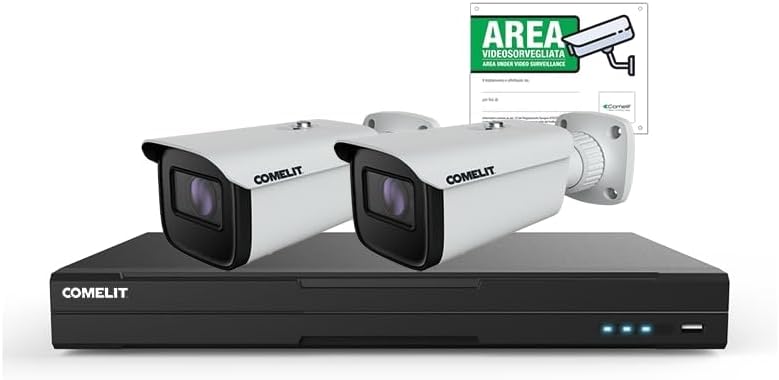
Image: The Comelit IP Surveillance Kit, featuring the central Network Video Recorder (NVR) unit and two white IP bullet cameras. A 'Video Surveillance Area' sign is also visible in the background, indicating the system's purpose.
4.2 Initial Configuration
Upon first boot, the NVR will guide you through an initial setup wizard:
- Language Selection: Choose your preferred language.
- Password Setup: Create a strong password for the administrator account. This is crucial for security.
- Network Settings: Configure network settings (DHCP is usually sufficient for most home networks; static IP can be set for advanced users).
- Time and Date: Set the correct time zone, date, and time.
- Hard Drive Initialization: If a hard drive is installed, the system may prompt you to initialize or format it for recording.
- Camera Search: The NVR will automatically search for and add connected IP cameras. Verify that both cameras are detected and display live video.
5. Operating Instructions
5.1 Live View
After initial setup, the NVR will display the live view from all connected cameras. You can switch between single-camera view, multi-camera grid view, and sequence display.
5.2 Recording Management
The NVR supports various recording modes:
- Continuous Recording: Records 24/7.
- Motion Detection Recording: Records only when motion is detected in the camera's field of view. Configure motion detection zones and sensitivity in the camera settings.
- Scheduled Recording: Records according to a predefined schedule (e.g., specific hours of the day).
- Manual Recording: Start and stop recording manually from the live view interface.
Access recording settings via the NVR's main menu under 'Record' or 'Storage'.
5.3 Playback
To review recorded footage:
- From the main menu, select 'Playback'.
- Choose the camera(s) and the date/time range you wish to review.
- Use the timeline to navigate through recordings. You can fast-forward, rewind, pause, and zoom.
5.4 Remote Access
To view your surveillance system remotely via a smartphone app or web browser:
- Ensure the NVR is connected to the internet.
- Download the official Comelit surveillance app (if available) from your device's app store or access the NVR via its IP address in a web browser.
- Follow the app/web interface instructions to add your NVR using its serial number or QR code.
- Enter your NVR's administrator credentials to log in.
6. Maintenance
Regular maintenance ensures the longevity and optimal performance of your surveillance system:
- Cleaning: Periodically clean the camera lenses and NVR casing with a soft, dry cloth. Do not use harsh chemicals.
- Firmware Updates: Check the Comelit website for firmware updates for your NVR and cameras. Updates can improve performance, add features, and enhance security. Follow the update instructions carefully.
- Data Backup: Regularly back up important video footage to an external USB drive or network storage.
- Password Security: Change your system passwords periodically and use strong, unique passwords.
7. Troubleshooting
If you encounter issues, refer to the following common problems and solutions:
| Problem | Possible Cause | Solution |
|---|---|---|
| No video display on monitor | Loose HDMI/VGA cable; Monitor off; NVR not powered on. | Check cable connections; Ensure monitor is on and set to correct input; Verify NVR power. |
| Cameras not showing live view | Camera not powered; Network cable disconnected; IP address conflict; Camera not added to NVR. | Check camera power and Ethernet connections; Restart NVR and cameras; Verify camera IP addresses; Manually add cameras if necessary. |
| Cannot access NVR remotely | NVR not connected to internet; Router firewall blocking ports; Incorrect network settings; App/software issues. | Verify NVR internet connection; Check router settings for port forwarding or UPnP; Ensure NVR network settings are correct; Reinstall app/software. |
| No recording | Hard drive not initialized/full; Recording schedule not set; Motion detection not configured. | Initialize/format hard drive; Check recording schedule; Configure motion detection settings. |
If the problem persists, contact Comelit technical support.
8. Specifications
| Feature | Detail |
|---|---|
| Brand | Comelit |
| Model Number | IPKIT008N05PA |
| Manufacturer | COMELIT |
| Number of Channels | 2 (as per product specifications) |
| Hardware Interface | 802.11 ac/b/g/n |
| ASIN | B0BY7C7K7Y |
9. Warranty and Support
For warranty information, please refer to the warranty card included with your product or visit the official Comelit website. For technical support, product registration, or service inquiries, please contact Comelit customer service through their official channels.


