
1. Introduction
This user manual provides comprehensive instructions for the DELUX KF10 Wireless Foldable Keyboard and MF10PR Wireless Mouse set. Please read this manual carefully before using the product to ensure proper operation and to maximize its lifespan. This set is designed for portability and convenience, offering a wireless input solution for various devices.
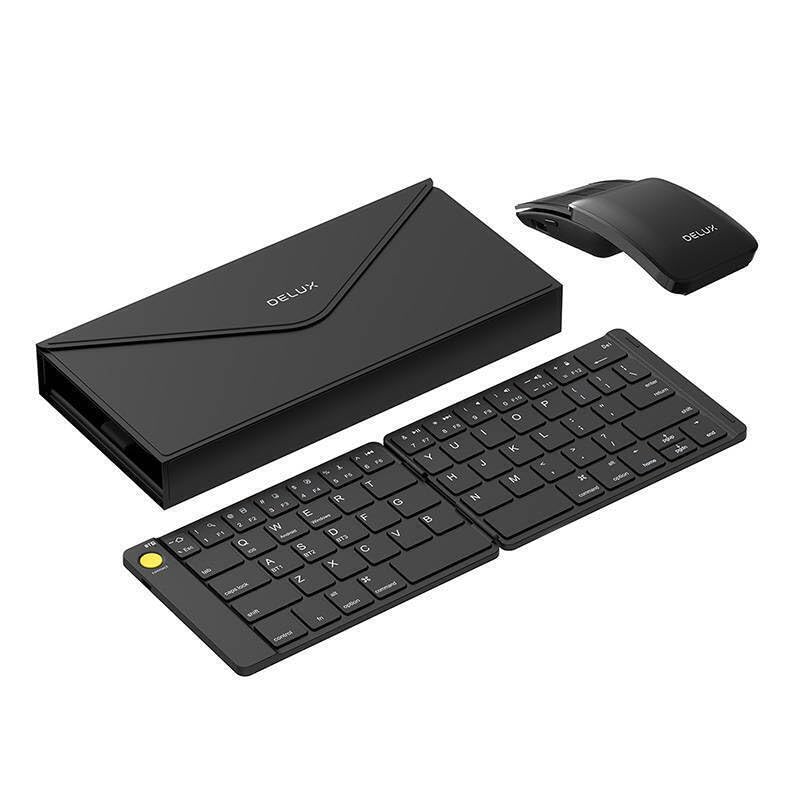
Image 1.1: The DELUX KF10 Wireless Foldable Keyboard and MF10PR Wireless Mouse set, displayed with a tablet for context.
2. Package Contents
Verify that all items are present in your package. If any items are missing or damaged, please contact your retailer.
- DELUX KF10 Wireless Foldable Keyboard
- DELUX MF10PR Wireless Mouse
- USB Charging Cable (for Keyboard)
- USB Charging Cable (for Mouse)
- User Manual (this document)

Image 2.1: The DELUX KF10 keyboard in its compact, folded state, alongside the MF10PR mouse, illustrating the portable design.
3. Setup Instructions
3.1 Charging the Devices
Before initial use, ensure both the keyboard and mouse are fully charged. Connect the provided USB charging cables to the respective charging ports on each device and to a USB power source (e.g., computer USB port, USB wall adapter). An indicator light will typically show charging status and turn off or change color when fully charged.
3.2 Keyboard Setup
- Unfold the Keyboard: Gently unfold the keyboard until it lies flat and locks into position.
- Power On: Locate the power switch, usually on the side or back of the keyboard, and slide it to the "ON" position.
- Enter Pairing Mode: Press and hold the Bluetooth pairing button (often indicated by a Bluetooth icon or "Fn" + a specific key like "C" or "1") until the indicator light flashes, signifying it's ready to pair.
- Connect to Device: On your device (computer, tablet, smartphone), go to Bluetooth settings, turn Bluetooth on, and select "DELUX KF10" from the list of available devices. Follow any on-screen prompts to complete pairing.
3.3 Mouse Setup
- Power On: Locate the power switch on the bottom of the mouse and slide it to the "ON" position.
- Enter Pairing Mode: Press the Bluetooth pairing button on the bottom of the mouse until the indicator light flashes.
- Connect to Device: On your device, go to Bluetooth settings and select "DELUX MF10PR" from the list of available devices. Complete pairing as prompted.

Image 3.1: The DELUX KF10 keyboard fully unfolded and the MF10PR mouse, demonstrating their operational state for connection.
4. Operating Instructions
4.1 Keyboard Operation
- Typing: Use the keyboard as a standard QWERTY layout.
- Function Keys: Many keyboards include function keys (F1-F12) that can be accessed directly or by holding the Fn key in combination with other keys for multimedia controls (e.g., volume, playback). Refer to the key legends for specific functions.
- Multi-Device Pairing (if supported): Some keyboards allow pairing with multiple devices. If your keyboard supports this, use dedicated keys (e.g., Fn + 1, 2, 3) to switch between paired devices.
- Power Saving: The keyboard will typically enter a sleep mode after a period of inactivity. Press any key to wake it up.
4.2 Mouse Operation
- Basic Functions: Left-click, right-click, and scroll wheel functions operate as standard.
- DPI Adjustment (if applicable): Some mice have a DPI button (Dots Per Inch) to adjust cursor sensitivity. Press this button to cycle through different DPI settings.
- Power Saving: The mouse will enter a sleep mode after a period of inactivity. Move the mouse or click a button to wake it up.
5. Maintenance
- Cleaning: Use a soft, dry cloth to clean the surfaces of the keyboard and mouse. For stubborn dirt, a slightly damp cloth with mild soap can be used, ensuring no liquid enters the device. Avoid harsh chemicals or abrasive materials.
- Storage: When not in use, especially for travel, fold the keyboard to protect the keys. Store both devices in a cool, dry place away from direct sunlight and extreme temperatures.
- Battery Care: To prolong battery life, avoid fully discharging the devices frequently. Charge them regularly, and if storing for an extended period, ensure they have a partial charge (around 50%).
6. Troubleshooting
6.1 Device Not Connecting/Pairing
- Check Power: Ensure both the keyboard and mouse are powered on and fully charged.
- Re-enter Pairing Mode: Put the device back into Bluetooth pairing mode (refer to Section 3.2 and 3.3).
- Device Bluetooth: Ensure Bluetooth is enabled on your host device (computer, tablet) and that it is discoverable.
- Forget Device: If previously paired, try "forgetting" or "removing" the device from your host device's Bluetooth settings and then re-pairing.
- Distance: Ensure the devices are within the effective Bluetooth range (typically 10 meters/33 feet).
- Interference: Move away from other wireless devices that might cause interference.
6.2 Unresponsive Keys/Mouse Cursor
- Battery Level: Check if the battery is low. Charge the device.
- Reconnection: Turn the device off and then on again. If necessary, re-establish the Bluetooth connection.
- Keyboard Folded: Ensure the keyboard is fully unfolded and locked into its operational position.
- Mouse Surface: For the mouse, ensure you are using it on a suitable surface.
6.3 Keyboard Typing Incorrect Characters
- Language Settings: Check your host device's keyboard language settings. Ensure they match the physical layout of your keyboard.
7. Specifications
| Feature | Detail |
|---|---|
| Brand | DELUX |
| Model Number | KF10MF10PRO |
| Connectivity | Wireless (Bluetooth) |
| Keyboard Type | Foldable |
| Mouse Type | Wireless |
| ASIN | B0BY6YF314 |
| Manufacturer | Delux |
| Date First Available | October 4, 2023 |
8. Warranty and Support
Information regarding specific warranty terms and customer support contact details was not available in the provided product data. Please refer to the product packaging or the manufacturer's official website for the most current warranty information and support options.


