
1. Introduction
This manual provides detailed instructions for the setup, operation, maintenance, and troubleshooting of your DeLux K9852 RGB Gaming Keyboard. Please read this manual thoroughly before using the product to ensure proper functionality and to prevent damage.
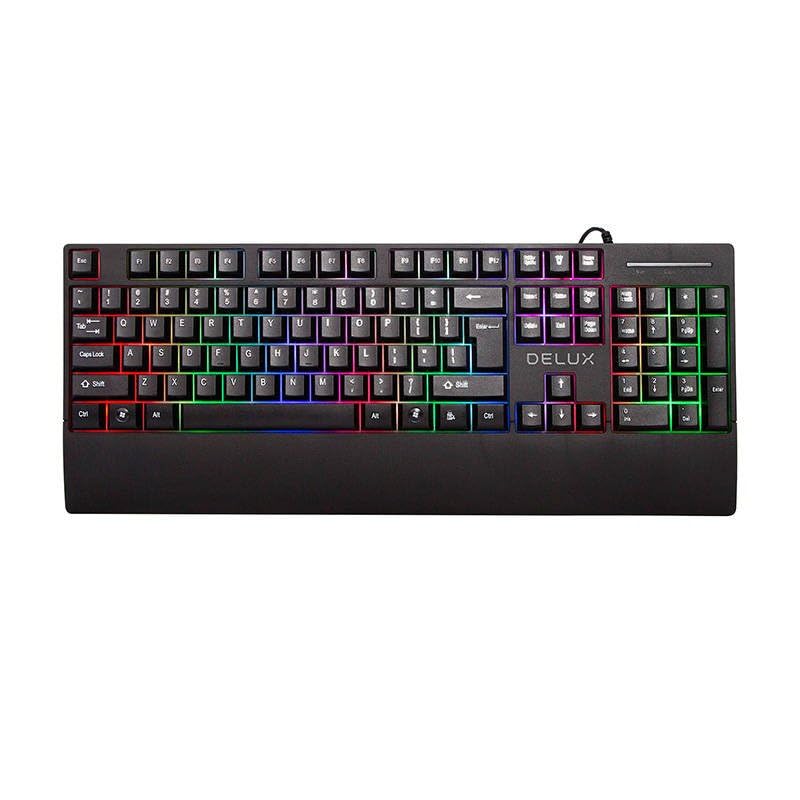
The DeLux K9852 is a high-performance gaming keyboard designed for an enhanced gaming experience, featuring customizable RGB lighting and durable construction.
2. Safety Information
Observe the following safety precautions to avoid damage to the device or injury to yourself:
- Keep the keyboard away from liquids and excessive moisture.
- Do not expose the keyboard to extreme temperatures.
- Avoid dropping or subjecting the keyboard to strong impacts.
- Do not attempt to disassemble or modify the keyboard. This will void the warranty.
- Clean the keyboard with a soft, dry cloth only.
3. Package Contents
Verify that all items are present in the package:
- DeLux K9852 RGB Gaming Keyboard
- USB-A to USB-C Cable (if detachable) or Integrated USB Cable
- User Manual (this document)
- Keycap Puller (optional, if included)
4. Setup
4.1 Connecting the Keyboard
- Locate an available USB port on your computer.
- Plug the USB connector of the DeLux K9852 keyboard into the USB port.
- The operating system will automatically detect and install the necessary drivers. This process may take a few moments.
- Once installed, the keyboard's default RGB lighting will illuminate, indicating it is ready for use.
4.2 Software Installation (Optional)
For advanced customization, including macro programming and detailed RGB lighting effects, download the official DeLux K9852 software from the manufacturer's website. Follow the on-screen instructions for installation.
5. Operating Instructions
5.1 Basic Keyboard Functions
The DeLux K9852 functions as a standard QWERTY keyboard. All standard keys operate as expected.
5.2 RGB Lighting Control
The keyboard features various RGB lighting modes and customization options:
- Fn + F1-F12: These keys may have pre-assigned multimedia or system functions. Refer to the keyboard's keycap legends for specific functions.
- Fn + [Key]: Specific key combinations control lighting effects. Common combinations include:
- Fn + Ins: Cycle through lighting modes.
- Fn + Home: Adjust lighting brightness.
- Fn + PgUp: Change lighting speed/direction.
- Fn + Del: Cycle through single colors in static modes.
For advanced RGB customization, use the dedicated DeLux software.
5.3 Macro Programming (via Software)
The DeLux K9852 supports macro programming through its dedicated software. This allows you to assign a sequence of keystrokes or commands to a single key.
- Open the DeLux K9852 software.
- Navigate to the "Macro" or "Key Assignment" section.
- Select the key you wish to program.
- Record or input the desired sequence of actions.
- Save the macro to the selected key.
6. Maintenance
6.1 Cleaning the Keyboard
Regular cleaning helps maintain the keyboard's performance and appearance.
- Disconnect the keyboard from your computer before cleaning.
- Use a soft, lint-free cloth, slightly dampened with water or a mild cleaning solution, to wipe the keycaps and surface.
- For dust and debris between keys, use compressed air.
- Do not spray cleaning solutions directly onto the keyboard.
6.2 Storage
When not in use for extended periods, store the keyboard in a cool, dry place, away from direct sunlight and extreme temperatures.
7. Troubleshooting
| Problem | Possible Cause | Solution |
|---|---|---|
| Keyboard not responding. | Loose USB connection, faulty USB port, driver issue. |
|
| RGB lighting not working. | Lighting mode off, brightness set to minimum, software conflict. |
|
| Keys are not registering. | Debris under keycap, switch malfunction. |
|
8. Specifications
| Feature | Detail |
|---|---|
| Model | K9852 |
| Brand | DELUX |
| Connectivity | USB Wired |
| Lighting | RGB Backlighting |
| Key Type | Mechanical (assumed for gaming keyboard) |
| Weight | 820 g |
9. Warranty and Support
9.1 Warranty Information
The DeLux K9852 RGB Gaming Keyboard comes with a standard manufacturer's warranty. Please refer to the warranty card included in your package or visit the official DeLux website for detailed warranty terms and conditions. The warranty typically covers defects in materials and workmanship under normal use.
9.2 Customer Support
If you encounter any issues not covered in the troubleshooting section or require further assistance, please contact DeLux customer support:
- Website: www.deluxworld.com (Example link, replace with actual if known)
- Email: support@deluxworld.com (Example email, replace with actual if known)
- Phone: Refer to the official website for regional contact numbers.
When contacting support, please have your product model (K9852) and purchase information ready.


