
Introduction
Thank you for choosing the DAREU Ergonomic Vertical Wireless Mouse. This manual provides detailed instructions on how to set up, operate, and maintain your new mouse, ensuring optimal performance and comfort. This mouse is designed to reduce wrist strain and promote a more natural hand position during extended use.

Image: The DAREU Ergonomic Vertical Wireless Mouse, showcasing its distinct vertical orientation and ergonomic contours.
Setup
1. Battery Installation
The DAREU Ergonomic Vertical Wireless Mouse requires one (1) AA battery (not included). Follow these steps to install the battery:
- Locate the battery compartment cover on the underside of the mouse.
- Gently slide or lift the cover to open the compartment.
- Insert one AA battery, ensuring the positive (+) and negative (-) terminals align correctly with the markings inside the compartment.
- Replace the battery compartment cover until it clicks securely into place.
- Locate the power switch on the underside of the mouse and slide it to the 'ON' position.
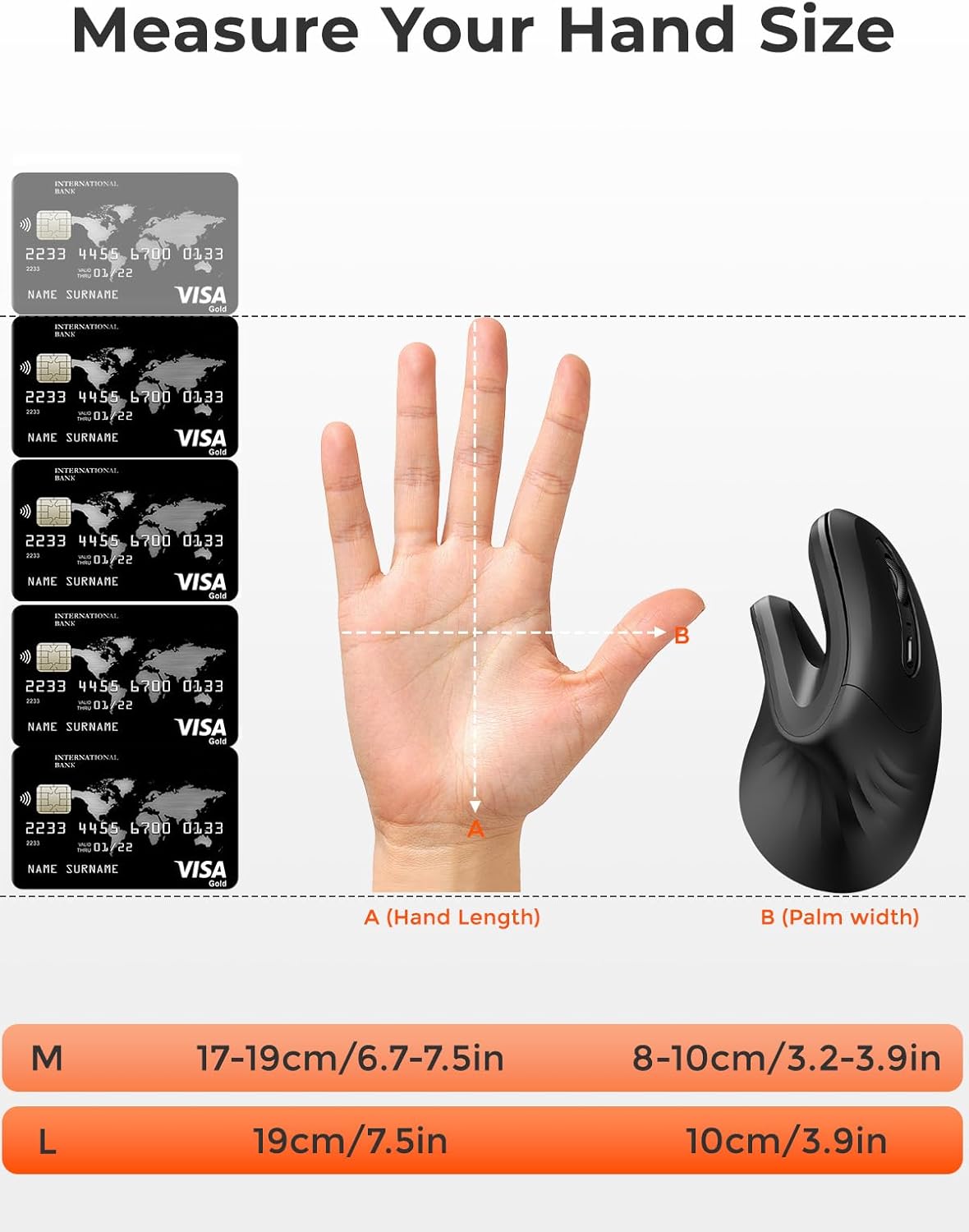
Image: View of the mouse's underside, illustrating the open battery compartment and the storage slot for the 2.4GHz USB receiver.
2. Connection Methods
Your DAREU mouse supports two connection methods: 2.4GHz wireless via USB receiver and Bluetooth 4.0. You can easily switch between these modes.
2.1. 2.4GHz Wireless Connection
- Locate the USB receiver stored inside the battery compartment of the mouse.
- Plug the USB receiver into an available USB-A port on your computer.
- Ensure the mouse is powered on. The mouse should automatically connect to your computer.
2.2. Bluetooth Connection
- Ensure the mouse is powered on.
- Press the mode switch button (often located near the DPI button or on the underside) to switch to Bluetooth mode. The indicator light will change to blue or blink to indicate Bluetooth pairing mode.
- On your computer or device, navigate to Bluetooth settings.
- Search for new devices and select "DAREU Vertical Mouse" (or similar name) from the list of available devices.
- Follow any on-screen prompts to complete the pairing process.

Image: The mouse demonstrating its ability to connect to two devices simultaneously, one via 2.4GHz wireless and another via Bluetooth.
Operating Instructions
1. Button Functions
The DAREU Ergonomic Vertical Wireless Mouse features 6 buttons for enhanced productivity:
- Left Button: Standard left-click function.
- Right Button: Standard right-click function.
- Scroll Wheel: Scroll up/down, and middle-click function when pressed.
- DPI Button: Adjusts the mouse sensitivity (DPI). Press to cycle through available DPI settings.
- Forward Button: Navigates forward in web browsers or file explorers.
- Backward Button: Navigates backward in web browsers or file explorers.

Image: A detailed diagram indicating the position and function of each button on the mouse.
2. DPI Adjustment
The DPI (Dots Per Inch) button allows you to change the cursor speed and sensitivity. Press the DPI button to cycle through different sensitivity levels. This feature is useful for tasks requiring varying levels of precision, from general browsing to detailed graphic design.

Image: Illustration of a hand using the mouse, highlighting the DPI button for sensitivity adjustment.
3. Ergonomic Usage
The mouse's 60° vertical angle is designed to keep your wrist in a natural, handshake-like position, reducing muscle strain and discomfort associated with traditional mice. Adjust your grip to allow your palm to naturally conform to the mouse's curve for optimal comfort.

Image: Comparison illustrating the ergonomic benefit of the vertical mouse in reducing wrist strain compared to a traditional mouse.

Image: Visual representation of the mouse's 60-degree vertical angle, designed for natural hand positioning.
4. Silent Clicks
The DAREU Ergonomic Vertical Wireless Mouse features silent click buttons, minimizing noise during use. This makes it ideal for quiet environments such as offices, libraries, or shared workspaces, ensuring you do not disturb others.

Image: The mouse in use, highlighting its silent click feature for a quiet working environment.
Maintenance
Cleaning
To ensure the longevity and optimal performance of your mouse, follow these cleaning guidelines:
- Disconnect the mouse from your computer (if wired) or turn it off (if wireless) before cleaning.
- Use a soft, lint-free cloth slightly dampened with water or a mild cleaning solution.
- Wipe the surface of the mouse gently. Avoid getting moisture into any openings.
- For optical sensor cleaning, use a dry cotton swab to gently remove any dust or debris.
- Do not use harsh chemicals, abrasive cleaners, or aerosol sprays.
Battery Replacement
When the battery is low, the LED indicator light on the mouse will blink. Replace the AA battery as described in the 'Battery Installation' section under Setup.
Troubleshooting
If you encounter issues with your DAREU Ergonomic Vertical Wireless Mouse, refer to the following common problems and solutions:
| Problem | Possible Cause | Solution |
|---|---|---|
| Mouse not responding | Low battery Incorrect connection mode USB receiver not plugged in (2.4GHz) Bluetooth not paired or disconnected | Replace battery Ensure mouse is in correct mode (2.4GHz or BT) Plug USB receiver firmly into a working USB port Re-pair Bluetooth connection in device settings |
| Cursor movement is erratic or jumpy | Dirty optical sensor Unsuitable surface Interference | Clean the optical sensor with a dry cotton swab Use the mouse on a clean, non-reflective surface or a mouse pad Move mouse closer to receiver/device; remove other wireless devices |
| Buttons not working | Software conflict Hardware issue | Restart your computer Test mouse on another computer to rule out hardware defect |
| Cannot switch between devices | Incorrect button press | Ensure you are pressing the correct mode switch button. Refer to the button description image. |
Specifications
Below are the technical specifications for the DAREU Ergonomic Vertical Wireless Mouse:
- Model: LM109D - 2.4GHz / BT
- Connectivity Technology: 2.4GHz Wireless (USB-A receiver), Bluetooth 4.0
- Movement Detection Technology: Optical
- Number of Buttons: 6
- Ergonomic Angle: 60° Vertical
- Power Source: 1 x AA Battery (not included)
- Item Weight: 3.2 ounces (approx. 90.7 grams)
- Color: Black
- Compatibility: macOS, Windows, Linux, Chrome OS
- Special Features: Portable, Touch Scroll, Wireless, Silent Clicks, Power-saving mode (enters after ~8 minutes idle)
Dimensions

Image: Detailed dimensions of the mouse from various angles.
Hand Size Guide
This vertical mouse is designed for medium to large hand sizes. To determine if this mouse is a good fit for you, measure your hand length (from the base of your palm to the tip of your middle finger) and palm width (across the widest part of your palm, excluding the thumb).
| Size | Hand Length (A) | Palm Width (B) |
|---|---|---|
| Medium (M) | 17-19 cm / 6.7-7.5 inches | 8-10 cm / 3.2-3.9 inches |
| Large (L) | >19 cm / >7.5 inches | >10 cm / >3.9 inches |

Image: Guide for measuring hand size to ensure proper fit with the vertical mouse.
Warranty Information
Specific warranty details for the DAREU Ergonomic Vertical Wireless Mouse are typically provided with your purchase documentation or on the official DAREU website. Please refer to these resources for comprehensive warranty terms and conditions.
Customer Support
For technical assistance, troubleshooting beyond this manual, or general inquiries, please visit the official DAREU website or contact their customer support channels. Contact information can usually be found on the product packaging or the brand's official online presence.