Download PDFFree PDF. The Save button below keeps a bookmark and private notes in your account.
MEDION ERAZER Engineer P10 Gaming PC
User Manual
1. General Information
This manual provides essential instructions for the setup, operation, maintenance, and troubleshooting of your MEDION ERAZER Engineer P10 Gaming PC, model BB00148. Please read this manual carefully before using your new computer.
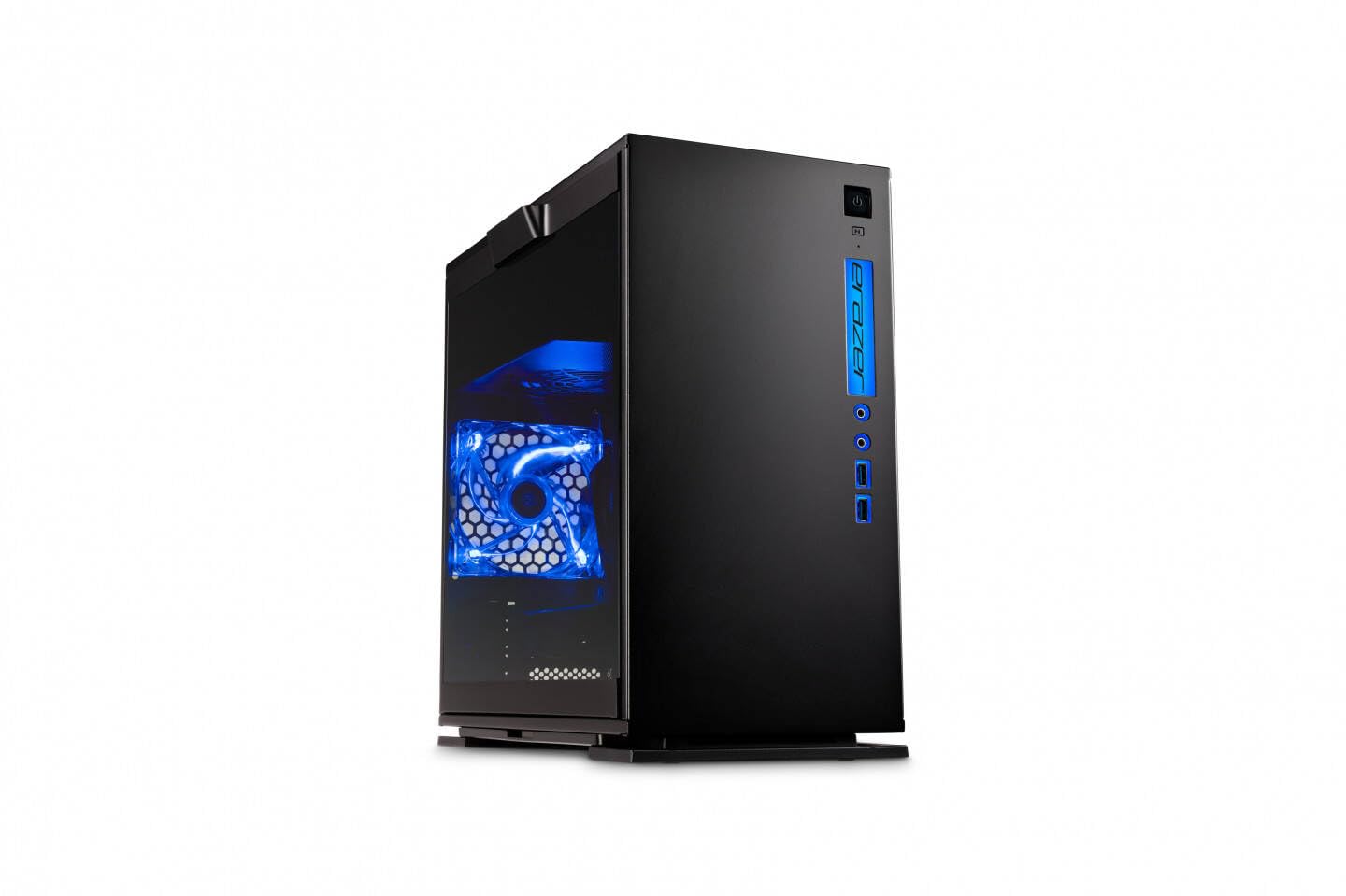
Figure 1: Front view of the MEDION ERAZER Engineer P10 Gaming PC.
The MEDION ERAZER Engineer P10 is a high-performance gaming desktop PC designed for demanding applications, including gaming, multimedia editing, and professional tasks. It features an Intel Core i5-11400 processor, 16 GB of RAM, a 512 GB SSD, and an NVIDIA GeForce RTX 3060 Ti graphics card, running on Windows 11 Home Plus 64-bit.
2. Setup Instructions
2.1 Unboxing and Placement
Carefully remove the computer and all accessories from the packaging. Place the PC tower on a stable, flat surface with adequate ventilation. Ensure no vents are obstructed.
Figure 2: Angled view of the MEDION ERAZER Engineer P10 Gaming PC, showing side panel and front.
2.2 Connecting Peripherals
Connect your monitor, keyboard, mouse, and other peripherals to the appropriate ports on the rear and front of the PC. The system includes a mouse in the box.
Rear I/O: 1x HDMI 2.1, 3x DisplayPort 1.4a, 2x USB 2.0, 3x USB 3.2 Gen1 Type-A, 1x USB 3.2 Gen2 Type-C, 1x LAN RJ45, 1x audio out, 1x audio in, 1x microphone in.
Front I/O: 2x USB 3.2 Gen1 Type A, 1x headphone jack, 1x microphone input.
Ensure all cables are securely connected. Connect the power cable to the PC and then to a power outlet. The power plug type is Type E (2-pin, France).
2.3 First Boot and Windows Setup
Press the power button located on the front of the PC. The system will boot into Windows 11 Home. Follow the on-screen instructions to complete the initial Windows setup, including language selection, network connection, and user account creation.
3. Operating Instructions
3.1 General Usage
Your MEDION ERAZER Engineer P10 is ready for use immediately after setup. It is optimized for:
Gaming: Experience smooth gameplay with the NVIDIA GeForce RTX 3060 Ti graphics card and Intel Core i5 processor.
Multimedia: Ideal for video calls, content consumption, and creative tasks.
Professional Use: Suitable for demanding work applications due to its powerful components.
3.2 Storage and Performance
The 512 GB SSD ensures fast boot times and quick application loading. The 16 GB DDR4 RAM provides ample memory for multitasking and demanding software. For optimal performance, ensure your system drivers are up to date.
4. Maintenance
4.1 System Updates
Regularly check for and install Windows updates to ensure system stability, security, and performance. Go to Settings > Windows Update to manage updates.
4.2 Security Features
Your PC comes with built-in security features including Windows Defender and Windows Firewall. Ensure these are active to protect your system from malware and unauthorized access. Secure Boot and UEFI provide additional system integrity.
4.3 Cleaning
To maintain optimal performance and prevent overheating, periodically clean the exterior of the PC and ensure air vents are free from dust. Use a soft, dry cloth for cleaning. Do not use liquid cleaners directly on the components.
5. Troubleshooting
5.1 No Power
Check if the power cable is securely connected to both the PC and the power outlet.
Ensure the power outlet is functional by testing it with another device.
Verify the power supply switch on the back of the PC (if present) is in the 'ON' position.
5.2 No Display
Ensure the monitor is powered on and the video cable (HDMI or DisplayPort) is securely connected to both the PC's graphics card output and the monitor input.
Try connecting the monitor to a different video output port on the graphics card.
Test the monitor with another device to confirm it is working correctly.
5.3 System Slowdown
Close unnecessary applications running in the background.
Check for and install any pending Windows or driver updates.
Run a system scan for malware using Windows Defender.
Ensure there is sufficient free space on your SSD.
If problems persist, refer to the official MEDION support website or contact customer service for further assistance.
6. Technical Specifications
Feature
Detail
Model Number
BB00148
Processor
Intel Core i5-11400 (2.6 GHz, 65W)
Graphics Card
NVIDIA GeForce RTX 3060 Ti (8 GB GDDR6)
RAM
16 GB DDR4 (2x 8 GB)
Storage
512 GB SSD (Intel)
Operating System
Windows 11 Home Plus 64-bit
Power Supply
550W
Dimensions (L x W x H)
42 x 17 x 39.5 cm
Weight
12.38 kg
Rear Connectivity
1x HDMI 2.1, 3x DisplayPort 1.4a, 2x USB 2.0, 3x USB 3.2 Gen1 Type-A, 1x USB 3.2 Gen2 Type-C, 1x LAN RJ45, Audio In/Out/Mic
Front Connectivity
2x USB 3.2 Gen1 Type A, 1x Headphone, 1x Microphone
Wireless Technology
802.11ac Wi-Fi, Bluetooth
Compatible Devices
Monitor, Keyboard, Printer, Speakers, Mouse, External Hard Drive
7. Warranty and Support
MEDION provides a 5-year availability for spare parts for this product. For warranty claims, technical support, or service inquiries, please contact MEDION customer service or visit the official MEDION support website. Keep your purchase receipt and product serial number handy for faster service.
Ask about setup, troubleshooting, compatibility, parts, safety, or missing instructions. Manuals+ will review the question and use this page’s manual context to help answer it.