
OPTICON L-46X
L-46X 1D & 2D USB Barcode Scanner Instruction Manual
Model: L-46X | Brand: OPTICON
1. Introduction
The OPTICON L-46X 2D Imager is a versatile barcode scanner designed to read both 1D and 2D barcodes. It incorporates Opticon’s advanced 2D CMOS imaging technology, enabling efficient point-and-shoot barcode scanning. The device features a disinfectant-ready protective casing, making it suitable for use in various environments, including healthcare settings.
2. Key Features
- Advanced Scanning Technology: Utilizes next-generation scanning technology for optimal performance, durability, and reliability.
- Robust Durability: Constructed with a durable, lightweight, and ergonomic design for comfortable extended use. The scanner is drop-tested to withstand falls of up to 6 feet onto concrete.
- Environmental Resistance: Features an IP42 rating, providing protection against dust and water splashes, making it suitable for demanding environments such as retail, logistics, and healthcare.
- Disinfectant Ready: Designed with a protective casing that can be safely disinfected.
- Connectivity: USB Cable for reliable connection to desktop and laptop computers.
3. Package Contents
Please verify that all items are present in the package:
- L-46X Barcode Scanner Unit
- USB Connection Cable
- Stand Mount (if included with your specific model)
4. Setup Guide
Follow these steps to set up your L-46X Barcode Scanner:
- Unpack the Scanner: Carefully remove the L-46X scanner and its accessories from the packaging.
- Connect the USB Cable: Insert the USB cable into the port at the base of the scanner. Connect the other end of the USB cable to an available USB port on your desktop or laptop computer.
- Driver Installation: The L-46X is typically a plug-and-play device. Your operating system (Windows, macOS, Linux) should automatically detect and install the necessary drivers. Wait for the installation to complete, which may take a few moments.
- Position the Scanner: If your model includes a stand mount, assemble it according to its instructions and place the scanner securely in the stand. Ensure the scanner is positioned for easy access and comfortable use.
- Test the Scanner: Open a text editor (e.g., Notepad, Word) or a compatible application. Scan a known barcode. The barcode data should appear in the text editor or application, indicating successful setup.
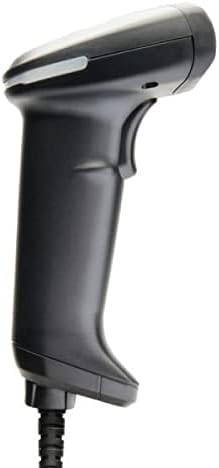
Image: The L-46X barcode scanner, a black handheld device with a trigger button and a USB cable extending from its base. This image illustrates the scanner's design and connectivity point.
5. Operating Instructions
To operate your L-46X Barcode Scanner:
- Power On: The scanner powers on automatically when connected to a powered USB port.
- Aim the Scanner: Point the scanning window of the L-46X directly at the barcode you wish to scan. Ensure the entire barcode is within the scanner's field of view.
- Press the Trigger: Press and hold the trigger button located on the handle of the scanner. A scanning beam or light will be emitted.
- Confirm Scan: Upon a successful scan, the scanner will typically emit an audible beep and/or a visual indicator (e.g., an LED light will flash). The scanned data will be transmitted to your connected computer and appear in the active application.
- Release Trigger: Release the trigger button after a successful scan.
The L-46X is capable of reading both 1D (linear) and 2D (matrix) barcodes, including QR codes, Data Matrix, and PDF417.
6. Maintenance
Proper maintenance ensures the longevity and optimal performance of your L-46X scanner:
- Cleaning the Scanning Window: Use a soft, lint-free cloth slightly dampened with water or a mild, non-abrasive cleaning solution to gently wipe the scanning window. Avoid harsh chemicals or abrasive materials that could scratch the surface.
- Cleaning the Casing: The L-46X features a disinfectant-ready casing. You may use common disinfectant wipes or solutions to clean the exterior. Always follow the disinfectant manufacturer's instructions and ensure the scanner is powered off and disconnected before cleaning.
- Storage: When not in use, store the scanner in a clean, dry environment, away from extreme temperatures, direct sunlight, and corrosive materials.
- Cable Care: Avoid bending or twisting the USB cable excessively, as this can damage the internal wires.
7. Troubleshooting
If you encounter issues with your L-46X scanner, refer to the following common problems and solutions:
| Problem | Possible Cause | Solution |
|---|---|---|
| Scanner does not power on. | USB cable not properly connected or USB port is faulty. | Ensure the USB cable is securely connected to both the scanner and the computer. Try a different USB port on your computer. |
| Scanner does not read barcodes. | Barcode is damaged, poor quality, or not supported; scanner window is dirty; incorrect aiming. | Try scanning a different, known-good barcode. Clean the scanning window. Ensure the barcode is fully within the scanner's field of view and the trigger is pressed. Verify the barcode type is supported (1D/2D). |
| Scanned data appears incorrectly. | Keyboard layout mismatch or software conflict. | Ensure your computer's keyboard layout matches the scanner's default settings. Restart the computer and the application you are using. |
| No beep or visual confirmation after scanning. | Scanner settings may have disabled feedback. | Refer to the full programming manual (available from Opticon support) to enable audible/visual feedback. |
If the problem persists, please contact Opticon customer support for further assistance.
8. Specifications
| Feature | Detail |
|---|---|
| Model | L-46X |
| Scanning Technology | 2D CMOS Imager (1D and 2D barcode support) |
| Connectivity | USB Cable |
| Power Source | Corded Electric (via USB) |
| Compatible Devices | Desktop, Laptop |
| Item Weight | 1.5 pounds |
| Durability Rating | IP42 (Dust and splash resistant) |
| Drop Specification | 6 feet to concrete |
| Manufacturer | Opticon |
9. Warranty and Support
The OPTICON L-46X Barcode Scanner is backed by a two-year manufacturer warranty from the date of purchase. This warranty covers defects in materials and workmanship under normal use.
For technical support, warranty claims, or additional information, please contact Opticon customer service. You can typically find contact details on the official Opticon website or through your product reseller.
Please retain your proof of purchase for warranty purposes.
Related documentsL-46X


Ask a question about this manual
Ask about setup, troubleshooting, compatibility, parts, safety, or missing instructions. Manuals+ will review the question and use this page’s manual context to help answer it.