
1. Introduction
This manual provides essential instructions for setting up, operating, maintaining, and troubleshooting your realme C33 smartphone (Model RMX3624). Please read this guide thoroughly to ensure proper use and to maximize the device's performance and longevity.

Figure 1.1: Front and back view of the realme C33 smartphone. The front displays the screen, while the back shows the camera module and realme branding.
2. Setup
2.1 SIM Card and MicroSD Card Installation
The realme C33 supports Dual-SIM functionality and a dedicated slot for a MicroSD card to expand storage. Follow these steps to install your cards:
- Locate the SIM card tray on the side of your device.
- Insert the SIM ejector tool (usually found in the phone's packaging) into the small hole on the SIM tray. Press gently until the tray ejects.
- Carefully pull out the SIM tray.
- Place your Nano-SIM cards into the designated slots (SIM1, SIM2) and the MicroSD card into its slot, ensuring the gold contacts face downwards and the cards are correctly oriented as indicated on the tray.
- Gently push the tray back into the phone until it clicks into place.
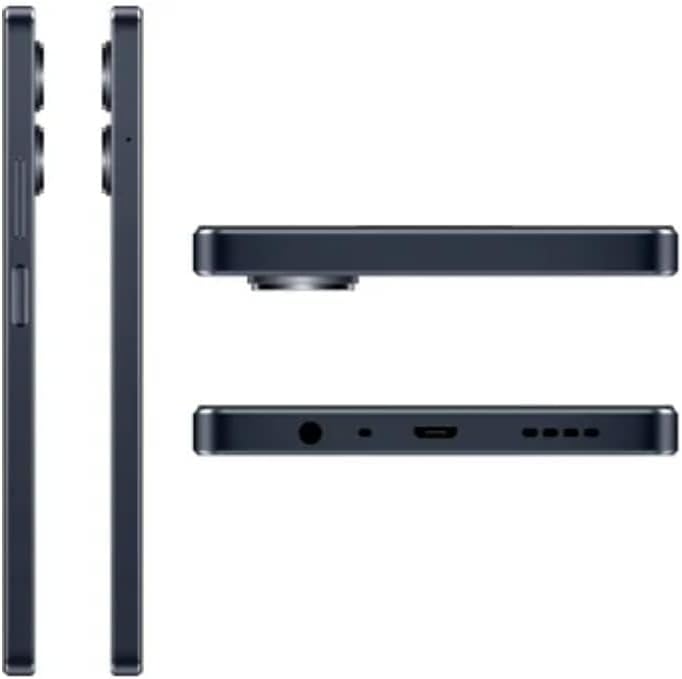
Figure 2.1: Side view of the realme C33, highlighting the location of the SIM card tray and physical buttons.
2.2 Initial Power On and Basic Configuration
After installing your SIM cards, proceed with the initial power-on and setup:
- Press and hold the Power button (located on the side) until the realme logo appears.
- Follow the on-screen prompts to select your language, region, and connect to a Wi-Fi network.
- Sign in with your Google account or create a new one to access Google services and the Play Store.
- Set up a screen lock (PIN, pattern, or fingerprint) for security.
- Review and accept the terms and conditions to complete the setup process.
3. Operating Your Device
3.1 Navigation and User Interface
The realme C33 uses a touch-based interface. Common gestures include:
- Tap: Select an item or open an app.
- Swipe: Scroll through screens, lists, or pages.
- Pinch: Zoom in or out on images and web pages.
- Long Press: Access contextual menus or move app icons.
The navigation bar at the bottom of the screen typically includes Back, Home, and Recent Apps buttons. You can customize navigation gestures in Settings.
3.2 Calls and Messaging
- Making Calls: Open the Phone app, enter the number, and tap the call icon. For dual-SIM, you may be prompted to choose which SIM to use.
- Sending SMS/MMS: Open the Messages app, tap the new message icon, enter the recipient and message, then tap send.
3.3 Camera Functions
To open the camera, tap the Camera app icon. The interface allows you to switch between photo and video modes, access settings, and apply filters. Tap the shutter button to capture an image or start/stop video recording.

Figure 3.1: Angled view of the realme C33, showcasing the dual camera module on the rear and the display.
3.4 Connectivity
- Wi-Fi: Go to Settings > Network & internet > Wi-Fi to connect to available networks.
- Bluetooth: Go to Settings > Connected devices > Bluetooth to pair with other Bluetooth devices like headphones or speakers.
- Mobile Data: Ensure your SIM card is active and mobile data is enabled in Settings > Network & internet > Mobile network.
4. Maintenance
4.1 Battery Care
- Use only realme-approved chargers and cables.
- Avoid extreme temperatures when charging or using the device.
- To optimize battery life, manage background apps and adjust screen brightness.
4.2 Software Updates
Regular software updates provide security enhancements and new features. To check for updates, go to Settings > System > System update.
4.3 Cleaning Your Device
Use a soft, lint-free cloth to clean the screen and body of your phone. Avoid harsh chemicals or abrasive materials. Do not immerse the device in water.
5. Troubleshooting
5.1 Common Issues and Solutions
- Device Not Powering On: Ensure the battery is charged. Connect to a charger and wait a few minutes before attempting to power on again. If unresponsive, try a force restart by holding the Power button for 10-15 seconds.
- Network Issues (No Signal/Cannot Make Calls): Check if SIM cards are correctly inserted. Verify that Airplane Mode is off. Contact your mobile carrier to ensure your service is active.
- Apps Crashing or Freezing: Close and reopen the app. Clear the app's cache (Settings > Apps > [App Name] > Storage & cache > Clear cache). If the issue persists, uninstall and reinstall the app.
- Slow Performance: Close unnecessary background apps. Clear cache and temporary files. Consider performing a factory reset as a last resort (see 5.2).
5.2 Factory Reset
A factory reset will erase all data on your phone and restore it to its original factory settings. Backup all important data before proceeding. To perform a factory reset, go to Settings > System > Reset options > Erase all data (factory reset).
6. Specifications
Key technical specifications for the realme C33 (Model RMX3624):
| Feature | Specification |
|---|---|
| Model Number | RMX3624 |
| Display Size | 6.5 Inches |
| Max Screen Resolution | 1920 x 1080 |
| Processor Speed | 1.8 GHz |
| RAM | 4 GB |
| Internal Storage | 128 GB |
| Operating System | Android |
| Cellular Technology | 4G/LTE (GSM Only) |
| Connectivity | Bluetooth, USB 2.0 Micro B |
| Item Weight | 6.6 ounces (approx. 187 grams) |
| Dimensions (LxWxH) | 19.69 x 19.69 x 11.02 inches (Note: These dimensions seem unusually large for a phone and might refer to packaging. Refer to official realme product page for exact device dimensions.) |
| Battery | 1 Lithium Ion battery required |
7. Warranty and Support
For warranty information, technical support, or service inquiries, please refer to the warranty card included with your product or visit the official realme support website. You can also find additional resources and FAQs on their website.
Official realme Support: https://www.realme.com/global/support