
Introduction
This manual provides detailed instructions for the setup, operation, and maintenance of your Guiheng Bluetooth Wireless Keyboard and Mouse Combo. This combo offers dual-mode connectivity (2.4G wireless and Bluetooth) allowing seamless switching between two devices. Its ultra-thin, portable design and responsive scissor-switch keys are engineered for comfortable and efficient use across various devices.

Image: The Guiheng Bluetooth Wireless Keyboard and Mouse Combo, showcasing the gold-colored keyboard and mouse.
Product Features
- Ultra-Thin & Portable Design: The 78-key keyboard is compact and lightweight, designed for easy transport.
- Wide Compatibility:
- 2.4G USB connection: Compatible with Windows XP/7/8/10, Mac OS.
- Bluetooth connection: Compatible with Windows 8/10, Mac OS, Android, iOS.
- Dual Mode Connectivity: Connect to two devices simultaneously using Bluetooth and 2.4G USB, with easy switching.
- Responsive Keystrokes: Features scissor-switch construction keys for precise control, good resilience, and fast response.
- Ergonomic Design: Keyboard with an ergonomic tilt angle and contoured mouse shape for comfortable, extended use.
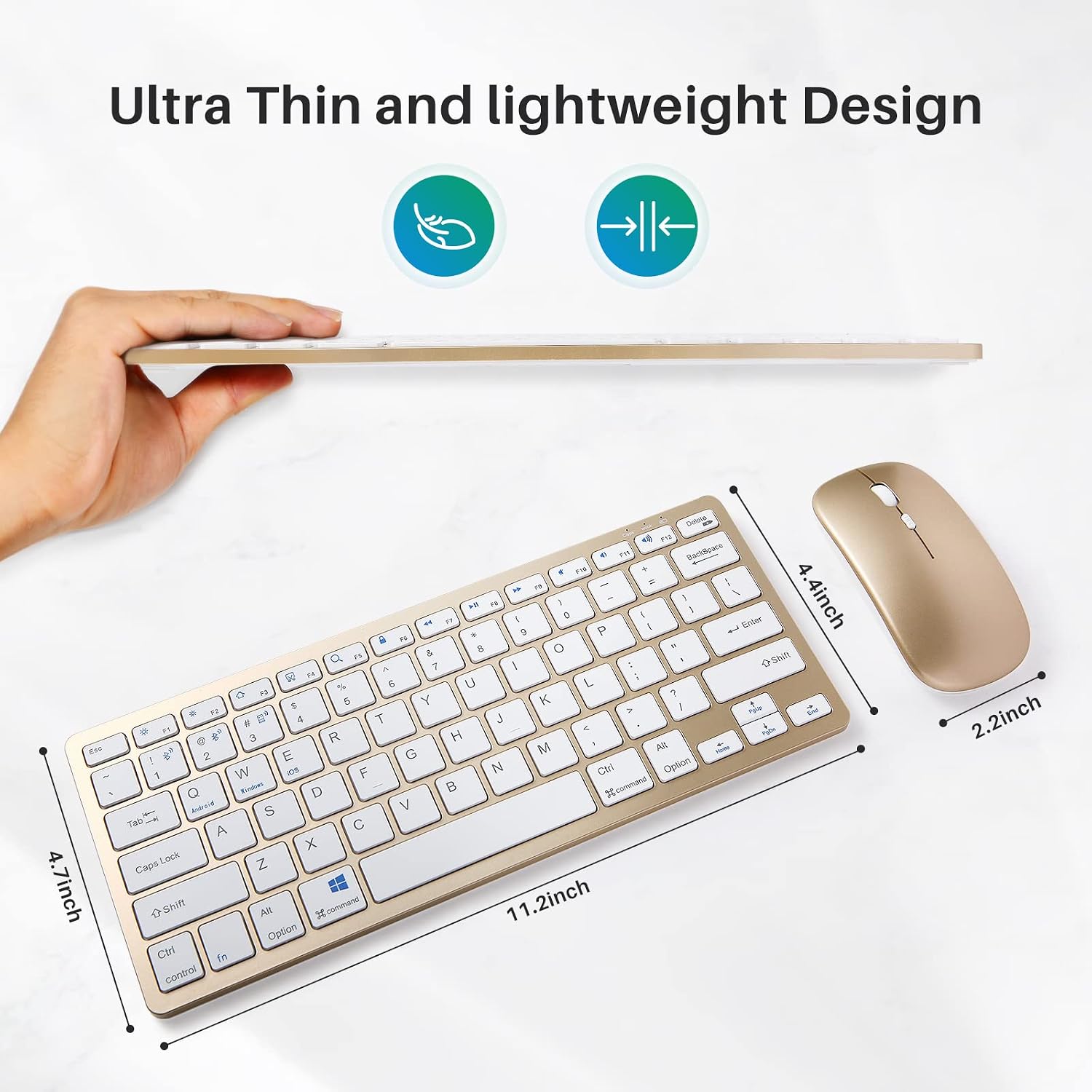
Image: The ultra-thin profile of the keyboard and mouse, highlighting their compact dimensions (keyboard: 11.2 inches x 4.7 inches; mouse: 4.4 inches x 2.2 inches).

Image: Illustration of the ergonomic design of the mouse, showing a comfortable hand posture and adjustable DPI settings (800, 1200, 1600).
Setup Instructions
1. Charging the Devices
Before initial use, ensure both the keyboard and mouse are fully charged. Connect the provided charging cable to the Micro-USB port on each device and to a USB power source. The charging indicator will typically show charging status and turn off or change color when fully charged.

Image: The keyboard and mouse in use with multiple devices (PC, laptop, tablet, smartphone), illustrating the Micro-USB charging port on the keyboard.
2. Connecting via 2.4G USB Dongle
- Locate the USB receiver (dongle) stored in the mouse's battery compartment.
- Insert the USB receiver into an available USB port on your computer or device.
- Turn on the keyboard and mouse using their respective power switches.
- On the keyboard, press Fn + 3 to activate 2.4G connection mode. The keyboard and mouse should connect automatically.

Image: A close-up view of the mouse's underside, indicating the storage compartment for the USB receiver.
3. Connecting via Bluetooth
The combo supports two separate Bluetooth connections (Bluetooth 1 and Bluetooth 2).
- For Keyboard Bluetooth Pairing:
- Press and hold Fn + 1 for 3 seconds to enter Bluetooth 1 pairing mode. The indicator light will blink.
- Alternatively, press and hold Fn + 2 for 3 seconds to enter Bluetooth 2 pairing mode. The indicator light will blink.
- On your device (computer, tablet, smartphone), go to Bluetooth settings and search for new devices. Select "Bluetooth Keyboard" or a similar name to pair.
- For Mouse Bluetooth Pairing:
- Press and hold the small button located below the scroll wheel on the mouse until the tracking light on the bottom blinks slowly. This indicates pairing mode.
- On your device, go to Bluetooth settings and search for new devices. Select "BTS Mouse 5.2" or a similar name to pair.

Image: Diagram illustrating the keyboard's dual-mode connectivity, showing key combinations for Bluetooth 1 (Fn+1), Bluetooth 2 (Fn+2), and 2.4G USB (Fn+3).

Image: A setup showing the keyboard and mouse wirelessly connected to a laptop via Bluetooth and a desktop monitor via 2.4GHz, demonstrating multi-device capability.
Operating Instructions
Switching Between Devices
To switch between connected devices:
- For Bluetooth Device 1: Press Fn + 1.
- For Bluetooth Device 2: Press Fn + 2.
- For 2.4G USB Device: Press Fn + 3.
The mouse will automatically follow the keyboard's connection mode if paired correctly.
Keyboard Function Keys
The keyboard features function keys (F1-F12) that can be accessed directly or by holding the Fn key in combination with other keys for special functions (e.g., media control, volume adjustment). Refer to the keycap legends for specific functions.
Mouse DPI Adjustment
The mouse offers adjustable DPI settings (800, 1200, 1600) to control cursor sensitivity. Press the DPI button (usually located near the scroll wheel) to cycle through the available settings.
Maintenance
- Cleaning: Use a soft, dry cloth to clean the surfaces of the keyboard and mouse. For stubborn dirt, a slightly damp cloth can be used, ensuring no liquid enters the device.
- Charging: Recharge the devices when the battery indicator light signals low power. Avoid prolonged exposure to extreme temperatures during charging.
- Storage: When not in use for extended periods, turn off the devices to conserve battery life. Store the USB receiver inside the mouse to prevent loss.
- Battery Life: Connectivity can be affected by low battery levels. Ensure devices are adequately charged for optimal performance.
Troubleshooting
| Problem | Solution |
|---|---|
| Keyboard/Mouse not connecting via 2.4G. |
|
| Keyboard/Mouse not connecting via Bluetooth. |
|
| Keys are unresponsive or typing is delayed. |
|
| Mouse cursor is erratic or not moving. |
|
Specifications
| Feature | Detail |
|---|---|
| Brand | Guiheng |
| Connectivity Technology | Bluetooth, 2.4G Radio Frequency (USB) |
| Special Feature | Ergonomic Design, Dual Mode, Ultra-Thin |
| Compatible Devices | Gaming Console, Laptop, Personal Computer, Tablet, Smartphone |
| Keyboard Keys | 78 keys, Scissor-switch |
| Mouse DPI Settings | 800, 1200, 1600 |
| Item Weight | 15.5 ounces (approx. 440g) |
| Package Dimensions | 14.25 x 5.59 x 1.06 inches |
| Color | Gold |
Warranty and Support
Specific warranty information for the Guiheng Bluetooth Wireless Keyboard and Mouse Combo is not provided in this manual. For warranty details, technical support, or customer service inquiries, please refer to the product packaging or contact the manufacturer directly through their official website or customer support channels.
Please retain your proof of purchase for any warranty claims.