
acer A515
Acer Aspire 5 Slim Laptop User Manual
Model A515
Introduction
Welcome to the user manual for your new Acer Aspire 5 Slim Laptop, Model A515. This guide provides essential information for setting up, operating, maintaining, and troubleshooting your device. Please read this manual thoroughly to ensure optimal performance and longevity of your laptop.
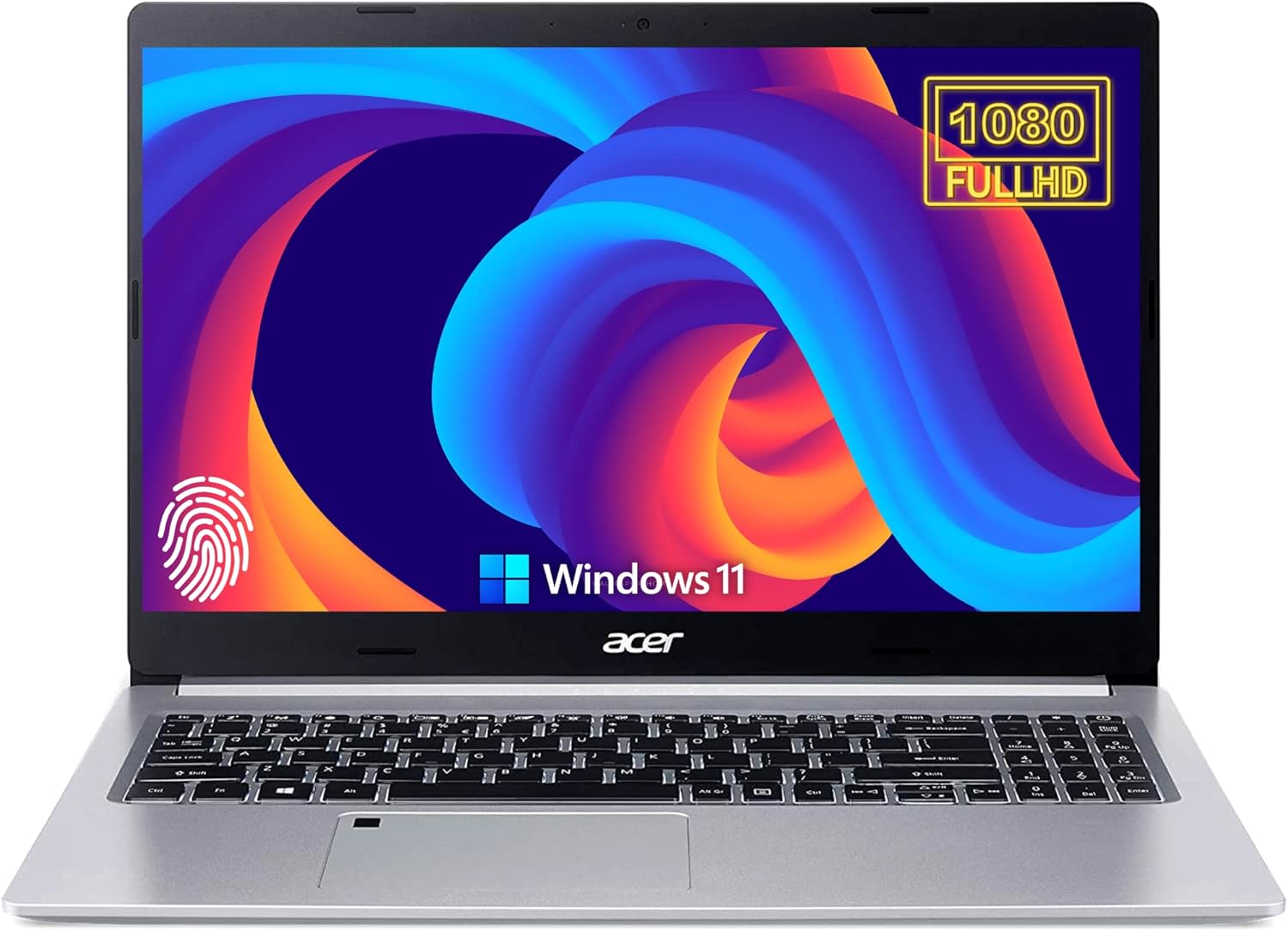
Figure 1: Acer Aspire 5 Slim Laptop. This image shows the laptop open, revealing the 15.6-inch Full HD display, keyboard, and trackpad. The screen displays a vibrant abstract wallpaper, and the Windows 11 logo is visible in the lower right corner. A fingerprint icon is also present on the trackpad area.
Setup
1. Initial Power-On
- Unpack: Carefully remove the laptop and all accessories from the packaging.
- Connect Power: Plug the AC adapter into the laptop's power port and then into a wall outlet.
- Power On: Open the laptop lid and press the power button, usually located on the top right of the keyboard or side.
- Initial Setup: Follow the on-screen instructions to complete the Windows 11 setup process, including language selection, network connection, and user account creation.
2. Connecting Peripherals
Your Acer Aspire 5 Slim Laptop offers various ports for connecting external devices. Refer to the "Operating" section for a detailed port overview.
3. Windows 11 in S Mode
The laptop comes with Windows 11 in S mode, which is a version of Windows optimized for security and performance. It exclusively uses apps from the Microsoft Store and requires Microsoft Edge for safe browsing.
Switching out of S Mode: If you need to install apps not available in the Microsoft Store, you can switch out of S mode for free.
- On your PC running Windows 11 in S mode, open Settings > Update & Security > Activation.
- In the Switch to Windows 11 Home section, select Go to the Microsoft Store and then Switch out of S mode.
- Follow the on-screen prompts. This is a one-way switch; you cannot revert to S mode.
Operating Your Laptop
1. Keyboard and Input
- Backlit Keyboard: The keyboard features backlighting for improved visibility in low-light conditions. Activation and brightness control are typically managed via function keys (e.g., Fn + F8 or similar, refer to your specific model's key legends).
- Numeric Keypad: A dedicated numeric keypad is integrated for efficient data entry.
- Fingerprint Reader: For enhanced security and quick login, the laptop includes a fingerprint reader. Set up your fingerprint in Windows Settings under "Sign-in options."

Figure 2: Laptop features including Fingerprint Login and Backlit Keyboard. This image highlights the security and convenience features of the Acer Aspire 5 laptop, showing icons for fingerprint login and a backlit keyboard.
2. Ports and Connectivity
Your laptop is equipped with various ports for connecting external devices:
- USB 3.1 Gen 1 Type-C: For high-speed data transfer and connecting compatible Type-C devices.
- USB 3.1 Gen 1 Type-A (x2): For connecting standard USB devices like mice, keyboards, or external drives.
- HDMI 1.4b: For connecting to external displays or projectors.
- Ethernet Port (RJ-45): For wired network connections.
- Headphone/Microphone Combo Jack: For audio input and output.
- AC Smart Pin: For connecting the power adapter.

Figure 3: Side view of the Acer Aspire 5 Slim Laptop. This image illustrates the placement of various ports including HDMI, Ethernet (RJ-45), USB 3.2 Type-C Gen 1, USB 3.2 Gen 1, USB 2.0, and the DC-in jack for the AC adapter. It also points out the Full HD display, backlit keyboard, and fingerprint reader.
3. Display and Graphics
The laptop features a 15.6-inch Full HD (1920 x 1080) widescreen LED-backlit IPS display. It is powered by AMD Radeon Vega 6 Graphics, providing clear visuals for everyday tasks, media consumption, and light graphics work.
4. Wireless Connectivity
- Wi-Fi 6 (IEEE 802.11ax): Provides faster and more reliable wireless internet connectivity.
- Bluetooth 5.1: For connecting wireless accessories such as headphones, speakers, and mice.
Maintenance
1. Cleaning Your Laptop
- Screen: Use a soft, lint-free cloth slightly dampened with water or a screen cleaner specifically designed for electronics. Avoid harsh chemicals.
- Keyboard and Casing: Use a soft cloth. For stubborn dirt, a slightly damp cloth with mild soap solution can be used, ensuring no liquid enters the device. Compressed air can help remove dust from between keys.
- Ports: Use compressed air to gently clear dust from ports. Avoid inserting objects into the ports.
2. Battery Care
- Avoid fully discharging the battery frequently.
- Store the laptop in a cool, dry place if not used for extended periods.
- Use only the original Acer AC adapter.
3. Software Updates
Regularly check for and install Windows updates to ensure your system has the latest security patches and performance improvements. You can find updates in Settings > Windows Update.
Troubleshooting
If you encounter issues with your Acer Aspire 5 Slim Laptop, consider the following common troubleshooting steps:
- No Power: Ensure the AC adapter is securely connected to both the laptop and a working power outlet. Try a different outlet.
- Display Issues: If the screen is blank, try connecting an external monitor to check if the issue is with the laptop's display. Adjust brightness settings.
- Connectivity Problems: For Wi-Fi, ensure Wi-Fi is enabled and you are connected to the correct network. Restart your router. For wired connections, check the Ethernet cable.
- Slow Performance: Close unnecessary applications, check for malware, and ensure your system is up to date. Consider checking disk space.
- System Not Responding: Press and hold the power button for 10-15 seconds to force a shutdown, then restart the laptop.
For more detailed troubleshooting or persistent issues, please visit the official Acer support website or contact Acer customer service.
Specifications
Below are the key technical specifications for the Acer Aspire 5 Slim Laptop (Model A515):
| Feature | Detail |
|---|---|
| Model Name | Aspire 5 (A515) |
| Display | 15.6" Full HD (1920 x 1080) Widescreen LED-backlit IPS |
| Processor | AMD Ryzen 3 3350U Quad-Core (up to 3.50GHz) |
| Graphics | AMD Radeon Vega 6 Graphics (Integrated) |
| RAM | 20GB DDR4 SDRAM |
| Storage | 1TB PCIe NVMe M.2 Solid State Drive (SSD) |
| Operating System | Windows 11 in S mode |
| Wireless Connectivity | IEEE 802.11ax (Wi-Fi 6), Bluetooth 5.1 |
| Ports | 1x USB 3.1 Gen 1 Type-C, 2x USB 3.1 Gen 1 Type-A, 1x HDMI 1.4b, 1x Ethernet (RJ-45), 1x Headphone/Mic Combo, 1x AC Smart Pin |
| Keyboard | Backlit Standard Keyboard with Numeric Keypad |
| Security | Fingerprint Reader |
| Dimensions (LxWxH) | 14.3 x 9.9 x 0.71 inches |
| Weight | 3.97 pounds |

Figure 4: Key specifications of the Acer Aspire 5 Slim Laptop. This image visually summarizes the laptop's core components: 20GB DDR4 RAM, 1TB NVMe SSD, Radeon Vega Graphics, and Windows 11 Home (note: product description states Windows 11 S mode).
Warranty and Support
Your Acer Aspire 5 Slim Laptop is covered by a manufacturer's warranty. For specific warranty terms and conditions, please refer to the documentation included with your product or visit the official Acer support website.
Acer Support:
- Online Support: Visit www.acer.com/support for drivers, manuals, FAQs, and service information.
- Contact: Contact information for technical support may vary by region. Please check the Acer support website for local contact details.
It is recommended to register your product on the Acer website to receive updates and facilitate warranty service.
Ask a question about this manual
Ask about setup, troubleshooting, compatibility, parts, safety, or missing instructions. Manuals+ will review the question and use this page’s manual context to help answer it.