1. Introduction
The Lemorele HDMI to USB-C Adapter (Model LD48) allows you to connect devices with an HDMI output to displays or AR glasses that utilize a USB-C input. This adapter supports video resolutions up to 4K at 60Hz and includes a dedicated power input for stable operation. It is designed for a wide range of applications, including gaming, multimedia viewing, and extending displays.
2. Product Overview
The Lemorele LD48 adapter features three main interfaces:
- USB-C DC 5V Power Input: This port is used to supply power to the adapter, ensuring stable performance, especially when connecting power-hungry devices or displays.
- HDMI Input: Connect your HDMI source device (e.g., game console, laptop, streaming stick) to this port.
- USB-C Output: Connect your USB-C display device (e.g., AR glasses, portable monitor) to this port.

Figure 1: Lemorele HDMI to USB-C Adapter with labeled ports.

Figure 2: Detailed view of the adapter's interfaces.
Video 1: Overview of the Lemorele HDMI to USB-C Adapter's interfaces and basic connection steps. This video demonstrates the physical ports and how to connect the power, HDMI input, and USB-C output.
3. Setup Instructions
Follow these steps to correctly set up your Lemorele HDMI to USB-C Adapter. It is crucial to connect the ports in the specified order for proper functionality.
- Connect Power: First, connect the supplied USB-C charging cable to the USB-C DC 5V power input port on the adapter. Then, connect the other end of the charging cable to a 5V power source (e.g., a wall adapter, power bank, or a USB port on your device). The indicator light on the adapter will illuminate when powered.
- Connect HDMI Input: Next, connect your HDMI source device (e.g., PS5, Nintendo Switch, laptop) to the HDMI input port on the adapter using an HDMI cable.
- Connect USB-C Output: Finally, connect your USB-C display device (e.g., AR glasses, portable monitor) to the USB-C output port on the adapter using a USB-C to USB-C cable.
3.1. Connecting to AR Glasses (e.g., XREAL Air, RayNeo, Rokid Air)
This adapter is compatible with various AR glasses. Ensure your AR glasses' firmware is updated to the latest version for optimal performance.

Figure 3: Connecting AR glasses to a laptop using the adapter.
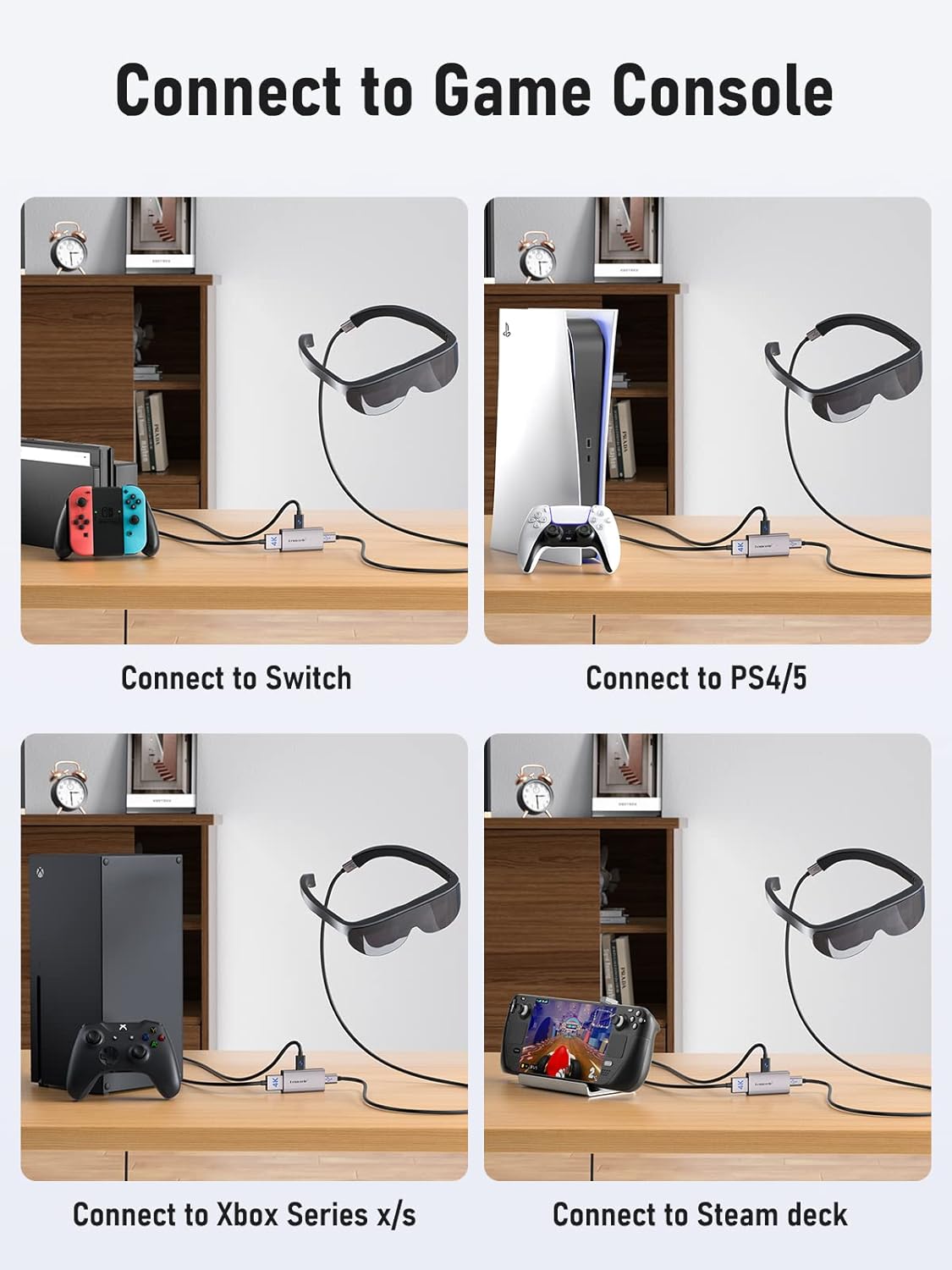
Figure 4: Connection examples for game consoles and AR glasses.
Special Note for XREAL One Audio Output: If your XREAL One glasses have no audio and video output, follow these steps:
- Double-click the "X Key" to enter Settings Mode.
- Click the "-" Key to enter Sound Mode.
- Enter Audio Protocol, then click the Universal Key to confirm "DP Mode".
- For HDMI output device sound, select "XREAL One".
3.2. Connecting to Portable Monitors or Projectors
The adapter can extend your display to a portable monitor or projector with a USB-C input.

Figure 5: Connecting a laptop to a portable monitor.
4. Operating Instructions
Once all connections are made in the correct order and the adapter is powered, the device operates on a plug-and-play basis. The connected USB-C display (AR glasses or monitor) should automatically detect the HDMI signal and display the content. No additional drivers or software are typically required.
The adapter's indicator light will confirm it is receiving power and functioning.
5. Important Notes & Compatibility
- Ensure the connected device supports audio and video transmission over its USB-C port.
- The adapter cannot be reversed (HDMI input, USB-C output).
- Avoid connecting other adapters in series, as this may affect performance or compatibility.
- Compatible AR Glasses: RayNeo, XREAL Air (formerly Nreal Air), Rokid Air, Thunderbird AR, GRAWOOA.
- Compatible Game Consoles: Nintendo Switch, PS4, PS5, Xbox, Steam Deck.
- Compatible Devices for Video Output: Portable Monitors, USB-C projectors, Google TV, Fire TV Stick, computer hosts, laptops, mobile phones, cameras, MacBook, iMac, iPad, IOS, Android, Windows, Dell, Asus, Huawei, HP, Lenovo.
6. Troubleshooting
If you encounter issues, please refer to the following common solutions:
- No Audio/Video Output (General):
- Verify all three ports (power, HDMI input, USB-C output) are connected in the correct order as described in Section 3.
- Ensure the adapter is receiving sufficient power. Try a different power source or a more powerful USB-C power adapter if available.
- Reconnect the USB-C output cable from the adapter to your display device.
- If the adapter needs to be connected/disconnected from power, reconnect the adapter's USB-C OUT port after power is stable.
- Confirm that your source device (e.g., PS5, Xbox) has its audio output set to the correct channel (e.g., headset or external display) if using AR glasses.
- No Audio/Video Output (XREAL One Specific): Refer to the special instructions in Section 3.1 regarding "DP Mode" and selecting "XREAL One" for audio output.
- Intermittent Connection: Ensure all cables are securely connected. Loose connections can cause signal drops.
- No Display on Portable Monitor: Some portable monitors require specific power delivery. Ensure the adapter is adequately powered and the monitor itself is receiving power if needed.
7. Specifications
| Feature | Detail |
|---|---|
| Model Number | LD48 |
| Product Dimensions | 1 x 0.4 x 2 inches |
| Item Weight | 1.65 ounces (0.05 Kilograms) |
| Color | Silver |
| Number of Ports | 3 (HDMI Input, USB-C Output, USB-C Power Input) |
| Max Resolution | 4K@60Hz |
8. Warranty and Support
For technical assistance or support inquiries regarding your Lemorele HDMI to USB-C Adapter, please contact Lemorele customer service. While specific warranty details are not provided in this manual, general product support can be obtained via email.
Support Email: support@lemorele.com