
Introduction
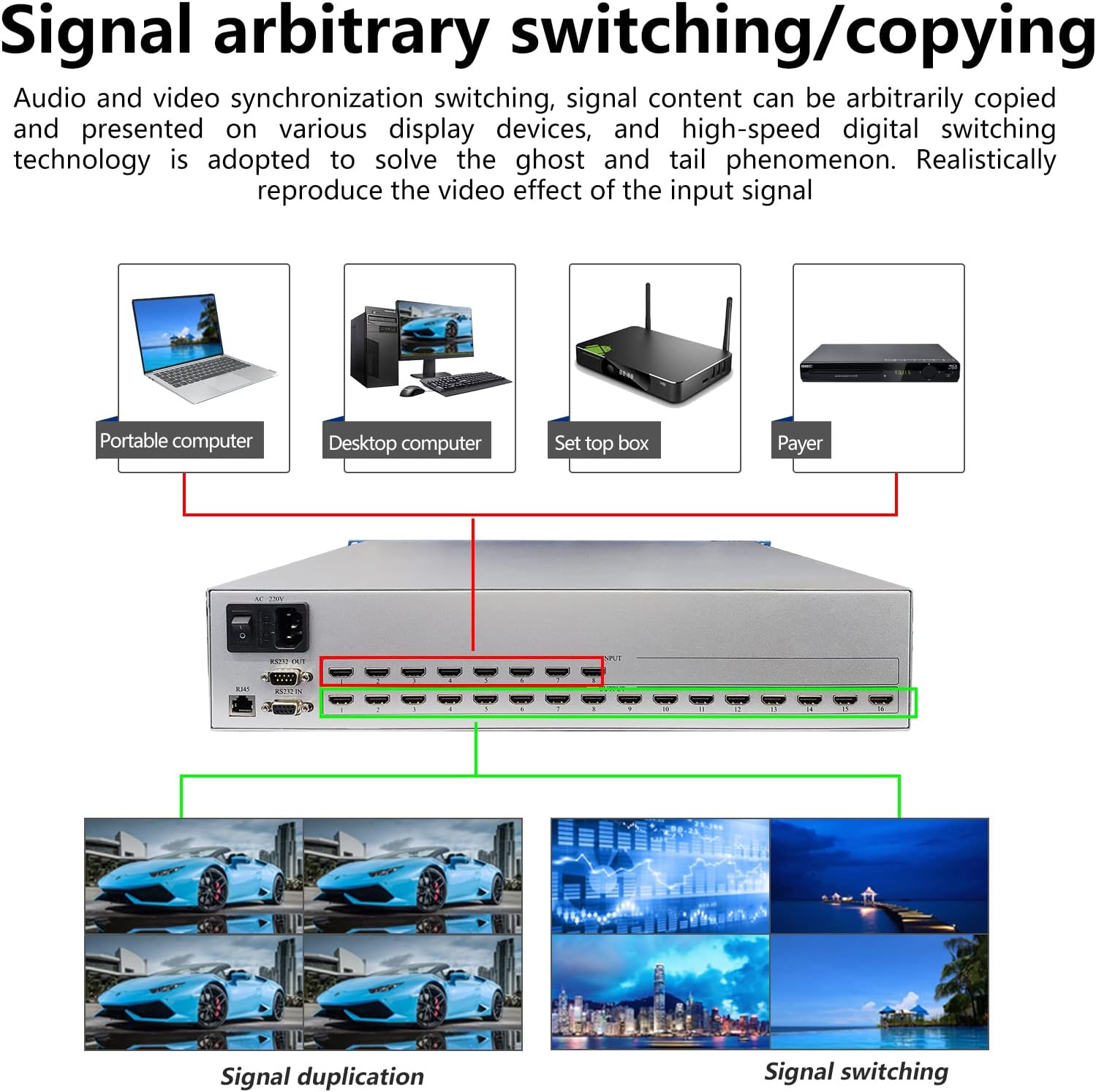
This manual provides detailed instructions for the ICUIXIAN HDMI Matrix 8x16 4K30Hz, a high-performance professional switching device designed for synchronous audio and video signal distribution. It supports 8 HDMI inputs and 16 HDMI outputs, offering advanced control options and 4K@30Hz resolution. Please read this manual thoroughly before operating the device to ensure proper setup and functionality.
Product Overview
Key Features
- 8x16 HDMI Matrix 4K30Hz: High-performance switching for 8 audio/video inputs to 16 outputs.
- EDID Management: Supports 16 scene presets for one-key calling and switching. Features a full-color LCD screen and backlit buttons for real-time information display and quick signal switching.
- 4K Ultra-High-Definition: Supports HDMI 2.0 standard, 4K@30Hz per channel, HDCP decoding, Blu-Ray, and 3D.
- Multiple Control Options: Supports computer, mobile phone, tablet, button, RS232 serial port, and WEB GUI control. Cross-platform web control requires no client software installation.
- Wide Usage Scenarios: Suitable for broadcasting, nightclubs, conference halls, large screen displays, education, command centers, restaurants, bars, casinos, hotels, and home theaters.
Product Images



Setup
Connecting the HDMI Matrix
Ensure the device is powered off before making any connections.
- Connect your HDMI source devices (e.g., PC, set-top box, DVD player) to the HDMI INPUT ports on the rear of the matrix using high-quality HDMI cables.
- Connect your display devices (e.g., televisions, projectors) to the HDMI OUTPUT ports on the rear of the matrix using high-quality HDMI cables.
- For RS232 control, connect an RS232 cable from your control system to the RS232 IN port on the matrix.
- For LAN/WEB GUI control, connect an Ethernet cable from your network to the LAN port on the matrix.
- Connect the power adapter to the AC IN port and then to a power outlet.
Operating Instructions
The ICUIXIAN HDMI Matrix offers several methods for switching inputs to outputs:
Basic Switching Operations
Front Panel Button Control
To switch an input to an output using the front panel:
- Press the input number button (1-8) corresponding to the desired source.
- Press the output number button (1-16) corresponding to the desired display.
- Press the "OK" button to confirm the selection.
This video demonstrates how to switch HDMI input signals to various output channels using the front panel buttons on the matrix switcher.
This video illustrates common switching modes for the ICUIXIAN HDMI Matrix Switch/Splitter, providing visual guidance on basic operations.
Remote Control Operation
Use the provided IR remote control to switch inputs and outputs. The remote typically has dedicated buttons for input and output selection, along with an "OK" button for confirmation.
Web GUI Control
Access the matrix's web interface by entering its IP address into a web browser on a connected computer or mobile device. The web GUI provides a visual interface for managing inputs, outputs, and other settings.
RS232 Control
For advanced integration with control systems, the matrix can be controlled via RS232 commands. Refer to the detailed RS232 command protocol document (usually provided separately) for specific commands.
EDID Management
EDID (Extended Display Identification Data) settings ensure optimal compatibility between the source and display devices.
This video guides you through the process of configuring EDID settings on the matrix switcher to ensure proper resolution and audio compatibility.
Scene Saving and Recalling
The matrix allows you to save up to 16 different input/output configurations (scenes) for quick recall.
This video demonstrates how to save current input/output configurations as scenes and recall them later using the matrix controls.
Learn how to save and recall custom profiles (scenes) using the remote control for convenient setup changes.
Maintenance
Care and Cleaning
To ensure longevity and optimal performance:
- Keep the device in a cool, dry, and well-ventilated area.
- Avoid exposing the device to moisture, extreme temperatures, or direct sunlight.
- Clean the exterior with a soft, dry cloth. Do not use liquid or aerosol cleaners.
- Ensure all cables are securely connected and not under strain.
Power-off Memory Function
The device features a power-off memory function, which restores the last active configuration upon power restoration.

Troubleshooting
Common Issues and Solutions
- No Signal on Display:
- Verify all HDMI cables are securely connected to both the source, matrix, and display.
- Ensure the correct input is selected on the matrix and the correct source is selected on the display.
- Check the EDID settings for compatibility. Try different EDID modes if available.
- Test with different HDMI cables or source devices to isolate the problem.
- Poor Picture Quality or Flickering:
- Use high-quality, certified HDMI cables, especially for longer runs or 4K resolutions.
- Check EDID settings for optimal resolution and refresh rate.
- Ensure the source device's output resolution matches the display's capabilities.
- Control Issues (Buttons, Remote, Web GUI, RS232):
- For button control, ensure buttons are pressed firmly.
- For remote control, check battery levels and ensure line-of-sight to the IR receiver.
- For Web GUI, verify network connectivity and the device's IP address.
- For RS232, confirm correct cable wiring and command syntax.
- Audio Problems:
- Ensure audio is enabled on the source device.
- Check audio settings on the display and matrix.
- Verify HDMI cables support audio transmission.
If issues persist, contact technical support.
Specifications
Technical Details
| Feature | Detail |
|---|---|
| Product Dimensions | 22 x 15.8 x 6.2 inches |
| Item Weight | 9 pounds |
| Item Model Number | A0816SK |
| Brand | ICUIXIAN |
| Connector Type | HDMI |
| Compatible Devices | PC, Television, projection |
| Cable Type | HDMI |
| Max Resolution | 4K@30Hz |
| HDMI Standard | HDMI 2.0 |
| HDCP Support | Yes |
| Control Methods | Web GUI, RS232, LAN, Buttons, Remote |
Warranty and Support
Warranty Information
For warranty details, please refer to the product packaging or contact ICUIXIAN customer service directly.
Technical Support
For technical assistance or troubleshooting not covered in this manual, please contact the seller, Sinten Store, or ICUIXIAN customer support.
Online resources and further documentation may be available via the manufacturer's website or the product's Amazon page.