
MOKiN B0BY1PDGS7 - DisplayLink Docking Station
MOKiN DisplayLink Docking Station User Manual
Model: B0BY1PDGS7
1. Introduction
This user manual provides comprehensive instructions for the MOKiN DisplayLink Docking Station. This versatile docking station is designed to expand the connectivity of your laptop, offering multiple ports for external displays, peripherals, and network connections, along with power delivery.
Please read this manual thoroughly before using the device to ensure proper setup and optimal performance.
2. Package Contents
Verify that all items listed below are included in your package:
- 1 x MOKiN DisplayLink Docking Station
- 1 x DC 120W Power Adapter
- 1 x 3ft USB-C to USB-A Cable (for USB 3.0 Laptops)
- 1 x 2ft USB-C to USB-C Cable (for Thunderbolt or USB-C 3.0 Laptops)
- 1 x User Guide (this manual)

Image: MOKiN DisplayLink Docking Station, power adapter, and connection cables.
3. Product Overview
The MOKiN DisplayLink Docking Station features a comprehensive array of ports to enhance your workstation setup.

Image: Detailed diagram of the docking station highlighting its 15-in-1 port configuration.
3.1. Port Features
- Dual HDMI & Dual DisplayPort (4K@60Hz): Supports up to two external 4K monitors simultaneously for extended or mirrored display modes.
- USB-C 3.1 Data Port (10Gbps): High-speed data transfer for modern USB-C devices.
- USB-A 3.1 Data Port (10Gbps): High-speed data transfer for USB-A devices.
- 2 x USB-A 3.0 Data Ports (5Gbps): For conventional USB peripherals like external hard drives or flash drives.
- 2 x USB-A 2.0 Ports (480Mbps): Ideal for wireless devices such as mice and keyboards to minimize interference.
- SD/TF 4.0 Card Slots (250MB/s): Fast transfer of photos and files from SD and microSD cards.
- Audio 3.5mm Jack: For connecting headphones, speakers, or microphones.
- 2.5Gbps Ethernet (RJ45): Provides a stable and ultra-fast wired network connection, backward compatible with 1000/100/10Mbps.
- DC 120W Power Input: Connects to the included power adapter to power the docking station and provide up to 120W charging to your connected laptop.
- Host Port (USB-C): Connects the docking station to your laptop.
- On/Off Switch: Power control for the docking station.
- Security Slot: For attaching a security cable.
4. Setup Guide
4.1. Driver Installation (Essential)
The MOKiN DisplayLink Docking Station requires the installation of DisplayLink drivers for full functionality, especially for multi-monitor support on macOS and Windows. Please ensure these drivers are installed before connecting your displays.
4.1.1. Windows Driver Installation
Follow these steps to install the DisplayLink driver on Windows:
- Open your web browser and navigate to the official DisplayLink download page: www.synaptics.com/products/displaylink-graphics/downloads
- Select "Windows" from the operating system options.
- Download the latest official DisplayLink USB Graphics Software for Windows.
- Read and accept the software license agreement.
- Run the downloaded installer file and follow the on-screen prompts to complete the installation.
- Restart your computer if prompted.

Image: Visual guide for downloading and installing DisplayLink drivers on Windows.
Video: Step-by-step guide on installing the DisplayLink driver for Windows operating systems.
4.1.2. macOS Driver Installation
Follow these steps to install the DisplayLink driver on macOS:
- Open your web browser and navigate to the official DisplayLink download page: www.synaptics.com/products/displaylink-graphics/downloads
- Select "macOS" from the operating system options.
- Download the latest DisplayLink Manager software.
- Run the downloaded installer file and follow the on-screen prompts.
- During installation, you may be prompted to grant screen recording permissions in "Privacy & Security" settings. This is necessary for DisplayLink to function correctly.
- Restart your Mac if prompted.

Image: Visual guide for downloading and installing DisplayLink Manager on macOS, including privacy settings.
Video: Step-by-step guide on installing the DisplayLink driver for macOS operating systems.
4.2. Connecting the Docking Station
- Connect the DC 120W power adapter to the "DC 120W" port on the docking station and plug it into a power outlet.
- Connect the appropriate USB-C cable (USB-C to USB-C for Thunderbolt/USB-C 3.0 laptops, or USB-C to USB-A for USB 3.0 laptops) from the "HOST" port on the docking station to your laptop's USB port.
- Connect your external monitors to the HDMI or DisplayPort outputs on the docking station.
- Connect any desired USB peripherals (keyboard, mouse, external drives, etc.) to the available USB-A or USB-C data ports.
- For wired internet, connect an Ethernet cable from your router/modem to the 2.5Gbps Ethernet port on the docking station.
- Connect headphones or speakers to the 3.5mm audio jack if needed.
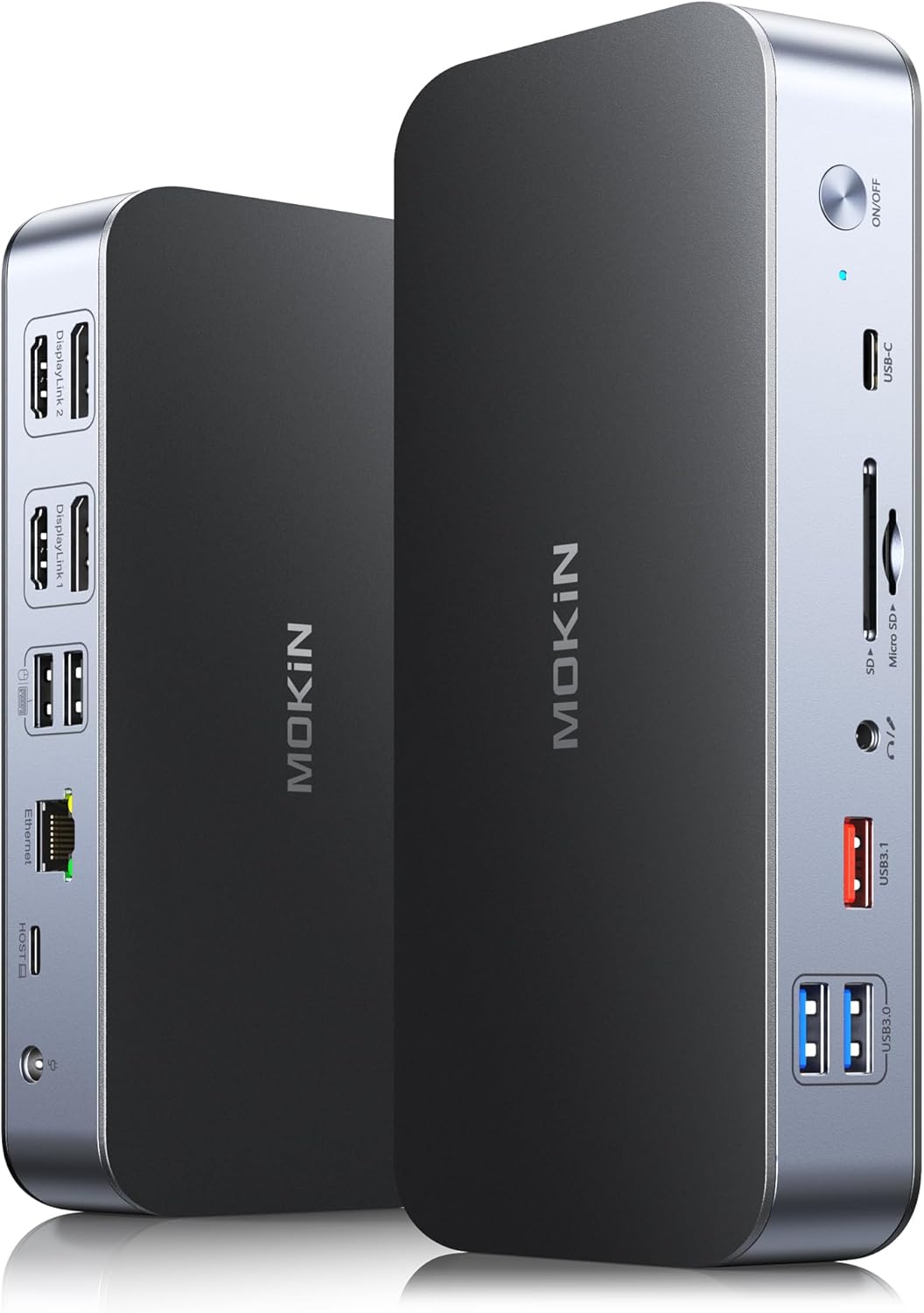
Image: The MOKiN docking station with multiple cables connected, demonstrating its full connectivity.
5. Operating Instructions
5.1. Multi-Monitor Setup
Once the DisplayLink drivers are installed and your monitors are connected, your operating system should detect the external displays. You can configure your display settings as follows:
- Windows: Right-click on the desktop, select "Display settings," and arrange your monitors. You can choose to extend your desktop across multiple screens (MST) or duplicate (mirror) your primary display.
- macOS: Go to System Settings (or System Preferences) > Displays. You can arrange displays, set resolutions, and choose between extended desktop or mirrored display modes.

Image: A laptop connected to two 4K monitors, demonstrating the dual display capability of the docking station.

Image: Illustration of mirroring dual 4K@60Hz displays for both macOS and Windows.

Image: Illustration of extending dual 4K@60Hz displays for both macOS and Windows using DisplayLink technology.
5.2. Data Transfer and Network
- High-Speed Data: Utilize the USB-C 3.1 and USB-A 3.1 ports for rapid data transfers up to 10Gbps. The USB-A 3.0 ports offer 5Gbps, and USB-A 2.0 ports are suitable for less demanding peripherals.
- Card Reader: Insert your SD or microSD cards into the dedicated slots for quick file access and transfer at speeds up to 250MB/s.
- Stable Ethernet: The 2.5Gbps Ethernet port provides a reliable and fast internet connection, superior to Wi-Fi for demanding tasks.

Image: Visual representation of data transfer speeds for USB-C 3.1, USB-A 3.0, and USB-A 2.0 ports.

Image: Comparison of SD and TF card reader speeds, highlighting the V4.0 performance.

Image: Comparison of Ethernet speeds, showing the advantage of 2.5Gbps over 1Gbps and typical Wi-Fi.
5.3. Laptop Charging
The included 120W DC power adapter provides sufficient power to operate the docking station and charge your connected laptop simultaneously, ensuring your device remains powered during use.

Image: A laptop being charged by the MOKiN docking station, illustrating the 120W power delivery capability.
6. Troubleshooting
If you encounter issues with your MOKiN DisplayLink Docking Station, please refer to the following common solutions:
- No Display Output:
- Ensure DisplayLink drivers are correctly installed for your operating system. Refer to Section 4.1.
- Check all cable connections (USB-C to laptop, HDMI/DP to monitors, power adapter).
- Verify that the docking station is powered on (check the power indicator light).
- Try different display cables or ports on the docking station/monitor.
- Update your laptop's graphics drivers.
- Intermittent Connectivity/Slow Speeds:
- Ensure the USB-C cable connecting the dock to your laptop is securely connected and is the correct type (USB 3.0/Thunderbolt compatible).
- Avoid overloading USB ports with high-power devices.
- Check your network cable and router for Ethernet issues.
- Laptop Not Charging:
- Confirm the 120W DC power adapter is securely connected to the dock and a working power outlet.
- Ensure your laptop supports charging via its connected USB-C/Thunderbolt port.
- Audio Issues:
- Check your computer's sound settings to ensure the correct audio output device (DisplayLink Audio) is selected.
- Verify headphone/speaker connections.
7. Specifications
| Feature | Detail |
|---|---|
| Brand | MOKiN |
| Model | DisplayLink Docking Station (B0BY1PDGS7) |
| Color | Matte black |
| Hardware Interface | HDMI, DisplayPort, USB-C, USB-A, Ethernet, SD/TF, Audio |
| Total Ports | 15 (including power input) |
| Video Output | 2 x HDMI (4K@60Hz), 2 x DisplayPort (4K@60Hz) |
| USB Data Ports | 1 x USB-C 3.1 (10Gbps), 1 x USB-A 3.1 (10Gbps), 2 x USB-A 3.0 (5Gbps), 2 x USB-A 2.0 (480Mbps) |
| Ethernet Port | 2.5Gbps RJ45 (10/100/1000/2500Mbps) |
| Card Reader | SD 4.0, MicroSD 4.0 (up to 250MB/s) |
| Audio Jack | 3.5mm (Input/Output) |
| Power Delivery | 120W DC Power Adapter |
| Compatible Devices | MacBook Pro/Air M1/M2/Dell/HP/Lenovo/ASUS/Acer/Samsung/Chromebook /Huawei/Surface (requires DisplayLink driver) |
| Package Dimensions | 8.5 x 5.35 x 3.46 inches |
| Item Weight | 2.31 pounds (1.05 Kilograms) |
8. Warranty and Support
MOKiN is committed to providing quality products and customer service. For any product-related inquiries, technical support, or warranty claims, please contact MOKiN customer service. Our professional team is available to assist you.
Refer to the product packaging or the official MOKiN website for the most up-to-date contact information.
Related documentsB0BY1PDGS7 - DisplayLink Docking Station


Ask a question about this manual
Ask about setup, troubleshooting, compatibility, parts, safety, or missing instructions. Manuals+ will review the question and use this page’s manual context to help answer it.