1. Introduction
Thank you for choosing the Black Shark BIGBIG WON BLITZ C2PRO Wireless Pro Controller. This manual provides detailed instructions on how to set up, operate, maintain, and troubleshoot your controller. Please read this manual thoroughly before use to ensure optimal performance and longevity of your device.
2. Product Overview
Key Features
- Multi-Platform Compatibility: Works with Nintendo Switch, Windows 10, Android 9.0+, and iOS 13.4+ (after system upgrade).
- Mechanical Buttons: Equipped with mechanical switches for crisp, fast input and zero dead zones.
- Customizable Back Buttons: Four additional buttons (2 back + 2 extra) can be mapped to A/B/X/Y/L/ZL/R/ZR/L3/R3/D for up to 16 combined functions.
- 6-Axis Gyroscope: Features "GYROCON+" technology for precise motion control, supporting all somatosensory games on Switch.
- Immersive Vibration: Asymmetrical motors provide realistic haptic feedback.
- Macro & Turbo Functions: Program complex operations to a single button and enable rapid-fire input.
- Dual-Connection Mode: Supports both Bluetooth and wired connections.
- One-Button Wake Up: Conveniently wake up your Switch console with a single button press.
Controller Components
The BIGBIG WON BLITZ C2PRO controller features a standard layout with two analog sticks, a D-pad, A/B/X/Y face buttons, L/R bumpers, ZL/ZR triggers, and additional customizable back buttons. It also includes dedicated buttons for Home, Capture, Plus, Minus, and Turbo functions.

Image: The controller's joystick, engineered for zero dead zones, ensuring precise control during gameplay.
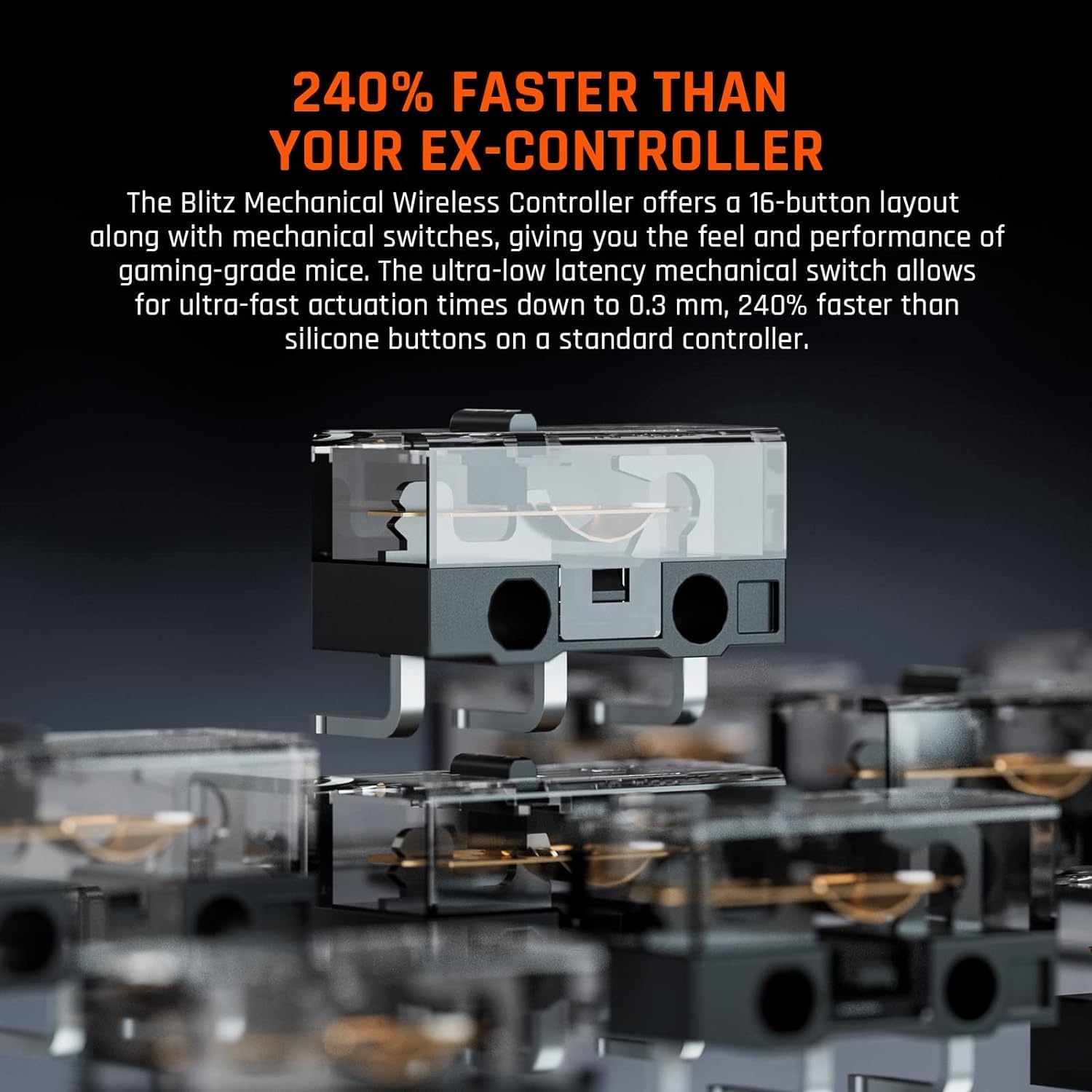
Image: Internal view of the mechanical switches, providing ultra-fast actuation times for responsive gameplay.
3. Setup
3.1 Initial Charging
Before first use, fully charge the controller using the provided Micro USB cable. Connect the cable to the controller's charging port and a USB power source (e.g., computer, USB wall adapter). The charging indicator light will show the charging status and turn off or change color when fully charged.
3.2 Connecting to Nintendo Switch (Wireless)
- On your Nintendo Switch, go to the HOME Menu.
- Select "Controllers" > "Change Grip/Order".
- Press and hold the pairing button on the BIGBIG WON BLITZ C2PRO controller until the indicator lights begin to flash rapidly.
- Once connected, the player indicator light(s) on the controller will illuminate steadily.
3.3 Connecting to Windows 10 (Wireless/Wired)
Wireless (Bluetooth):
- On your Windows 10 PC, go to "Settings" > "Devices" > "Bluetooth & other devices".
- Turn on Bluetooth and click "Add Bluetooth or other device" > "Bluetooth".
- Press and hold the pairing button on the controller until the indicator lights flash rapidly.
- Select the controller from the list of available devices to pair.
Wired:
- Connect the controller to your Windows 10 PC using the Micro USB cable.
- The PC should automatically detect and install the necessary drivers.
3.4 Connecting to Android/iOS (Wireless)
Ensure your Android device (9.0+) or iOS device (13.4+) is updated to the latest version for full compatibility.
- Enable Bluetooth on your mobile device.
- Press and hold the pairing button on the controller until the indicator lights flash rapidly.
- Select the controller from the list of available Bluetooth devices to pair.
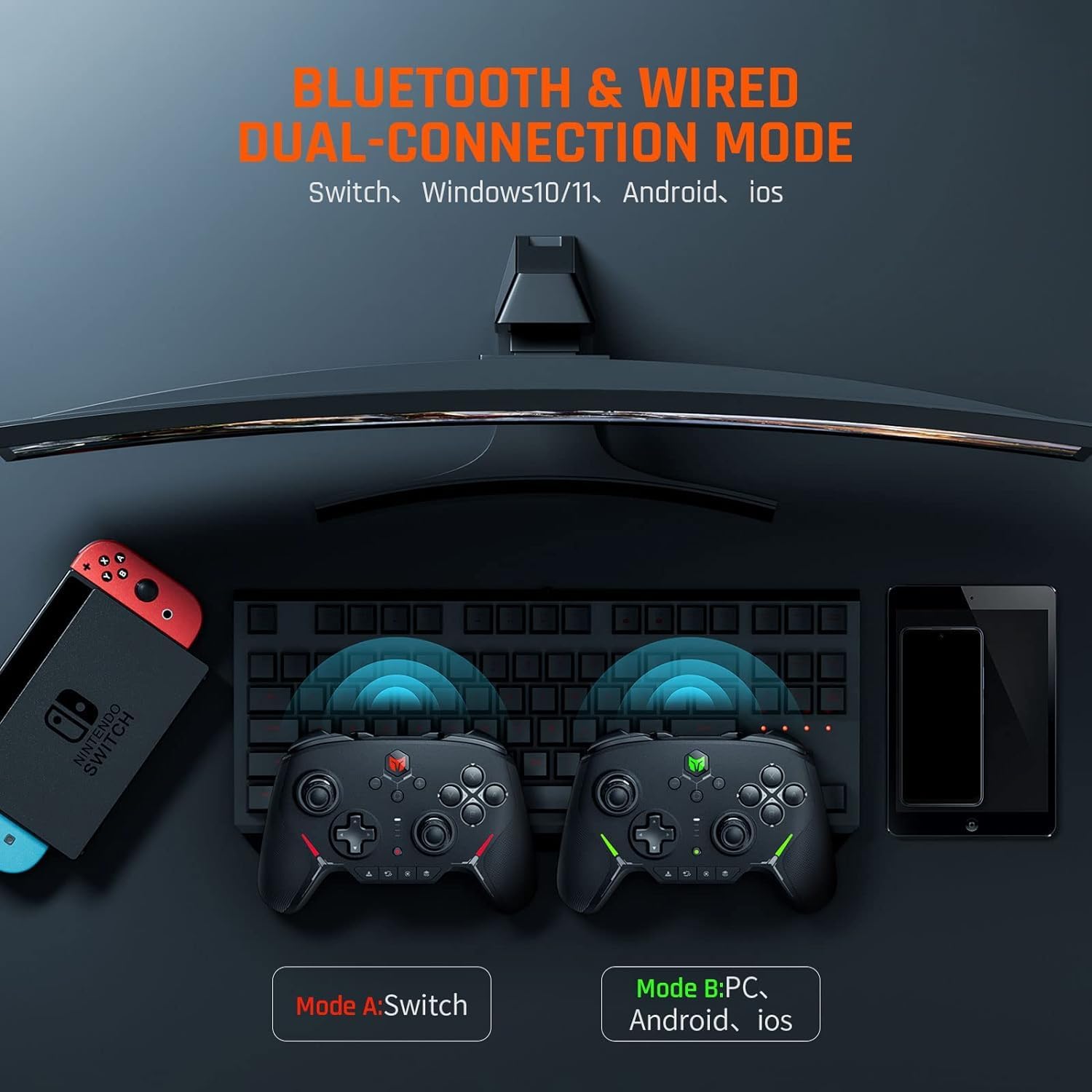
Image: The controller supports both Bluetooth and wired connections across multiple platforms including Switch, Windows, Android, and iOS.
4. Operating Instructions
4.1 Basic Controls
Familiarize yourself with the standard button layout:
- Analog Sticks: For movement and camera control.
- D-Pad: For directional input, menu navigation.
- A/B/X/Y Buttons: Action buttons, functions vary by game.
- L/R Bumpers & ZL/ZR Triggers: Shoulder buttons for various in-game actions.
- Home Button: Returns to the system's home menu.
- Capture Button: Takes screenshots or records video clips (Switch).
- Plus (+) / Minus (-) Buttons: System-specific menu buttons.
4.2 Customizing Buttons (Macro & Back Buttons)
The controller features four customizable back buttons and macro functionality. Refer to the specific instructions provided with the controller's companion software or the official BIGBIG WON website for detailed programming steps. These buttons can be mapped to single or combined functions (up to 16) to enhance your gameplay.

Image: The controller's four customizable back buttons allow for personalized configurations across various games.
4.3 Gyroscope Functionality
The integrated 6-axis gyroscope supports motion control in compatible games, especially on Nintendo Switch. This allows for intuitive aiming, steering, and other actions by tilting the controller.
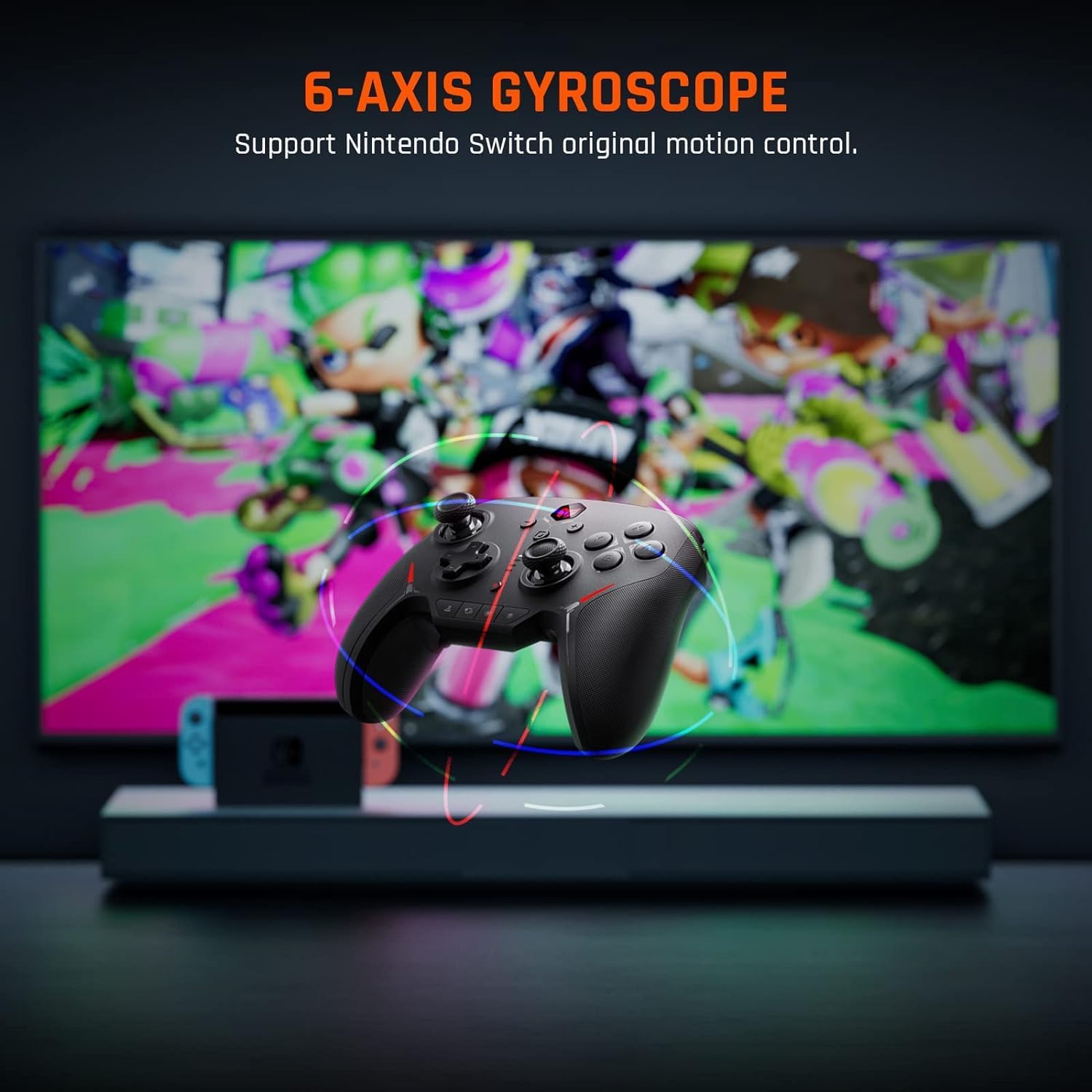
Image: The 6-axis gyroscope enables precise motion control for an enhanced gaming experience on Nintendo Switch.
4.4 Vibration Feedback
The controller's asymmetrical rumble motors provide immersive vibration feedback, reacting to in-game events like impacts, explosions, or environmental effects. The intensity of the vibration can often be adjusted through game settings or the controller's companion software.

Image: Asymmetrical rumble motors deliver immersive haptic feedback, with adjustable intensity levels.
4.5 Turbo Function
The Turbo function allows a button to be pressed repeatedly as long as it is held down, which can be useful in games requiring rapid button presses. Consult the controller's specific instructions for how to activate and assign Turbo to desired buttons.
4.6 One-Button Wake Up (Switch)
When connected to a Nintendo Switch, you can wake the console from sleep mode by pressing the Home button on the controller.

Image: The controller features a convenient one-button wake-up function for the Nintendo Switch console.
5. Maintenance
5.1 Cleaning
To clean your controller, use a soft, dry cloth. For stubborn dirt, slightly dampen the cloth with water or a mild cleaning solution. Avoid using harsh chemicals, abrasive materials, or excessive moisture, as these can damage the controller.
5.2 Storage
Store the controller in a cool, dry place away from direct sunlight, extreme temperatures, and high humidity. Keep it away from dust and liquids. If storing for an extended period, ensure the battery is partially charged (around 50%) to preserve battery health.
5.3 Battery Care
The controller contains a built-in Lithium-polymer battery. To maximize battery life:
- Avoid fully discharging the battery frequently.
- Do not expose the controller to extreme heat or cold.
- Charge the controller regularly, even if not in frequent use.

Image: The controller is compatible with an RGB magnetic charging stand (sold separately or included with specific bundles) for convenient charging and display.
6. Troubleshooting
6.1 Connection Issues
- Controller not connecting: Ensure the controller is charged. Try re-pairing the controller by holding the pairing button. For Switch, ensure "Change Grip/Order" is selected. For PC/mobile, check Bluetooth settings.
- Intermittent connection: Ensure no strong interference sources (e.g., Wi-Fi routers, other Bluetooth devices) are nearby. Move closer to the console/device.
6.2 Input Problems
- Buttons unresponsive: Check if the controller is properly connected. Test buttons in a different game or system menu. Ensure no physical obstructions.
- Joystick drift: Perform joystick calibration through your console's or PC's system settings. If the issue persists, contact support.
6.3 Charging Issues
- Controller not charging: Ensure the Micro USB cable is securely connected to both the controller and the power source. Try a different USB cable or power adapter.
- Slow charging: Use a certified USB power adapter with adequate output.
7. Specifications
| Model Number | BIGBIG WON BLITZ |
| Battery Type | 1 Lithium-polymer (included) |
| Dimensions (L x W x H) | 6.5 x 8.6 x 4 cm |
| Weight | 55 grams |
| Connectivity | Bluetooth, Wired (Micro USB) |
| Compatibility | Nintendo Switch, Windows 10, Android 9.0+, iOS 13.4+ |
| Country of Origin | China |
8. Warranty & Support
8.1 Warranty Information
Your Black Shark BIGBIG WON BLITZ C2PRO controller comes with a 30-day free replacement or full refund policy. Additionally, BIGBIG WON offers lifetime service for any questions or issues you may encounter. Please retain your proof of purchase for warranty claims.
8.2 Customer Support
For technical assistance, troubleshooting, or warranty inquiries, please contact the BIGBIG WON Official Store or visit their official website. Contact information can typically be found on the product packaging or the seller's page where you purchased the item.


