1. Introduction
This manual provides detailed instructions for the Headwolf WPad3 Android 12 Tablet. It covers setup, operation, maintenance, and troubleshooting to ensure optimal use of your device. Please read this manual thoroughly before using the tablet.
2. What's in the Box
Verify that all items are present in the package:
- Headwolf WPad3 Tablet
- 5V2A Power Adapter
- User Manual
- White USB Cable (31.5 inches)
- Micro SD Ejector Tool

Image: The contents of the Headwolf WPad3 tablet package, showing the tablet, power adapter, USB-C cable, user manual, and a Micro SD ejector tool.
3. Product Overview (Hardware)
Familiarize yourself with the physical components of your Headwolf WPad3 tablet.

Image: A diagram illustrating the various ports and buttons on the Headwolf WPad3 tablet, including the front camera, power button, Type-C port, volume controls, rear camera/flash, Micro SD slot, speaker, and 3.5mm headphone jack.
Key Components:
- Front Camera: For video calls and selfies.
- Power Button: Press and hold to power on/off or restart. Press briefly to sleep/wake.
- Type-C Port: For charging and data transfer.
- Volume Controls: Adjust audio volume.
- Rear Camera & Flash: For taking photos and videos.
- Micro SD Slot: Insert a TF card for expandable storage up to 512GB.
- 3.5mm Headphone Jack: Connect wired headphones.
- Speakers: Dual BOX speakers for audio output.
4. Setup
4.1 Initial Charging
Before first use, fully charge your tablet. Connect the provided USB-C cable to the tablet's Type-C port and the power adapter. Plug the adapter into a wall outlet. The charging indicator will show the charging status.

Image: The Headwolf WPad3 tablet connected to a charger via its Type-C port, illustrating the charging process for its 7700mAh battery.
4.2 Power On/Off
- To Power On: Press and hold the Power Button until the Headwolf logo appears on the screen.
- To Power Off: Press and hold the Power Button until the power options appear, then select "Power off".
- To Restart: Press and hold the Power Button until the power options appear, then select "Restart".
4.3 Initial Setup Wizard
Upon first power-on, the tablet will guide you through an initial setup process. Follow the on-screen prompts to:
- Select your language.
- Connect to a Wi-Fi network.
- Set up your Google account (optional, but recommended for app downloads).
- Set up screen lock (PIN, pattern, or password).
Video: An unboxing and initial setup guide for the Headwolf WPad3 Android Tablet, demonstrating the contents and first power-on experience.
5. Operating System (Android 12)
The Headwolf WPad3 runs on Android 12, offering enhanced privacy, security, and performance.

Image: The Android 12 operating system interface displayed on the Headwolf WPad3 tablet, highlighting its modern design and features.
5.1 Navigation
- Home Screen: Swipe left or right to access different home screens.
- App Drawer: Swipe up from the bottom of the screen to view all installed applications.
- Notifications & Quick Settings: Swipe down from the top of the screen to access notifications and quick settings toggles.
- Recent Apps: Swipe up from the bottom and hold, then release to see recently used applications.
5.2 Split Screen Functionality
Android 12 supports split-screen mode, allowing you to use two applications simultaneously.
- Open the first app.
- Go to Recent Apps.
- Tap the app icon at the top of the first app's card and select "Split top".
- Choose the second app from the Recent Apps list or App Drawer.
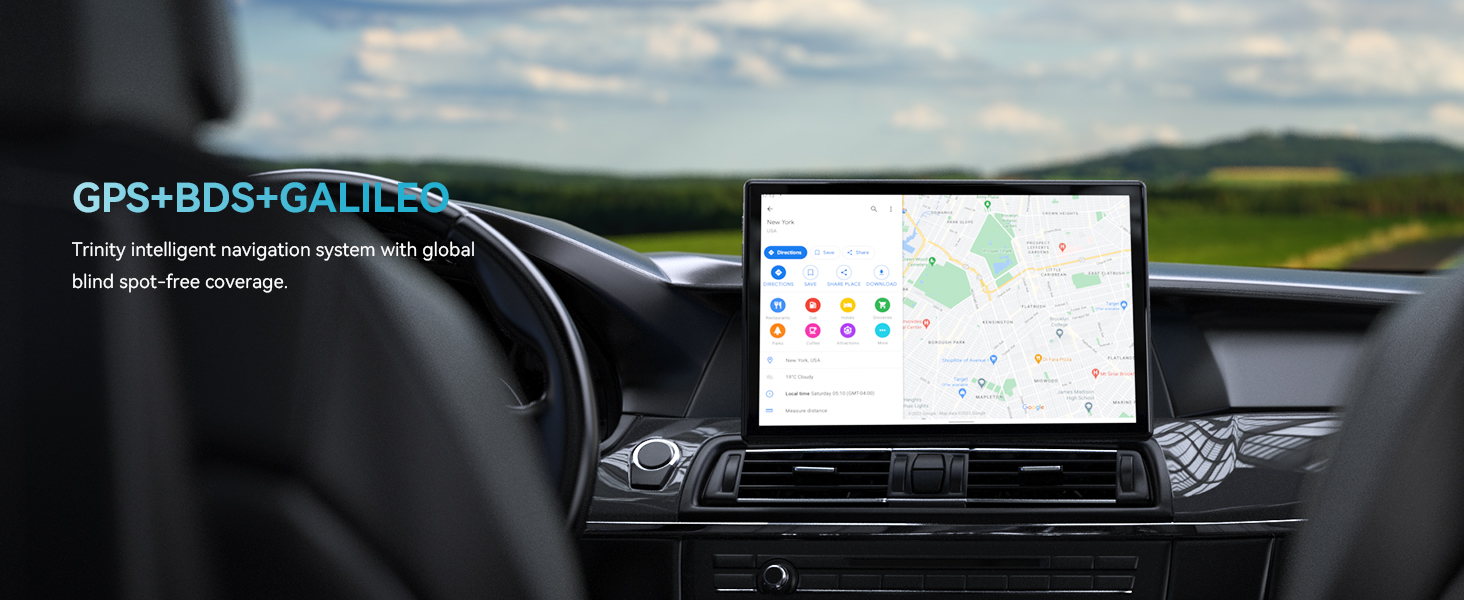
Image: The Headwolf WPad3 tablet displaying two applications side-by-side using the split-screen feature, enhancing multitasking capabilities.
5.3 Google Kids Space
The tablet includes Google Kids Space, providing a safe and engaging environment for children with curated content.

Image: A child interacting with the Google Kids Space interface on the Headwolf WPad3 tablet, showcasing its child-friendly design and educational content.
6. Performance & Storage
The WPad3 is designed for smooth performance and ample storage.
6.1 Processor
Equipped with an MT8183 Octa-core processor, the tablet delivers efficient performance for various tasks, from gaming to multimedia consumption.

Image: A visual representation of the MT8183 Octa-core CPU, highlighting its 8-core architecture and 2.0GHz clock speed for high performance.
6.2 Memory and Storage
The tablet features 12GB RAM (6GB physical + 6GB expansion technology) and 128GB internal ROM. Storage can be expanded up to 512GB using a TF (Micro SD) card (not included).

Image: An illustration detailing the Headwolf WPad3's memory configuration, including 6+6GB RAM, 128GB ROM, and support for up to 512GB Micro SD card expansion.
Video: A promotional video for the Headwolf WPad3, highlighting its 6+6GB RAM and 128GB ROM, along with its Android 12 operating system.
7. Battery Management
The WPad3 is equipped with a 7700mAh cobalt lithium battery for extended usage.
7.1 Charging
- Use the provided 5V/2A power adapter and USB-C cable for optimal charging.
- A full charge can provide up to 10 hours of average use.
- Avoid using damaged chargers or cables.

Image: The Headwolf WPad3 tablet with a large 7700mAh battery capacity, indicating long endurance and Type-C charging.
8. Connectivity
The tablet supports various connectivity options for seamless integration.
8.1 Wi-Fi
- Supports 2.4G and 5G dual-band Wi-Fi for stable and fast internet access.
- To connect: Go to Settings > Network & internet > Wi-Fi, select your network, and enter the password.
8.2 Bluetooth
- Features Bluetooth 5.0 for connecting wireless accessories like headphones or keyboards.
- To pair: Go to Settings > Connected devices > Pair new device, select your device, and follow prompts.
8.3 GPS
The tablet includes GPS+BDS+GLONASS for accurate location services and navigation.

Image: The Headwolf WPad3 tablet mounted in a car, showing GPS navigation with support for GPS+BDS+GLONASS systems.
8.4 Wireless Projection
Wirelessly project your tablet's screen to compatible displays for a larger viewing experience.

Image: A Headwolf WPad3 tablet wirelessly projecting its display onto a larger computer monitor, demonstrating its wireless projection capability.
9. Cameras
Capture moments with the tablet's dual cameras.
- Rear Camera: 16MP with autofocus and flash.
- Front Camera: 8MP for video calls and selfies.

Image: The Headwolf WPad3 tablet highlighting its 8MP front camera and 16MP AF rear camera with 6P stacked sensors, aperture F2.2, autofocus, photoflash, and night mode features.
10. Display
Experience clear visuals on the tablet's HD IPS display.
- Screen Size: 10.1 inches.
- Resolution: 1280 x 800 pixels (HD).
- Technology: IPS HD touch screen with 189 PPI pixel density and 178° viewing angle.
- Aspect Ratio: 16:10 for optimal viewing.

Image: The Headwolf WPad3 tablet showcasing its 10.1-inch IPS HD touch screen with 189 PPI, 178° viewing angle, 16:10 aspect ratio, and In-cell full fit technology for enhanced touch response.
11. Maintenance
11.1 Cleaning the Tablet
- Use a soft, lint-free cloth to clean the screen and body.
- For stubborn smudges, slightly dampen the cloth with water or a screen cleaner.
- Avoid using harsh chemicals or abrasive materials.
11.2 Storage
- Store the tablet in a cool, dry place away from direct sunlight and extreme temperatures.
- If storing for an extended period, charge the battery to about 50% to prolong its lifespan.
12. Troubleshooting
This section addresses common issues you might encounter with your Headwolf WPad3 tablet.
12.1 Tablet Does Not Turn On
- Ensure the battery is charged. Connect the charger and wait a few minutes before attempting to power on.
- Press and hold the Power Button for 10-15 seconds to perform a forced restart.
12.2 Screen Freezes or Becomes Unresponsive
- Press and hold the Power Button for 10-15 seconds to force a restart.
- If the issue persists, try clearing the cache of problematic apps or performing a factory reset (backup your data first).
12.3 Wi-Fi Connection Issues
- Ensure Wi-Fi is enabled in Settings.
- Restart your Wi-Fi router and the tablet.
- Forget the network in tablet settings and reconnect.
12.4 Apps Crashing or Not Installing
- Check for available system updates (Settings > System > System update).
- Ensure sufficient storage space.
- Clear the cache and data of the Google Play Store app.
13. Specifications
| Feature | Specification |
|---|
| Brand | Headwolf |
| Model Name | WPad3 |
| Operating System | Android 12 |
| Processor | MediaTek MT8183 Octa-core (ARM Cortex, 2 GHz max) |
| RAM Memory | 6 GB (12GB with expansion technology) |
| Internal Storage (ROM) | 128 GB |
| Expandable Storage | Up to 512 GB (Micro SD/TF card not included) |
| Screen Size | 10.1 Inches |
| Display Type | IPS HD Touchscreen |
| Display Resolution | 1280 x 800 Pixels (189 PPI) |
| Aspect Ratio | 16:10 |
| Rear Camera | 16 MP |
| Front Camera | 8 MP |
| Battery Capacity | 7700 mAh (Lithium Polymer) |
| Battery Average Life | 10 Hours |
| Wi-Fi | 2.4G/5G Dual-band WLAN |
| Bluetooth | Bluetooth 5.0 |
| GPS | GPS+BDS+GLONASS |
| USB Ports | 1 (Type-C) |
| Audio Jack | 3.5mm Headphone Jack |
| Item Weight | 0.94 Kilograms |
| Dimensions (L x W x Thickness) | 9.6"L x 6.36"W x 0.35"Th |
14. Warranty and Support
14.1 Warranty Information
The Headwolf WPad3 tablet comes with a 1-year manufacturer's limited warranty. This warranty covers defects in materials and workmanship under normal use. It does not cover damage caused by misuse, accidents, unauthorized modifications, or external causes.
14.2 Customer Support
For technical assistance, warranty claims, or product inquiries, please contact Headwolf customer support. Refer to the official Headwolf website or the contact information provided in your product packaging for the most up-to-date support channels.
You can also visit the Headwolf Store on Amazon for additional product information and support resources.
