
1. Overview
The Samsung Galaxy A14 4G LTE is a versatile smartphone designed for everyday use. It features a large 6.6-inch display, a powerful 50MP triple camera system, and a long-lasting 5000mAh battery. This device comes with 128GB of internal storage and 4GB of RAM, running on the Android 13 operating system. It is unlocked for worldwide use, specifically compatible with T-Mobile, Mint, and Metro USA markets.
2. What's in the Box
- Samsung Galaxy A14 4G LTE Smartphone (Model SM-A145M/DS)
- 15W Wall Charger
- USB-C Cable (may vary by region)
- SIM Ejection Pin
- Quick Start Guide
3. Device Layout
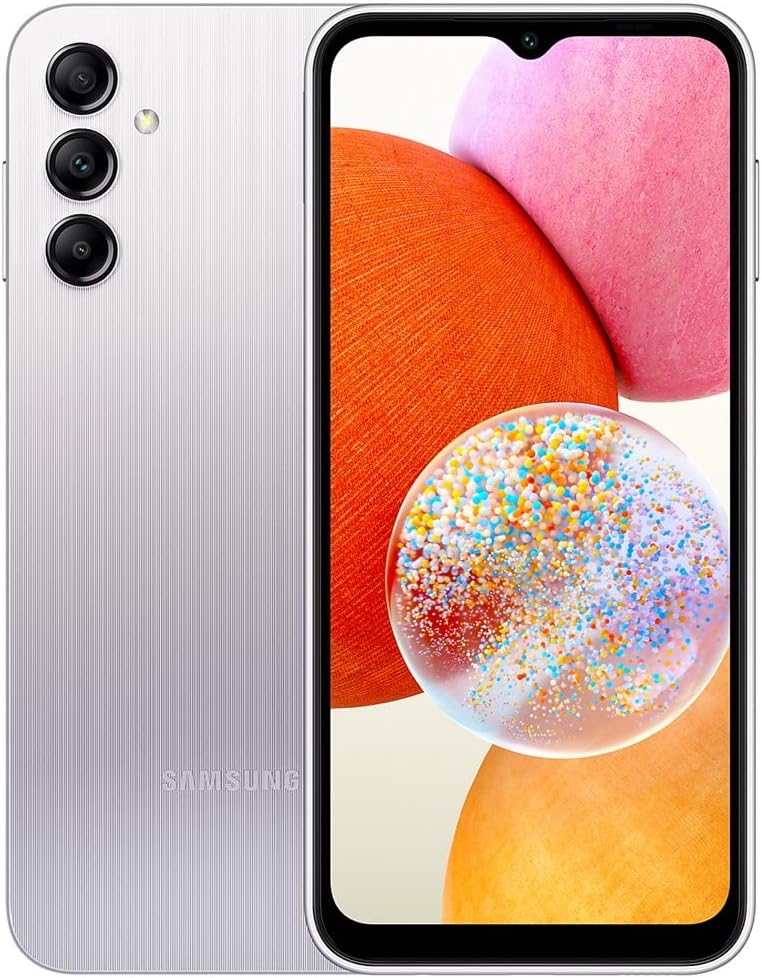
Front view of the Samsung Galaxy A14, highlighting the 6.6-inch display and front camera.

Back view of the Samsung Galaxy A14, featuring the triple camera module and flash.
- Front: 6.6-inch FHD+ PLS LCD display, 13MP front camera (notch).
- Back: Triple camera system (50MP main, 5MP ultra-wide, 2MP macro), LED flash, Samsung branding.
- Side: Power button (integrated fingerprint sensor), Volume buttons, SIM/microSD card tray.
- Bottom: USB-C charging port, 3.5mm headphone jack, speaker grille.
4. Setup
4.1 Insert SIM Card
- Locate the SIM card tray on the side of your device.
- Insert the SIM ejection pin into the small hole next to the tray to open it.
- Place your Nano-SIM card(s) and/or microSD card into the tray with the gold contacts facing down. The Galaxy A14 supports Dual SIM.
- Gently push the tray back into the slot until it clicks into place.
4.2 Power On/Off
- To Power On: Press and hold the Power button (side button) until the Samsung logo appears.
- To Power Off: Press and hold the Power button, then tap 'Power off' on the screen. Alternatively, swipe down from the top of the screen to open the Quick Settings panel, then tap the Power icon and select 'Power off'.
4.3 Initial Setup
Follow the on-screen prompts to complete the initial setup of your device. This includes selecting your language, connecting to a Wi-Fi network, setting up your Google account, and configuring security features like the fingerprint sensor. You can also transfer data from your old device using Samsung Smart Switch.
5. Operating Your Device
5.1 Display
The Galaxy A14 features a 6.6-inch FHD+ (1080 x 2408 pixels) PLS LCD display with a pixel density of 400 ppi and a 60Hz refresh rate, providing clear and vibrant visuals for browsing, media consumption, and gaming.
5.2 Camera

Detailed view of the Galaxy A14's camera specifications, including the 50MP main lens.
Capture high-quality photos and videos with the versatile camera system:
- Rear Camera: 50MP main camera (f/1.8 aperture), 5MP ultra-wide, 2MP macro.
- Front Camera: 13MP (f/2.0 aperture).
- Features: Macro shooting mode, LED flash for rear camera.
- Video Capture: Up to 1080p at 30fps.
5.3 Battery

Visual representation of the Galaxy A14's extended battery life.
The device is equipped with a 5000mAh Lithium-Ion battery, offering an average life of up to 2 days and up to 48 hours of talk time. It supports 15W fast charging to quickly power up your device.
5.4 Storage
The Galaxy A14 comes with 128GB of internal memory storage and 4GB of RAM. Storage can be expanded further using a microSD card (sold separately) up to 1TB.
5.5 Operating System
The phone runs on Android 13, providing access to the latest features, security updates, and a wide range of applications from the Google Play Store.
5.6 Connectivity
The device supports 2G, 3G, and 4G LTE cellular technologies, along with Wi-Fi connectivity for internet access. It is unlocked for use with most carriers worldwide, including T-Mobile, Mint, and Metro in the USA.
5.7 Security
For enhanced security, the Galaxy A14 features a side-mounted fingerprint recognition sensor, allowing for quick and secure unlocking of your device.
6. Specifications
| Feature | Specification |
|---|---|
| Brand | Samsung |
| Model Name | Galaxy A14 |
| Model Number | SM-A145M/DS |
| Operating System | Android 13 |
| RAM Memory Installed Size | 4 GB |
| Memory Storage Capacity | 128 GB |
| Screen Size | 6.6 Inches |
| Resolution | 1080 x 2408 |
| Refresh Rate | 60 Hz |
| CPU Model | Exynos 4412 |
| Wireless Carrier | Unlocked |
| Cellular Technology | 2G, 3G, 4G |
| Rear Facing Camera Photo Sensor Resolution | 50 MP |
| Optical Sensor Resolution (Front Camera) | 13 MP |
| Battery Capacity | 5000 Milliamp Hours |
| Battery Average Life | 2 days |
| Phone Talk Time | 48 Hours |
| Biometric Security Feature | Fingerprint Recognition |
| Headphones Jack | 3.5 mm |
| Item Weight | 0.44 Pounds |
| Item Dimensions | 6 x 4 x 2 inches |
7. Troubleshooting
If you encounter issues with your Samsung Galaxy A14, consider the following general troubleshooting steps:
- Restart Your Device: A simple restart can often resolve minor software glitches.
- Check Connections: Ensure Wi-Fi, Bluetooth, and cellular data are properly enabled and connected.
- Update Software: Go to Settings > Software update to check for and install any available updates.
- Clear Cache: For app-specific issues, try clearing the app's cache (Settings > Apps > [App Name] > Storage > Clear cache).
- Factory Reset: As a last resort, you can perform a factory data reset (Settings > General management > Reset > Factory data reset). Warning: This will erase all data on your device. Back up important information before proceeding.
8. Warranty and Support
For warranty information, please refer to the warranty card included in your product packaging or visit the official Samsung support website. For further assistance, technical support, or service inquiries, please contact Samsung customer service directly.


