
RockJam RJ88DPV3
RockJam 88 Key Digital Piano User Manual
Model: RJ88DPV3
Introduction
This manual provides essential information for the setup, operation, and maintenance of your RockJam 88 Key Digital Piano. Designed for both beginners and experienced musicians, this digital piano offers a realistic playing experience with its semi-weighted keys and versatile sound options. Please read this manual thoroughly to ensure proper use and to maximize your musical potential.

Figure 1: The RockJam 88 Key Digital Piano, showcasing its full 88-key layout and sleek black design.
Setup
1. Unpacking and Placement
Carefully remove all components from the packaging. Ensure all parts are present: the digital piano, power adapter, sheet music stand, and piano note stickers. Place the piano on a stable, flat surface at a comfortable height for playing.
2. Connecting Power
Locate the DC 9-12V input port on the rear panel of the piano. Connect the included power adapter to this port, then plug the adapter into a standard electrical outlet.

Figure 2: The included power adapter for the digital piano, showing the DC output plug.
3. Attaching the Sheet Music Stand
Insert the sheet music stand into the designated slots on the top panel of the piano. Ensure it is securely seated before placing any sheet music or a tablet on it.

Figure 3: The digital piano with the sheet music stand attached, ready for use.
4. Applying Piano Note Stickers (Optional)
For beginners, the included piano note stickers can be applied to the keys to aid in learning. Carefully peel and stick each label to the corresponding key. These stickers are designed to be removable without leaving residue.
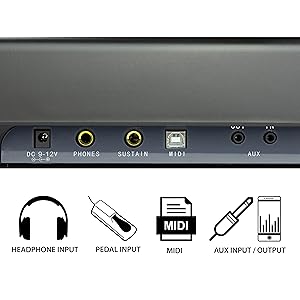
Figure 4: Close-up view of piano note stickers applied to the keys, indicating note names for learning.
5. Connecting External Devices
The piano features various ports on its rear panel for external connectivity:
- PHONES (3.5mm Jack): Connect headphones for private practice.
- SUSTAIN (6.35mm Jack): Connect an optional sustain pedal for extended note decay.
- MIDI (USB): Connect to a computer or other MIDI devices for recording or using music software.
- AUX IN/OUT (3.5mm Jack): Connect external audio sources (IN) or send audio output to external speakers/amplifiers (OUT).

Figure 5: The rear panel of the digital piano, showing the power input, headphone, sustain, MIDI, and auxiliary ports.
Operating Instructions
1. Power On/Off and Volume Control
Press the POWER button to turn the piano on or off. Adjust the master volume using the VOLUME + / - knob located on the control panel.

Figure 6: Close-up of the power button and volume knob on the digital piano's control panel.
2. Selecting Sounds (Voices)
The digital piano offers a variety of instrument voices. Use the dedicated buttons on the control panel to select different sounds such as Piano, E. Piano, Organ, Strings, Synth, Bass, Guitar, and Percussion. The selected voice will be displayed on the LCD screen.

Figure 7: Section of the control panel showing buttons for selecting various instrument voices like E. Piano, H. Organ, Strings, C. Organ, Synth, Bass, Percussion, and Guitar.
3. Educational Features and Simply Piano App
The RockJam 88 Key Digital Piano is designed to enhance your learning experience. It includes access to Simply Piano content, an application that provides interactive lessons and real-time feedback as you play. Connect your tablet or smartphone to the piano via MIDI (USB) or auxiliary input/output to utilize this feature.

Figure 8: A tablet displaying the Simply Piano app, positioned on the digital piano's music stand, illustrating interactive learning.
The app offers guided lessons, allowing you to learn notes, chords, and songs at your own pace. The semi-weighted keys provide a realistic feel, aiding in the development of proper piano technique.

Figure 9: A close-up of hands playing the semi-weighted keys of the RockJam digital piano, demonstrating the realistic feel.
4. Recording and Playback
The piano features basic recording and playback functions. Refer to the control panel for buttons labeled RECORD and RE-PLAY. These functions allow you to capture and review your performances.

Figure 10: A detailed view of the digital piano's control panel, highlighting the DEMO, METRONOME, LESSON, RECORD, REPLAY, REVERB, FUNCTION, and SPLIT buttons.
5. Metronome and Tempo Control
Activate the metronome function using the METRONOME button. The tempo can be adjusted to suit your practice needs, aiding in rhythm and timing development.
Maintenance
1. Cleaning
To clean the piano, use a soft, dry cloth. For stubborn dirt, a slightly damp cloth can be used, followed immediately by a dry cloth. Avoid using abrasive cleaners, solvents, or waxes, as these can damage the finish and electronic components.
2. Storage
When not in use, store the piano in a cool, dry place away from direct sunlight, extreme temperatures, and high humidity. If storing for an extended period, consider covering it with a dust cover to protect the keys and surface.
3. General Care
- Avoid placing heavy objects on the piano.
- Do not expose the piano to water or other liquids.
- Handle the keys and controls gently.
- Disconnect the power adapter during electrical storms or when not in use for long periods.
Troubleshooting
| Problem | Possible Cause | Solution |
|---|---|---|
| No sound from speakers/headphones. | Volume too low; headphones not fully inserted; power issue. | Increase volume. Ensure headphones are fully plugged in. Check power connection. |
| Piano does not power on. | Power adapter not connected; faulty outlet. | Verify power adapter is securely connected to piano and outlet. Try a different outlet. |
| Keys are not responding. | Piano may be in a specific mode (e.g., demo mode); internal error. | Turn the piano off and on again. Check the selected voice. |
| MIDI connection issues. | Incorrect cable; driver issues on computer; software settings. | Ensure correct USB MIDI cable is used. Install necessary drivers. Check MIDI settings in your software. |
If you encounter issues not listed here or if the problem persists, please contact customer support.
Specifications
- Model Name: RockJam 88-Key Digital Piano with Semi-Weighted Keys, Lessons & Keynote Stickers.
- Model Number: RJ88DPV3
- Number of Keys: 88
- Key Type: Semi-Weighted
- Product Dimensions: 11.4"D x 49.2"W x 3.1"H
- Item Weight: 15.4 Pounds
- Power Source: Corded Electric
- Connector Types: 3.5mm Jack (Headphones, Aux), 6.35mm Jack (Sustain), MIDI USB
- Special Features: Portable, Recording, Tempo Control, Touch-Sensitive Keys (referring to semi-weighted feel), Educational App Integration.
- Manufacturer: PDT UK Limited
- Date First Available: September 1, 2023
Warranty and Support
For warranty information and technical support, please refer to the warranty card included with your product or visit the official RockJam website. You may also contact PDT UK Limited, the manufacturer, for assistance.
Keep your purchase receipt as proof of purchase for any warranty claims.
Related documentsRJ88DPV3


Ask a question about this manual
Ask about setup, troubleshooting, compatibility, parts, safety, or missing instructions. Manuals+ will review the question and use this page’s manual context to help answer it.