
ZYWELL ZY908
ZYWELL ZY908 Thermal Receipt Printer User Manual
Model: ZY908
1. Product Overview
The ZYWELL ZY908 Thermal Receipt Printer is a high-speed, reliable point-of-sale (POS) printer designed for various business environments such as restaurants, kitchens, and retail stores. It utilizes thermal printing technology, eliminating the need for ink or ribbons, and features an automatic cutter for efficient operation. This manual provides comprehensive instructions for setup, operation, maintenance, and troubleshooting.
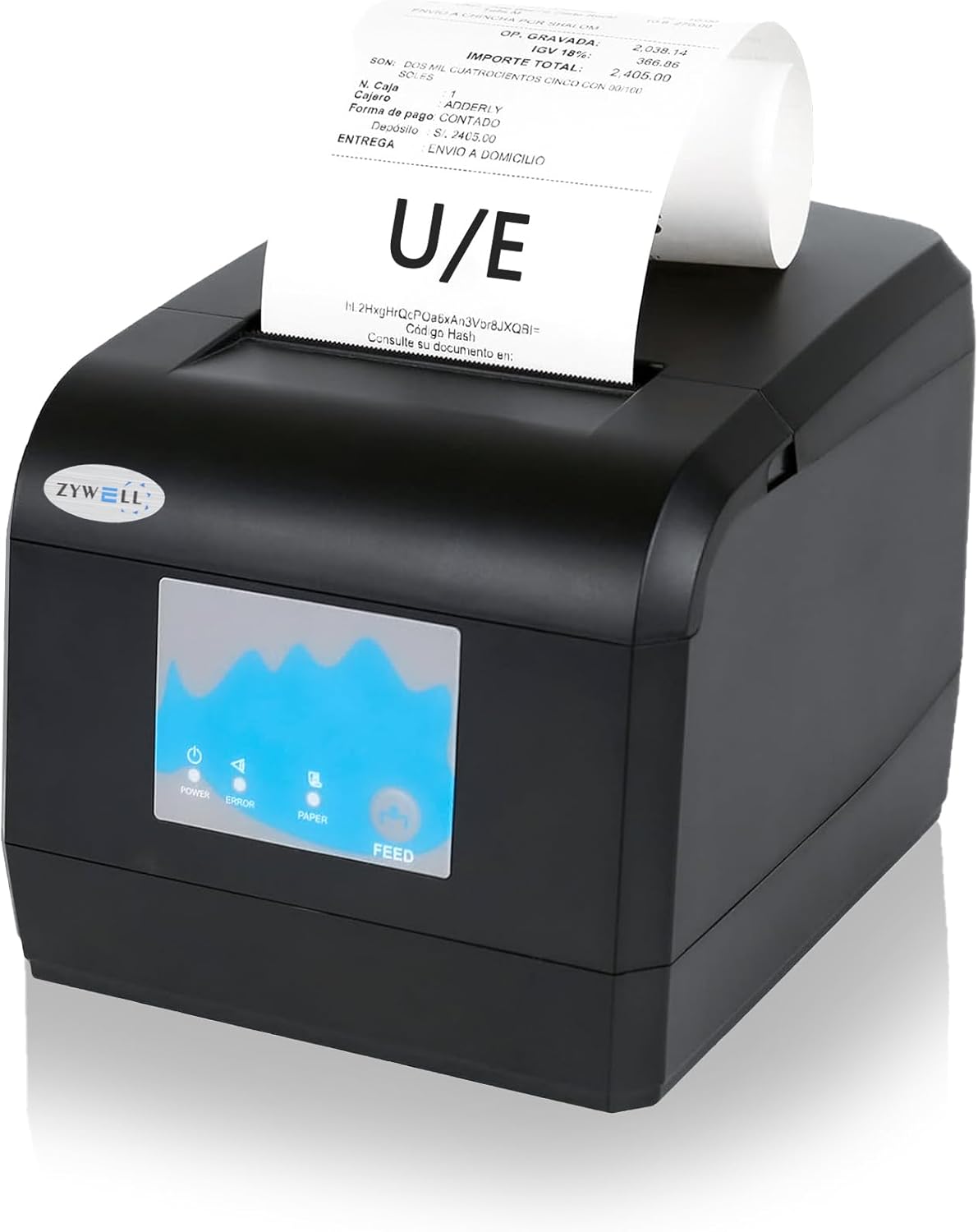
Image: Front view of the ZYWELL ZY908 Thermal Receipt Printer in black, with a receipt emerging from the top slot.
2. Package Contents
Please verify that all items listed below are included in your package:
- Printer
- U-Disk (USB Flash Drive)
- Power Cord
- Paper Roll
- Roller
- User Manual (this document)
- USB Cable

Image: All components included in the ZYWELL ZY908 printer package, laid out on a surface. These include the printer, a paper roll, a roller, power cord, USB cable, U-disk, and the user manual.
3. Product Components and Features
Familiarize yourself with the various parts of your ZY908 printer:
3.1 Front and Top View
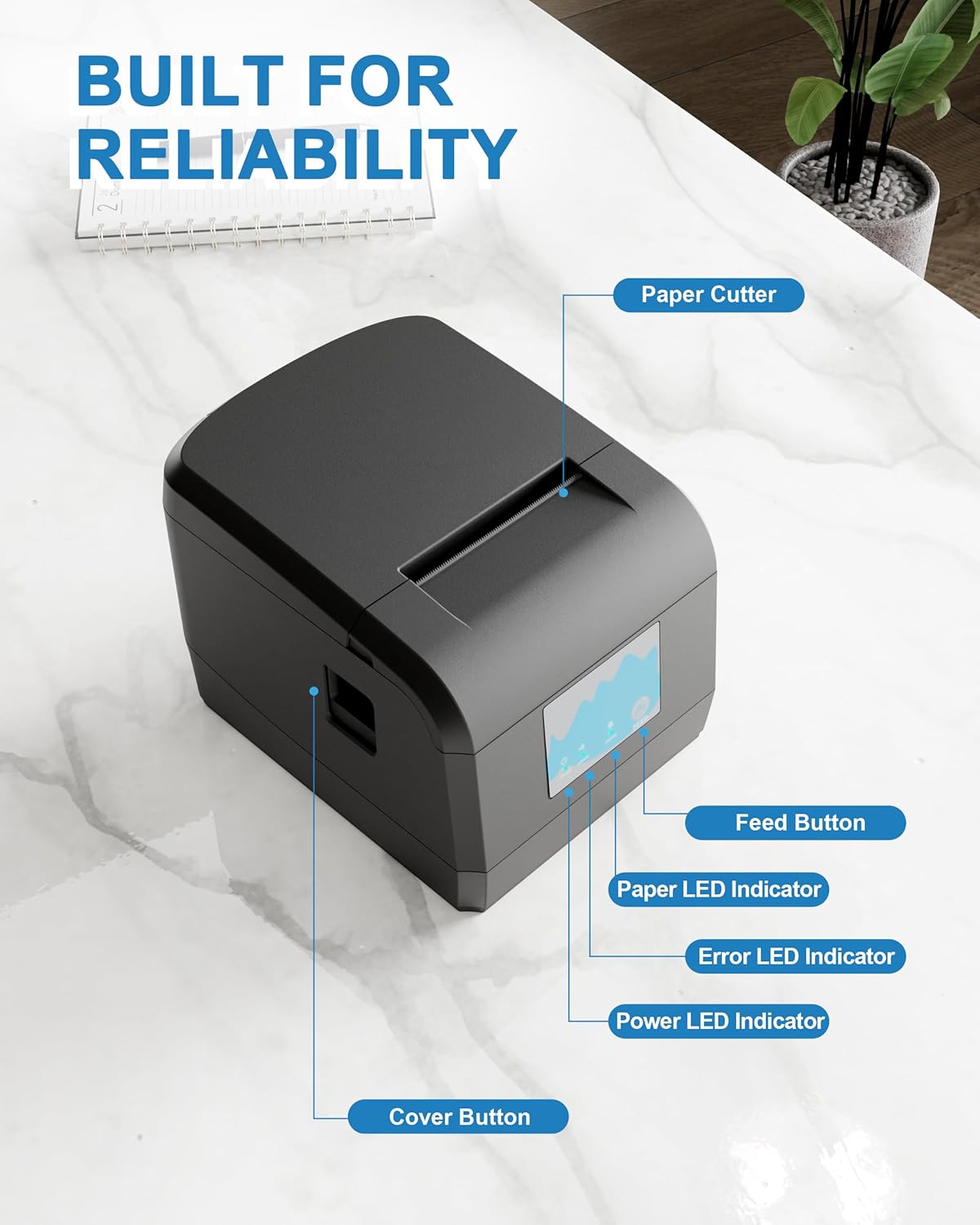
Image: An annotated diagram of the ZYWELL ZY908 printer highlighting key features: Paper Cutter, Feed Button, Paper LED Indicator, Error LED Indicator, Power LED Indicator, and Cover Button.
- Paper Cutter: Automatically cuts receipts after printing.
- Feed Button: Manually feeds paper.
- Paper LED Indicator: Indicates paper status (e.g., paper out).
- Error LED Indicator: Indicates printer errors.
- Power LED Indicator: Indicates power status.
- Cover Button: Releases the top cover to load paper.
3.2 Rear View and Ports

Image: An annotated diagram of the rear of the ZYWELL ZY908 printer, showing the Power Supply Port, Ethernet Port, USB Port, Cash Drawer Port, and Power Switch.
- Power Supply Port: Connects the printer to the power source.
- Ethernet Port: For network connectivity (LAN).
- USB Port: For direct connection to a computer or Android device. Note: USB connection is not compatible with iPads or iPhones.
- Cash Drawer Port: Connects to a cash drawer for automatic opening.
- Power Switch: Turns the printer on or off.
4. Setup Guide
4.1 Loading Paper
- Press the Cover Button to open the printer's top cover.
- Insert the thermal paper roll into the paper compartment, ensuring the paper feeds from the bottom and the leading edge extends slightly out of the printer.
- Close the top cover firmly until it clicks into place.

Image: Diagram illustrating the correct way to load an 80mm thermal paper roll into the printer.
4.2 Connecting the Printer
The ZY908 printer supports USB and Ethernet connections.
- Power Connection: Connect the power cord to the Power Supply Port on the printer and plug it into a power outlet.
- USB Connection: Connect the provided USB cable from the printer's USB Port to your computer or Android device.
- Ethernet Connection: Connect an Ethernet cable from the printer's Ethernet Port to your network router or switch.
- Cash Drawer Connection (Optional): Connect your cash drawer cable to the Cash Drawer Port.
- Turn on the printer using the Power Switch.
For detailed visual instructions on setting up the printer on Android via USB, please refer to the video below:
Video: Instructions on how to set up the ZYWELL ZY908 receipt printer on an Android device using a USB connection. This video demonstrates the steps within the ZYwellPrinter application, including selecting the USB port type and connecting to the printer.
5. Operating Instructions
5.1 Driver Installation
Drivers for Windows, Mac, and Linux operating systems are provided on the included U-Disk. Insert the U-Disk into your computer and follow the on-screen instructions for driver installation. For Android and ChromeOS, specific applications or built-in support may be used.
5.2 Compatibility
The ZY908 printer is compatible with Windows, Mac, Android, Linux, and ChromeOS. It supports ESC/POS instruction sets. Please note the following compatibility details:
- Does NOT compatible with Square, Shopify, Izettle, Grubhub, or QuickBooks.
- Does NOT support Bluetooth or WiFi connection.
- USB connection cannot be used with iPads or iPhones.

Image: A compatibility chart showing which POS systems and operating systems are supported via USB and LAN connections. It explicitly states that Square, Shopify, and similar systems are not supported.
5.3 Printing a Receipt
- Ensure the printer is powered on and connected to your device (via USB or Ethernet).
- Open your POS software or application.
- Initiate the print command from your software. The printer will automatically print the receipt and cut the paper.
- To test the printer, you can use the "SelfTest" function available in the printer's utility software (found on the U-Disk).

Image: The ZYWELL ZY908 printer actively printing a receipt, demonstrating its use in a typical retail or restaurant environment.
6. Maintenance
Regular maintenance ensures optimal performance and longevity of your printer.
- Cleaning: Regularly clean the print head and paper path with a soft, lint-free cloth. Use isopropyl alcohol for stubborn residue, ensuring the printer is off and unplugged.
- Paper: Use only high-quality thermal paper to prevent damage to the print head and ensure clear prints.
- Environment: Keep the printer in a clean, dry environment, away from direct sunlight, excessive heat, and dust.
- Wall-Mounted Design: The printer features two hanging holes at the bottom for optional wall mounting, which can help keep the working environment tidy.

Image: A diagram illustrating the wall-mounting holes on the bottom of the ZYWELL ZY908 printer, indicating its space-saving design.
7. Troubleshooting
If you encounter issues with your ZY908 printer, refer to the following common problems and solutions:
| Problem | Possible Cause | Solution |
|---|---|---|
| Printer not powering on | Power cord loose or not connected; power outlet issue. | Check power cord connections. Try a different power outlet. |
| No paper feeding / Paper out error | Paper roll empty or incorrectly loaded. | Replace paper roll or re-load it correctly. Ensure the paper is thermal paper. |
| Poor print quality / Faded prints | Print head dirty; low-quality thermal paper; print head overheating. | Clean the print head. Use recommended thermal paper. Allow printer to cool down if used continuously. |
| Printer not responding to print commands | Incorrect driver installation; wrong port selected; printer offline. | Reinstall drivers. Verify USB/Ethernet connection. Check printer status in your operating system. Restart printer and computer. |
| Auto cutter not working | Paper jam; cutter mechanism obstructed. | Clear any paper jams. Inspect cutter for obstructions and gently remove them. |
8. Technical Specifications
Detailed specifications for the ZYWELL ZY908 Thermal Receipt Printer:
- Model: ZY908
- Printing Technology: Thermal
- Print Resolution: 203 dpi
- Print Speed: 230mm/s
- Maximum Media Size: 80mm (3 1/8")
- Connectivity: USB, Ethernet
- Auto Cutter: Yes
- Compatible Systems: Windows, Mac, Android, Linux, ChromeOS
- Interface: USB, Ethernet, Cash Drawer Port
- Power Input: AC100V-240V 50/60HZ
- Power Output: DC 24V/2.5A
- Product Dimensions: 7 x 5.5 x 5.3 inches (17.8 x 14 x 13.5 cm)
- Item Weight: 3.08 pounds (1.4 kg)
- Color: Black

Image: A summary of the ZYWELL ZY908 printer's key product parameters, including compatible systems, power input/output, auto-cutter, beeper, paper width, print speed, and print resolution.
9. Warranty and Support
For warranty information and technical support, please refer to the documentation included with your product or contact ZYWELL customer service. We provide an installation manual and video on the included USB flash drive to assist with setup and troubleshooting. If you have any questions regarding printer compatibility with your POS system, please do not hesitate to contact us.
You can also find additional resources and contact information on the official ZYWELL store page: ZYWELL Store.
A PDF version of the user guide is also available for download: User Guide (PDF).
Related documentsZY908


Ask a question about this manual
Ask about setup, troubleshooting, compatibility, parts, safety, or missing instructions. Manuals+ will review the question and use this page’s manual context to help answer it.