
1. Introduction and Overview
This manual provides essential information for the safe and efficient operation of your Onn. HD 1080p LCD Home Theater Projector, Model 100096801. This projector is designed to deliver a high-definition viewing experience, supporting resolutions up to 1080p for crisp and clear imagery. It features versatile connectivity options and is suitable for both indoor and outdoor use, offering a flexible image size from 32 to 210 inches.
Please read this manual thoroughly before using the projector and retain it for future reference.
2. What's in the Box
Carefully unpack all items and ensure you have received the following components:
- Onn. HD 1080p LCD Home Theater Projector
- Remote Control (with batteries)
- AC/DC Power Adapter
- 6-foot HDMI Cable
- Lens Cover
- Quick Start Guide
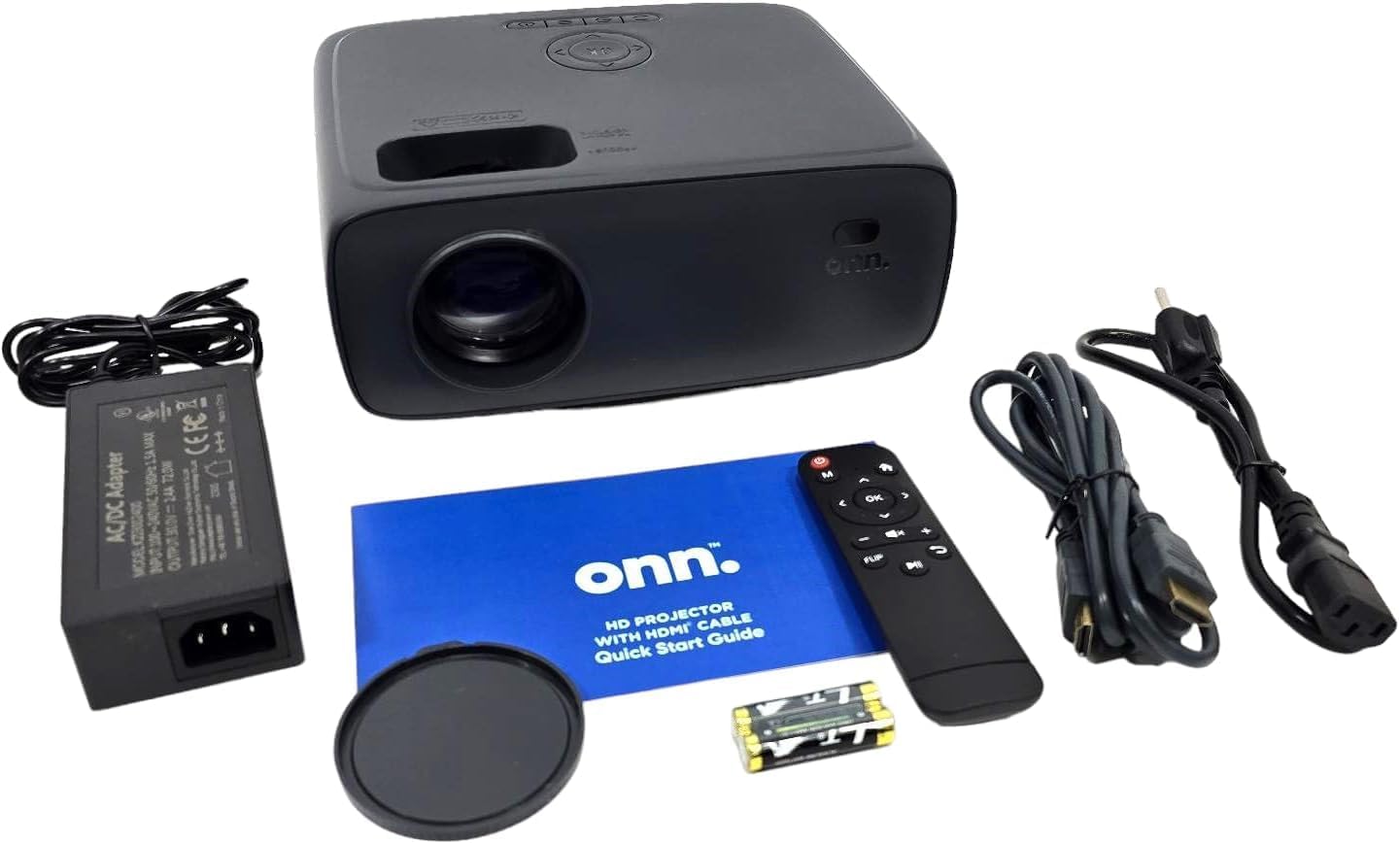
Image: All components included in the projector packaging.
3. Product Features
The Onn. HD 1080p LCD Home Theater Projector offers a range of features for an enhanced viewing experience:
- Native Resolution: Standard HD 720p (1280 x 720) with support for 1080p video decoding.
- Aspect Ratios: Selectable 16:9 or 4:3.
- Projection Type: 1 LED Light source + 4.41" LCD Display.
- Image Size: Adjustable from 32 inches to 210 inches.
- Projection Distance: Operates effectively from 3.94 ft (1.2 m) to 22.96 ft (7 m).
- Contrast Ratio: 2000:1 for deep blacks and vivid colors.
- Audio: Integrated single 5W RMS speaker.
- White Light Output: ANSI 250 lm IDMS v1.03 Sections 15.3.
- Connectivity: 2x HDMI ports, 1x USB 2.0, 1x MicroSD, 1x 3.5mm headphone jack, 1x 3.5mm AV.
- Adjustable Foot: Manual adjustment of projection angle up to 15°.
- Keystone Correction: Vertical keystone correction of ± 15°.
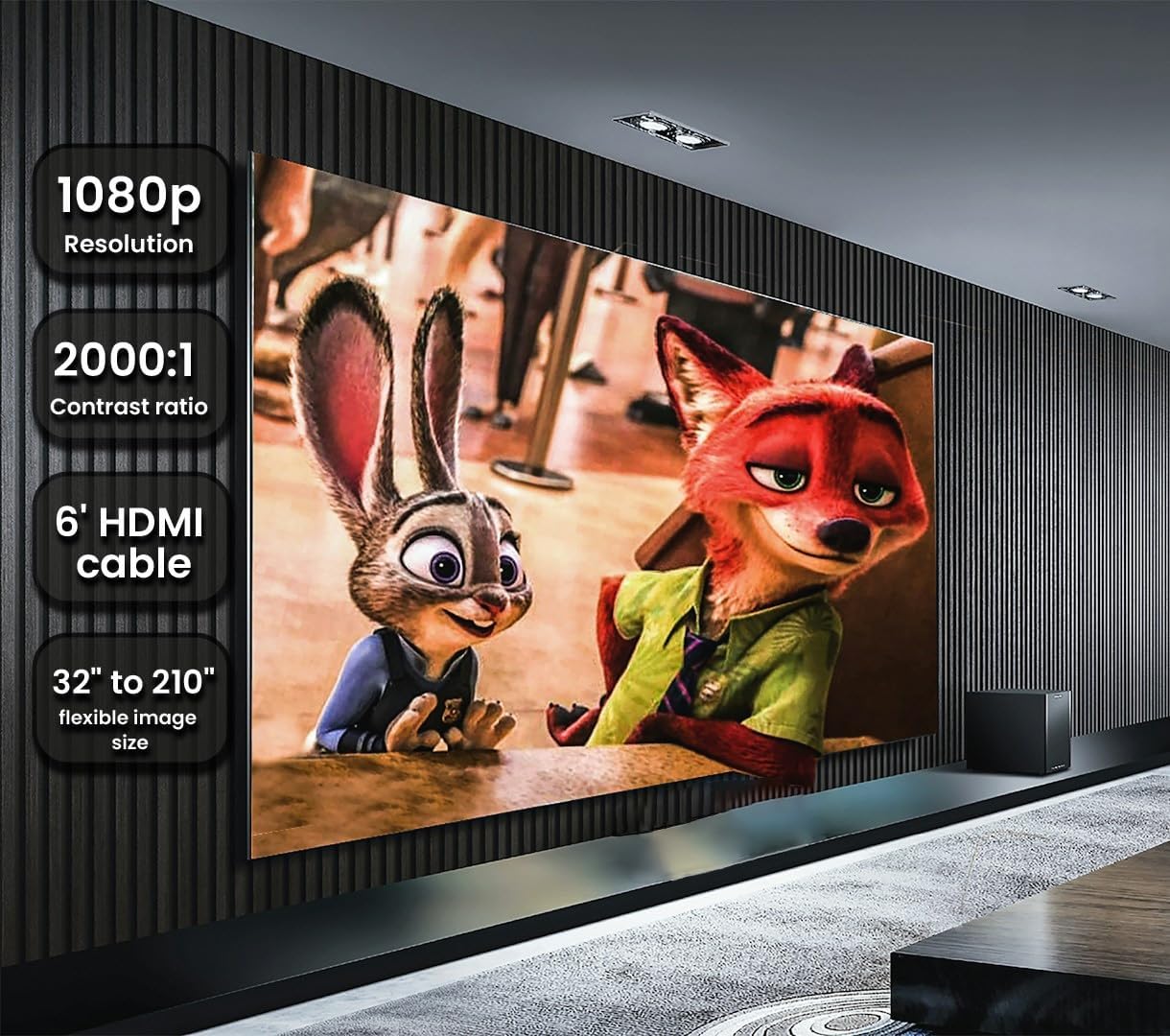
Image: Visual representation of the projector's key features.
4. Setup
4.1 Placement
Position the projector on a stable, flat surface. Ensure there is adequate ventilation around the unit. The projection distance should be between 3.94 ft (1.2 m) and 22.96 ft (7 m) for optimal image quality. The adjustable foot on the bottom of the projector allows you to tilt the unit up to 15 degrees to achieve the desired projection height.

Image: Projector dimensions for placement planning.
4.2 Power Connection
- Connect the AC/DC power adapter to the 'DC IN' port on the projector.
- Plug the power adapter into a standard electrical outlet.
- Press the power button on the projector or remote control to turn on the unit.
4.3 Connecting a Streaming Device (e.g., Roku)
The projector is streaming-ready. You can connect a streaming stick directly to one of the HDMI ports. For power, some streaming sticks can draw power from the projector's USB port.
Video: Demonstration of connecting a Roku streaming stick to the projector and powering it on. This video shows the physical connection of the streaming device and power cable, followed by the initial projection of the Roku interface on a wall.
5. Operating Instructions
5.1 Power On/Off
Press the power button (U) on the projector's top panel or the remote control to turn the projector on or off.
5.2 Source Selection
After powering on, use the 'Source' button on the projector's top panel or the 'M' button on the remote control to cycle through input sources (HDMI1, HDMI2, USB, MicroSD, AV).

Image: Top control panel of the projector.
5.3 Remote Control Functions
The included remote control provides full functionality for navigating menus, adjusting volume, and selecting inputs.
Image: Projector remote control.
6. Connections
The projector supports various input and output connections:
- HDMI Ports (x2): Connect devices such as streaming sticks, Blu-ray players, gaming consoles (PS5, PS4), laptops, and computers.
- USB 2.0 Port (x1): For media playback from USB drives or to power compatible streaming devices.
- MicroSD Slot (x1): For media playback from MicroSD cards.
- 3.5mm Headphone Jack (x1): For connecting external headphones or speakers.
- 3.5mm AV Port (x1): For connecting older devices using an AV cable.

Image: Projector connectivity ports.
7. Image Adjustment
7.1 Focus Adjustment
To achieve a clear image, rotate the focus ring located near the projector lens until the image appears sharp on your screen or wall.
7.2 Keystone Correction
If the projected image appears trapezoidal (wider at the top or bottom), use the vertical keystone correction feature. This projector supports manual keystone correction of ± 15 degrees to square the image. Adjust the keystone dial until the image edges are parallel.

Image: Explanation of keystone correction from the Quick Start Guide.
8. Maintenance
8.1 Cleaning the Lens
Use a soft, lint-free cloth specifically designed for optical lenses to gently wipe the projector lens. Avoid using abrasive cleaners or cloths that could scratch the lens surface.
8.2 General Cleaning
Wipe the exterior of the projector with a soft, dry cloth. Do not use liquid or aerosol cleaners. Ensure ventilation openings are clear of dust and debris to prevent overheating.
8.3 Light Source Life
The LED light source has an operating life of approximately 30,000 hours.
9. Troubleshooting
If you encounter issues with your projector, refer to the following common problems and solutions:
9.1 No Power
- Ensure the power adapter is securely connected to the projector and a working electrical outlet.
- Check if the power button has been pressed.
9.2 No Image or "No Signal" Message
- Verify that the input source (HDMI1, HDMI2, USB, MicroSD, AV) selected on the projector matches the device you are trying to display.
- Check all cable connections between the projector and the source device.
- Ensure the source device is powered on and outputting a signal.
9.3 Blurry Image
- Adjust the focus ring on the projector lens.
- Ensure the projection distance is within the recommended range (3.94 ft to 22.96 ft).
- Adjust keystone correction if the image is distorted.
9.4 No Sound
- Increase the volume on the projector and your source device.
- If using external speakers or headphones, ensure they are properly connected to the 3.5mm audio jack.
- Check audio settings on your source device.
10. Specifications
| Feature | Specification |
|---|---|
| Brand | ONN |
| Model Name | 100096801 |
| Native Resolution | 1280 x 720 (720p HD) |
| Supported Resolution | Up to 1080p video decoding |
| Display Type | LED + 4.41" LCD |
| Brightness | 250 ANSI Lumens |
| Contrast Ratio | 2000:1 |
| Aspect Ratios | 16:9, 4:3 |
| Image Size | 32" - 210" |
| Projection Distance | 3.94 ft (1.2 m) to 22.96 ft (7 m) |
| Keystone Correction | Vertical ± 15° |
| Speaker | Single 5W RMS |
| Light Source Operating Life | 30,000 Hours |
| Connectivity | 2x HDMI, 1x USB 2.0, 1x MicroSD, 1x 3.5mm Headphone, 1x 3.5mm AV |
| Power Input | 120 Volts |
| Item Weight | 6 Pounds |
| Color | Black |
11. Warranty and Support
11.1 Warranty Information
This Onn. HD 1080p LCD Home Theater Projector is covered by a 90-day limited warranty from the date of purchase. Please retain your proof of purchase for warranty claims. This warranty covers manufacturing defects and does not cover damage caused by misuse, accidents, or unauthorized modifications.
11.2 Customer Support
For technical assistance, troubleshooting, or warranty inquiries, please contact Onn. customer support. Refer to the contact information provided in your Quick Start Guide or visit the official Onn. website for the most up-to-date support details.