
Cudy TR3000
Contents
Cudy TR3000 Pocket-Sized Wi-Fi 6 Travel Router
User Manual
Model: TR3000
1. Introduction
The Cudy TR3000 is a high-performance, pocket-sized Wi-Fi 6 travel router designed for both home and on-the-go use. It features a 1.3GHz dual-core CPU, offering up to 3Gbps Wi-Fi 6 speeds, a 2.5Gbps Ethernet WAN port, a 1Gbps Gigabit LAN port, and a USB 3.0 port. This manual provides detailed instructions for setting up, operating, maintaining, and troubleshooting your TR3000 router.
2. Package Contents
- Cudy TR3000 Travel Router
- Power Adapter (USB-C)
- Ethernet Cable
- Quick Installation Guide
3. Physical Overview
Familiarize yourself with the ports and indicators on your Cudy TR3000 router.

Figure 3.1: Front view of the Cudy TR3000 showing its ports.
- USB 3.0 Port: For connecting external storage devices or USB tethering.
- LAN Port: 1Gbps Ethernet port for wired connections to devices.
- 2.5G WAN Port: 2.5Gbps Ethernet port for connecting to your internet source.
- Power Port (USB-C): For connecting the power adapter.
- LED Indicators: Status lights for power, internet connectivity, and Wi-Fi.
- Reset Button: Used to reset the router to factory defaults.
- VPN/LED Control Button: Configurable button for quick VPN activation or LED control.
4. Setup Guide
4.1 Initial Connection
- Connect the provided power adapter to the USB-C Power port on the TR3000 and plug it into a power outlet.
- Connect your internet source (e.g., modem, hotel Ethernet) to the 2.5G WAN port using an Ethernet cable.
- For initial setup, connect your computer to the TR3000 via Wi-Fi (SSID and password are on the router's label) or by connecting an Ethernet cable from your computer to the LAN port.

Figure 4.1: Connecting Ethernet cables to the TR3000.
4.2 Accessing the Web Interface
- Open a web browser and enter
cudy.netor192.168.10.1in the address bar. - Log in using the default username and password (usually
adminfor both, or as indicated on the router's label). - Follow the on-screen Quick Setup Wizard to configure your internet connection and Wi-Fi settings. It is highly recommended to change the default login password for security.
4.3 Powering Options
The TR3000 can be powered conveniently via its USB-C port, allowing for flexible power sources.

Figure 4.2: The TR3000 can be powered by a PD charger, laptop, or power bank.
5. Operating Modes and Advanced Features
5.1 Multi-Mode Operation
The Cudy TR3000 supports various operating modes to suit different networking needs:
- Router Mode: Connects to the internet via WAN port and creates a private Wi-Fi network.
- Access Point (AP) Mode: Extends an existing wired network by creating a wireless access point.
- Wi-Fi Extender Mode: Wirelessly extends the coverage of an existing Wi-Fi network.
- WISP Mode: Connects wirelessly to a public Wi-Fi hotspot (e.g., hotel Wi-Fi) and shares the connection as a private Wi-Fi network. This mode is compatible with Captive Portal login pages.

Figure 5.1: The TR3000 supports simultaneous connections for over 70 devices.
5.2 VPN Support
The TR3000 offers robust VPN capabilities, allowing you to establish secure connections and protect your online data. It supports multiple VPN protocols:
- PPTP
- L2TP
- OpenVPN
- WireGuard
- IPsec
- ZeroTier
This allows you to easily establish a connection to a VPN server, encrypting all your online data and traffic. It provides up to 150Mbps OpenVPN speed and up to 300Mbps WireGuard speed.

Figure 5.2: Remote office network setup with VPN support.
5.3 DNS over TLS
Enhance your online privacy and security with DNS over TLS, which encrypts your DNS queries to prevent eavesdropping and manipulation.

Figure 5.3: Secure your online data privacy with DNS over TLS.
5.4 USB 3.0 Functionality
The integrated USB 3.0 port offers versatile functionality:
- Network Attached Storage (NAS): Connect a flash drive or portable hard drive to create shared network storage (Samba/FTP).
- USB Tethering: Share internet from your smartphone or a USB internet dongle, providing flexible connectivity options.

Figure 5.4: Enjoy your own cloud storage and easy sharing via USB 3.0.

Figure 5.5: USB tethering for effortless network sharing.
6. Maintenance
6.1 Firmware Updates
Regularly check for and install the latest firmware updates from the official Cudy website (www.cudy.com). Firmware updates often include performance improvements, security patches, and new features.
6.2 Factory Reset
If you encounter persistent issues or forget your login credentials, you can perform a factory reset. With the router powered on, use a pin to press and hold the Reset button for approximately 5-10 seconds until the LED indicators change. This will restore the router to its default factory settings.
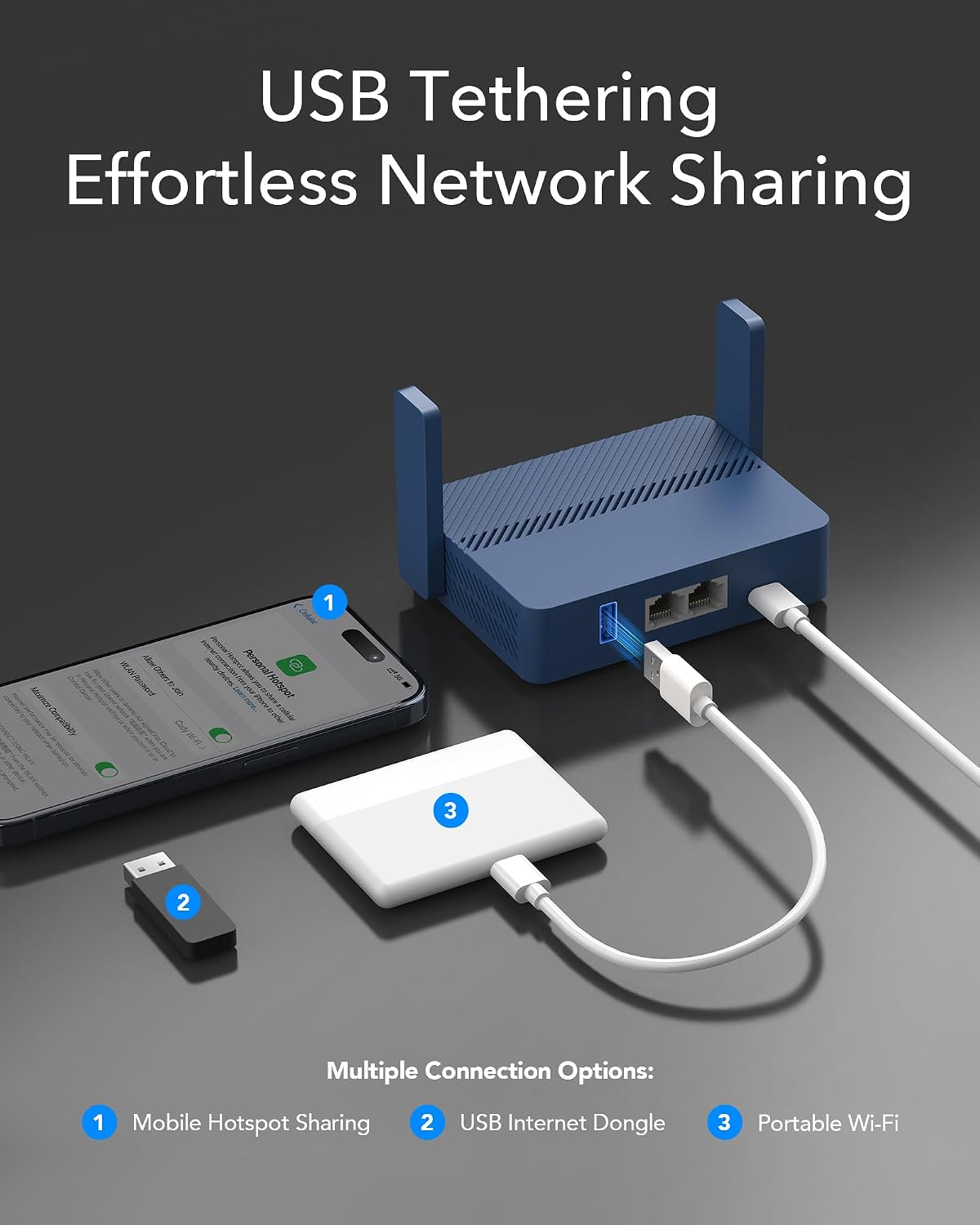
Figure 6.1: Location of the VPN/LED Control and Reset buttons.
7. Troubleshooting
7.1 No Internet Connection
- Check all cable connections (WAN, LAN, Power) to ensure they are secure.
- Verify that your modem or upstream internet source is working correctly.
- Restart both your modem/internet source and the Cudy TR3000.
- Access the web interface and check the WAN status. Ensure the correct connection type (e.g., DHCP, Static IP, PPPoE) is configured.
7.2 Slow Wi-Fi Speeds
- Ensure your devices are connected to the appropriate Wi-Fi band (5GHz for faster speeds, 2.4GHz for wider coverage).
- Reduce interference by moving the router away from other electronic devices (microwaves, cordless phones).
- Consider changing Wi-Fi channels in the router's settings to less congested ones.
- Ensure your router's firmware is up to date.
7.3 Cannot Connect to Public Wi-Fi with Captive Portal
While the TR3000's WISP mode is designed to work with captive portals, some specific network configurations might pose challenges. If you experience issues, ensure you have followed the WISP setup steps correctly. In rare cases, certain public networks may require MAC address cloning, a feature that may not be fully supported or may require specific firmware versions. Check the Cudy support website for updates or workarounds related to specific public Wi-Fi environments.
8. Specifications
| Model Name | TR3000 |
| Product Dimensions | 4.21 x 1.1 x 4.21 inches |
| Item Weight | 7.8 ounces |
| Wireless Standard | 802.11ax (Wi-Fi 6), 802.11ac |
| Frequency Band Class | Dual-Band (2.4 GHz & 5 GHz) |
| Max. Wireless Speed | Up to 3000 Mbps (2402 Mbps on 5 GHz, 574 Mbps on 2.4 GHz) |
| Ethernet Ports | 1x 2.5Gbps WAN, 1x 1Gbps LAN |
| USB Port | 1x USB 3.0 |
| CPU | 1.3GHz Dual-core ARM Cortex-A53 |
| VPN Support | PPTP, L2TP, OpenVPN, WireGuard, IPsec, ZeroTier |
| Special Features | Access Point Mode, LED Indicator, WPS, DNS over TLS |
9. Warranty and Support
Cudy products come with a limited warranty. For detailed warranty information, technical support, and frequently asked questions, please visit the official Cudy website or contact their customer support team.
Cudy Official Website: www.cudy.com
Cudy Amazon Store: Visit the Cudy Store on Amazon
Ask a question about this manual
Ask about setup, troubleshooting, compatibility, parts, safety, or missing instructions. Manuals+ will review the question and use this page’s manual context to help answer it.