
Cudy AP1300
Contents
Cudy AC1200 Gigabit Wireless Access Point User Manual
Model: AP1300
1. Introduction
The Cudy AC1200 Gigabit Wireless Access Point (AP1300) is a high-performance networking device designed to provide reliable and fast Wi-Fi connectivity for various environments, including businesses and homes. Featuring 802.11ac Wave 2 technology, it offers dual-band speeds and advanced functionalities such as MU-MIMO, Beamforming, and Mesh support for seamless roaming. This manual provides detailed instructions for setting up, operating, and maintaining your AP1300.

Figure 1: Top view of the Cudy AC1200 Gigabit Wireless Access Point (AP1300).
2. Key Features
- Superior AC1200 Dual Band Speeds with MU-MIMO: Delivers Wi-Fi speeds up to 867 Mbps on 5 GHz and 300 Mbps on 2.4 GHz simultaneously, supporting multiple devices efficiently.
- Connect 100+ Devices: Engineered to handle a high density of connected devices, ensuring stable performance without significant slowdowns.
- Multiple Power Options: Supports 802.3af/at Power over Ethernet (PoE), Passive PoE, or DC 12V power supply (adapter included) for flexible deployment.
- Easy Installation: Includes mounting kits for flexible ceiling or wall-mount installation.
- Central Management Support: Works with Cudy Access Point Controller for features like central management, group management, channel management, captive portal, and mesh technology.
- Beamforming Technology: Focuses Wi-Fi signals towards connected devices for stronger, more reliable connections and extended coverage.
- Fast Roaming with Mesh Technology: Enables seamless transitions between access points in a mesh network, ensuring uninterrupted connectivity as users move.

Figure 2: Illustration of dual-band Wi-Fi speeds, MU-MIMO, and Beamforming capabilities.

Figure 3: The AP1300's capacity to connect over 100 devices simultaneously using MU-MIMO technology.
3. Package Contents
Please verify that all items are present in your package:
- Cudy AC1200 Gigabit Wireless Access Point (AP1300)
- 12V DC Power Adapter
- Mounting Kit (for ceiling and wall installation)
- Ethernet Cable
- Quick Installation Guide
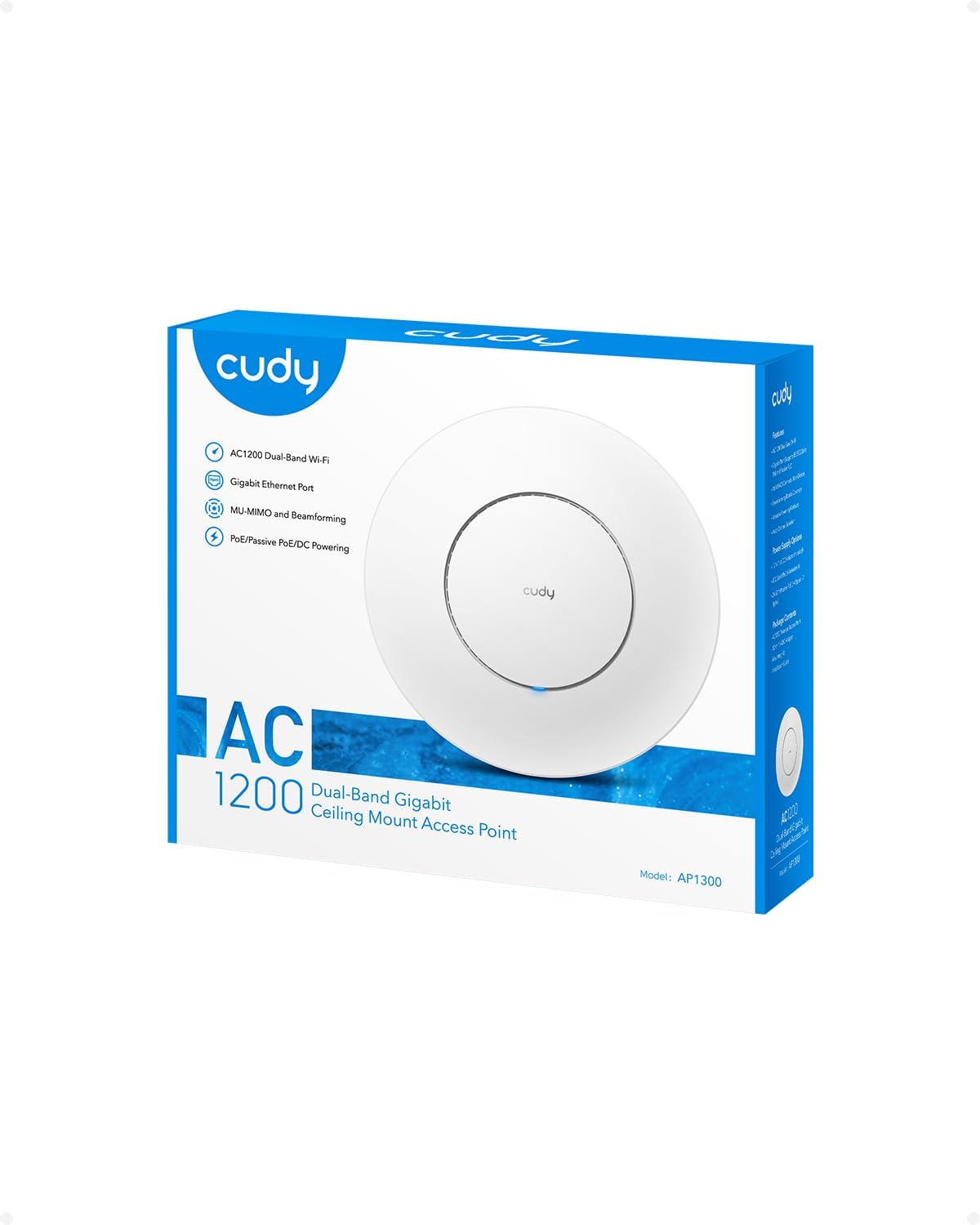
Figure 4: The retail packaging for the Cudy AC1200 AP1300.
4. Setup and Installation
4.1 Powering the Device
The AP1300 offers flexible power options:
- DC Power: Connect the included 12V DC power adapter to the DC IN port on the AP1300 and plug it into a power outlet.
- Power over Ethernet (PoE): If you have a PoE-enabled switch or a PoE injector (802.3af/at compliant or 24-57V Passive PoE), connect an Ethernet cable from the PoE source to the LAN/PoE port on the AP1300. This will provide both power and data connectivity.

Figure 5: Rear view of the AP1300, highlighting the LAN/PoE port and DC power input.
4.2 Physical Installation
The AP1300 can be mounted on a ceiling or wall using the provided mounting kit.
- Ceiling Mounting: Attach the mounting bracket to the ceiling using screws. Align the AP1300 with the bracket and twist to lock it into place.
- Wall Mounting: Secure the mounting bracket to a wall. Attach the AP1300 to the bracket, ensuring it is firmly seated.
Ensure the chosen location provides optimal Wi-Fi coverage and is within reach of your power and Ethernet connections.

Figure 6: Diagrams illustrating ceiling and wall mounting options for the AP1300.
4.3 Initial Configuration
To configure the AP1300, connect a computer directly to the AP1300's LAN/PoE port using an Ethernet cable. By default, the AP1300 may have a static IP address (e.g., 192.168.10.254) or obtain one via DHCP. Refer to the Quick Installation Guide for the default IP address and login credentials. Open a web browser and enter the AP's IP address to access the management interface.
Follow the on-screen prompts to set up your Wi-Fi network name (SSID), password, and other network settings. It is highly recommended to change the default administrator password immediately for security purposes.
5. Operating Modes
The Cudy AP1300 supports multiple operating modes to suit various networking needs:
- Access Point (AP) Mode: Extends an existing wired network to a wireless network. This is the most common mode for adding Wi-Fi coverage.
- Extender Mode: Wirelessly extends the coverage of an existing Wi-Fi network.
- Router Mode: Functions as a primary router, providing internet access to connected devices.
- WISP Mode: Acts as a Wireless Internet Service Provider client, connecting wirelessly to an ISP's network and sharing the connection via Ethernet or Wi-Fi.
You can switch between these modes via the device's web management interface.
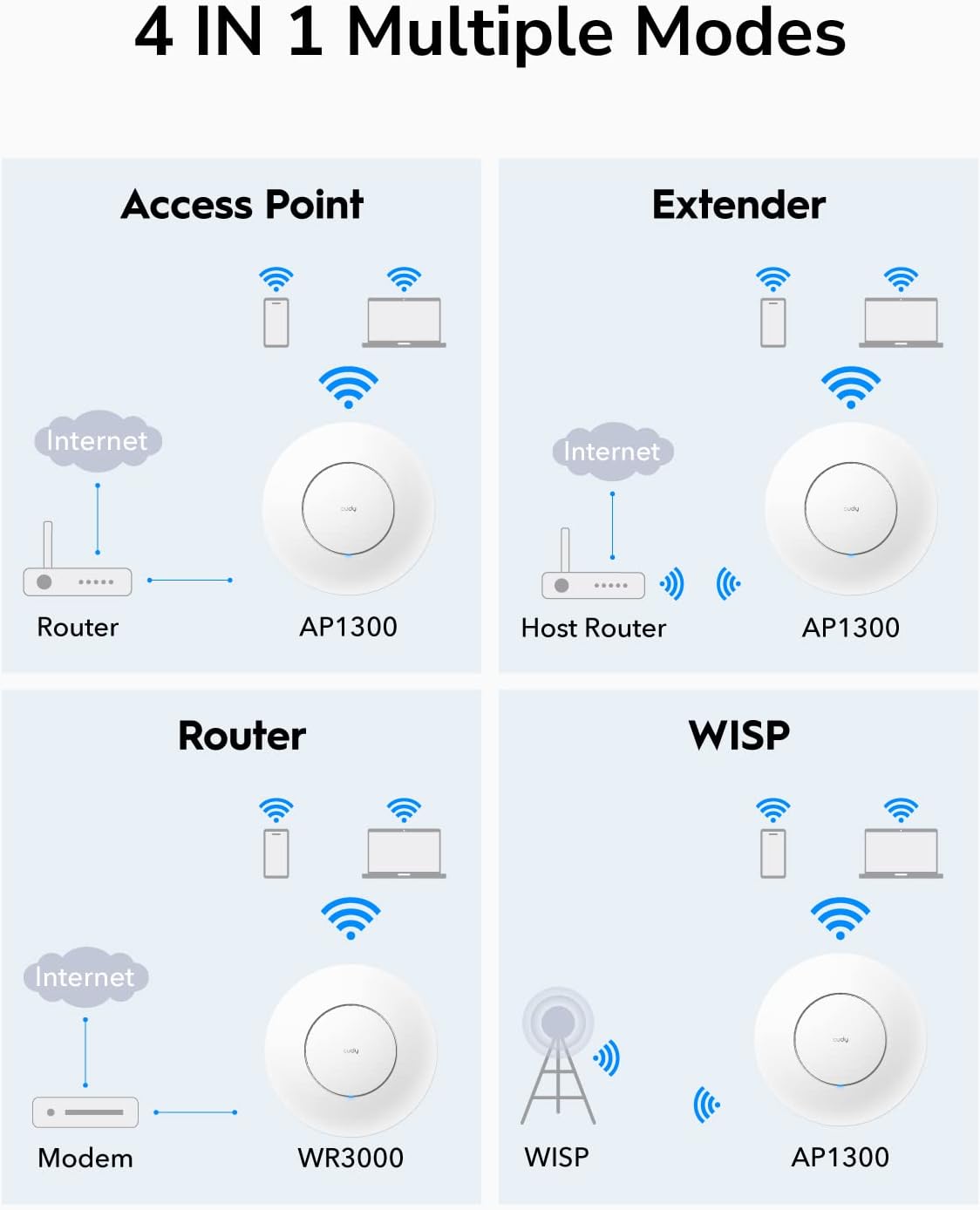
Figure 7: Visual representation of the four operating modes: Access Point, Extender, Router, and WISP.
5.1 Mesh Technology and Fast Roaming
When used with a compatible Cudy Wi-Fi router/VPN router/access point controller (firmware newer than 15.28), the AP1300 can participate in a mesh network. This allows for seamless roaming, meaning your devices will automatically switch to the strongest Wi-Fi signal as you move around, without experiencing drops in connectivity.
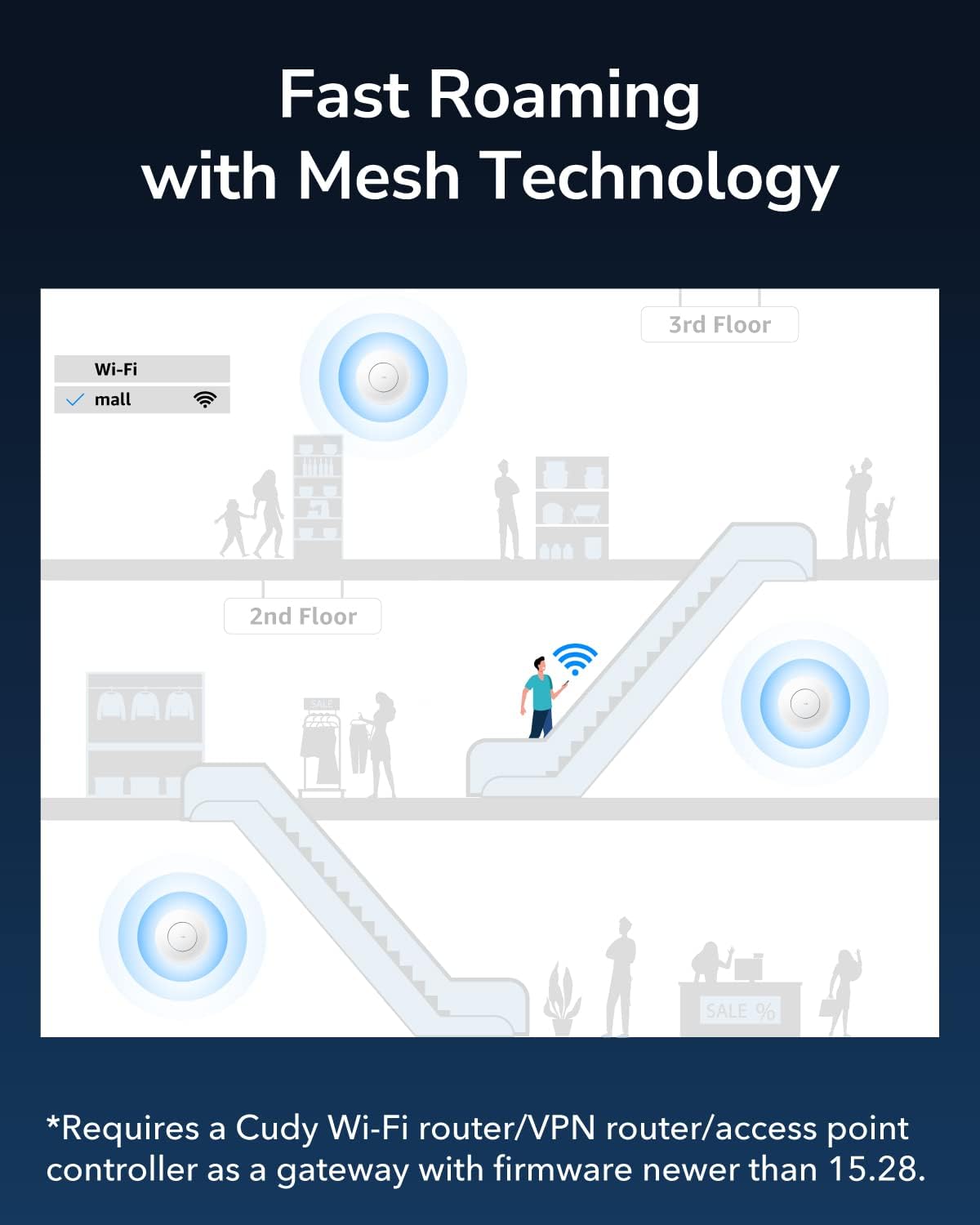
Figure 8: Depiction of seamless roaming in a multi-floor environment with mesh technology.
6. Maintenance
- Firmware Updates: Regularly check the Cudy official website for the latest firmware updates. Updating the firmware can improve performance, add new features, and fix security vulnerabilities.
- Cleaning: Keep the device clean and free from dust. Use a soft, dry cloth for cleaning. Do not use liquid cleaners or aerosols.
- Placement: Ensure the AP is placed in a well-ventilated area to prevent overheating. Avoid placing it near strong electromagnetic interference sources.
- Regular Reboot: Periodically rebooting the access point can help clear its memory and resolve minor performance issues.
7. Troubleshooting
7.1 Common Issues and Solutions
| Problem | Possible Cause | Solution |
|---|---|---|
| Cannot access the web management interface. | Incorrect IP address, network configuration issue, or firewall blocking access. |
|
| No Wi-Fi signal or weak signal. | Improper placement, interference, or incorrect Wi-Fi settings. |
|
| Slow Wi-Fi speeds. | Network congestion, outdated firmware, or channel interference. |
|
8. Specifications
| Feature | Detail |
|---|---|
| Brand | Cudy |
| Model Number | AP1300 |
| Wi-Fi Standard | 802.11ac Wave 2 |
| Wi-Fi Speeds | AC1200 (867 Mbps on 5 GHz, 300 Mbps on 2.4 GHz) |
| Ethernet Ports | Gigabit RJ45 (1x LAN/PoE) |
| Power Options | 802.3af/at PoE, Passive PoE (24-57V), 12V DC (adapter included) |
| Dimensions (Diameter x Height) | Ø231.9mm x 57.1mm (approx. 9.13 x 2.25 inches) |
| Item Weight | 1.06 pounds |
| Features | MU-MIMO, Beamforming, Mesh Support, Seamless Roaming, Captive Portal |
| Operating Modes | Access Point, Extender, Router, WISP |
9. Warranty Information
Cudy products typically come with a limited warranty. Please refer to the warranty card included in your product packaging or visit the official Cudy website for the most up-to-date warranty terms and conditions specific to your region and product model. Keep your purchase receipt as proof of purchase for warranty claims.
10. Technical Support
For technical assistance, troubleshooting, or further inquiries, please contact Cudy support through the following channels:
- Official Website: Visit www.cudy.com for FAQs, firmware downloads, and support resources.
- Email Support: Refer to the contact information on the Cudy website for email support.
- Online Community/Forums: Some issues may be resolved by consulting online communities or forums where other users and experts share solutions.
When contacting support, please have your product model (AP1300) and serial number ready.
Ask a question about this manual
Ask about setup, troubleshooting, compatibility, parts, safety, or missing instructions. Manuals+ will review the question and use this page’s manual context to help answer it.