
Cudy 225761
Contents
Cudy LT400 Outdoor 4G LTE Modem Router User Manual
Model: 225761
1. Introduction
This manual provides comprehensive instructions for the setup, operation, maintenance, and troubleshooting of your Cudy Unlocked Outdoor 4G LTE Cat 4 Modem Router. Please read this manual carefully before using the device to ensure proper functionality and safety.

Figure 1: Cudy LT400 Outdoor 4G LTE Modem Router with antennas.
2. Product Overview
2.1 Key Features
- 4G LTE Connectivity: Supports major 4G providers with SIM card slot for speeds up to 150Mbps.
- Outdoor Durability: IP65 rated waterproof housing and 4KV lightning protection.
- Detachable Antennas: Two 5dBi cellular antennas with SMA interface for signal enhancement or external antenna connection.
- Flexible Powering: 24V passive PoE power supply included, allowing power and data over a single Ethernet cable.
- Easy Setup & Security: Simple SIM card insertion, graphical management interface, and DNS encryption support.
2.2 Package Contents
Verify that all items are present in your package:
- Cudy LT400 Outdoor 4G LTE Modem Router
- Passive PoE adapter
- Mounting hardware (for pole or wall mounting)
- Ethernet Cable
- Quick Installation Guide

Figure 2: Main unit and detachable antennas.
3. Setup and Installation
3.1 SIM Card Installation
- Ensure the device is powered off.
- Locate the SIM card slot on the device.
- Insert a nano SIM card into the slot until it clicks into place. Ensure the SIM card is activated by your mobile carrier.
- Close the SIM card slot cover securely to maintain IP65 rating.

Figure 3: Illustration of SIM card insertion.
3.2 Antenna Installation
Screw the two detachable 4G cellular antennas onto the SMA connectors on the top of the router. Hand-tighten only.
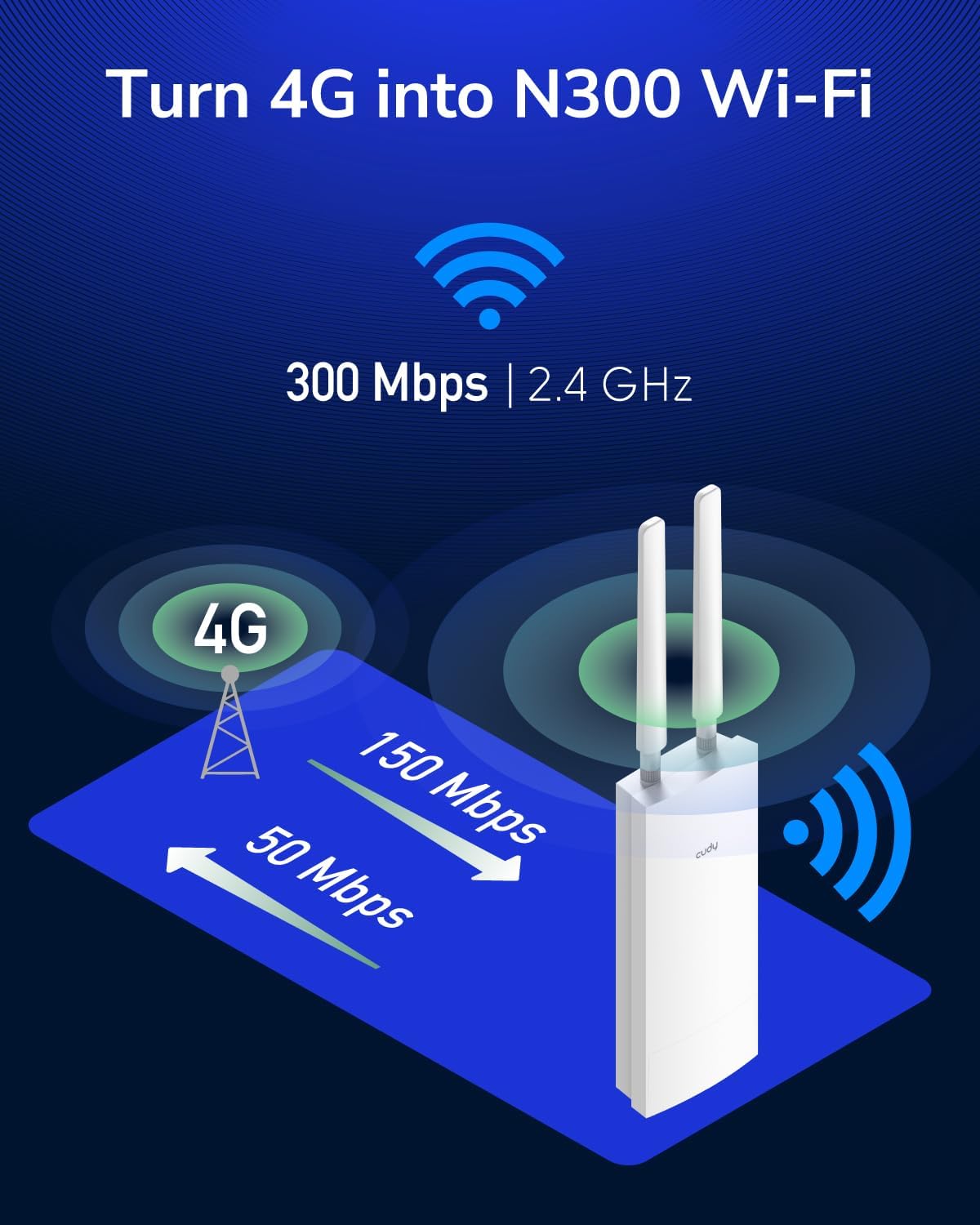
Figure 4: Detachable antennas and their connection points.
3.3 Mounting Options
The LT400 supports both pole and wall mounting. Use the included mounting hardware.
- Pole Mounting: Attach the mounting bracket to a pole using the provided straps. Secure the router to the bracket.
- Wall Mounting: Use screws to fix the mounting bracket to a wall. Attach the router to the bracket.

Figure 5: Wall and pole mounting methods.
3.4 Powering the Device (PoE)
Connect the router to the passive PoE adapter using an Ethernet cable. The PoE adapter will supply both power and data to the router. Connect the LAN port of the PoE adapter to your computer or another network device.

Figure 6: Connecting the router via PoE adapter to a home network.
4. Operation
4.1 Initial Configuration
- Connect your computer to the LAN port of the PoE adapter.
- Open a web browser and enter the default IP address (usually 192.168.10.1 or refer to the Quick Installation Guide).
- Log in using the default username and password (refer to the device label or Quick Installation Guide).
- Follow the on-screen wizard to configure your 4G LTE settings (APN, PIN if required) and Wi-Fi network (SSID, password).
4.2 LED Indicators
The device features LED indicators to show its status:
- Power LED: Indicates power status.
- 4G/LTE LED: Indicates 4G LTE connection status and signal strength.
- Wi-Fi LED: Indicates Wi-Fi network activity.
- LAN LED: Indicates Ethernet port activity.

Figure 7: Close-up of the LED indicators on the side of the router.
4.3 Network Coverage and Performance
The LT400 is designed for outdoor use and provides robust Wi-Fi coverage. Performance may vary based on environmental factors such as obstacles, interference, and cellular signal strength.

Figure 8: Depiction of Wi-Fi coverage in different outdoor environments.
5. Maintenance
5.1 Firmware Updates
Regularly check the Cudy official website for firmware updates. Updating the firmware can improve performance, add new features, and fix bugs. Follow the instructions provided with the firmware update carefully.
5.2 Cleaning
Wipe the device with a soft, dry cloth. Do not use liquid cleaners or aerosol sprays. Ensure all ports are free of dust and debris.
5.3 Environmental Considerations
While the device is IP65 rated, avoid prolonged exposure to extreme conditions beyond its specified operating temperature range (-4°F to 140°F / -20°C to 60°C) to ensure longevity.

Figure 9: Weatherproof features including IP65 rating and temperature range.
6. Troubleshooting
| Problem | Possible Cause | Solution |
|---|---|---|
| No Internet Connection | SIM card not inserted correctly or not activated. Incorrect APN settings. No cellular signal. | Reinsert SIM card. Verify SIM card activation with carrier. Check APN settings in web interface. Relocate device for better signal. |
| Wi-Fi Not Broadcasting | Wi-Fi disabled in settings. Device not powered on. | Check Wi-Fi settings in web interface. Ensure power LED is on. |
| Slow Internet Speed | Weak cellular signal. Network congestion. | Check signal strength via web interface. Try repositioning the device or using external high-gain antennas. |
| Cannot Access Web Interface | Incorrect IP address. Network configuration issue on PC. | Verify default IP address. Ensure PC is set to obtain IP address automatically (DHCP). Try a different browser. |
If problems persist, perform a factory reset by pressing and holding the reset button for 5-10 seconds. Note that this will erase all custom configurations.
7. Specifications
| Feature | Detail |
|---|---|
| Model | LT400 Outdoor (225761) |
| Dimensions (L x W x H) | 3.94 x 2.13 x 17.24 inches |
| Item Weight | 15.2 ounces |
| Wireless Standard | 802.11a, 802.11ac, 802.11b, 802.11g, 802.11n (N300 WiFi) |
| Frequency Band | Single-Band (2.4 GHz) |
| Cellular Standard | 4G LTE Cat 4 |
| Max Download Speed | Up to 150 Mbps (4G LTE) |
| Antennas | 2 x Detachable 5dBi Cellular Antennas (SMA) |
| Connectivity | Ethernet, Passive PoE |
| Power Supply | 24V Passive PoE Adapter (Included) |
| Environmental Rating | IP65 Waterproof, 4KV Lightning Protection |
| Operating Temperature | -4°F to 140°F (-20°C to 60°C) |
| Special Features | Access Point Mode, Weatherproof, VPN |
8. Warranty Information
Cudy products typically come with a limited warranty. For specific warranty terms and conditions, please refer to the warranty card included with your product or visit the official Cudy website. Keep your purchase receipt as proof of purchase for warranty claims.
9. Technical Support
For technical assistance, troubleshooting, or further inquiries, please contact Cudy customer support.
- Website: www.cudy.com (Check for support contact details, FAQs, and firmware downloads)
- Email: Refer to the product packaging or official website for support email address.
You can also refer to the official Installation Manual (PDF) for additional guidance.
Ask a question about this manual
Ask about setup, troubleshooting, compatibility, parts, safety, or missing instructions. Manuals+ will review the question and use this page’s manual context to help answer it.