
Introduction
The Amazon Fire TV Stick 4K Max (2nd Gen) is a powerful streaming device designed to deliver a premium entertainment experience. It offers 4K Ultra HD streaming with support for Dolby Vision, HDR10+, and immersive Dolby Atmos audio. Featuring Wi-Fi 6E for smoother connectivity and a fast processor, this device provides quick app starts and fluid navigation. The included Alexa Voice Remote Enhanced allows for voice control and integrated TV controls.
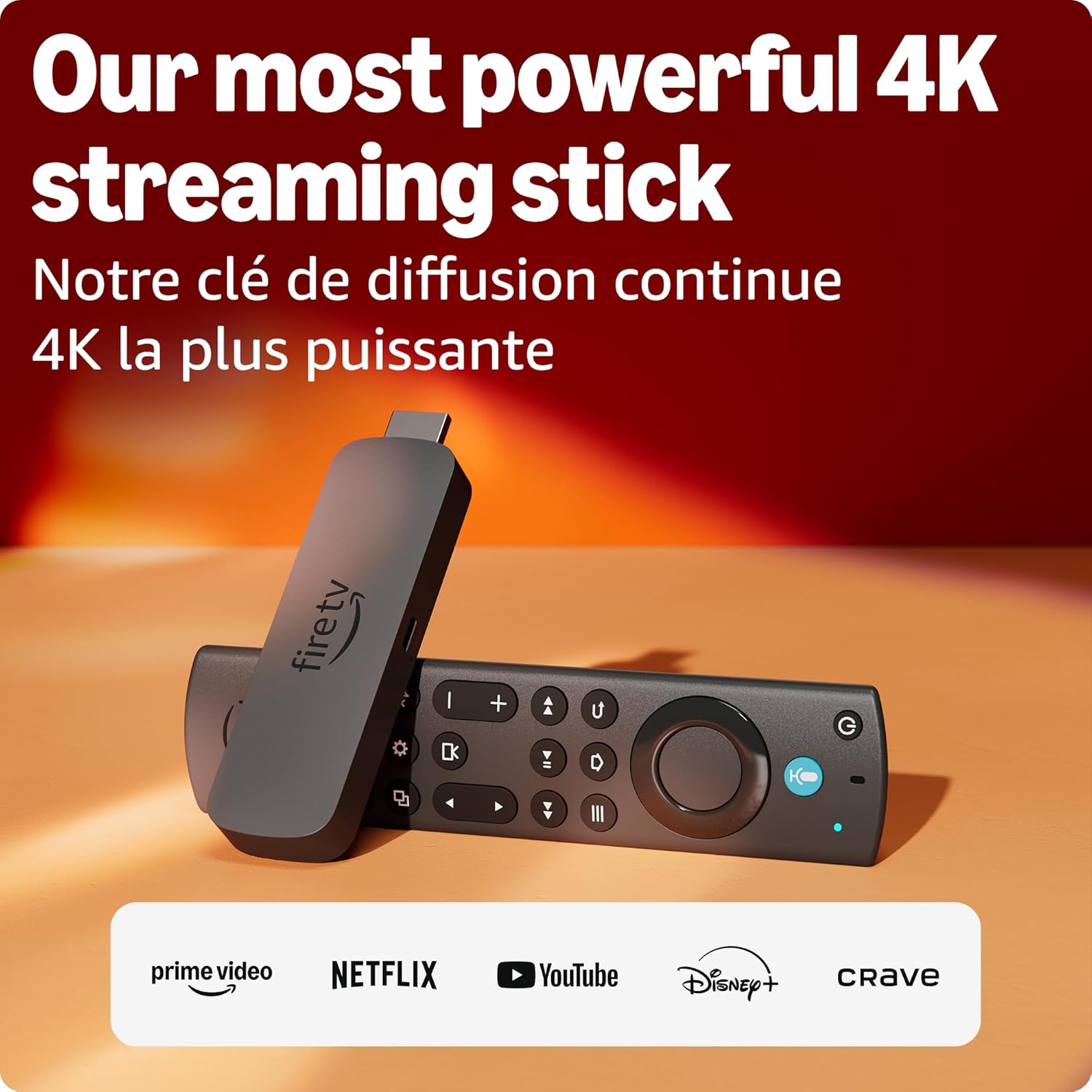
Image: The Fire TV Stick 4K Max streaming device alongside its Alexa Voice Remote Enhanced.
What's in the Box
Verify that all the following items are included in your package:
- Fire TV Stick 4K Max (2nd Gen)
- Alexa Voice Remote Enhanced
- Power cable
- Power adapter
- HDMI extender cable
- 2 AAA batteries
- Quick Start Guide
Setup Guide
Follow these steps to set up your Fire TV Stick 4K Max:
- Connect Fire TV Stick: Plug the Fire TV Stick 4K Max directly into an available HDMI port on your television. If space is limited or the stick obstructs other ports, use the included HDMI extender cable.
- Connect Power: Connect one end of the power cable to your Fire TV Stick and the other end to the power adapter. Plug the power adapter into a wall outlet. For optimal performance, always use the included power adapter.
- Select HDMI Input: Turn on your TV and select the HDMI input channel to which your Fire TV Stick is connected.
- Pair Remote: Insert the two AAA batteries into your Alexa Voice Remote Enhanced. The remote should automatically pair with your Fire TV Stick. If it doesn't, press and hold the Home button for 10 seconds until the LED indicator on the remote flashes blue.
- Follow On-Screen Instructions: Your TV will display instructions to select your language, connect to your Wi-Fi network, and register your device to your Amazon account. You may need your Wi-Fi password and Amazon account credentials.
- Update Software: The device may automatically download and install the latest software updates. This process can take several minutes.
- Enjoy: Once setup is complete, you can begin exploring content and customizing your Fire TV experience.
Operating Instructions
Navigation and Interface
The Fire TV interface provides easy access to your favorite apps, movies, TV shows, and live TV. Use the directional pad on your Alexa Voice Remote to navigate through menus and select items. The Home button returns you to the main screen, while the Back button navigates to the previous screen.
Using the Alexa Voice Remote Enhanced
The Alexa Voice Remote Enhanced allows you to control your Fire TV Stick and compatible TV functions (power, volume) using voice commands and dedicated buttons.
- Voice Control: Press and hold the Alexa button (microphone icon) and speak your command. For example, say "Find action movies," "Open Netflix," or "Play The Boys."
- TV Controls: Use the dedicated power, volume, and mute buttons to control your television.
- Recents Button: Quickly access recently used apps and content.
- Channel Buttons: Navigate live TV channels directly.

Image: The Fire TV interface displaying personalized content recommendations and an Alexa+ prompt for what to watch next.
4K Ultra HD Streaming and Audio
The Fire TV Stick 4K Max supports 4K Ultra HD resolution, Dolby Vision, HDR10+, and immersive Dolby Atmos audio for a cinematic viewing experience. Ensure your TV and audio system are compatible with these technologies to fully utilize these features.

Image: A television screen displaying a high-definition scene, illustrating the true-to-life 4K Ultra HD and Dolby Vision capabilities.
Wi-Fi 6E Connectivity
With Wi-Fi 6E support, the Fire TV Stick 4K Max provides smoother 4K streaming and reduced latency, even in congested network environments. A compatible Wi-Fi 6E router is required to take advantage of this feature.

Image: A graphic illustrating the performance improvements of Wi-Fi 6E compared to Wi-Fi 5 and Wi-Fi 6.
Fire TV Ambient Experience
Transform your TV into a dynamic display when not actively streaming. The Fire TV Ambient Experience allows you to showcase over 2,000 pieces of museum-quality art and photography, display useful information like weather, or control smart home devices.

Image: A television screen displaying a painting as part of the Fire TV Ambient Experience, showing time and temperature.
App Access and Storage
Access hundreds of thousands of movies and TV episodes from popular streaming services like Netflix, Prime Video, Disney+, Crave, YouTube, and more. The Fire TV Stick 4K Max features 16GB of storage, providing ample space for more apps, games, and downloads.

Image: A collage of popular streaming service logos including Prime Video, Netflix, Crave, Disney+, and YouTube, indicating broad content availability.
Gaming
Stream hundreds of games, including Xbox titles, on your Fire TV Stick 4K Max with Xbox Game Pass via cloud gaming. An Xbox Game Pass subscription and a compatible controller (sold separately) are required.
Smart Home Control
Control compatible smart home devices directly from your Fire TV. Use Alexa voice commands or the on-screen dashboard to manage lights, thermostats, smart cameras, and more.

Image: A television screen displaying smart home control icons for thermostat, smart camera, and lighting, integrated with the Fire TV interface.
Maintenance
- Cleaning: Use a soft, dry, lint-free cloth to clean your Fire TV Stick and remote. Do not use abrasive cleaners or solvents.
- Software Updates: Your Fire TV Stick will automatically download and install software updates to ensure optimal performance and security. Ensure your device is connected to the internet regularly.
- Storage Management: Periodically check your device storage. If storage is low, consider uninstalling unused apps to improve performance.
Troubleshooting
If you encounter issues with your Fire TV Stick 4K Max, try the following solutions:
- No Power/No Signal: Ensure the Fire TV Stick is securely plugged into the HDMI port and the power adapter is connected to a working outlet. Verify your TV is on the correct HDMI input.
- Remote Not Responding: Replace the AAA batteries in the remote. If the issue persists, try re-pairing the remote by holding the Home button for 10 seconds.
- Wi-Fi Connection Issues: Restart your Wi-Fi router and modem. On your Fire TV, go to Settings > Network and try reconnecting to your Wi-Fi network. Ensure you have entered the correct password.
- Buffering/Poor Streaming Quality: Ensure your internet connection is stable and fast enough for 4K streaming. Move your Wi-Fi router closer to the Fire TV Stick or reduce interference from other devices.
- App Not Working: Try force-stopping the app (Settings > Applications > Manage Installed Applications > [App Name] > Force Stop) or clearing its cache. If the problem continues, uninstall and reinstall the app.
- Device Restart: For many issues, a simple restart can resolve the problem. Go to Settings > My Fire TV > Restart.
For further assistance, visit the official Amazon Fire TV support pages or contact Amazon Customer Service.
Specifications
| Size (Device) | 99 mm x 30 mm x 14 mm (housing), 108 mm x 30 mm x 14 mm (with connector) |
| Weight (Device) | 43.5 g |
| Processor | Quad-core 2.0GHz |
| GPU | 850 MHz |
| Storage | 16GB |
| Wi-Fi | Wi-Fi 6E tri-band: 802.11 a/b/g/n/ac/ax (2.4GHz, 5GHz, and 6GHz) |
| Bluetooth | Bluetooth 5.2 + BLE |
| Voice Support | Yes, with Alexa Voice Remote Enhanced or Fire TV app |
| Ports | HDMI 2.1 output with ARC input support, micro USB |
| Audio Support | Dolby Atmos, 7.1 surround sound, 2-channel stereo, HDMI audio pass through up to 5.1 |
| 4K Support | Requires compatible Ultra HD TV; services may vary |
| Output Resolution | 2160p, 1080p, and 720p up to 60 fps |
| Remote Size | 38 mm x 157 mm x 17 mm |
| Remote Weight | 51 g (without batteries) |
| Remote Batteries | 2 AAA (included) |
Accessibility Features
The Fire TV Stick 4K Max includes features to assist users with various needs:
- VoiceView Screen Reader: Enables access to most Fire TV features for users who are blind or visually impaired.
- Closed Captioning: Watch videos and TV shows with closed captioning displayed (availability varies by content).
- Bluetooth Audio: Listen to Fire TV audio with compatible Bluetooth headphones for private listening.
Warranty and Support
Your Amazon Fire TV Stick 4K Max comes with a 1-year limited warranty and service. For detailed warranty terms and conditions, please refer to the documentation included with your device or visit the official Amazon website.
For technical support, troubleshooting, or warranty claims, please visit the Amazon Device Support page or contact Amazon Customer Service directly.