
Aramox Iprog Pro V86
Contents
Aramox Iprog Pro V86 ECU Programmer Diagnostic Tool User Manual
Model: Iprog Pro V86
1. Introduction
This manual provides detailed instructions for the operation and maintenance of the Aramox Iprog Pro V86 ECU Programmer Diagnostic Tool. This device is designed for automotive diagnostic and programming tasks, including IMMO (immobilizer) functions and mileage correction.
The Iprog Pro V86 offers a comprehensive set of features for professionals in vehicle electronics, serving as an alternative to tools like Carprog Full and Digiprog III.

Image 1.1: The Aramox Iprog Pro V86 ECU Programmer unit with its various adapters and cables.
2. Package Contents
Verify that all items listed below are present in your package:
- 1 x Iprog Pro V86 Programmer Unit
- 6 x Adapters (for various programming tasks)
- 1 x CD (containing software and drivers)
- 3 x Wire Harnesses

Image 2.1: A visual representation of the Iprog Pro V86 programmer and its accompanying accessories, including various adapters and connection cables.
3. System Requirements
The Iprog Pro V86 programmer is compatible with the following Microsoft Windows operating systems:
- Windows XP
- Windows Vista
- Windows 7
- Windows 8
Ensure your computer meets these requirements for proper software installation and operation.

Image 3.1: The Iprog Pro V86 programmer connected to a laptop, illustrating its compatibility with various Windows operating systems for diagnostic tasks.
4. Setup and Installation
4.1 Software Installation
- Insert the provided CD into your computer's optical drive.
- Follow the on-screen instructions to install the Iprog Pro V86 software and drivers.
- Restart your computer after installation is complete to ensure all drivers are properly loaded.
4.2 Hardware Connection
- Connect the Iprog Pro V86 programmer unit to your computer using the provided USB cable.
- For vehicle diagnostics, connect the appropriate adapter and wire harness to the programmer unit and then to the vehicle's OBDII port or specific ECU connection points.
- Ensure all connections are secure before powering on the device or starting any programming tasks.
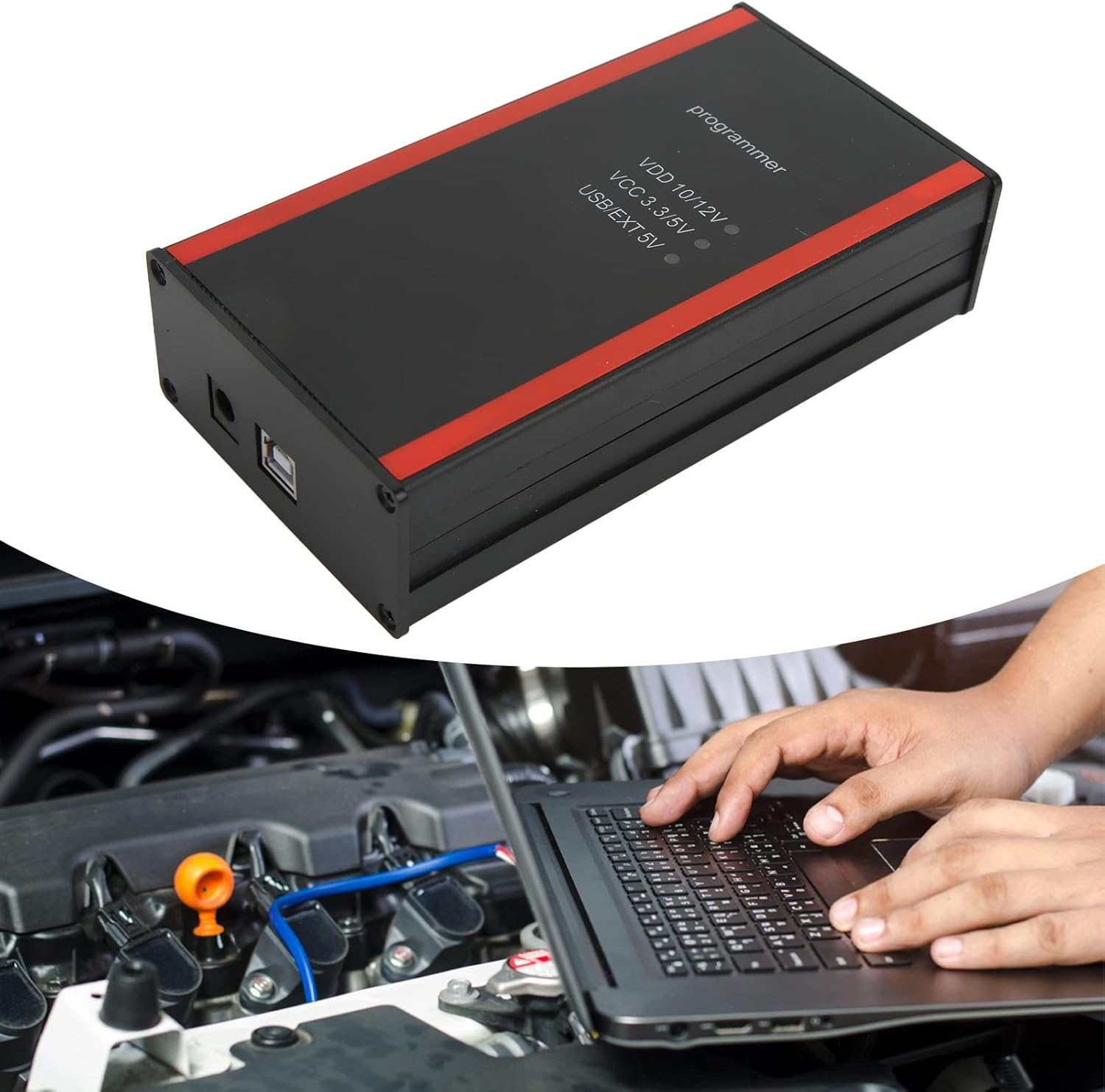
Image 4.1: A detailed view of the Iprog Pro V86 programmer, highlighting its connection ports and power indicators (VDD 10/12V, VCC 3.3/5V, USB/EXT 5V).
5. Operating Instructions and Functions
The Iprog Pro V86 offers a wide range of functions for automotive programming and diagnostics. Always refer to the software interface for specific instructions related to each function.
5.1 Core Functions
- Dashboard Programming: Adjusting and programming vehicle dashboards.
- Car Radio Programming: Unlocking and programming car radio units.
- ECU Programming: Reading and writing data to Engine Control Units.
- EEPROM Programming: Working with EEPROM data.
- IMMO (Immobilizer) Functions: Key copying, preparation, unlocking, and working with IMMO Key Auto dumps.
- MCU Programming: Microcontroller unit programming.
- Mileage Correction: Adjusting odometer readings via OBDII or direct connection.
5.2 Special Functions
- DPF Off (Diesel Particulate Filter removal in dump)
- MIL to KM (Transfer readings from miles to kilometers)
- PINABS, PINCODE SMATRA3, PINCODE SENSOR SPEED LIMIT
- ODO Adjust
- Crash Data Deletion (Working with the computer, deleting crash data)
- Realign Pin code from dump (for some brands)
- Support for Fujutsu, Microchip, 912EN, NECV850, BLR, CAN, CRC_Cript, ibutton, sd_unlocker, etc.

Image 5.1: An illustration of the Iprog Pro V86 in use, connected to a vehicle and a laptop, performing diagnostic or programming operations.
6. Maintenance
Proper maintenance ensures the longevity and reliable operation of your Iprog Pro V86 programmer.
- Cleaning: Use a soft, dry cloth to clean the programmer unit. Avoid liquid cleaners or solvents.
- Storage: Store the device and its accessories in a cool, dry place, away from direct sunlight and extreme temperatures.
- Software Updates: Regularly check for software updates to ensure compatibility with new vehicle models and access to the latest functions. Updates are typically provided via the manufacturer's website or included CD.
- Cable Care: Inspect cables and adapters for damage before each use. Do not use damaged cables.

Image 6.1: The Iprog Pro V86 programmer and its complete set of adapters and cables, emphasizing the importance of proper handling and storage.
7. Troubleshooting
| Problem | Possible Cause | Solution |
|---|---|---|
| Device not recognized by computer | Driver not installed or corrupted; Loose USB connection. | Reinstall drivers from the provided CD or manufacturer's website. Check USB cable and port. Try a different USB port. |
| Software crashes or freezes | Incompatible operating system; Software bug; Insufficient system resources. | Ensure your OS is supported (Windows XP/Vista/7/8). Update software. Close other demanding applications. |
| Cannot connect to vehicle ECU | Incorrect adapter/cable; Vehicle ignition off; Faulty OBDII port; Vehicle not supported. | Verify correct adapter for the vehicle. Turn ignition ON. Check vehicle's OBDII port. Consult software for vehicle compatibility. |
| Programming failure | Low vehicle battery voltage; Interrupted connection; Incorrect procedure. | Ensure vehicle battery is fully charged or connected to a charger. Maintain stable connection. Follow software instructions precisely. |

Image 7.1: A detailed view of the multi-pin connector on the Iprog Pro V86 programmer, which is crucial for connecting various adapters and wire harnesses. Ensure this connection is secure to prevent issues.
8. Specifications
- Item Type: ECU Programmer
- Brand: Aramox
- Model: Iprog Pro V86
- Material: ABS
- Operating System Compatibility: Windows XP, Windows Vista, Windows 7, Windows 8
- Power Source: Corded Electric (via USB/external 5V, VDD 10/12V, VCC 3.3/5V)
- Parcel Dimensions: 25 x 14.7 x 7.6 cm
- Item Weight: 670 g
- Country of Origin: China

Image 8.1: The six distinct adapters provided with the Iprog Pro V86 programmer, each designed for specific programming tasks and connections.
9. Warranty and Support
For warranty information and technical support, please refer to the documentation included with your product or contact Aramox customer service through their official channels. Keep your purchase receipt for warranty claims.
For the latest software updates and additional resources, visit the official Aramox website.

Image 9.1: The Aramox brand logo, representing the manufacturer of the Iprog Pro V86 ECU Programmer.
Documents and downloads
Ask a question about this manual
Ask about setup, troubleshooting, compatibility, parts, safety, or missing instructions. Manuals+ will review the question and use this page’s manual context to help answer it.