
1. Introduction
Thank you for choosing the GKU D200 4K Dashcam. This device is designed to provide high-quality video recording of your journeys, enhancing your driving safety and providing crucial evidence in case of incidents. This manual will guide you through the installation, operation, and maintenance of your dashcam to ensure optimal performance.
2. Package Contents
Please check the package for the following items:
- 1 x GKU D200 4K Dashcam (with 64GB SD Card)
- 1 x Car Charger Adapter (USB-C Port, 3 meters)
- 1 x Adhesive Tape & 2 x Electrostatic Films
- 1 x Pry Tool
- 1 x User Manual

Image: GKU D200 Dashcam Package Contents
3. Product Overview
The GKU D200 Dashcam features a compact design with a 170-degree wide-angle lens, 4K UHD resolution, and advanced night vision capabilities. It integrates seamlessly into your vehicle without obstructing your view.

Image: GKU D200 Dashcam Mini Size

Image: 170-Degree Wide Angle View
4. Setup
4.1 Insert Micro SD Card
Before first use, insert the provided 64GB Micro SD card (or a compatible U3/Class 10+ card up to 256GB) into the dashcam's slot. It is crucial to format the Micro SD card within the dashcam before recording to ensure proper functionality.
4.2 Mounting the Dashcam
- Clean the area on your windshield where you intend to mount the dashcam.
- Apply the electrostatic film to the cleaned area. This helps protect your windshield and makes removal easier.
- Attach the dashcam to the electrostatic film using the adhesive tape. Ensure the lens has a clear view of the road.
- Adjust the camera angle using the 140-degree adjustable mount for the ideal recording perspective.

Image: Easy Installation Guide
4.3 Power Connection
Connect the dashcam to your car's power outlet using the provided car charger adapter. The dashcam will automatically power on and begin recording when your vehicle starts.
5. Operating Instructions
5.1 Automatic Recording
Once powered, the dashcam automatically starts recording. Videos are saved in segments (1, 3, or 5 minutes) to the Micro SD card.
5.2 Voice Prompts
The dashcam provides voice prompts to inform you of its status (e.g., "Recording Started," "Wi-Fi Connected"). By default, these prompts are in English. You can adjust the volume or disable voice prompts via the mobile application.
5.3 One-Click Video Lock
In case of an important event, you can manually lock the current recording by pressing the designated button on the dashcam. This prevents the video from being overwritten by loop recording.

Image: One-Click Video Lock Feature
6. App Control (GKU GO)
The GKU D200 Dashcam features built-in WiFi for seamless control and access via the "GKU GO" app, available on App Store and Google Play.
- Download the "GKU GO" app on your Android or iOS device.
- Enable Wi-Fi on your smartphone and connect to the dashcam's Wi-Fi network. The effective range is 3 to 5 meters.
- Open the app to view live footage, playback recorded videos, download files to your phone, and manage dashcam settings.
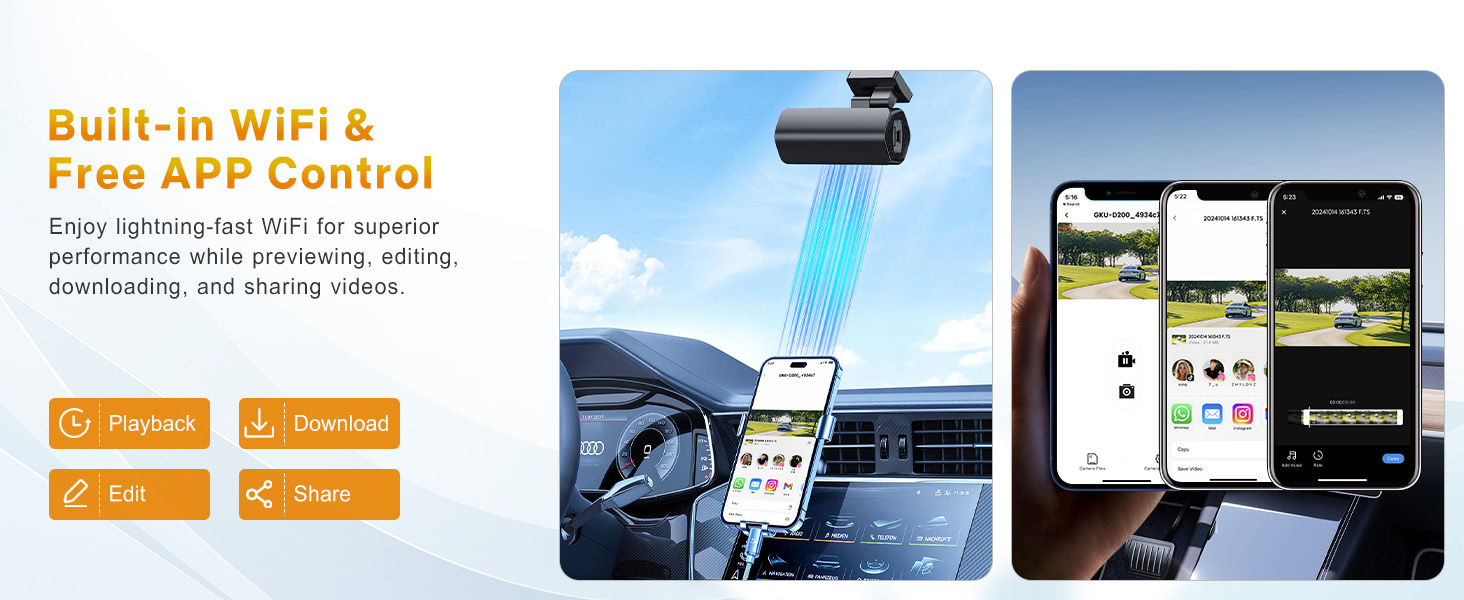
Image: Built-in WiFi & App Control
7. Parking Monitoring
The GKU D200 offers 24-hour parking monitoring to protect your vehicle when parked. This feature requires a separate hardwire kit (ASIN: B0CNGCGF4Q), which is not included with the dashcam.
7.1 Time-Lapse Mode
Records continuously at a low frame rate (1 fps) to save storage space while providing extended surveillance.
7.2 G-Sensor Detection
Automatically detects sudden impacts or vibrations and initiates recording, locking the video file to prevent overwriting.

Image: G-Sensor 24H Parking Monitoring
8. Loop Recording & G-Sensor
8.1 Loop Recording
When the Micro SD card is full, the dashcam automatically overwrites the oldest unlocked video files with new recordings, ensuring continuous operation without manual intervention.

Image: Continuous Loop Recording
8.2 G-Sensor
The built-in G-Sensor detects sudden acceleration, braking, or collisions. Upon detection, it automatically locks the current video segment, moving it to an emergency folder to prevent it from being overwritten by loop recording. These locked files serve as critical evidence.

Image: G-Sensor Collision Lock
9. Maintenance
- Format SD Card: Regularly format the Micro SD card (at least once a month) to maintain optimal recording performance and prevent data corruption. This can be done via the GKU GO app.
- Clean Lens: Use a soft, lint-free cloth to gently clean the dashcam lens to ensure clear video quality.
- Firmware Updates: Check the GKU website or app periodically for firmware updates to improve performance and add new features.
10. Troubleshooting
| Problem | Solution |
|---|---|
| Dashcam does not power on. | Ensure the car charger is properly connected and the vehicle's power outlet is functioning. Check the car's fuse. |
| Recording stops or freezes. | Format the Micro SD card. Ensure you are using a high-speed (U3 or Class 10+) Micro SD card from a reputable brand. Replace the SD card if the issue persists. |
| Poor video quality. | Clean the lens. Ensure the protective film is removed. Check settings in the app for resolution. |
| Wi-Fi connection issues. | Ensure your smartphone is within 3-5 meters of the dashcam. Restart both the dashcam and your phone. Reconnect via the GKU GO app. |
| Parking monitoring not working. | Verify that the optional hardwire kit is correctly installed and connected. Check the parking monitoring settings in the app. |
11. Specifications
| Feature | Detail |
|---|---|
| Model Name | D200 |
| Video Resolution | 4K UHD (2160p) |
| Frame Rate | 30 FPS |
| Lens Angle | 170 Degrees |
| Aperture | F1.8 |
| Connectivity | WiFi |
| Memory Card Support | MicroSD, up to 256GB (64GB included) |
| Special Features | WDR Night Vision, App Control, G-Sensor, Loop Recording, 24H Parking Monitor (requires hardwire kit), Voice Prompts |
| Power Source | Car Charger (USB-C), Internal Lithium-metal battery (for emergency files) |
| Dimensions | 3 x 8 x 2.99 cm |
| Weight | 300 g |
12. Warranty & Support
GKU provides the following for your D200 Dashcam:
- Warranty: 12-month product warranty.
- Technical Support: Lifetime technical support.
- Return Policy: 30-day return policy.
For any inquiries or support, please contact GKU customer service at: support@gkutech.com


