
ORICO DHF-2U2C
ORICO DHF-2U2C 4-in-1 USB-C Hub Instruction Manual
Model: DHF-2U2C
Introduction
This manual provides detailed instructions for the proper use and maintenance of your ORICO DHF-2U2C 4-in-1 USB-C Hub. Please read this manual thoroughly before using the product to ensure optimal performance and longevity.
Product Overview
The ORICO DHF-2U2C is a compact and versatile 4-in-1 USB-C hub designed to expand the connectivity of your USB-C enabled devices. It features high-speed data transfer capabilities and Power Delivery (PD) charging.
Key Features:
- 1 x USB-C 3.2 Gen2 port (10Gbps data transfer)
- 2 x USB-A 3.2 Gen2 ports (10Gbps data transfer)
- 1 x USB-C PD 100W charging port
- Aluminum alloy construction for efficient heat dissipation
- Plug and Play functionality
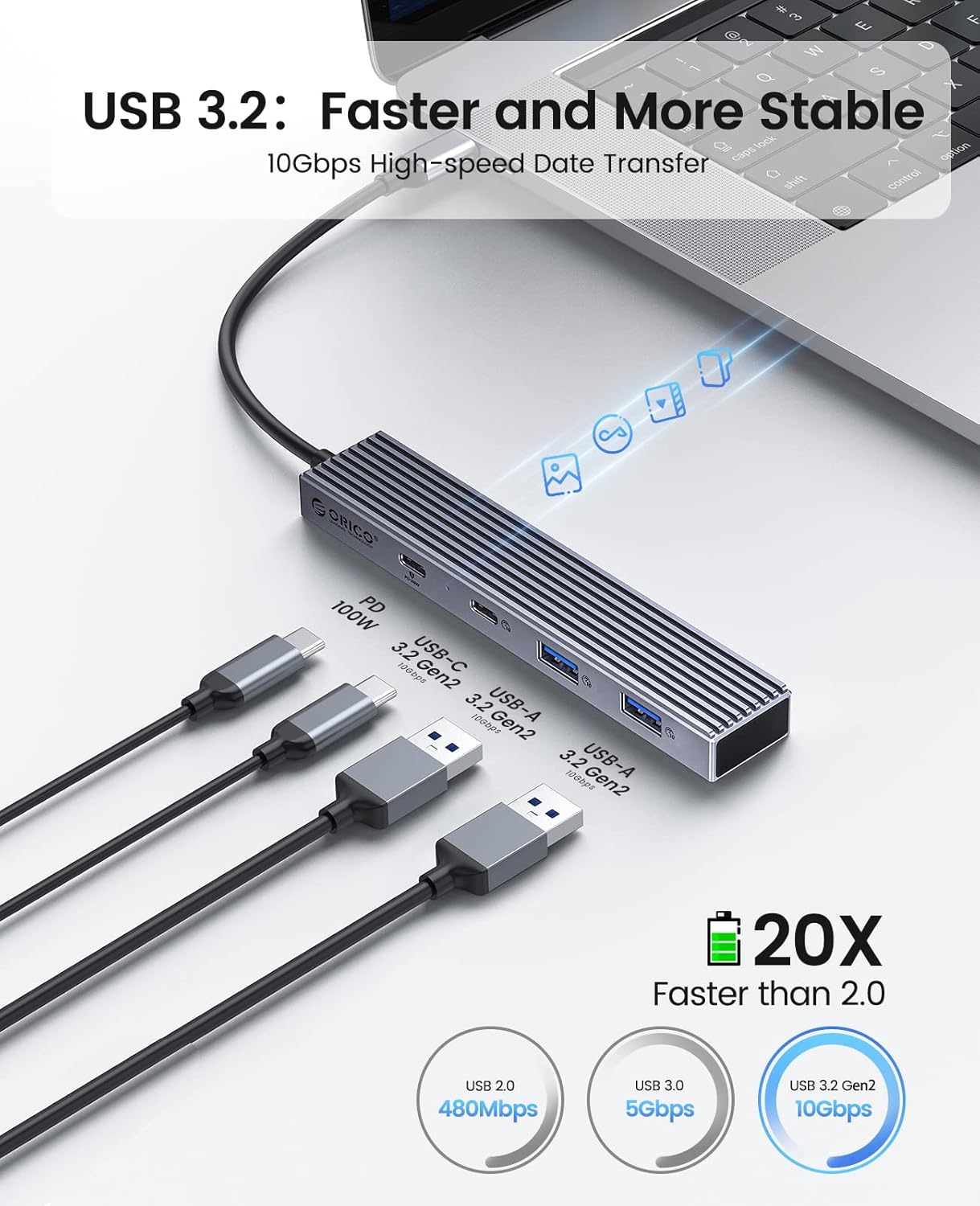
Figure 1: The ORICO DHF-2U2C USB-C Hub, displaying its USB-C input cable, one USB-C data port, two USB-A data ports, and one USB-C Power Delivery port.
Setup Instructions
- Connect to Host Device: Plug the integrated USB-C cable of the ORICO DHF-2U2C hub into an available USB-C port on your laptop, PC, MacBook, or other compatible device.
- Power Connection (Optional): If your host device supports Power Delivery (PD) charging via its USB-C port, and you wish to charge it while using the hub, connect a compatible USB-C power adapter (up to 100W) to the dedicated USB-C PD port on the hub. Ensure your device's USB-C port supports charging.
- Device Recognition: The hub is plug-and-play and should be automatically recognized by your operating system (Windows, macOS, Linux, Chrome OS) without requiring additional drivers.
Video 1: A demonstration of unboxing and connecting the ORICO DHF-2U2C USB-C Hub to a laptop, showing the hub's ports and the Power Delivery charging function in action.
Operating Instructions
Connecting USB Devices:
- USB-C Data Port: Connect USB-C peripherals such as external SSDs, flash drives, or other USB-C compatible devices to the USB-C data port for high-speed data transfer up to 10Gbps.
- USB-A Data Ports: Connect traditional USB-A peripherals like keyboards, mice, USB flash drives, or external hard drives to the two USB-A data ports. These ports also support data transfer speeds up to 10Gbps.

Figure 2: The ORICO DHF-2U2C hub connected to a laptop, demonstrating the connection of external hard drives to its USB-A ports for data transfer.
Power Delivery (PD) Charging:
The dedicated USB-C PD port allows you to charge your laptop or other compatible device while simultaneously using the hub's data ports. This port supports up to 100W power input. Ensure your power adapter and host device support PD charging for this function to work.
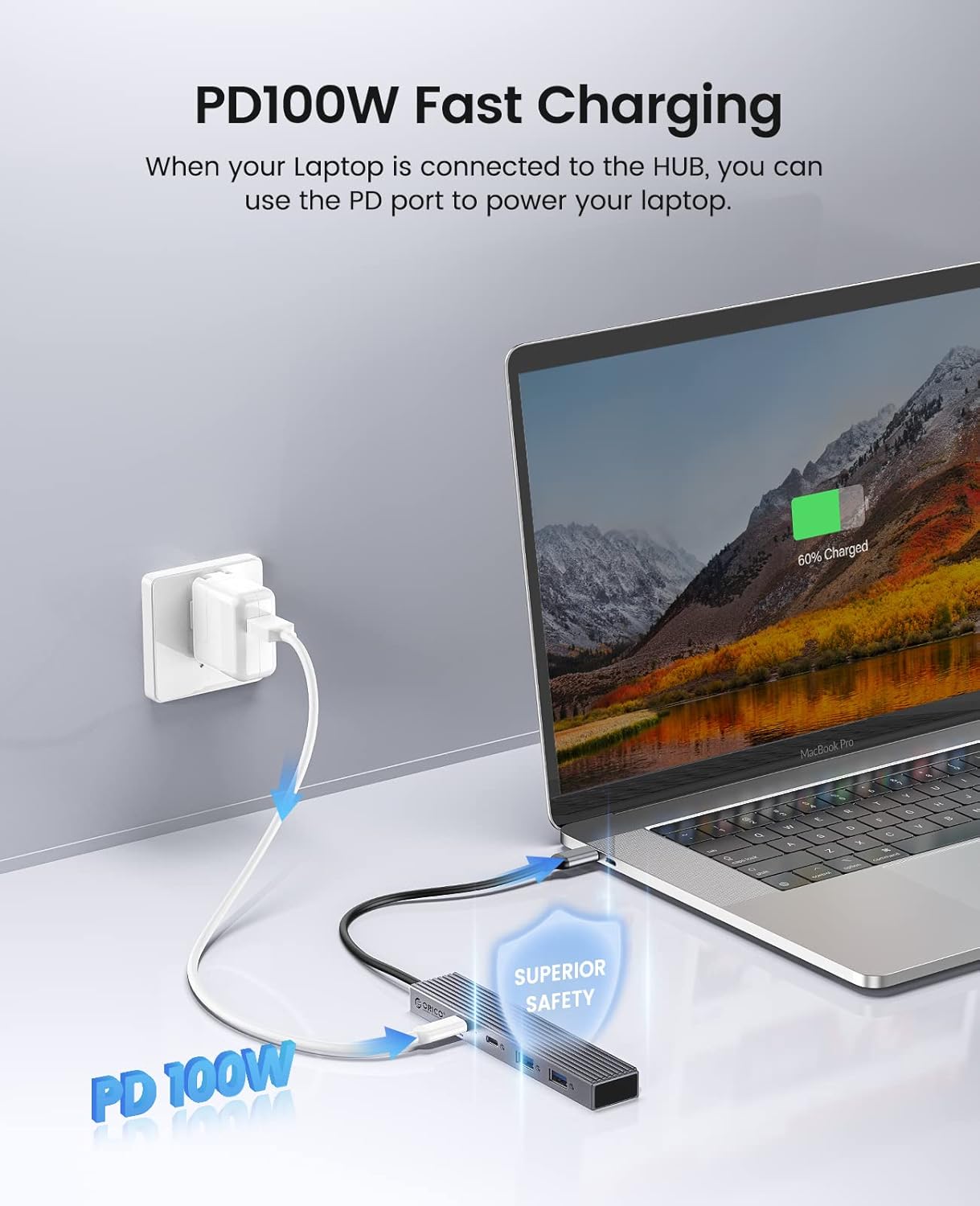
Figure 3: The ORICO DHF-2U2C hub connected to a MacBook Pro, illustrating the use of the PD 100W port to charge the laptop while the hub is in use.
Maintenance
- Keep the hub clean and free from dust. Use a soft, dry cloth for cleaning.
- Avoid exposing the hub to extreme temperatures, humidity, or direct sunlight.
- Do not attempt to disassemble or repair the device yourself. Contact customer support for assistance.
- Handle the hub and its cables gently to prevent damage.

Figure 4: The compact ORICO DHF-2U2C hub being stored in a bag, demonstrating its portability and ease of transport.
Troubleshooting
| Problem | Possible Solution |
|---|---|
| Hub not recognized by device. | Ensure the hub's USB-C cable is fully inserted into your device's USB-C port. Try connecting to a different USB-C port or restarting your device. |
| Devices connected to the hub are not working. | Verify that the connected devices are properly plugged into the hub. Check if the devices require external power. Ensure your operating system drivers are up to date. |
| Laptop not charging via PD port. | Confirm that your laptop's USB-C port supports Power Delivery. Ensure your USB-C power adapter is functional and connected to the hub's PD port. Check the power adapter's wattage compatibility. |
| Slow data transfer speeds. | Ensure both your host device's USB-C port and the connected peripheral support USB 3.2 Gen2 (10Gbps). Older USB standards (USB 2.0, USB 3.0) will operate at their respective lower speeds. |
Specifications
| Feature | Detail |
|---|---|
| Model | DHF-2U2C |
| Ports | 1 x USB-C 3.2 Gen2 (Data), 2 x USB-A 3.2 Gen2 (Data), 1 x USB-C (PD 100W Charging) |
| Data Transfer Speed | Up to 10Gbps (USB 3.2 Gen2 ports) |
| Power Delivery | Up to 100W (Input) |
| Material | Aluminum Alloy + ABS |
| Dimensions (LxWxH) | 5.12 x 0.98 x 0.51 inches (130 x 25 x 13 mm) |
| Weight | 3.17 ounces (90g) |
| Compatible Operating Systems | Windows, macOS, Linux, Chrome OS |
| Compatible Devices | Laptops, PCs, MacBooks, Surface Pro, Smartphones, Tablets with USB-C port |
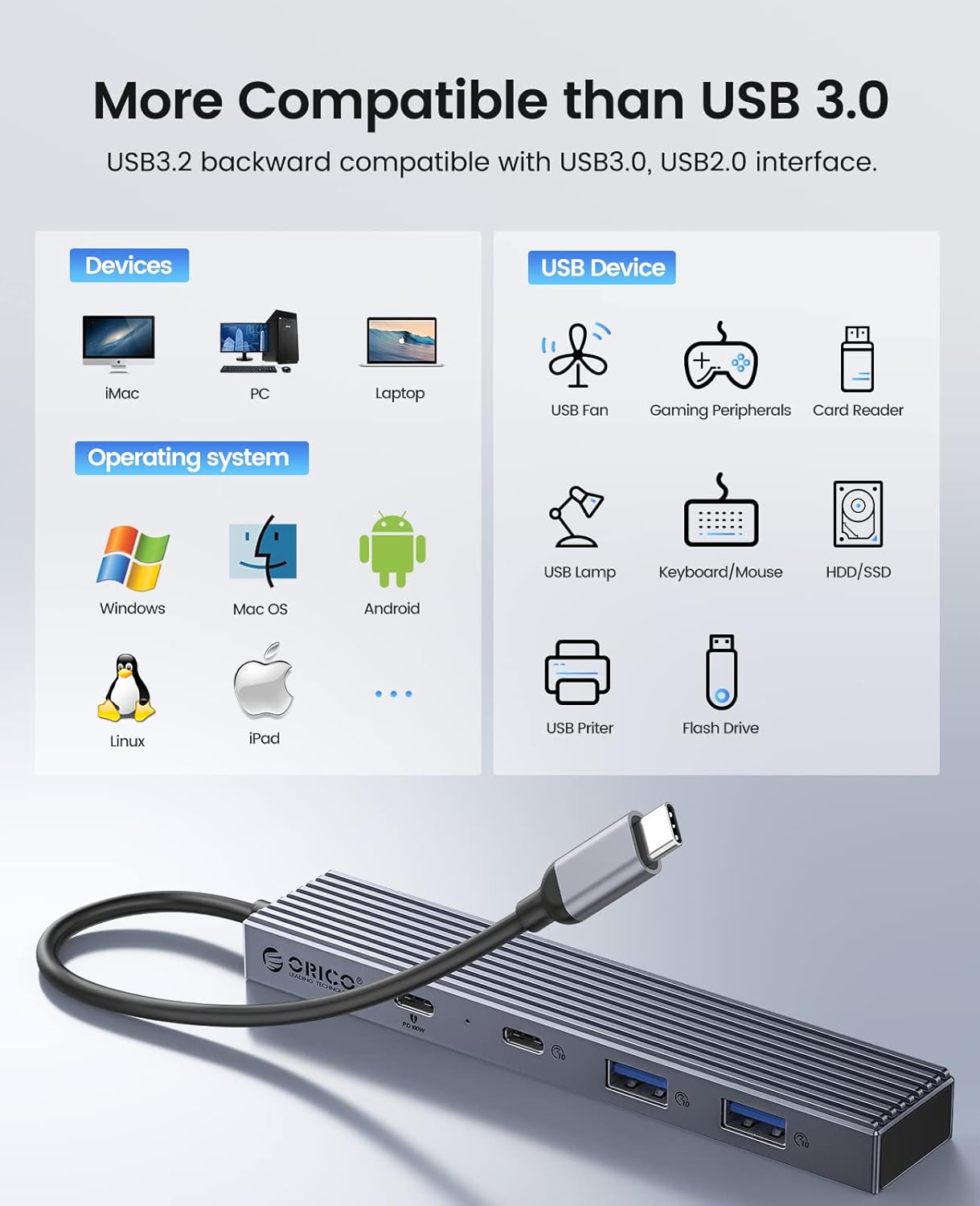
Figure 5: An illustration of the broad compatibility of the ORICO DHF-2U2C hub with different devices and operating systems, including Windows, Mac OS, Linux, and iPad OS.
Warranty and Support
ORICO products typically come with a 12-month worry-free warranty and lifetime technical support. For warranty claims, technical assistance, or any product-related inquiries, please contact ORICO customer support through their official website or the retailer where the product was purchased.
Related documentsDHF-2U2C


Ask a question about this manual
Ask about setup, troubleshooting, compatibility, parts, safety, or missing instructions. Manuals+ will review the question and use this page’s manual context to help answer it.