
1. Introduction
This manual provides detailed instructions for the installation, operation, and maintenance of your TONGOU 16A Smart WiFi Energy Meter Switch. This device allows you to convert traditional small household appliances into smart devices, offering remote control, voice control, and real-time energy consumption monitoring.
Key Features:
- Remote Control: Control appliances via the "Smart Life" or "TUYA" app from anywhere.
- Voice Control: Compatible with Amazon Alexa and Google Assistant for hands-free operation.
- Energy Monitoring: Analyze real-time and historical energy consumption (hours, days, months, years).
- Multiple Timing Modes: Includes time mode, countdown mode, cycle time, and astro timer to automate appliance operation.
- Easy Installation: Designed for quick and straightforward wiring and DIN rail mounting.
- High-Quality Materials: Constructed with manganese-copper alloy and PA66 flame-retardant material for safety and durability.
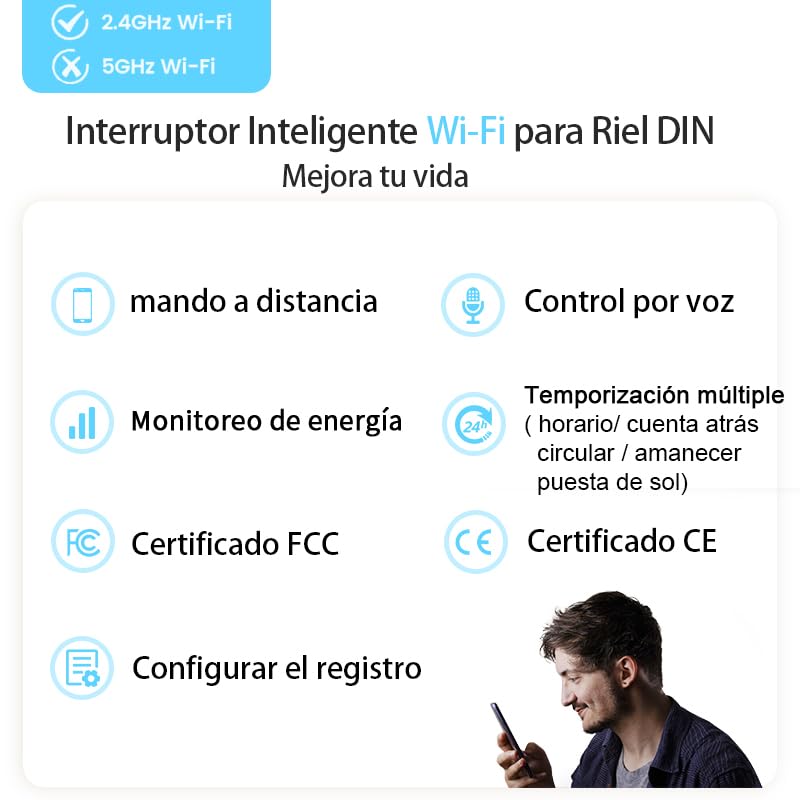
Figure 1.1: Overview of the TONGOU Smart WiFi Switch's main features, including remote control, voice control, energy monitoring, and various timing options. It also highlights FCC and CE certifications.
2. Safety Information
Please read all safety warnings and instructions carefully before installing or operating this device. Failure to follow these instructions may result in electric shock, fire, or serious injury.
- Ensure the power supply is completely disconnected before any installation or wiring work.
- Installation should be performed by a qualified electrician or a person with sufficient knowledge of electrical systems.
- Do not exceed the maximum rated current of 16 Amperes or power of 3840 watts.
- The device is designed for indoor use and has an IP20 rating. Avoid exposure to moisture or extreme temperatures.
- Do not install the switch in an exclusively metal distribution box, as this may block the WiFi signal.
- Ensure proper wiring connections (Live, Neutral, Load) as indicated in the wiring diagrams.
3. Package Contents
Verify that all items are present in the package:
- TONGOU 16A Smart WiFi Energy Meter Switch
- Instruction Manual (this document)
4. Specifications
| Parameter | Value |
|---|---|
| Operating Voltage | AC 90-240V, 50/60Hz |
| Rated Current | 16 Amperes |
| Max Power | 3840 Watts |
| Wireless Connection | Wi-Fi 2.4GHz (IEEE 802.11 b/g/n) |
| Max Wiring Capacity | 10mm² (Power & Load sides) |
| Control Method | App (Smart Life/TUYA), Remote, Voice (Alexa/Google Home) |
| Mounting Type | DIN Rail Mount |
| Dimensions (L x W x H) | 9 x 2 x 8 cm |
| Weight | 110 g |
| IP Rating | IP20 |
| Contact Material | Silver Relay Contacts |
| Operating Temperature | Up to 80°C |
5. Setup
5.1 Physical Installation (Wiring)
Before proceeding, ensure the main power supply to your electrical panel is turned OFF. This device is designed for DIN rail mounting.
- Mount the TONGOU Smart WiFi Switch onto a standard 35mm DIN rail in your electrical distribution box.
- Connect the Live (L) and Neutral (N) wires from your power source to the input terminals marked 'N Power' and 'L Power' on the top of the switch.
- Connect the Live (L) and Neutral (N) wires of the appliance you wish to control to the output terminals marked 'N Load' and 'L Load' on the bottom of the switch.
- Ensure all connections are secure. The maximum wiring capacity is 10mm².
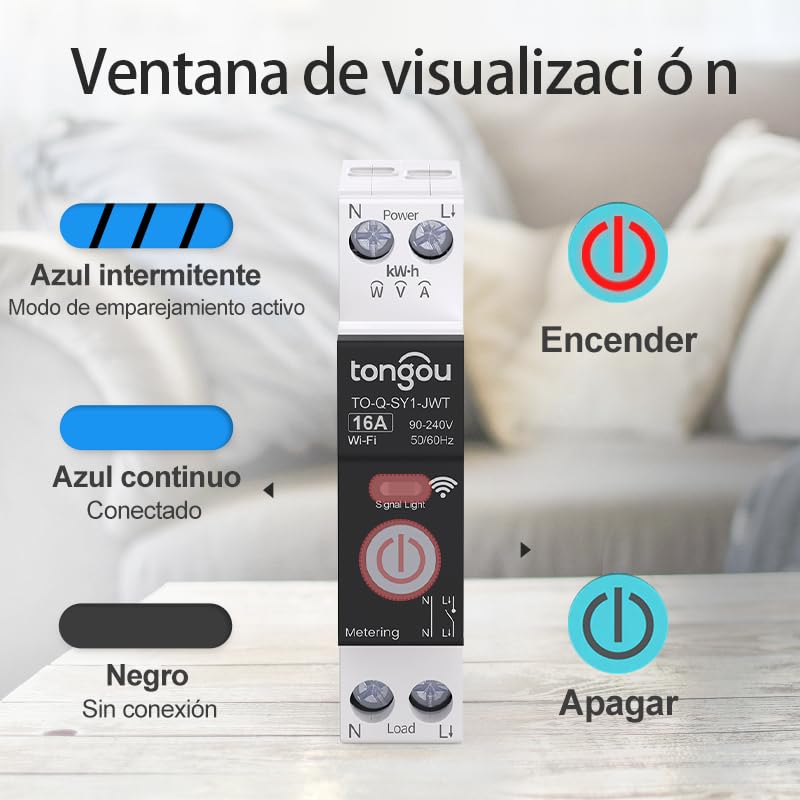
Figure 5.1: Wiring diagram illustrating the connection points for the TONGOU Smart WiFi Switch. Ensure correct connection of power input and load output wires.

Figure 5.2: Product dimensions and DIN rail mounting standard. Note: Do not install in an exclusively metal distribution box as it may block the signal.
5.2 App Download and Pairing
This device operates on a 2.4GHz Wi-Fi network. Ensure your router supports 2.4GHz and your mobile device is connected to this network during pairing.
- Download the "Smart Life" or "TUYA" app from the App Store (iOS) or Google Play Store (Android).
- Register or log in to your account in the app.
- Turn ON the main power supply to the switch. The signal light on the switch will indicate its status.
- To enter pairing mode, press and hold the physical button on the switch for 5 to 10 seconds until the blue signal light starts flashing rapidly.
- In the app, tap the "+" icon to add a device. The app should automatically discover the new device. If not, manually select "Electrical" > "Switch (Wi-Fi)" or similar.
- Follow the on-screen instructions in the app to connect the switch to your 2.4GHz Wi-Fi network.
- Once successfully paired, the blue signal light on the switch will become solid, and the device will appear in your app.

Figure 5.3: The device requires a 2.4GHz WiFi network for connection.

Figure 5.4: Press and hold the button for 5-10 seconds to enter pairing mode.

Figure 5.5: The blue signal light flashes rapidly when in pairing mode.

Figure 5.6: Device discovered in the Smart Life/TUYA app, ready for addition.
6. Operating Instructions
6.1 Manual Control
You can manually turn the connected appliance ON or OFF by pressing the physical button on the front of the TONGOU Smart WiFi Switch.
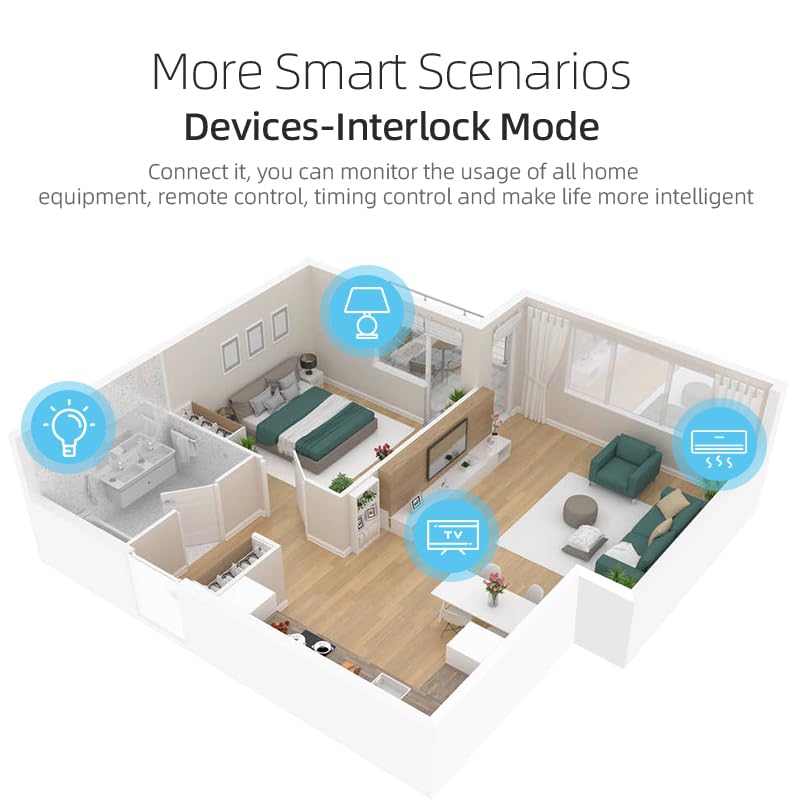
Figure 6.1: The signal light indicates the switch's status: flashing blue for pairing, solid blue for connected, and off for no connection.
6.2 App Remote Control
Once paired with the Smart Life or TUYA app, you can control your connected appliances from anywhere with an internet connection.
- Open the Smart Life or TUYA app on your smartphone.
- Select the TONGOU Smart WiFi Switch from your device list.
- Tap the ON/OFF button within the app to toggle the power to the connected appliance.
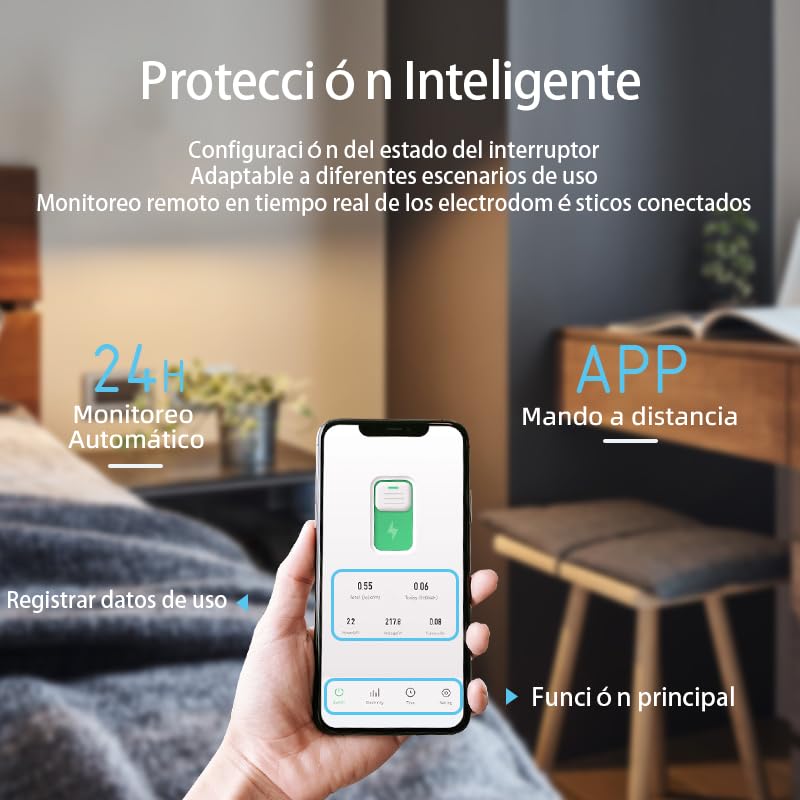
Figure 6.2: Remote control and energy monitoring via the Smart Life/TUYA app.
6.3 Voice Control
Integrate your TONGOU Smart WiFi Switch with Amazon Alexa or Google Assistant for convenient voice control.
- Ensure your Alexa or Google Home device is set up and linked to your Smart Life/TUYA account.
- Use voice commands such as:
- "Alexa, turn on [Device Name]"
- "Hey Google, turn off [Device Name]"
6.4 Energy Monitoring
The switch provides real-time and historical data on the energy consumption of connected devices.
- In the Smart Life/TUYA app, navigate to the device details page.
- View current load, voltage, and power.
- Access historical consumption records by hour, day, month, and year.
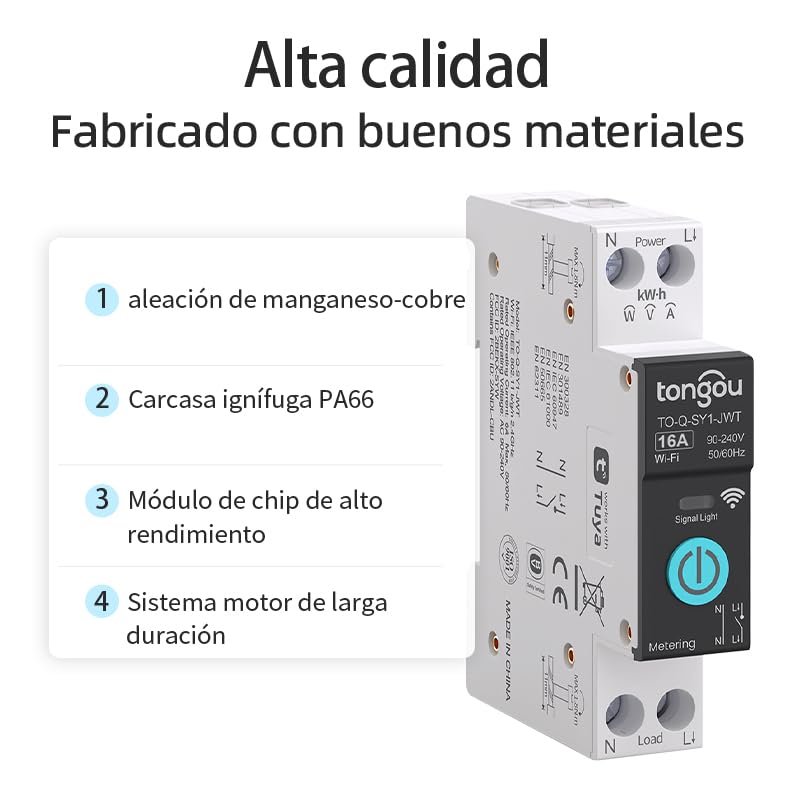
Figure 6.3: Real-time and historical electricity consumption data displayed in the app.
6.5 Timing Functions
Utilize the app's timing features to automate your appliances and save energy.
- Time Mode: Set specific ON/OFF schedules for your devices.
- Countdown Mode: Set a timer for the device to turn ON or OFF after a specified duration.
- Cycle Time: Program repetitive ON/OFF cycles.
- Astro Timer: Automate operations based on sunrise and sunset times in your location.
7. Maintenance
The TONGOU Smart WiFi Energy Meter Switch requires minimal maintenance.
- Keep the device clean and free from dust. Use a dry, soft cloth for cleaning.
- Do not use harsh chemicals or abrasive cleaners.
- Ensure the operating environment is within the specified temperature and humidity ranges.
8. Troubleshooting
If you encounter issues with your TONGOU Smart WiFi Energy Meter Switch, refer to the following common problems and solutions:
| Problem | Possible Solution |
|---|---|
| Device not connecting to WiFi / Offline in app |
|
| Appliance not responding to control |
|
| Energy monitoring data is incorrect or missing |
|
9. Warranty and Support
TONGOU products are designed for reliability and performance.
9.1 Warranty
This product comes with a 24-month warranty from the date of purchase, covering manufacturing defects. Please retain your proof of purchase for warranty claims. The warranty does not cover damage caused by improper installation, misuse, unauthorized modifications, or natural disasters.
9.2 Technical Support
For technical assistance, troubleshooting, or warranty inquiries, please contact TONGOU customer support through the seller's platform or refer to the official TONGOU website for contact information.


