
1. Introduction
This manual provides detailed instructions for the installation, operation, and maintenance of your Tenveo PTZ Camera Web Conference VHD20H. Please read this manual thoroughly before using the product to ensure proper functionality and to prevent damage.
The Tenveo VHD20H is a high-performance PTZ (Pan-Tilt-Zoom) camera designed for professional video conferencing, live streaming, and online education. It features 1080p Full HD resolution at 60 frames per second, a 20x optical zoom lens, and versatile connectivity options including USB, HDMI, and RJ45.
2. Product Overview
Key Features
- 1080p FHD 60fps Video: Equipped with a CMOS sensor, delivering clear and smooth video at 1080p resolution and 60 frames per second.
- 20x Optical Zoom: Allows for detailed magnification of subjects without loss of image quality.
- Wide Field of View: A 61° wide-angle lens captures a broad area, suitable for various room sizes.
- Multiple Output Interfaces: Supports USB3.0, HDMI, and RJ45 (LAN) for flexible integration with different systems.
- PoE Support: Power over Ethernet capability simplifies installation by combining power and data transmission over a single cable.
- Autofocus: Ensures sharp and clear images automatically.
- Remote Control: Infrared remote for easy pan, tilt, zoom, and preset control.
- Universal Compatibility: Works with popular conferencing software like Zoom, Teams, Microsoft Lync, Voovmeeting, and Cisco WebEx.
- Built-in Gravity Sensor: Automatically flips the image when mounted upside down.
Components
The package includes:
- Tenveo VHD20H PTZ Camera
- Remote Control
- Wall Mount Bracket with Screws
- DC 12V/2A Power Adapter
- USB Cable
- User Manual
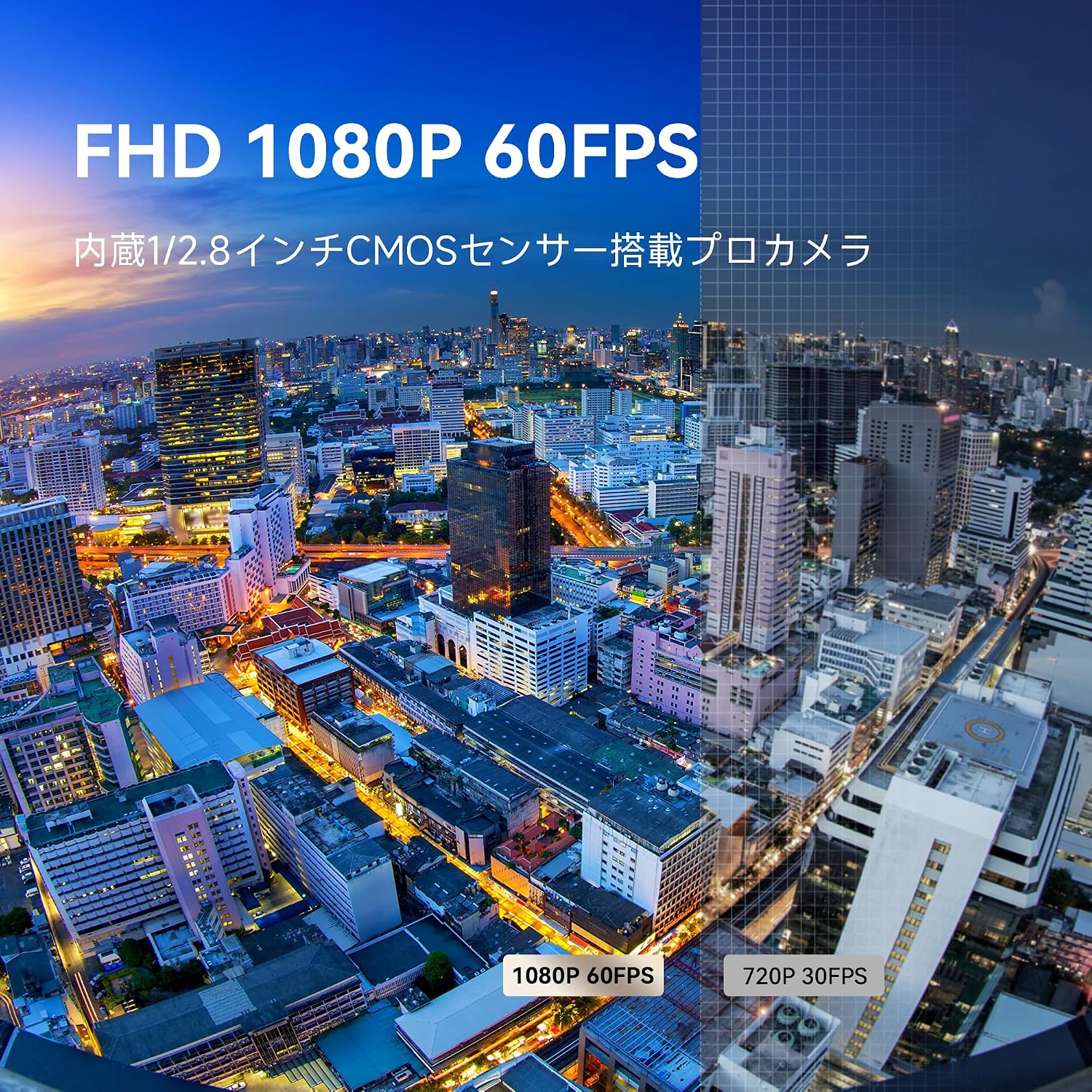
Figure 2.1: Overview of Tenveo VHD20H PTZ Camera features and connectivity options.

Figure 2.2: Visual comparison demonstrating the superior clarity of 1080p 60fps video output.

Figure 2.3: Illustration of the 20x optical zoom capability, capturing fine details from a distance.
3. Setup
Installation Methods
The Tenveo VHD20H camera offers flexible installation options:
- Desk Mount: Place the camera on a flat surface.
- Wall Mount: Use the included bracket and screws to mount the camera on a wall.
- Ceiling Mount: The camera can be mounted upside down on the ceiling. The built-in gravity sensor will automatically adjust the image orientation.
- Tripod Mount: The camera features a 1/4-20 tripod thread for mounting on a standard tripod.

Figure 3.1: Various installation methods for the camera.

Figure 3.2: The built-in gravity sensor automatically adjusts image orientation for ceiling mounts.
Connectivity
Connect the camera to your system using one of the following methods:
- USB Connection: Use the provided USB cable to connect the camera to your computer. This is ideal for direct webcam use with conferencing software.
- HDMI Output: Connect an HDMI cable from the camera to a display or video capture device for high-quality video output.
- RJ45 (LAN) Connection: Connect an Ethernet cable for IP streaming and control. If your network supports Power over Ethernet (PoE), a single cable can provide both power and data.
- RS-232/RS-485: For advanced control systems, use these serial ports for integration with professional controllers.

Figure 3.3: Easy connection setup with various output ports.

Figure 3.4: Professional live streaming setup with the PTZ camera.

Figure 3.5: Simple plug-and-play setup for live streaming.
4. Operating Instructions
Remote Control Functions
The included infrared remote control allows for easy adjustment of camera settings and movement. Ensure the remote is pointed towards the camera's IR receiver.

Figure 4.1: Remote control layout and button functions.
- PTZ Reset: Resets the camera to its default home position.
- Position Presets: Save and recall up to 10 preset positions directly from the remote. Up to 255 presets can be configured via RS-232/RS-485 interfaces.
- Pan/Tilt Control: Use the directional arrows to move the camera horizontally (pan) and vertically (tilt).
- Zoom Control: Use the zoom buttons for slow or quick optical zoom in and out.
- Focus Key: Switch between auto-focus and manual focus, and adjust focus manually.
- Menu Button: Access the on-screen display (OSD) menu for advanced settings.
OSD Menu and Color Settings
Press the MENU button on the remote to access the camera's main menu. Here you can adjust various image parameters.

Figure 4.2: OSD Menu and Color Adjustment options.
Adjust settings such as Brightness, Contrast, Hue, Saturation, Sharpness, White Balance Mode, and Color Temperature (2500K to 9000K) to optimize your video output.
Software Compatibility
The Tenveo VHD20H is compatible with a wide range of video conferencing and streaming software:
- Zoom
- Microsoft Teams / Lync
- Voovmeeting
- Cisco WebEx
- Google Meet
- OBS Studio
- vMix
- YouTube Live
- Facebook Live
System Requirements: Windows 7, 8, 10 or Mac OS X 10.7 or later.

Figure 4.3: Universal compatibility with various streaming and conferencing platforms.
5. Maintenance
- Cleaning: Use a soft, dry cloth to clean the camera body. For the lens, use a specialized lens cleaning cloth and solution. Avoid harsh chemicals or abrasive materials.
- Storage: When not in use for extended periods, store the camera in a cool, dry place away from direct sunlight and excessive dust.
- Firmware Updates: Periodically check the Tenveo official website for firmware updates to ensure optimal performance and access to new features.
- Environment: This product is designed for indoor use only. Avoid exposing it to moisture, extreme temperatures, or corrosive environments.
6. Troubleshooting
| Problem | Possible Cause | Solution |
|---|---|---|
| No image output | Power not connected or faulty cable. Incorrect input selection on display. | Ensure power adapter is securely connected. Check USB/HDMI/LAN cables. Verify correct input source on your monitor/display. |
| Remote control not working | Batteries low or incorrectly inserted. Obstruction between remote and camera. | Replace remote control batteries. Ensure clear line of sight to the camera's IR receiver. |
| Image is blurry | Autofocus issue or manual focus misadjustment. Dirty lens. | Ensure autofocus is enabled or adjust manual focus. Clean the camera lens with a soft cloth. |
| Camera not recognized by computer | USB cable issue or driver problem. | Try a different USB port or cable. Ensure your operating system meets the minimum requirements. Reinstall camera drivers if necessary. |
| Image is upside down | Camera is ceiling mounted and gravity sensor is not active or overridden. | The built-in gravity sensor should automatically correct this. If not, check OSD menu settings for image flip options. |
7. Specifications
| Feature | Detail |
|---|---|
| Brand | Tenveo |
| Model Name | VHD20H |
| Video Capture Resolution | 1080p Full HD |
| Image Capture Speed | 60 fps |
| Photo Sensor Technology | CMOS |
| Optical Zoom | 20x |
| Max Focal Length | 35.17 mm |
| Min Focal Length | 4.34 mm |
| Max Aperture | f/2.8 |
| Connectivity Technology | HDMI, USB, RJ45 (LAN), RS-232, RS-485 |
| Focus Function | Autofocus |
| Image Stabilization | Optical |
| Form Factor | Ceiling Mount, Wall Mount, Desk Mount, Tripod Mount |
| Color | Shadow Black |
| Aspect Ratio | 16:9 |
| Power Input | DC 12V/2A (PoE supported via RJ45) |
| Operating System Compatibility | Windows 7/8/10, Mac OS X 10.7 or later |
8. Warranty and Support
Tenveo offers a comprehensive warranty and support service for this product:
- 30-Day Money-Back Guarantee: You may return the product for a full refund or exchange within 30 days of purchase, no questions asked.
- 3-Year Quality Warranty: The product is covered by a 3-year warranty against manufacturing defects.
- Lifetime Maintenance: Tenveo provides lifetime maintenance support for the product.
For technical assistance, warranty claims, or any inquiries, please contact Tenveo customer support through their official website or the contact information provided with your purchase. The Tenveo team is dedicated to providing high-quality products and reliable after-sales service.


