
Introduction
Thank you for choosing the Xtrike Me GK986P 80% Wired Mechanical Gaming Keyboard. This manual provides detailed instructions for setting up, operating, maintaining, and troubleshooting your new keyboard. Please read this manual thoroughly before use to ensure optimal performance and longevity of your device.
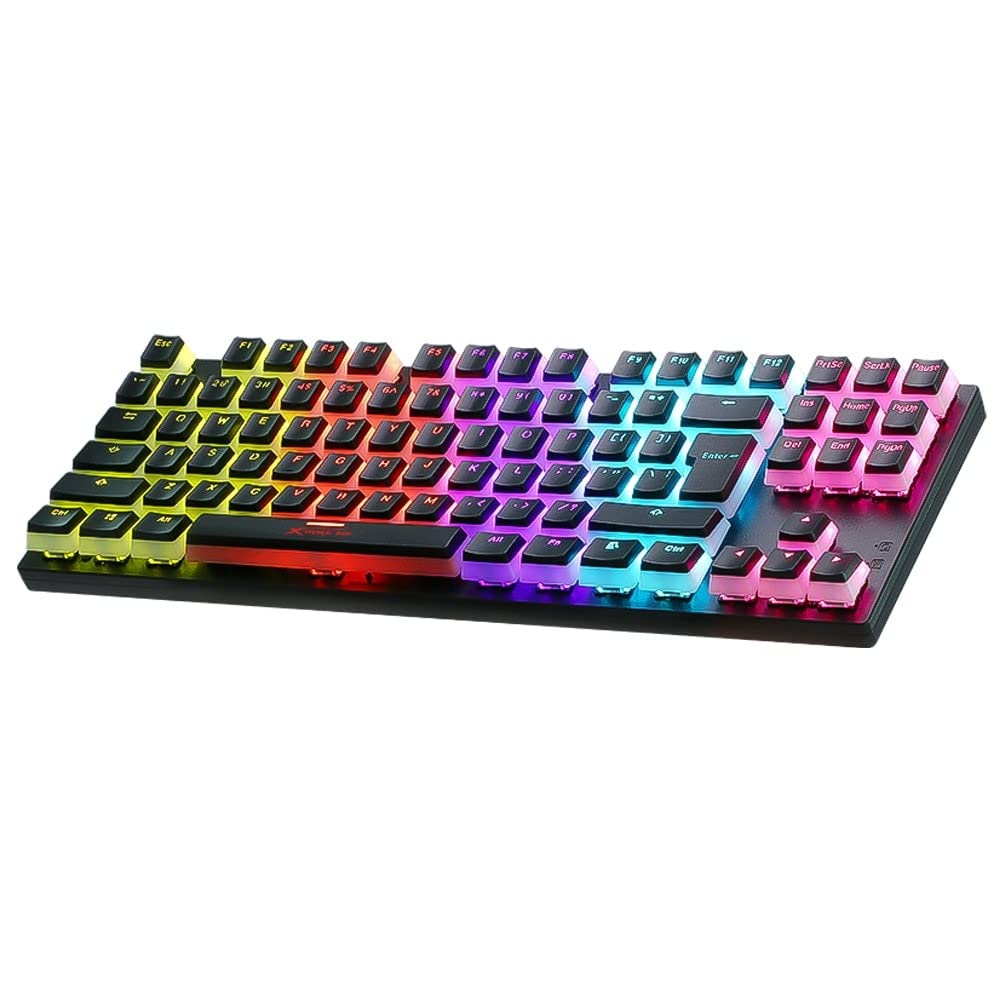
Image: Top-down view of the Xtrike Me GK986P mechanical gaming keyboard, showcasing its 80% layout and vibrant rainbow LED backlighting.
Setup
Follow these steps to set up your Xtrike Me GK986P keyboard:
- Unpack the Keyboard: Carefully remove the keyboard and any included accessories from the packaging.
- Connect to Computer: Locate the USB cable attached to the keyboard. Plug the USB connector into an available USB 2.0 port on your computer or laptop.
- Driver Installation: The keyboard is plug-and-play. Your operating system (Windows XP or newer) should automatically detect and install the necessary drivers. No additional software installation is typically required.
- Test Functionality: Open a text editor or any application to test the key responsiveness. Ensure all keys are functioning correctly.
Operating Instructions
Basic Functions
The GK986P keyboard features a standard 80% layout with 87 keys.
- Standard Typing: Use the alphanumeric keys for regular text input.
- Function Keys (F1-F12): These keys perform their standard functions. Some may have secondary multimedia functions when pressed in combination with the Fn key.
- Arrow Keys: Located on the bottom right, these keys control cursor movement.
- Navigation Keys: Keys like Insert, Home, Page Up, Delete, End, Page Down are available for navigation.
Backlight Modes
The keyboard features a rainbow LED backlight with multiple lighting effects.
- Changing Modes: Use the Fn key in combination with specific keys (usually F-keys or dedicated lighting keys) to cycle through different backlight modes. Refer to the keyboard's keycap legends for specific combinations.
- Adjusting Brightness: Typically, Fn + Up Arrow increases brightness, and Fn + Down Arrow decreases brightness.
- Adjusting Speed: For dynamic lighting modes, Fn + Left Arrow or Fn + Right Arrow might adjust the effect speed.
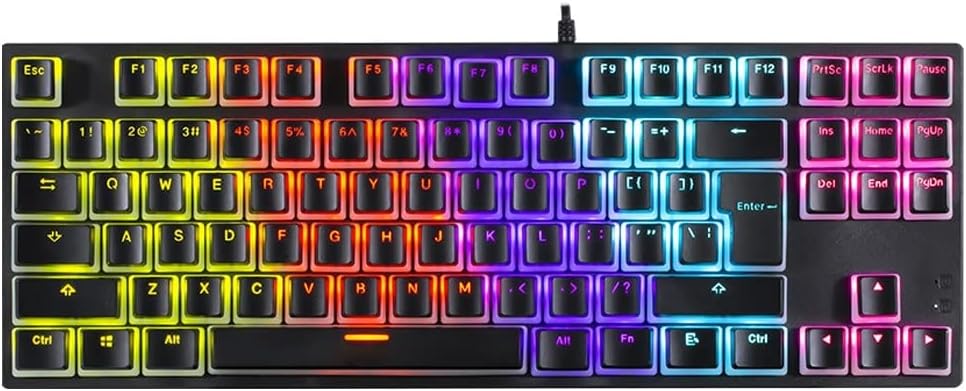
Image: Close-up view of the Xtrike Me GK986P keyboard, highlighting the illuminated PBT keycaps and blue mechanical switches.
Multimedia Keys
The keyboard may feature multimedia shortcuts accessible via the Fn key combined with certain F-keys. Common functions include:
- Fn + F1-F12: (Specific functions vary by model, typically include media playback controls, volume adjustment, and application shortcuts). Refer to the keycap legends for exact functions.
Maintenance
Proper maintenance ensures the longevity and performance of your keyboard.
- Cleaning:
- Disconnect the keyboard from your computer before cleaning.
- Use a can of compressed air to remove dust and debris from between the keycaps.
- Wipe the keycaps and keyboard surface with a soft, slightly damp, lint-free cloth. Avoid excessive moisture.
- Do not use harsh chemicals, abrasive cleaners, or solvents.
- Storage: Store the keyboard in a cool, dry place away from direct sunlight and extreme temperatures.
- Handling: Avoid dropping the keyboard or exposing it to liquids. The keyboard is not water-resistant.
Troubleshooting
If you encounter issues with your keyboard, refer to the following common solutions:
- Keyboard Not Responding:
- Ensure the USB cable is securely connected to both the keyboard and the computer.
- Try plugging the keyboard into a different USB port on your computer.
- Restart your computer.
- Test the keyboard on another computer to determine if the issue is with the keyboard or your system.
- Keys Not Registering:
- Check for any physical obstructions under the keycap.
- Clean the area around the affected key with compressed air.
- Backlight Not Working or Incorrect:
- Ensure the backlight is not turned off (check brightness settings using Fn + Arrow keys).
- Cycle through different backlight modes to see if other modes function.
If the problem persists after trying these steps, please contact Xtrike Me customer support for further assistance.
Specifications
| Model: | GK986P |
| Brand: | Xtrike Me |
| Keyboard Type: | Mechanical Gaming Keyboard |
| Layout: | 80% (87 Keys) |
| Switch Type: | Blue Mechanical Switches (Clicky) |
| Switch Lifespan: | ≥50 million keystrokes |
| Key Travel: | 4.0 ± 0.5 mm |
| Operating Force: | 60 ± 10 grams |
| Key Rollover: | 25-key rollover support |
| Keycaps: | PBT Pudding Keycaps (English Only) |
| Backlight: | Rainbow LED with multiple modes |
| Interface: | USB 2.0 |
| Connectivity: | Wired |
| Cable Length: | 5 feet (approximately 1.5 meters) |
| OS Support: | Windows XP or newer |
| Material: | Plastic |
| Color: | Black |
| UPC: | 990148209390 |
| ASIN: | B0BXJNRMPB |
Warranty and Support
The Xtrike Me GK986P keyboard comes with a 30-day warranty from the date of purchase. This warranty covers manufacturing defects under normal use. It does not cover damage caused by misuse, accidents, unauthorized modifications, or external factors.
For warranty claims or technical support, please contact your retailer or Xtrike Me customer service with your proof of purchase.
