
Introduction
This manual provides detailed instructions for setting up, operating, and maintaining your Lenovo ThinkVision T23i-30 23-inch Full HD LCD Monitor. Please read this manual thoroughly before using your monitor to ensure proper functionality and to prevent damage.
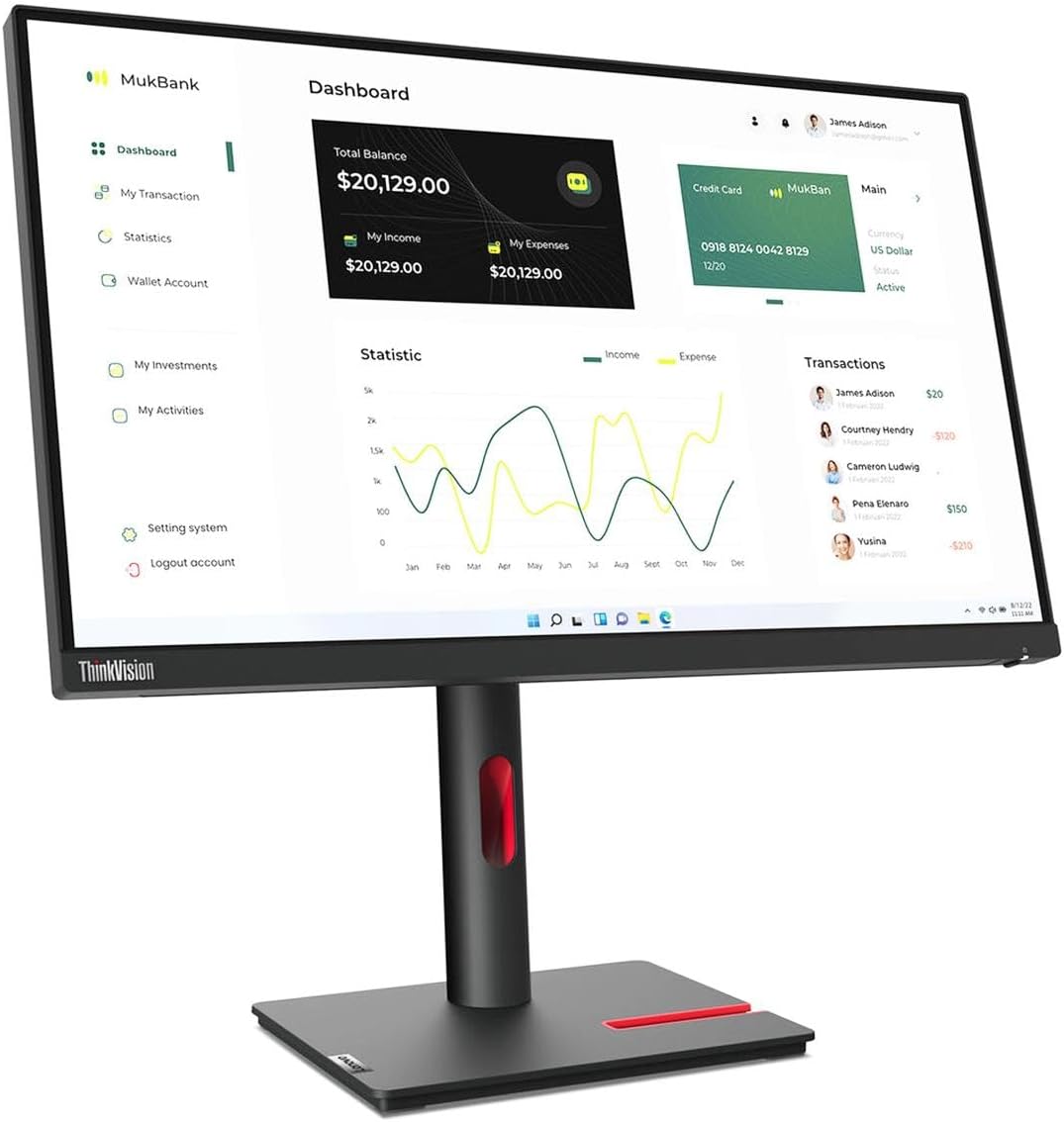
Figure 1: Front view of the Lenovo ThinkVision T23i-30 monitor. This image shows the monitor from the front, displaying a graphical user interface with charts and data, mounted on its stand.
What's in the Box
Verify that all items are present in the package before proceeding with setup.
- ThinkVision T23i-30 Widescreen LCD Monitor
- Stand
- 1 x Power Cable (1.8 m)
- 1 x HDMI Cable (1.8 m)
- 1 x USB 3.0 Type-A to Type-B Cable (1.8 m)
- Quick Setup Guide
- Warranty Booklet
Setup
1. Assembling the Monitor Stand
- Carefully remove the monitor panel and stand components from the packaging.
- Attach the stand base to the stand neck. Ensure it clicks securely into place or is fastened with the provided screw.
- Align the assembled stand with the mounting slot on the back of the monitor panel. Gently push until it locks into position.

Figure 2: Rear view of the monitor with the stand attached. This image illustrates the monitor's back panel and the integrated stand assembly.
2. Connecting the Monitor
Before connecting, ensure your computer and monitor are powered off.
- Power Connection: Connect one end of the power cable to the monitor's power input and the other end to a grounded electrical outlet.
- Video Connection: Connect one end of the provided HDMI cable to the HDMI port on your monitor and the other end to the HDMI output port on your computer. Alternatively, use a DisplayPort or VGA cable if your system requires it.
- USB Hub Connection: To enable the monitor's integrated USB hub, connect the provided USB 3.0 Type-A to Type-B cable from the monitor's USB Type-B upstream port to an available USB port on your computer.

Figure 3: Monitor port diagram. This image clearly labels the Power input, Kensington Lock slot, DisplayPort, HDMI, VGA, USB Type-B upstream, and USB Type-A downstream ports.
Operating the Monitor
1. Power On/Off
Press the power button, usually located on the front or bottom bezel of the monitor, to turn the monitor on or off. The power indicator light will illuminate when the monitor is on.
2. On-Screen Display (OSD) Menu Navigation
The OSD menu allows you to adjust various display settings.
- Press one of the OSD buttons (typically located on the bottom right of the monitor) to activate the OSD menu.
- Use the navigation buttons (up, down, left, right) to browse through menu options.
- Press the 'Enter' or 'OK' button to select an option or confirm a setting.
- Press the 'Exit' or 'Back' button to return to the previous menu or exit the OSD.
3. Input Selection
If you have multiple devices connected to your monitor, you can switch between input sources using the OSD menu or a dedicated input selection button.
- Access the OSD menu.
- Navigate to the "Input" or "Source" section.
- Select the desired input (e.g., HDMI, DisplayPort, VGA).
Maintenance
- Cleaning the Screen: Gently wipe the screen with a soft, lint-free cloth. For stubborn marks, lightly dampen the cloth with water or a non-abrasive screen cleaner. Avoid using alcohol-based cleaners or spraying liquid directly onto the screen.
- Cleaning the Casing: Use a soft, dry cloth to wipe the monitor casing.
- Ventilation: Ensure the ventilation openings on the monitor are not blocked to prevent overheating.
- Power Off: Always power off the monitor and unplug it from the electrical outlet before cleaning or if it will be unused for an extended period.
Troubleshooting
| Problem | Possible Solution |
|---|---|
| No image on screen |
|
| Image is blurry or distorted |
|
| No sound (if applicable) |
|
Specifications
| Feature | Detail |
|---|---|
| Model | Lenovo ThinkVision T23i-30 |
| Screen Size | 23 Inches (Viewable) |
| Panel Type | In-plane Switching (IPS) Technology |
| Backlight Technology | WLED |
| Native Resolution | 1920 x 1080 (Full HD) |
| Aspect Ratio | 16:9 |
| Brightness | 250 Nit |
| Response Time | 4 ms (Extreme Mode) |
| Refresh Rate | 60 Hz |
| Color Support | 16.7 Million Colors |
| Video Inputs | HDMI, VGA, DisplayPort |
| USB Hub | Yes (USB 3.0 Type-A, Type-B upstream) |
| Item Weight | 7.05 pounds |
| Product Dimensions (LxWxH) | 1.8 x 20.6 x 12.3 inches |
| Color | Raven Black |
Warranty and Support
Your Lenovo ThinkVision T23i-30 monitor comes with a standard manufacturer's warranty. Please refer to the included Warranty Booklet for detailed terms and conditions, including warranty period and coverage.
For technical support, service, or additional information, please visit the official Lenovo support website or contact Lenovo customer service.
- Online Support: support.lenovo.com
- Customer Service: Refer to your region-specific contact information in the Warranty Booklet.