
UGREEN 15534
Contents
UGREEN Revodok Pro 210 Docking Station User Manual
Model: 15534 | Brand: UGREEN
Introduction
The UGREEN Revodok Pro 210 is a versatile 10-in-1 USB-C docking station designed to expand the connectivity of your laptop or compatible device. It provides multiple ports for display output, data transfer, power delivery, and network connectivity, enhancing your productivity and simplifying your workspace.
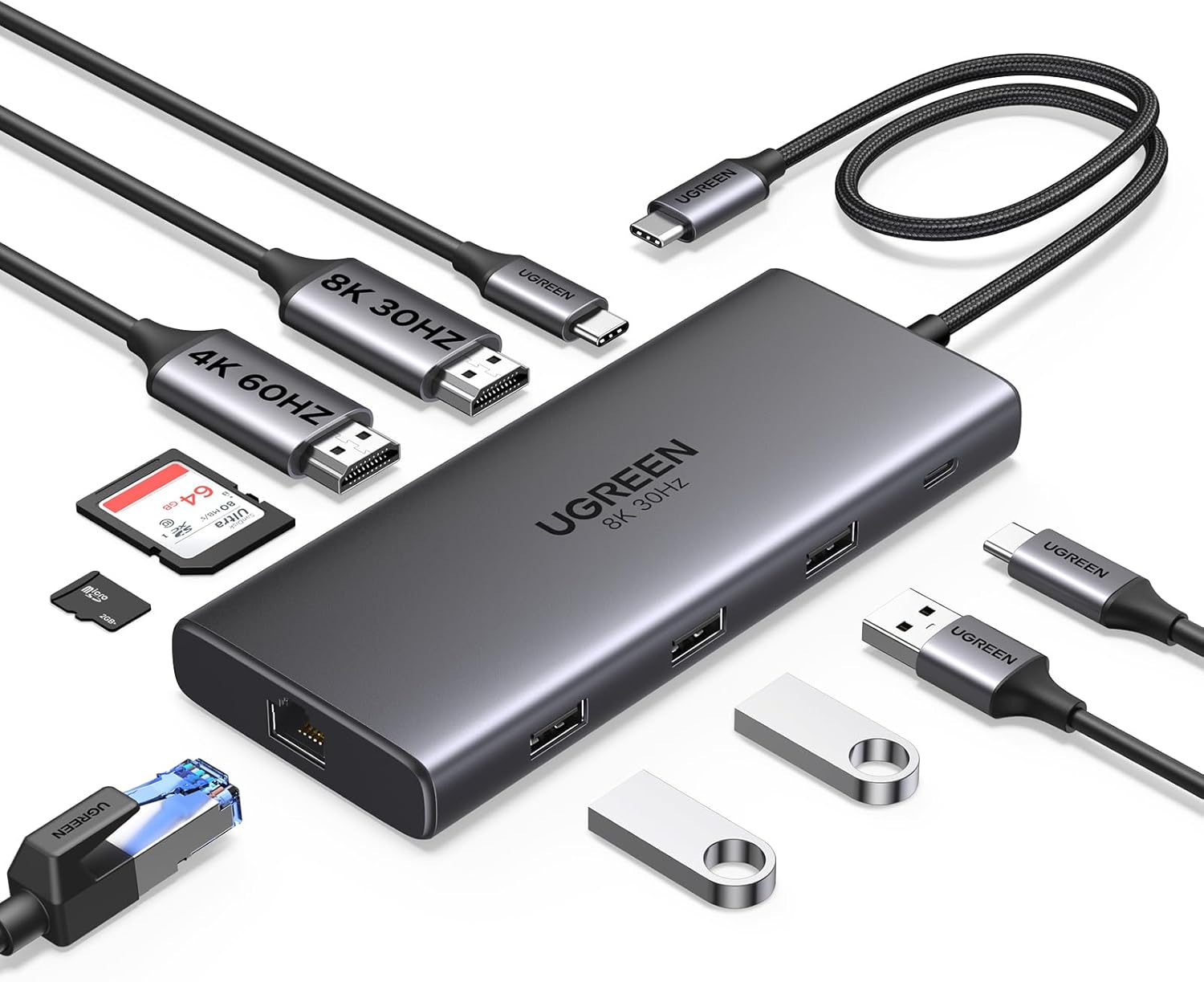
Image: The UGREEN Revodok Pro 210 Docking Station, showcasing its compact design and the array of ports it offers, including HDMI, USB-A, USB-C, Ethernet, and card reader slots, along with connecting cables and a memory card.
Safety Information
To ensure safe and optimal operation of your UGREEN Revodok Pro 210 Docking Station, please observe the following precautions:
- Keep the device away from water, fire, high temperatures, and corrosive environments.
- Do not attempt to disassemble, repair, or modify the device.
- Avoid dropping or subjecting the device to strong impacts.
- Use only compatible and certified power adapters and cables.
- Ensure proper ventilation to prevent overheating.
- Keep out of reach of children.
Package Contents
Verify that all items are present in your package:
- 1 x UGREEN Revodok Pro 210 Docking Station
- 1 x User Manual
Product Overview
The UGREEN Revodok Pro 210 features a comprehensive set of ports to meet diverse connectivity needs. Below is a diagram illustrating the port layout and their respective functions:

Image: A detailed diagram of the UGREEN Revodok Pro 210, labeling each port including USB-C PD (100W), HDMI 2 (8K@30Hz), HDMI 1 (4K@60Hz), SD/TF (104MB/s), Ethernet (1000Mbps), 2x USB-A 2.0 (480Mbps), USB-A 3.0 (5Gbps), and USB-C 3.0 (5Gbps).
Port Functions:
- USB-C PD (Power Delivery) Port: Supports up to 100W power input for pass-through charging of your host device (up to 85W output, 15W reserved for hub operation). This port does not support data transfer or video output.
- HDMI 1 Port: Supports video output up to 4K@60Hz.
- HDMI 2 Port: Supports video output up to 8K@30Hz (single display) or 4K@60Hz (dual display).
- USB-C 3.0 Data Port: Provides data transfer speeds up to 5Gbps. Does not support charging or video output.
- USB-A 3.0 Data Port: Provides data transfer speeds up to 5Gbps. Does not support charging or video output.
- 2 x USB-A 2.0 Data Ports: Provides data transfer speeds up to 480Mbps. Does not support charging or video output.
- RJ45 Gigabit Ethernet Port: Provides stable wired network connectivity up to 1000Mbps.
- SD/TF Card Reader Slots: Supports simultaneous reading and writing for SD and Micro SD cards at speeds up to 104MB/s.
Setup
Follow these steps to set up your UGREEN Revodok Pro 210 Docking Station:
- Connect to Host Device: Plug the integrated USB-C cable from the docking station into a compatible USB-C port on your laptop or device.
Important Note:
For video output functionality, your host device's USB-C port must support DisplayPort Alternate Mode (DP Alt Mode) or Thunderbolt 3/4. Not all USB-C ports support video output.

Image: A table detailing DisplayPort (DP) versions (DP1.4, DP1.2) and their maximum supported resolutions for HDMI 1 and HDMI 2 on both Windows and macOS operating systems, highlighting differences based on DP version.
- Connect Power (Optional but Recommended): For stable operation and charging your laptop, connect a USB-C power adapter (up to 100W, not included) to the USB-C PD port on the docking station.

Image: An illustration demonstrating the power delivery capability, showing a 100W input from a wall charger to the docking station, which then provides an 85W output to charge a connected laptop.
- Connect Displays:
- For a single 8K@30Hz display, connect your monitor to the HDMI 2 port.
- For dual 4K@60Hz displays, connect your primary monitor to HDMI 1 and your secondary monitor to HDMI 2.

Image: Visual representation of connecting a single 8K@30Hz monitor or dual 4K@60Hz monitors to a laptop via the UGREEN Revodok Pro 210 docking station.
macOS Limitation:
Due to macOS limitations, all external displays connected to a MacBook via this docking station will display the same content (mirror mode).

Image: A comparison of multiple display modes available on Windows (extended, mirrored) versus macOS (mirrored only) when using the docking station.
- Connect Peripherals: Plug your USB devices (keyboard, mouse, flash drives, etc.) into the available USB-A 3.0, USB-A 2.0, or USB-C 3.0 data ports.
- Connect to Network: For a stable wired internet connection, plug an Ethernet cable into the RJ45 Gigabit Ethernet port.
- Insert Memory Cards: Insert your SD or TF cards into the corresponding slots for data access.
Operating Instructions
Once set up, the docking station operates automatically. Here are key functionalities:
- Display Extension/Mirroring: Your operating system should automatically detect connected displays. Adjust display settings (resolution, arrangement, mirror/extend mode) through your computer's display settings. Remember macOS limitations for extended displays.
- High-Speed Data Transfer: Utilize the USB-C 3.0 and USB-A 3.0 ports for transferring large files quickly (up to 5Gbps). The USB-A 2.0 ports are suitable for keyboards, mice, and other lower-bandwidth devices.

Image: A visual representation highlighting the 5Gbps ultra-fast data transfer capability of the USB-A 3.0 and USB-C 3.0 ports on the docking station, with data flowing to and from connected devices.
- Power Delivery: If a power adapter is connected to the PD port, your laptop will receive power through the docking station, eliminating the need for a separate charger.
- Stable Network: The Gigabit Ethernet port provides a reliable and fast wired internet connection, ideal for online gaming, streaming, and large file downloads.

Image: A graphic emphasizing the 1000Mbps ultra-fast Ethernet port, showing a network cable connected to the docking station with data flow indicators.
- Card Reading: Access data from your SD and TF cards directly through the docking station's integrated card reader.
Maintenance
Proper care and maintenance will extend the lifespan of your docking station:
- Cleaning: Use a soft, dry cloth to wipe the surface of the device. Avoid using liquid cleaners or aerosols.
- Storage: Store the device in a cool, dry place when not in use.
- Handling: Do not bend or pull the integrated USB-C cable excessively. Avoid placing heavy objects on the docking station.
- Heat Dissipation: The aluminum alloy casing is designed for heat dissipation. Ensure the device is placed on a flat surface with adequate airflow.

Image: The UGREEN Revodok Pro 210 docking station resting on a rocky surface, illustrating its durable aluminum alloy casing designed for effective heat dissipation.
Troubleshooting
If you encounter issues with your docking station, refer to the following common problems and solutions:
| Problem | Possible Cause | Solution |
|---|---|---|
| No display output or flickering screen. |
|
|
| Slow data transfer speeds. |
|
|
| Laptop not charging. |
|
|
| Ethernet not working. |
|
|
Specifications
| Feature | Detail |
|---|---|
| Brand | UGREEN |
| Model Number | 15534 |
| Product Dimensions | 4.49 x 1.75 x 0.63 inches |
| Item Weight | 6.1 ounces |
| Color | grey |
| HDMI 1 Output | Up to 4K@60Hz |
| HDMI 2 Output | Up to 8K@30Hz (Single), 4K@60Hz (Dual) |
| USB-C PD Port | 100W Power Delivery (85W pass-through) |
| USB-C Data Port | 5Gbps |
| USB-A 3.0 Data Port | 5Gbps |
| USB-A 2.0 Data Ports | 2 x 480Mbps |
| Ethernet Port | 1000Mbps Gigabit Ethernet |
| Card Reader | SD/TF (104MB/s) |
| Operating System Compatibility | Chrome OS, Windows 10, Windows 7, macOS, iPadOS |
Warranty and Support
UGREEN products come with a standard warranty. For detailed warranty information, product support, or technical assistance, please visit the official UGREEN website or contact their customer service. Keep your purchase receipt for warranty claims.
Official UGREEN Website: www.ugreen.com
Ask a question about this manual
Ask about setup, troubleshooting, compatibility, parts, safety, or missing instructions. Manuals+ will review the question and use this page’s manual context to help answer it.