
1. Introduction
This manual provides instructions for the PDP REMATCH Enhanced Wired Nintendo Switch Pro Controller, model 500-134-HLBL (Hyrule Blue). This controller is designed for use with Nintendo Switch, Switch Lite, and Switch OLED consoles, offering enhanced features for an improved gaming experience. Please read this manual thoroughly before using your controller.

Figure 1: Front view of the PDP REMATCH Enhanced Wired Nintendo Switch Pro Controller.
2. Setup
2.1 Connecting the Controller to Your Nintendo Switch
- Ensure your Nintendo Switch console is powered on and updated to the latest system software.
- Locate an available USB port on your Nintendo Switch dock or console (if using a USB-C to USB-A adapter for Switch Lite/OLED handheld mode).
- Plug the USB-A end of the controller's 10-foot cable into the USB port on your Nintendo Switch dock or console.
- The controller will automatically connect and be ready for use. No additional drivers or pairing are required.
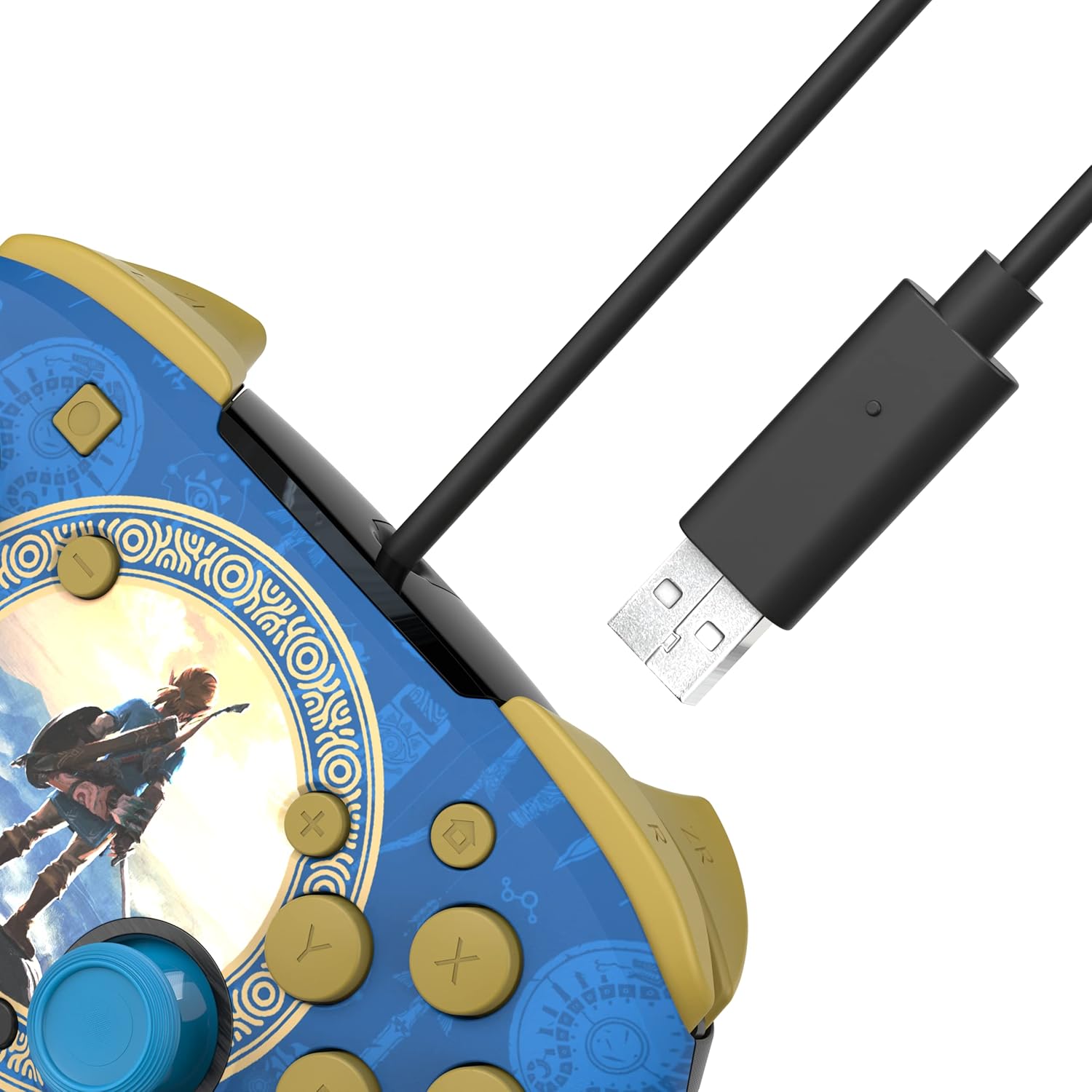
Figure 2: USB-A connector for console connection.
2.2 Connecting a Headset
- Locate the 3.5mm audio jack at the bottom of the controller.
- Plug your compatible headset into the 3.5mm audio jack.
- Audio from your game will now be routed through your headset. For USB-chat in compatible titles, ensure your headset's microphone is enabled and configured within the game or system settings.

Figure 3: Controller with 3.5mm audio jack for headset connection.
3. Operating Instructions
3.1 Basic Controls
The PDP REMATCH controller features standard Nintendo Switch button layouts, including A, B, X, Y buttons, L/R and ZL/ZR shoulder buttons, a D-pad, Left/Right analog sticks, Home, Capture, Plus (+), and Minus (-) buttons.

Figure 4: Front view of the controller with labeled buttons.
3.2 Adjusting Game Volume
You can adjust the game volume directly from the controller using the D-pad. While holding the Function button (located near the right analog stick), press D-pad Up to increase volume or D-pad Down to decrease volume. This allows for quick audio adjustments without pausing gameplay.

Figure 5: D-pad and Function button for volume control.
3.3 Programming Back Buttons
The controller features dual programmable back buttons for custom assignments. These buttons are located on the underside of the controller.
- Press and hold the Program button (small button on the back, usually near the center) until the LED indicator begins to flash.
- Press the back button (P1 or P2) you wish to program.
- Press the standard button (A, B, X, Y, L, R, ZL, ZR, D-pad directions, or analog stick clicks) you want to assign to the back button.
- The LED indicator will flash rapidly, then return to solid, indicating successful programming.
- Repeat the process for the other back button if desired.
- To clear a programmed button, press and hold the Program button until the LED flashes, then press the back button you wish to clear twice. The LED will confirm the clear.

Figure 6: Rear view showing programmable back buttons.
4. Maintenance
4.1 Cleaning
- Disconnect the controller from your console before cleaning.
- Use a soft, dry cloth to wipe the surface of the controller.
- For stubborn dirt, lightly dampen the cloth with water. Avoid using harsh chemicals or abrasive cleaners.
- Do not allow liquids to enter the controller's openings.
4.2 Storage
- Store the controller in a cool, dry place away from direct sunlight and extreme temperatures.
- Avoid wrapping the cable tightly around the controller to prevent damage.
5. Troubleshooting
5.1 Controller Not Responding
- Ensure the USB cable is securely plugged into both the controller and the Nintendo Switch dock/console.
- Try plugging the controller into a different USB port on your Switch dock/console.
- Restart your Nintendo Switch console.
- Verify that your Nintendo Switch system software is up to date.
5.2 No Audio Through Headset
- Ensure your headset is fully plugged into the controller's 3.5mm jack.
- Check your headset's volume controls and mute switch.
- Verify audio settings on your Nintendo Switch console.
- Test the headset with another device to confirm it is functioning correctly.
5.3 Programmable Buttons Not Working
- Ensure you have followed the programming steps correctly (Section 3.3).
- Try clearing the programmed button and reprogramming it.
- Note that programmed button assignments may need to be re-applied after disconnecting the controller or restarting the console, depending on the game or system state.
6. Specifications
| Feature | Detail |
|---|---|
| Model Number | 500-134-HLBL |
| Compatibility | Nintendo Switch, Switch Lite, Switch OLED |
| Connectivity | Wired USB-A |
| Cable Length | 10 feet (approx. 3 meters) |
| Audio Jack | 3.5mm for audio and USB-chat (where supported) |
| Programmable Buttons | Dual back buttons |
| Weight | 11.3 ounces (approx. 320 grams) |
| Manufacturer | PDP |
7. Warranty & Support
For warranty information and technical support, please refer to the official PDP website or contact their customer service directly. Keep your proof of purchase for warranty claims.
PDP Customer Support: www.pdp.com/support


