Introduction
Thank you for choosing the NEWISION K10 10 Inch Kids Tablet. This manual provides essential information for setting up, operating, and maintaining your tablet. Please read it thoroughly before use and retain it for future reference.
Safety Information
- Do not expose the tablet to extreme temperatures, direct sunlight, or moisture.
- Avoid dropping or subjecting the tablet to strong impacts.
- Use only the provided charging cable and adapter.
- Supervise children during tablet usage, especially when setting up parental controls.
- Keep the tablet away from small children to prevent choking hazards from small parts.
Package Contents
Verify that all items are present in the package:
- 1 x NEWISION K10 10 Inch Kids Tablet (with pre-installed protective case)
- 1 x Quick Instruction Guide
- 1 x Charging Cable (Type-C)

Image: The NEWISION K10 Kids Tablet in its green protective case, showing the front screen with a colorful wallpaper and the back with the camera and stand.
Product Overview
Familiarize yourself with the tablet's physical features and ports.
Image: A diagram illustrating the various components of the NEWISION K10 tablet, including the Micro SD Card Slot, Type-C port, Volume buttons, Power On/Off button, Front Camera, Rear Camera, and Adjustable Bracket.
- Front Camera: For video calls and selfies.
- Volume Buttons: Adjust audio volume.
- Power On/Off Button: Press and hold to power on/off or restart. Press briefly to sleep/wake.
- Micro SD Card Slot: Insert a Micro SD card for expanded storage.
- Type-C Port: For charging and data transfer.
- Rear Camera: For taking photos and videos.
- Adjustable Bracket: Integrated stand for hands-free viewing.
Setup Guide
1. Charging the Tablet
Before first use, fully charge the tablet. Connect the provided Type-C charging cable to the tablet's Type-C port and the other end to a power adapter (not included) or a computer's USB port. The battery indicator will show charging status.
2. Powering On/Off
- To Power On: Press and hold the Power On/Off button until the screen lights up.
- To Power Off: Press and hold the Power On/Off button, then select "Power off" from the options on the screen.
- To Sleep/Wake: Briefly press the Power On/Off button.
3. Initial Setup
- Upon first power-on, follow the on-screen prompts to select your language and region.
- Connect to a Wi-Fi network by selecting your network and entering the password.
- Sign in with your Google Account or create a new one. This is necessary for downloading apps from the Google Play Store.
- Complete any remaining setup steps as guided by the tablet.
4. Inserting a Micro SD Card (Optional)
The tablet supports Micro SD cards up to 512GB for expanded storage. Locate the Micro SD card slot on the side of the tablet. Gently insert the Micro SD card with the gold contacts facing down until it clicks into place.
Operating the Tablet
Basic Navigation
- Tap: Select an item or open an app.
- Swipe: Move between screens or scroll through content.
- Pinch: Zoom in or out on images and web pages.
- Press and Hold: Access contextual menus or move icons.
Parental Control Setup
The NEWISION K10 tablet includes pre-installed parental control features to manage content and screen time for children. This is a crucial feature for a kids' tablet.
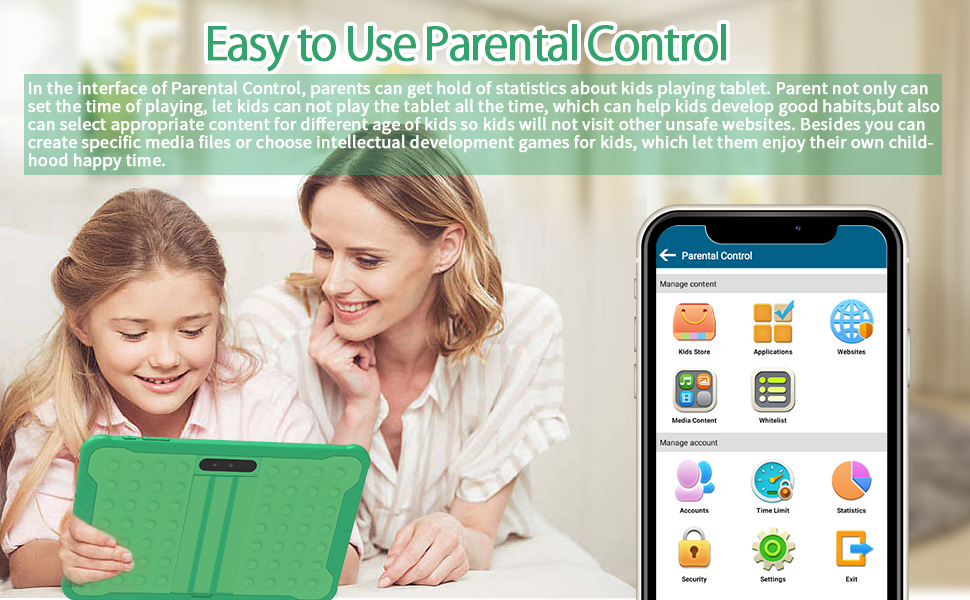
Image: A visual representation of the parental control interface, showing options for managing content, applications, websites, media, accounts, time limits, and statistics.
- Access the pre-installed parental control application.
- Set up a password or PIN to secure parental settings.
- Content Filtering: Block access to inappropriate websites and applications.
- Time Limits: Set daily usage limits or specific schedules for tablet use.
- App Management: Select which applications your child can access.
- Educational Goals: Configure settings to encourage educational content.
Downloading Applications
The tablet runs on Android 10 and has access to the Google Play Store. Ensure you are connected to Wi-Fi and logged into a Google Account.
- Tap the "Play Store" icon on the home screen or app drawer.
- Search for desired applications (e.g., educational games, streaming services).
- Tap "Install" to download and install the application.
Using the Camera
The tablet features dual cameras (front and rear).
- Open the "Camera" application.
- Tap the camera icon to switch between front and rear cameras.
- Tap the shutter button to take a photo or start/stop video recording.
Eye Protection Mode
The K10 tablet features an eye protection mode to reduce blue light emission and enhance reading comfort.
- Access this feature through the tablet's settings menu, typically under "Display" or "Eye Comfort".
- Activate "Eye Comfort" or "Reading Mode" with a single tap to reduce potential eye strain.
Maintenance
Cleaning the Tablet
- Use a soft, lint-free cloth to clean the screen and body.
- For stubborn smudges, slightly dampen the cloth with water or a screen cleaner.
- Avoid using harsh chemicals or abrasive materials.
Battery Care
- To prolong battery life, avoid fully discharging the tablet frequently.
- Charge the tablet regularly, but do not leave it plugged in for extended periods after it's fully charged.
- Store the tablet in a cool, dry place when not in use for long durations.
Software Updates
Periodically check for system updates to ensure optimal performance and security. Go to Settings > System > System Update to check for and install available updates.
Troubleshooting
| Problem | Possible Solution |
|---|---|
| Tablet does not power on. | Ensure the tablet is charged. Connect it to the charger for at least 30 minutes, then try powering on again. |
| Cannot connect to Wi-Fi. |
|
| Tablet is running slow. |
|
| Parental controls are not working as expected. |
|
| Screen is unresponsive. | Perform a forced restart by holding the Power On/Off button for approximately 10-15 seconds until the tablet restarts. |
Specifications
Detailed technical specifications for the NEWISION K10 10 Inch Kids Tablet.
| Feature | Detail |
|---|---|
| Brand | NEWISION |
| Model Name | K10 |
| Screen Size | 10 Inches |
| Screen Resolution | 1280 x 800 pixels (IPS HD) |
| Operating System | Android 10 |
| Processor | 1.3 GHz Quad-Core (Unisoc) |
| RAM | 2 GB |
| Internal Storage | 32 GB |
| Expandable Storage | Up to 512 GB (Micro SD Card) |
| Wireless Connectivity | Wi-Fi (802.11n), Bluetooth |
| Battery Capacity | 6000 mAh |
| Average Battery Life | 6-12 Hours (depending on usage) |
| Cameras | Dual Camera (Rear: 8 MP) |
| Dimensions (LxWxH) | 13.7 x 7.8 x 1.8 inches |
| Item Weight | 2.23 pounds |
| Color | Green |

Image: A visual summary of the tablet's key features, including Kids Mode, Eye Protection, Parental Control, Google Play, Wi-Fi connectivity, 1280*800 IPS display, 10-inch screen, and 32GB storage.
Warranty and Support
NEWISION products are designed for reliability and performance. For warranty information, please refer to the warranty card included in your product packaging or contact NEWISION customer support.
If you encounter any issues or have questions regarding your NEWISION K10 tablet, please contact our customer support team through the retailer's platform or the official NEWISION website for assistance.
Online Support: Visit the NEWISION Store on Amazon: NEWISION Store


