
Introduction
The PULSEAUDIO PA-CVB1 is an all-in-one USB 4K UHD video bar designed for huddle rooms and small to medium conference environments. This device integrates a camera, microphone, and speaker into a single unit, offering a streamlined solution for video conferencing. It features advanced AI intelligent algorithms for face detection, audio positioning, and voice tracking to enhance meeting experiences. This manual provides essential information for the proper setup, operation, and maintenance of your PA-CVB1 Video Bar.
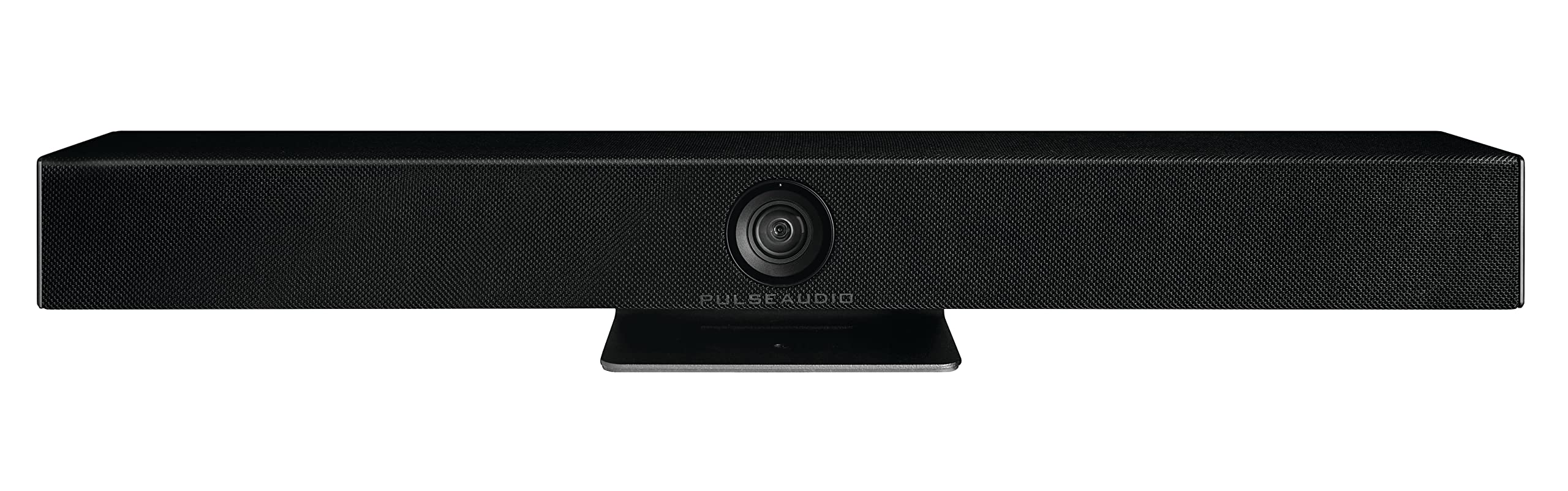
Image: The PULSEAUDIO PA-CVB1 4K UHD Video Bar, a sleek black unit with a central camera and integrated stand.
Safety Information
- Read all instructions carefully before use.
- Do not expose the device to water or moisture.
- Use only the power adapter supplied with the device.
- Avoid placing the device near heat sources or in direct sunlight.
- Do not attempt to open or repair the device yourself. Refer all servicing to qualified personnel.
- Ensure proper ventilation around the device during operation.
Package Contents
Verify that all items are present in the package:
- PULSEAUDIO PA-CVB1 Video Bar
- Power Adapter (DC12V)
- USB 3.0 Cable
- User Manual (this document)
Product Overview
The PA-CVB1 integrates a high-quality camera, a 6-ray microphone array, and a built-in speaker for comprehensive audio and video conferencing.
Front View
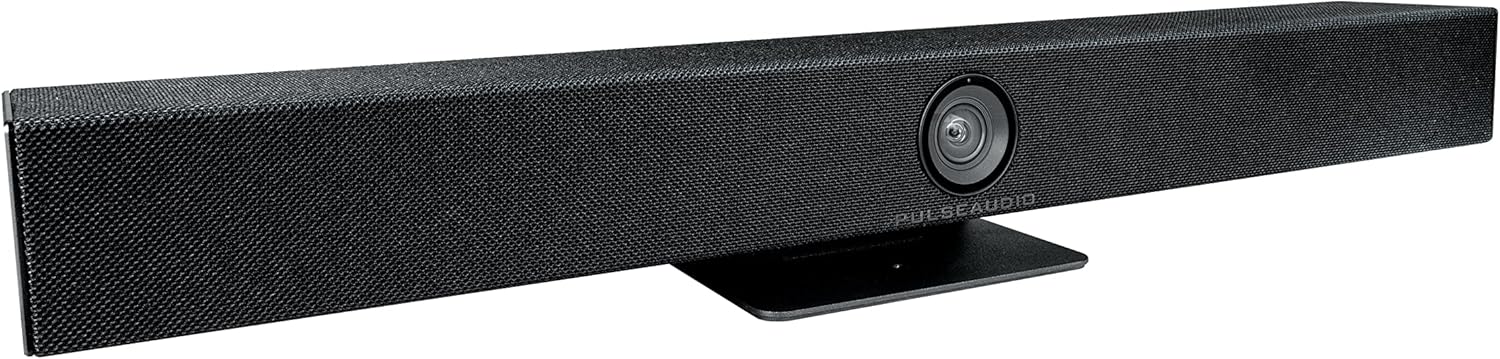
Image: Front view of the PULSEAUDIO PA-CVB1 Video Bar, showing the central camera lens and speaker grille.
The front of the video bar features the integrated 4K UHD camera lens at its center, surrounded by the speaker grille. The camera is designed to capture a 120° wide field of view without distortion.
Rear View and Connections

Image: Rear view of the PULSEAUDIO PA-CVB1 Video Bar, highlighting the power switch, DC12V power input, Line In port, and USB 3.0 port.

Image: Close-up of the connection panel on the rear of the PA-CVB1, detailing the ON/OFF switch, DC12V power input, Line In audio input, and USB 3.0 port.
The rear panel includes the following connections and controls:
- ON/OFF Switch: Powers the device on or off.
- DC12V: Power input port for the supplied power adapter.
- LINE IN: Audio input for external audio sources.
- USB 3.0: Connects the video bar to your computer for video, audio, and control.
Setup
Placement
Position the PA-CVB1 video bar centrally, either below or above your display (TV or monitor), ensuring an unobstructed view of all meeting participants. The integrated stand allows for stable placement on a flat surface.
Connecting the Device
- Connect Power: Plug the supplied DC12V power adapter into the "DC12V" port on the rear of the video bar, then plug the adapter into a power outlet.
- Connect to Computer: Use the supplied USB 3.0 cable to connect the "USB 3.0" port on the video bar to an available USB port on your computer.
- Power On: Flip the "ON/OFF" switch on the rear panel to the ON position. The device will power on and be ready for use.
- Optional Audio Input: If using an external audio source, connect it to the "LINE IN" port.

Image: Setup diagram illustrating the connection of the PULSEAUDIO PA-CVB1 Video Bar to both a television display and a computer, demonstrating a typical conference room setup.
The PA-CVB1 is a plug-and-play device. Your operating system (Windows 7/10, MAC OS 10.10 or higher) should automatically detect and install the necessary drivers.
Operating Instructions
Once connected, the PA-CVB1 functions as a unified camera, microphone, and speaker for your video conferencing applications.
Using with Video Conferencing Software
- Open your preferred video conferencing application (e.g., Microsoft Teams, Skype for Business, Zoom Rooms, Zoom, Tencent Meeting).
- Navigate to the audio and video settings within the application.
- Select "PULSEAUDIO PA-CVB1" as your camera, microphone, and speaker device.
- Adjust volume levels and test your setup as needed within the application.
Intelligent Features
- Smart Framing: The built-in smart framing algorithm automatically detects and frames all meeting participants, adjusting the camera's view to ensure everyone is visible on screen.
- Voice Tracking: With its 6-ray microphone array, the PA-CVB1 can accurately position and zoom in on the active speaker in real-time, enhancing clarity and focus during discussions.
- Audio Algorithm: The device utilizes a 48K audio sampling rate and damage-less audio technology. It supports Acoustic Echo Cancellation (AEC), Automatic Gain Control (AGC), and Automatic Noise Suppression (ANS) processing, providing a 6-meter diameter pickup range for clear audio.
Maintenance
- Cleaning: Use a soft, dry cloth to clean the exterior of the video bar. Do not use liquid cleaners or aerosols directly on the device. For the camera lens, use a lens cleaning cloth.
- Storage: When not in use for extended periods, store the device in a cool, dry place, away from direct sunlight and extreme temperatures.
- Firmware Updates: Periodically check the PULSEAUDIO website for any available firmware updates to ensure optimal performance and access to new features.
Troubleshooting
| Problem | Possible Cause | Solution |
|---|---|---|
| No power | Power adapter not connected or faulty; ON/OFF switch is off. | Ensure power adapter is securely connected and plugged into a working outlet. Flip the ON/OFF switch to ON. |
| No video output | USB cable not connected properly; incorrect camera selected in software. | Check USB 3.0 cable connection to both the video bar and computer. Verify "PULSEAUDIO PA-CVB1" is selected as the camera in your conferencing software settings. |
| No audio (microphone/speaker) | USB cable not connected properly; incorrect microphone/speaker selected in software; volume too low. | Check USB 3.0 cable connection. Verify "PULSEAUDIO PA-CVB1" is selected as the microphone and speaker in your conferencing software settings. Adjust volume levels. |
| Smart Framing/Voice Tracking not working | Environmental factors; software settings. | Ensure the room is adequately lit. Check if there are any specific settings within your conferencing software that might interfere with these features. Ensure the device has the latest firmware. |
Specifications
| Model Number | PA-CVB1 |
| Video Capture Resolution | Up to 4K @ 60fps |
| Photo Sensor Technology | 1/2.8 inch high-quality CMOS sensor |
| Field of View (FOV) | 120° Wide (without distortion) |
| Microphone | 6-ray microphone array with 6-meter pickup range |
| Audio Processing | AEC, AGC, ANS, 48K audio sampling rate |
| Speaker | Built-in 180-degree speaker |
| Connectivity | USB 3.0 |
| Supported OS | Windows 7/10, MAC OS 10.10 or higher |
| Dimensions | 5.5 x 8.5 x 27.5 inches |
| Item Weight | 34 pounds |
Warranty and Support
PULSEAUDIO products are designed for reliability and performance. For specific warranty details, please refer to the warranty card included with your product or visit the official PULSEAUDIO website. For technical support, troubleshooting assistance, or service inquiries, please contact PULSEAUDIO customer support through their official channels.
You can typically find support information, including contact details and FAQs, on the manufacturer's website.

