
Ugoos X4Q Pro
Ugoos X4Q Pro Android TV Box User Manual
Model: X4Q Pro
1. Introduction
The Ugoos X4Q Pro is a high-performance Android TV Box designed to deliver a superior media streaming experience. Powered by the Amlogic S905X4 Quad Core Cortex-A55 CPU and running on Android 11, it supports advanced features like AV1 HDR and 4K 60fps video playback. With 4GB RAM, 32GB internal storage, dual-band Wi-Fi (2.4G/5G), Bluetooth 5.1, and a 1000Mbps Ethernet port, the X4Q Pro offers robust connectivity and smooth operation for all your entertainment needs.
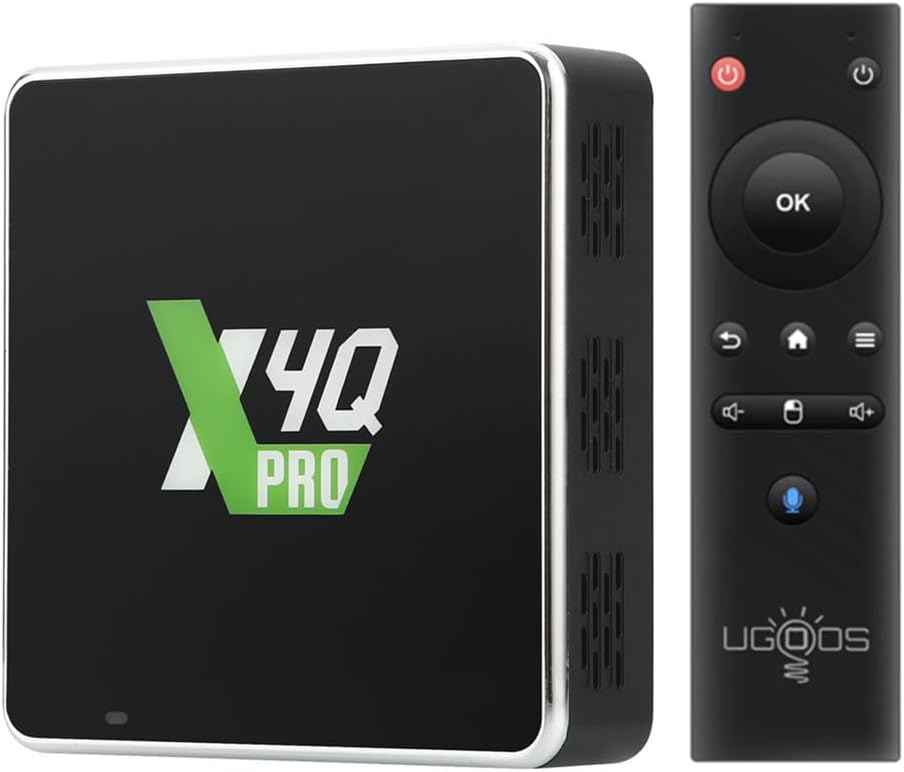
Figure 1.1: The Ugoos X4Q Pro Android TV Box and its accompanying Bluetooth remote control.
2. Package Contents
Before proceeding with the setup, please verify that all items listed below are present in your package:
- Ugoos X4Q Pro TV Box
- BT Remote Control
- HD Cable (HDMI Cable)
- Power Adapter (DC 5V/2.5A, Type C, US Plug)
- English User Manual (this document)

Figure 2.1: All components included in the Ugoos X4Q Pro retail package.
3. Setup Guide
3.1 Connecting the Device
- Connect to TV: Insert one end of the provided HD Cable (HDMI) into the HDMI port on the Ugoos X4Q Pro TV Box and the other end into an available HDMI input on your television.
- Connect Power: Plug the Type-C end of the Power Adapter into the DC 5V port on the TV Box. Then, plug the power adapter into a wall outlet.
- Network Connection (Optional):
- Wired: For a stable and fast connection, connect an Ethernet cable from your router to the LAN port on the TV Box.
- Wireless: The device supports 2.4G/5G Dual WiFi. You will configure this after initial boot-up.
- Power On: The device should automatically power on once connected to power. If not, press the power button on the remote control.

Figure 3.1: Rear view of the Ugoos X4Q Pro showing the USB Type-C power input, HDMI port, and LAN 1Gbit port.
3.2 Remote Control Pairing (Ugoos Remote UR01-BLE)
The included Bluetooth remote control needs to be paired with the TV Box for full functionality.
- Ensure the TV Box is powered on and connected to your TV.
- On the remote, hold down the Volume Down (
 ) and Volume Up () buttons simultaneously. The red light on the remote will start to flash slowly after 3 seconds and then enter standby mode.
 - On your TV Box, navigate to the Bluetooth settings.
- Turn on the Bluetooth search function.
- Wait until "Ugoos Remote" appears in the list of available devices.
- Select "Ugoos Remote" to initiate the pairing process and accept any system requests.
- The red light on the Ugoos remote control will turn off if the pairing is successful.
Note: The remote also features an IR Learning Button for controlling your TV's power. Refer to the "Remote Control Button IR Setting" section in the included physical manual for detailed instructions on this feature.

Figure 3.2: Visual guide for pairing the Ugoos Bluetooth remote control.
4. Operating Instructions
4.1 Navigating Android 11 OS
The Ugoos X4Q Pro runs on a full version of Android 11, providing access to the Google Play Store and various customization options. Use the remote control's directional pad and OK button to navigate the interface. The Home button will return you to the main screen, and the Back button will take you to the previous screen.
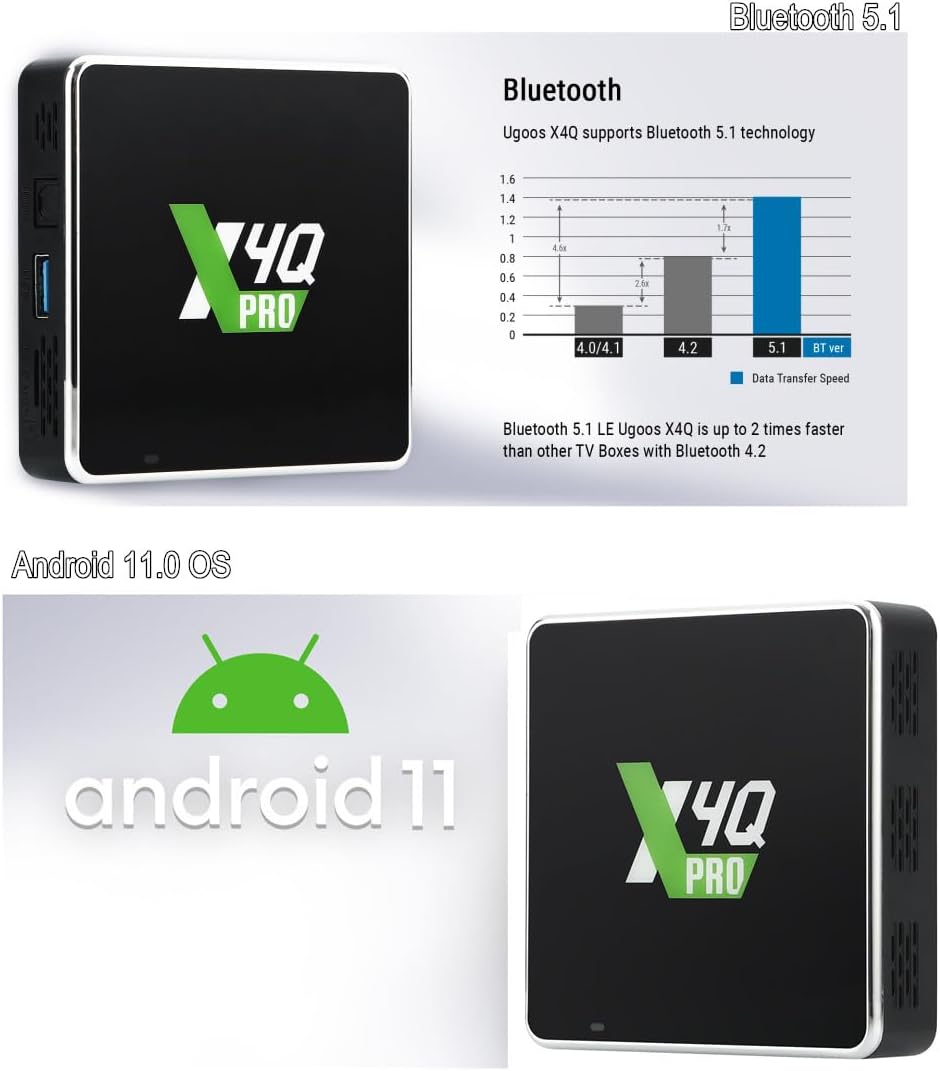
Figure 4.1: The Ugoos X4Q Pro operates on the Android 11 operating system.
4.2 Network Configuration
To access online content, ensure your device is connected to the internet.
- Wired (Ethernet): If you connected an Ethernet cable during setup, the device should automatically detect and connect to the network.
- Wireless (Wi-Fi):
- Go to Settings > Network & Internet.
- Select Wi-Fi and turn it on.
- Choose your desired Wi-Fi network from the list.
- Enter the Wi-Fi password if prompted and select Connect.
4.3 Media Playback and Connectivity
The X4Q Pro supports various media formats and offers versatile connectivity options.
- 4K HDR and AV1 Support: The device is capable of smooth 4K 60fps video playback, including H.265 and AV1 encoded content, and supports 4K HDR for enhanced visual experience.
- USB 3.0: Utilize the USB 3.0 port for fast data transfer when connecting external storage devices like USB flash drives or external hard drives.
- Bluetooth 5.1 LE: Connect Bluetooth-enabled accessories such as headphones, game controllers, or keyboards for an enhanced user experience. Bluetooth 5.1 offers faster data transfer speeds compared to older versions.

Figure 4.2: The Ugoos X4Q Pro supports 4K resolution and HDR content for a vibrant viewing experience.
5. Maintenance
5.1 System Updates (OTA)
The Ugoos X4Q Pro supports Over-The-Air (OTA) updates, ensuring your device always has the latest firmware and features without manual intervention.
- Ensure your device is connected to the internet.
- Navigate to Settings > About device > System update.
- The device will check for available updates. Follow the on-screen prompts to download and install any new firmware.
- Do not power off the device during an update process.
5.2 General Care
- Keep the device in a well-ventilated area to prevent overheating.
- Avoid exposing the device to direct sunlight, high temperatures, or excessive humidity.
- Clean the exterior with a soft, dry cloth. Do not use liquid cleaners or aerosols.
- Do not attempt to open or repair the device yourself, as this will void the warranty.
6. Troubleshooting
This section addresses common issues you might encounter with your Ugoos X4Q Pro TV Box.
| Problem | Possible Cause | Solution |
|---|---|---|
| No power / Device not turning on | Power adapter not connected or faulty; Power outlet issue. | Ensure the power adapter is securely connected to the device and a working power outlet. Try a different outlet. |
| No display on TV | HDMI cable loose or faulty; Incorrect TV input selected. | Check HDMI cable connections. Ensure your TV is set to the correct HDMI input source. Try a different HDMI cable or port. |
| Remote control not responding | Remote not paired; Batteries low or dead. | Refer to Section 3.2 "Remote Control Pairing". Replace remote batteries (1 CR2 battery required, included). |
| No internet connection (Wi-Fi/Ethernet) | Network cable disconnected; Incorrect Wi-Fi password; Router issue. | For Ethernet, ensure the cable is securely connected. For Wi-Fi, verify the password and try reconnecting. Restart your router and the TV Box. |
| Video playback issues (stuttering, freezing) | Slow internet speed; Corrupted media file; Device overheating. | Check your internet speed. Try playing a different media file. Ensure the device is in a well-ventilated area. |
7. Specifications
Detailed technical specifications for the Ugoos X4Q Pro Android TV Box:
- Model Name: X4Q Pro
- Operating System: Android 11
- Processor: Amlogic S905X4 Quad Core Cortex-A55 CPU
- GPU: ARM Mali-G31 MP2
- RAM: 4GB
- Internal Storage: 32GB
- Connectivity:
- Wi-Fi: 2.4G/5G Dual-band (IEEE 802.11 a/b/g/n/ac, 2T2R MIMO)
- Bluetooth: 5.1 LE
- Ethernet: 1000Mbps (1Gbit LAN)
- Video Output: HDMI, supports 4K 60fps, H.265, AV1 encoded, HDR
- Ports:
- 1x HDMI
- 1x USB 2.0 OTG
- 1x USB 3.0 Host
- 1x SPDIF (Optical Audio)
- 1x LAN (RJ45)
- 1x DC-5V Type C (Power Input)
- 1x TF Card Slot
- Dimensions: 3.46 x 3.46 x 0.87 inches
- Item Weight: 1.21 pounds
- Power Adapter: DC 5V/2.5A, Type C
- Remote Control Batteries: 1 CR2 (included)
8. Warranty and Support
For information regarding product warranty, returns, or technical support, please refer to the warranty card included with your purchase or visit the official Ugoos website. Protection plans may also be available for extended coverage.
For the most up-to-date support resources, FAQs, and contact information, please visit the manufacturer's official support page.
Related documentsX4Q Pro


Ask a question about this manual
Ask about setup, troubleshooting, compatibility, parts, safety, or missing instructions. Manuals+ will review the question and use this page’s manual context to help answer it.