
Introduction
Thank you for choosing the XO M20 Smartwatch. This manual provides essential information for setting up, operating, and maintaining your device. The M20 Smartwatch features a 1.86-inch IPS display, Bluetooth 5.0 for calls, IP67 water resistance, and an AI intelligent voice assistant, compatible with both Android and iOS devices.
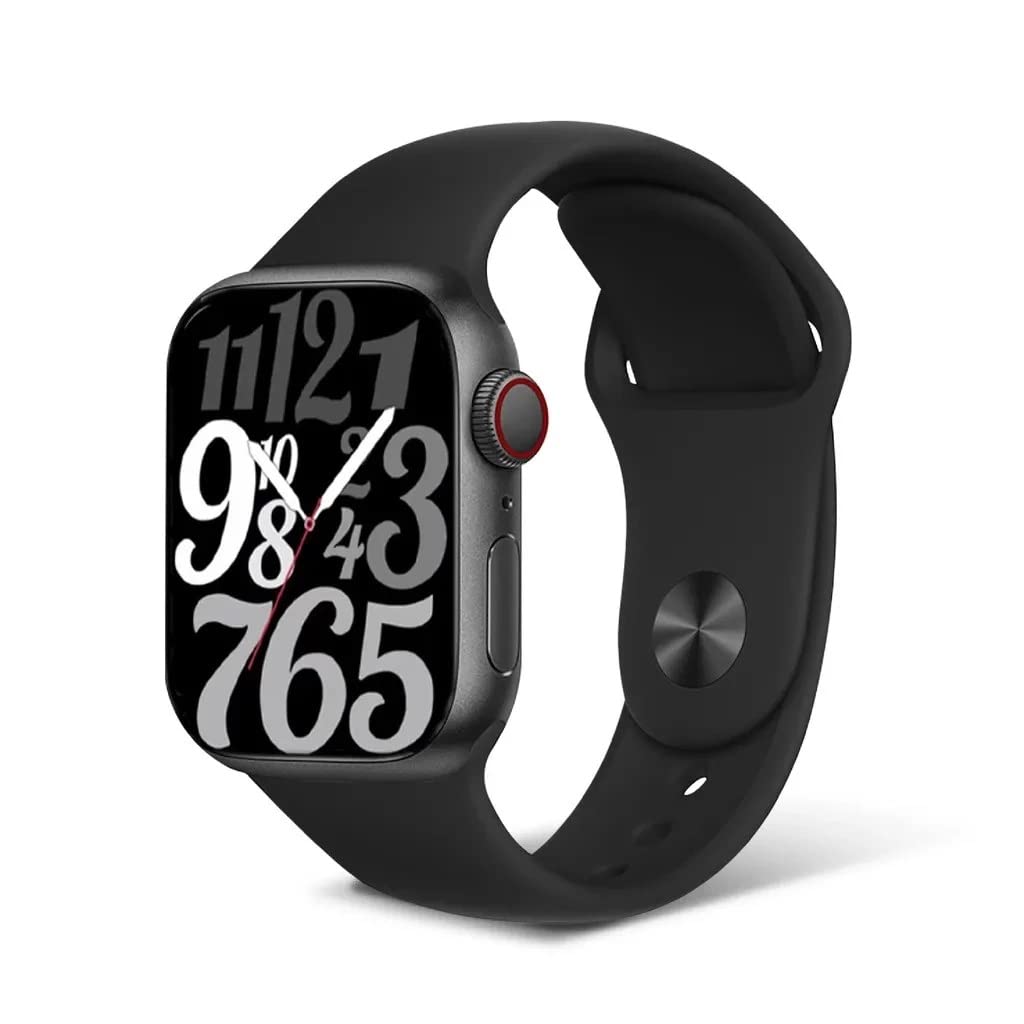
Image: The XO M20 Smartwatch displaying a vibrant, spiral-patterned watch face.
Safety Information
- Do not attempt to disassemble or modify the device.
- Keep the device away from extreme temperatures and direct sunlight.
- Avoid exposing the device to strong impacts or drops.
- Use only the provided charging cable and adapter.
- Consult a medical professional before starting any new exercise regimen or if you have pre-existing health conditions, as health monitoring features are for reference only.
Package Contents
Verify that all items are present in the package:
- XO M20 Smartwatch
- Charging Cable (Magnetic)
- User Manual
Product Overview
The XO M20 Smartwatch features a large IPS display, a side crown button for navigation, and sensors on the back for health monitoring. The 44mm strap is interchangeable.

Image: A composite image illustrating the smartwatch's sleep monitoring feature, magnetic charging interface, and quick split-screen operation with a side slip and drop-down menu.
Setup
1. Charging the Smartwatch
Connect the magnetic charging cable to the charging points on the back of the smartwatch. Plug the USB end into a power adapter (not included) or a computer's USB port. The watch will display a charging indicator. Ensure the watch is fully charged before first use.
2. Power On/Off
- Power On: Press and hold the side crown button until the screen lights up.
- Power Off: Press and hold the side crown button, then select 'Power Off' on the screen.
3. App Installation
To unlock full functionality, download the companion app on your smartphone. Scan the QR code displayed on the watch or in the manual (if provided) or search for the app name (e.g., 'WearFit Pro' or similar, as per product packaging) in your phone's app store (Google Play Store for Android, Apple App Store for iOS).
4. Bluetooth Pairing
- Ensure Bluetooth is enabled on your smartphone.
- Open the companion app and follow the on-screen instructions to add a new device.
- The app will search for available devices. Select 'M20' or similar from the list.
- Confirm the pairing request on both your smartphone and the smartwatch.
- For Bluetooth call functionality, you may need to pair the watch a second time through your phone's Bluetooth settings (e.g., 'M20_Call').
Operating Instructions
Basic Navigation
- Swipe Up/Down: Access quick settings or notifications.
- Swipe Left/Right: Navigate through widgets and main functions.
- Tap: Select an item or open an application.
- Side Crown Button: Press to return to the watch face or access the app menu. Rotate to scroll through lists or adjust settings.
Making and Receiving Calls
Once paired for Bluetooth calls, you can dial numbers directly from the watch or answer incoming calls.

Image: The XO M20 Smartwatch screen showing a dial number interface with an active call, including 'Answer' and 'Refuse' options.
AI Voice Assistant
Connect to Bluetooth and long-press the watch's voice assistant function to activate. You can issue voice commands for various tasks, such as playing music, checking weather, or making calls.

Image: The XO M20 Smartwatch displaying the AI voice assistant interface with a sound wave graphic, indicating active listening or response.

Image: A three-panel image showing the AI voice assistant responding to commands like 'Siri, play music' and 'Siri, today's weather', the smart voice call feature with a dial pad, and the remote camera control function.
Health Monitoring
The smartwatch can monitor your heart rate, blood oxygen levels, and sleep patterns. Access these features through the watch's menu or the companion app.
- Heart Rate: Provides real-time heart rate data.
- Blood Oxygen: Measures blood oxygen saturation (SpO2).
- Sleep Monitoring: Tracks sleep duration and quality.

Image: A three-panel image illustrating the 'Find a phone' feature via Bluetooth, heart rate and blood oxygen monitoring displays, and the IP67 waterproof capability of the smartwatch.
Notifications
Receive notifications from your smartphone directly on your smartwatch. Ensure notification permissions are granted in the companion app.

Image: The XO M20 Smartwatch screen showing a list of incoming notifications from various messaging applications like WhatsApp, Line, and Talk.
Find Phone
If your phone is misplaced, use the 'Find Phone' feature on your smartwatch. When activated, your phone will ring, helping you locate it.
Camera Remote Control
Use your smartwatch as a remote shutter for your smartphone's camera. Open the camera function in the companion app, then shake your wrist or tap the watch screen to take a photo.
Maintenance
Cleaning
- Wipe the watch screen and body with a soft, dry, lint-free cloth.
- For stubborn dirt, slightly dampen the cloth with water. Avoid using harsh chemicals or abrasive materials.
- Clean the charging contacts regularly to ensure proper charging.
Strap Care
Keep the strap clean and dry. If the strap gets wet, dry it thoroughly to prevent skin irritation. Avoid prolonged exposure to direct sunlight or high temperatures.
Battery Care
- Avoid fully discharging the battery frequently.
- Charge the device regularly, even if not in use for extended periods.
- Store the device in a cool, dry place.
Troubleshooting
- Watch not powering on: Ensure the watch is fully charged. Try pressing and holding the side button for 10-15 seconds.
- Cannot pair with smartphone: Make sure Bluetooth is enabled on your phone and the watch. Restart both devices and try pairing again. Ensure the companion app is installed and running.
- Bluetooth call issues: Verify that the watch is paired for both data and call functions in your phone's Bluetooth settings. Check volume settings on both devices.
- Notifications not received: Check app permissions in your phone settings and ensure notification access is granted to the companion app. Confirm notifications are enabled within the watch app.
- Inaccurate health data: Ensure the watch is worn snugly on your wrist, not too tight or too loose. Clean the sensors on the back of the watch.
Specifications
| Feature | Specification |
|---|---|
| Model Name | XO M20 |
| Screen Size | 1.86 Inches IPS |
| Strap Size | 44mm |
| Connectivity | Bluetooth 5.0 |
| Water Resistance | IP67 |
| Battery Capacity | 240mAh |
| Operating System Compatibility | Android, iOS |
| Special Features | Voice Call, AI Intelligent Voice Assistant, Health Monitoring (Heart Rate, Blood Oxygen, Sleep) |
| Item Shape | Square |
| Product Dimensions | 5.6 x 4.4 x 1.2 cm |
Warranty and Support
For warranty information and technical support, please refer to the documentation provided with your purchase or contact the retailer where the product was acquired. Keep your proof of purchase for warranty claims.


