
Introduction
Thank you for purchasing the Kisonli G10 Retro Classic Wireless Bluetooth Speaker. This manual provides essential information for the safe and efficient operation of your device. Please read it thoroughly before use and retain it for future reference.
The Kisonli G10 is a versatile portable speaker featuring Bluetooth 5.0 connectivity, a classic retro wooden design, and multiple playback options including TF card, USB drive, and AUX input. It also supports True Wireless Stereo (TWS) pairing and hands-free calling.
Package Contents
Please check the package for the following items:
- Kisonli G10 Retro Classic Wireless Bluetooth Speaker
- USB Charging Cable
- AUX Audio Cable
- User Manual
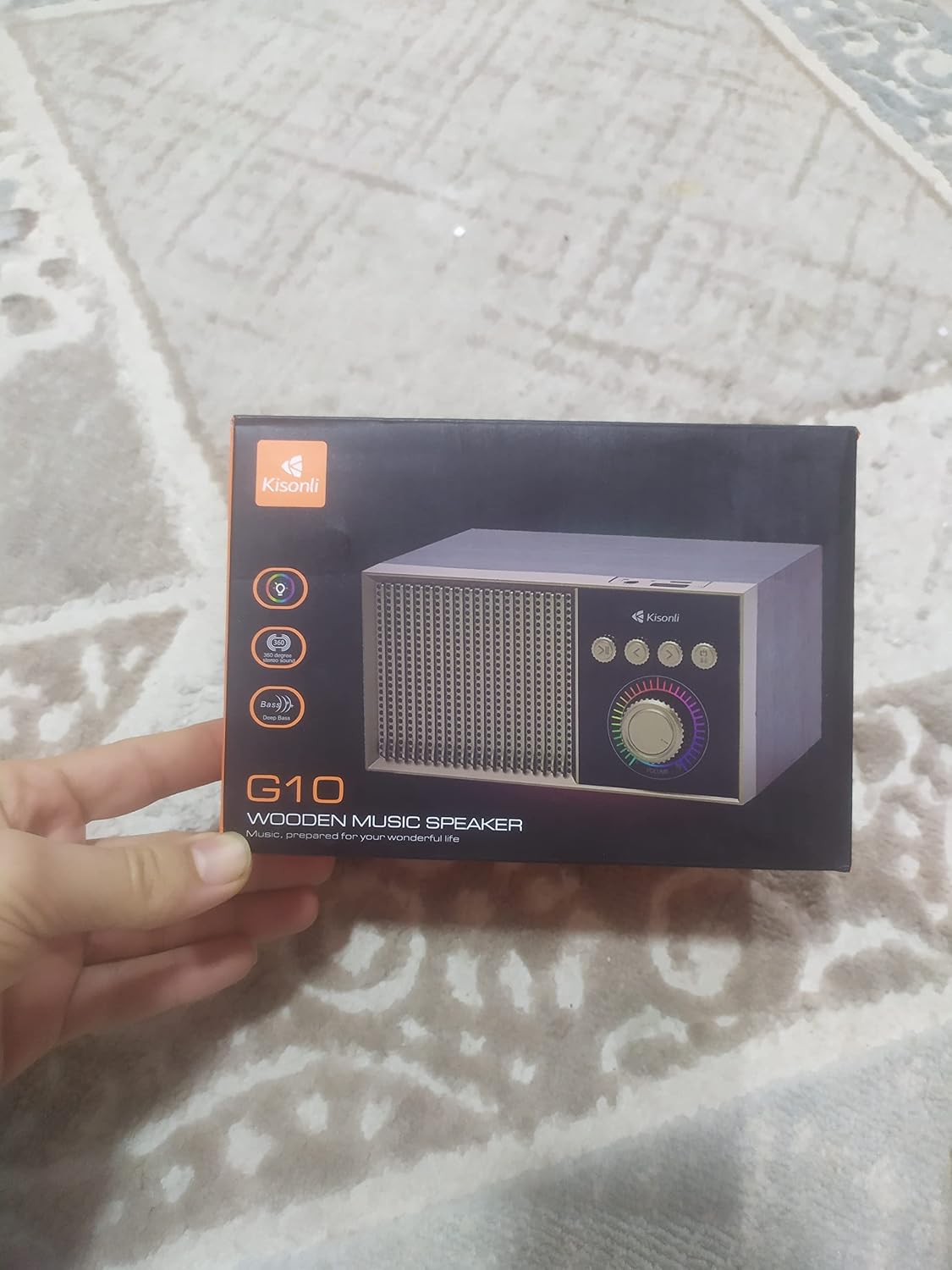
Image: The Kisonli G10 speaker packaged in its retail box, showing the product and branding.
Product Overview
Familiarize yourself with the speaker's components and controls.

Image: Front view of the Kisonli G10 speaker, highlighting the speaker grille, control panel with buttons, and volume knob.
- Speaker Grille: Audio output.
- Control Panel: Contains playback and mode selection buttons.
- Volume Knob: Adjusts audio volume.
- Power Switch: Turns the speaker on or off.
- Charging Port: For connecting the USB charging cable.
- TF Card Slot: For playing music from a TF (MicroSD) card.
- USB Port: For playing music from a USB flash drive.
- AUX Input: For connecting external audio devices via AUX cable.

Image: Angled view of the Kisonli G10 speaker, showing the top-mounted ports for USB, TF card, and charging.
Setup
1. Charging the Speaker
- Connect the provided USB charging cable to the speaker's charging port.
- Connect the other end of the USB cable to a DC 5V power adapter (not included) or a computer's USB port.
- The LED indicator will illuminate to show charging status. It will turn off or change color when fully charged.
- A full charge typically takes a few hours. The speaker offers 2-10 hours of playtime depending on volume and usage.
2. Powering On/Off
- To power on, press and hold the Power button until the indicator light turns on and you hear an audible prompt.
- To power off, press and hold the Power button again until the indicator light turns off and you hear an audible prompt.
Operating Instructions
1. Bluetooth Mode
- Power on the speaker. It will automatically enter Bluetooth pairing mode, indicated by a flashing LED light and an audible prompt.
- Enable Bluetooth on your mobile device (smartphone, tablet, computer).
- Search for "G10" in the list of available Bluetooth devices.
- Select "G10" to connect. Once connected, the LED light will become solid, and you will hear a confirmation sound.
- You can now play audio from your device through the speaker.
2. TF Card / USB Drive Playback
- Insert a TF (MicroSD) card or USB flash drive (with music files) into the corresponding slot on the speaker.
- The speaker will automatically detect the storage device and begin playing music.
- Use the playback control buttons (Play/Pause, Next Track, Previous Track) on the speaker to manage your music.
3. AUX Mode
- Connect one end of the provided AUX audio cable to the speaker's AUX input port.
- Connect the other end to the audio output (headphone jack) of your external device (e.g., MP3 player, laptop).
- The speaker will automatically switch to AUX mode. If not, press the Mode button to cycle through modes until AUX is selected.
- Control playback from your external device.
4. True Wireless Stereo (TWS) Pairing
To pair two G10 speakers for a stereo sound experience:
- Ensure both G10 speakers are powered on and not connected to any other Bluetooth device.
- On one speaker (this will be the primary speaker), double-press the TWS pairing button (refer to the control panel diagram if available, or try the Play/Pause button if it has dual function).
- The primary speaker will search for the secondary speaker. Once connected, you will hear a confirmation tone.
- Now, connect your mobile device to the primary G10 speaker via Bluetooth as described in step 1.
- Audio will now play in stereo through both speakers.
5. Hands-free Calling
When connected via Bluetooth to your smartphone:
- Answer Call: Press the Play/Pause button once to answer an incoming call.
- End Call: Press the Play/Pause button once during a call to end it.
- Reject Call: Press and hold the Play/Pause button to reject an incoming call.
6. Volume and Track Control
- Volume Adjustment: Rotate the volume knob clockwise to increase volume, counter-clockwise to decrease volume.
- Next Track: Press the 'Next Track' button.
- Previous Track: Press the 'Previous Track' button.
- Play/Pause: Press the 'Play/Pause' button to pause or resume playback.
7. LED Light Function
The speaker features a single LED light. Refer to the product description or packaging for specific controls if available. Typically, a short press of a dedicated light button or the mode button might cycle through light modes or turn it on/off.
Maintenance
- Keep the speaker away from water, moisture, and extreme temperatures.
- Clean the speaker with a soft, dry cloth. Do not use abrasive cleaners or solvents.
- Avoid dropping or subjecting the speaker to strong impacts.
- When not in use for extended periods, store the speaker in a cool, dry place and charge it periodically to maintain battery health.
Troubleshooting
| Problem | Solution |
|---|---|
| Speaker does not power on. | Ensure the speaker is fully charged. Connect it to a power source and try again. |
| Cannot pair via Bluetooth. | Make sure the speaker is in Bluetooth pairing mode (flashing LED). Ensure your device's Bluetooth is on and within range. Forget previous pairings on your device and try again. |
| No sound. | Check the speaker's volume and your connected device's volume. Ensure the correct input mode (Bluetooth, TF, USB, AUX) is selected. |
| Poor audio quality. | Ensure the speaker is within Bluetooth range and there are no obstructions. Try a different audio source or file. |
| TF card/USB drive not playing. | Ensure the card/drive is inserted correctly and contains compatible audio files (e.g., MP3). Try reformatting the storage device if issues persist. |
Specifications

Image: The Kisonli G10 speaker with its physical dimensions clearly marked in centimeters.
| Feature | Detail |
|---|---|
| Brand | Kisonli |
| Model Number | G10 |
| Bluetooth Version | 5.0 |
| Playtime | 2-10 hours |
| Charging Voltage | DC 5V |
| Battery Capacity | 1200mAh |
| Frequency Range | 20Hz - 20KHz |
| Output Power | 5W |
| Product Weight | 415g (approx. 1.32 pounds) |
| Product Dimensions (L x W x H) | 17.4 x 12.3 x 9.9 cm (approx. 150x118x85mm) |
| Connectivity | Bluetooth, TF Card, USB, AUX |
| Special Features | Wireless, True Wireless Stereo (TWS), Hands-free Calling, LED Light |
| Material | Wood |
| Power Source | Battery Powered |
Warranty and Support
This product is covered by a standard manufacturer's warranty. Please refer to the warranty card included in your package or contact your retailer for specific warranty terms and conditions.
For technical support or customer service inquiries, please contact the Kisonli customer support team through their official website or the contact information provided with your purchase.