
1. Introduction
This manual provides essential information for the installation, operation, maintenance, and troubleshooting of your Dpofirs GTX 730 Desktop Graphics Card. Designed for desktop computers, this graphics card enhances visual performance for gaming, multimedia, and general computing tasks. It features 2GB DDR3 video memory, up to 5Gbps speed, an efficient cooling fan, and low power consumption, making it a reliable choice for various system configurations.
2. Setup
2.1 Pre-installation Checklist
- Ensure your power supply unit (PSU) meets the minimum recommended requirement of 300W.
- Verify your motherboard has an available PCI Express slot.
- Gather necessary tools: Phillips head screwdriver.
2.2 Physical Installation
- Power Off and Disconnect: Completely shut down your computer and disconnect all power cables.
- Open Computer Case: Remove the side panel of your computer case to access the motherboard.
- Locate PCI Express Slot: Identify an available PCI Express x16 slot on your motherboard.
- Remove Slot Cover: Carefully remove the metal slot cover from the back of your computer case corresponding to the chosen PCIe slot.
- Insert Graphics Card: Align the graphics card with the PCIe slot and firmly press it down until it clicks into place. Ensure the retention clip on the slot engages.
- Secure Card: Use a screw to secure the graphics card's mounting bracket to the computer case.
- Connect Display Cables: Connect your monitor's VGA, DVI, or HDMI cable to the corresponding port on the graphics card.
- Close Case: Replace the computer case side panel and reconnect all power cables.

Image: A person carefully installing the graphics card into an open desktop computer case, demonstrating the physical installation step.
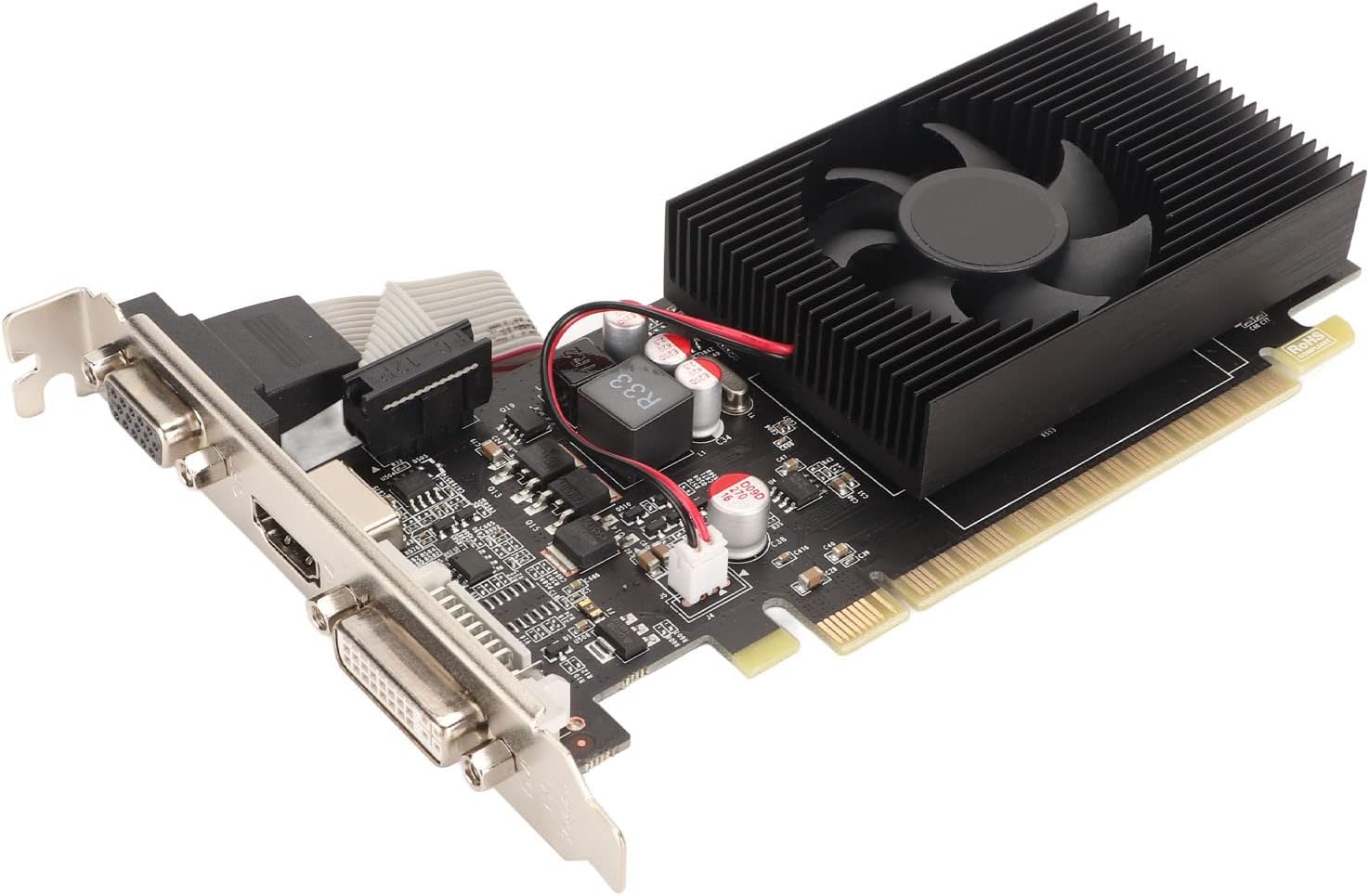
Image: An angled view of the Dpofirs GTX 730 graphics card, showcasing its cooling fan, heatsink, and output ports (VGA, DVI, HDMI).
2.3 Driver Installation
- Power On: Turn on your computer. The system may boot with a basic display driver.
- Download Drivers: Visit the official Dpofirs website or the chipset manufacturer's website (e.g., NVIDIA for GeForce GT 730) to download the latest compatible drivers for your operating system.
- Install Drivers: Run the downloaded driver installer and follow the on-screen prompts. This typically involves accepting terms, choosing installation options, and restarting your computer.
- Verify Installation: After restarting, check your operating system's Device Manager (Windows) or equivalent to ensure the graphics card is recognized and the drivers are correctly installed.
3. Operating
Once installed and drivers are set up, your Dpofirs GTX 730 graphics card is ready for use. It is designed for plug-and-play functionality across various operating systems.
3.1 System Compatibility
- Widely supports for Windows operating systems.
- Compatible with Linux distributions.
- Supports FreeBSD systems.
3.2 Performance and Usage
- The 2GB DDR3 video memory with up to 5Gbps speed ensures a smooth experience for general computing, multimedia playback, and light to moderate gaming.
- The integrated cooling fan and heatsink efficiently dissipate heat, maintaining optimal GPU temperatures for stable performance during extended use.
- With low power consumption (approximately 30W full load), it is an energy-efficient addition to your desktop system.

Image: A person engaged in gaming on a desktop computer, illustrating the graphics card's application in entertainment.

Image: An individual working on a computer in an office environment, demonstrating the graphics card's suitability for general application use.
4. Maintenance
Proper maintenance ensures the longevity and optimal performance of your graphics card.
- Dust Removal: Periodically (e.g., every 3-6 months), power off your computer and use compressed air to gently clean dust from the cooling fan and heatsink. Accumulation of dust can impede airflow and lead to overheating.
- Ensure Airflow: Make sure your computer case has adequate ventilation. Avoid blocking air intake and exhaust vents.
- Driver Updates: Regularly check for and install the latest graphics drivers from the official manufacturer's website. Driver updates often include performance improvements, bug fixes, and compatibility enhancements.

Image: A detailed close-up of the graphics card's cooling fan and the aluminum fin array heatsink, highlighting components important for thermal management.
5. Troubleshooting
If you encounter issues with your graphics card, refer to the following common problems and solutions:
- No Display / Black Screen:
- Ensure the monitor cable is securely connected to the graphics card and the monitor.
- Verify the monitor is set to the correct input source (VGA, DVI, HDMI).
- Confirm the graphics card is fully seated in the PCIe slot and secured.
- Check if your PSU is sufficient and properly connected.
- Driver Issues / Low Resolution:
- Uninstall existing graphics drivers completely using a utility like Display Driver Uninstaller (DDU) in Safe Mode.
- Download and perform a clean installation of the latest drivers from the official Dpofirs or chipset manufacturer's website.
- Overheating / System Instability:
- Clean dust from the graphics card's fan and heatsink.
- Ensure proper airflow within your computer case. Consider adding case fans if temperatures remain high.
- Monitor GPU temperatures using third-party software.
- Poor Performance in Games/Applications:
- Ensure your system meets the minimum requirements for the software you are running.
- Close unnecessary background applications.
- Verify that the latest drivers are installed.
6. Specifications
Key technical specifications for the Dpofirs GTX 730 Desktop Graphics Card:
| Feature | Specification |
|---|---|
| Brand | Dpofirs |
| Model | Dpofirsmhbpz1gnk4 |
| Graphics Processor Manufacturer | AMD |
| Graphics Card RAM Size | 2 GB |
| Graphics RAM Type | GDDR3 |
| Graphics Card Interface | PCI Express, Integrated |
| Video Output Interface | VGA, DVI, HDMI |
| GPU Clock Speed | 667 MHz |
| Compatible Devices | Desktop |
| Full Load Power Consumption | Approx. 30W |
| Recommended PSU | Minimum 300W |
| Item Weight | 300 g |
| Package Dimensions | 26.2 x 16.3 x 5.9 cm |
7. Warranty and Support
For information regarding returns or product support, please refer to the retailer's return policy or contact the seller directly. The product is subject to a 30-day return policy for refund or replacement.
For technical assistance or further inquiries, please reach out to Dpofirs customer support through their official channels or the platform where the product was purchased.