
1. Introduction
Thank you for choosing the Sjpzwcrl T10 Smart Wireless Remote Control. This device is designed to enhance your GoPro camera experience by providing convenient remote operation. This manual provides detailed instructions for setup, operation, maintenance, and troubleshooting to ensure optimal performance.
The T10 remote control is compatible with GoPro Hero 8, Hero 9, Hero 10, Hero 11, Hero 12, Hero 13, and GoPro Max cameras. It also supports basic photographing functions when paired with smartphones.
2. Safety Information
- Do not attempt to disassemble or modify the device.
- Keep the device away from extreme temperatures, direct sunlight, and corrosive liquids.
- This remote control has an IP54 water-resistant rating, protecting against low-pressure splashing water. It is not designed for submersion in water. Submerging the device will cause damage and void the warranty.
- Use only the provided charging cable or a certified equivalent.
- Dispose of the device and its battery responsibly according to local regulations.
3. Package Contents
Please verify that all items are present in your package:
- Sjpzwcrl T10 Remote Control
- Magnetic Charging Cable
- Lycra + Flannel Wrist Strap
- User Manual

Image: Contents of the Sjpzwcrl T10 remote control package, including the remote, charging cable, wrist strap, and manual.
4. Product Overview
The Sjpzwcrl T10 remote control features an intuitive design with a clear LCD display and tactile buttons for easy operation.

Image: Front view of the Sjpzwcrl T10 Smart Wireless Remote Control, showing the LCD screen and control buttons.
4.1. Components
- LCD Display: Shows remote battery (RC), camera battery (CAM), Bluetooth connection status, recording/shooting time, and active camera count.
- Record Button (Red Circle): Initiates and stops video recording or takes a photo.
- Settings Button (Gear Icon): Accesses camera settings (functionality may vary by GoPro model).
- Favorite Button (Star Icon): Marks a favorite moment or accesses a custom preset (functionality may vary by GoPro model).
- Power/Mode Button (Power Icon): Powers the remote on/off and switches between camera modes (e.g., Video, Photo, TimeWarp).
- Magnetic Charging Port: Located on the side/back for convenient charging.
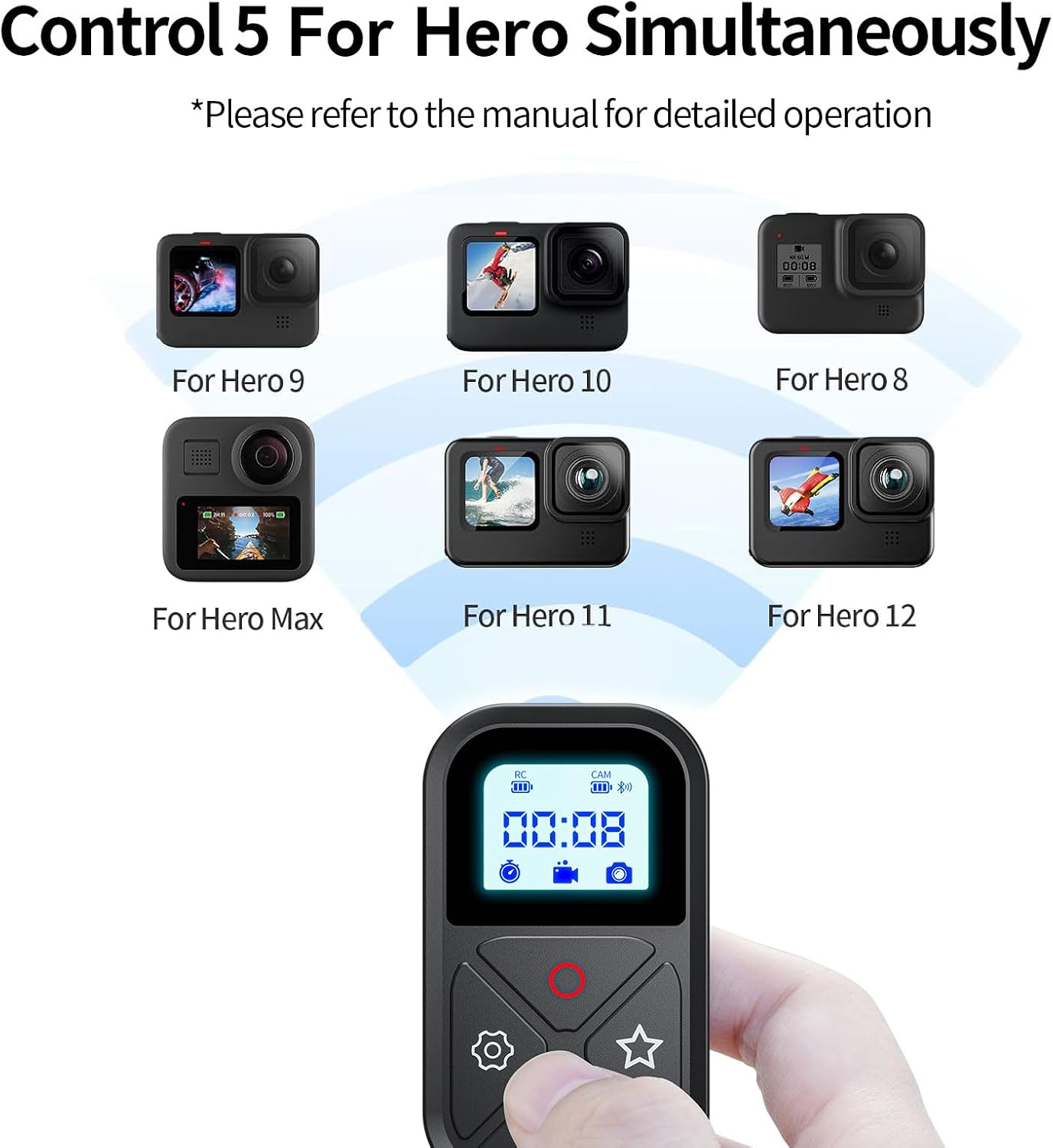
Image: Detailed view of the Sjpzwcrl T10 remote control, highlighting the Lycra + flannel wrist strap, its life waterproof rating, and the magnetic charging port.
5. Setup
5.1. Charging the Remote Control
- Connect the magnetic charging cable to the charging port on the remote control.
- Connect the other end of the USB cable to a USB power adapter (not included) or a computer USB port.
- The LCD display will indicate charging status. A full charge provides approximately 10 hours of operating time.
5.2. Pairing with GoPro Camera
The T10 remote can control up to 5 GoPro cameras simultaneously.
- On your GoPro camera: Turn on your GoPro. Navigate to 'Connections' or 'Wireless Connections' in the camera settings. Enable 'Wireless Control' or 'Connect Device' and select 'Remote'.
- On the T10 Remote: Press and hold the Power/Mode button to turn on the remote. The remote will automatically enter pairing mode, indicated by a flashing Bluetooth icon on the LCD.
- Confirm Pairing: Once the remote detects the GoPro, the camera's name or ID may appear on the remote's screen. Confirm the pairing on both devices if prompted. The Bluetooth icon on the remote will become solid when successfully paired.
- Pairing Multiple Cameras: Repeat steps 1-3 for each additional GoPro camera you wish to control. The remote will display the number of connected cameras.
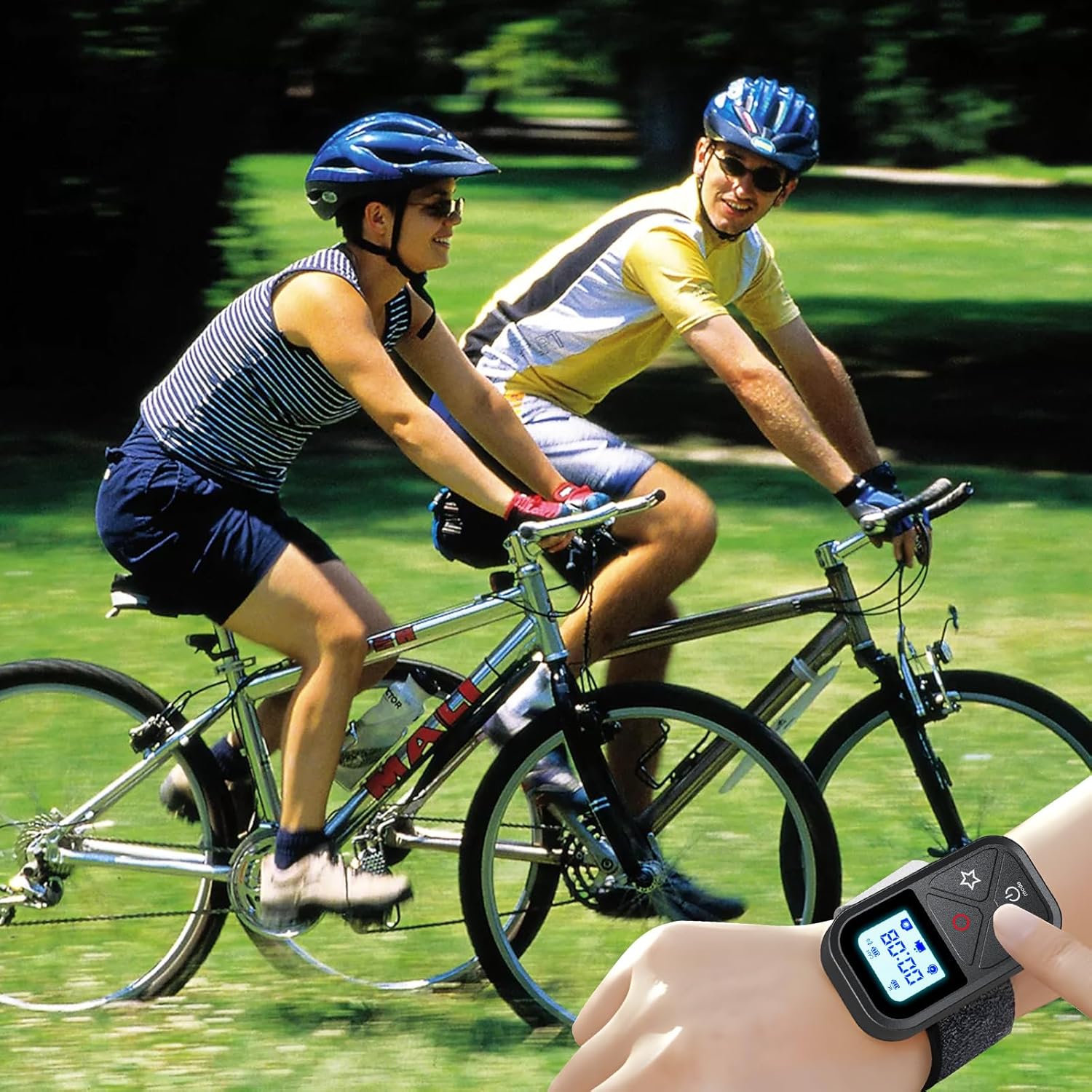
Image: Illustration demonstrating the Sjpzwcrl T10 remote control's capability to simultaneously control up to five different GoPro Hero camera models.
5.3. Pairing with Smartphone
When paired with a smartphone, the T10 remote supports only the photographing function.
- On the T10 Remote: Press and hold the Power/Mode button to turn on the remote. The remote will automatically enter pairing mode.
- On your Smartphone: Go to your phone's Bluetooth settings and search for available devices. Select 'T10 Remote' or a similar name from the list.
- Confirm Pairing: Confirm the pairing on your smartphone. The Bluetooth icon on the remote will become solid when successfully paired.
6. Operating Instructions
6.1. Power On/Off
- Power On: Press and hold the Power/Mode button for 3 seconds.
- Power Off: Press and hold the Power/Mode button for 3 seconds.
6.2. Switching Camera Modes
- While the remote is on and paired, short press the Power/Mode button to cycle through the available camera modes (e.g., Video, Photo, TimeWarp, etc.) on your connected GoPro.
6.3. Recording and Capturing
- Start/Stop Recording (Video Mode): Short press the Record button (red circle). The timer on the LCD will start/stop.
- Take Photo (Photo Mode): Short press the Record button (red circle).
6.4. Using Settings and Favorite Buttons
- Settings Button (Gear Icon): Short press to access camera settings or change specific parameters depending on the GoPro model and current mode. Refer to your GoPro's manual for detailed remote control functionality.
- Favorite Button (Star Icon): Short press to activate a custom preset or mark a highlight, depending on your GoPro's configuration.
6.5. LCD Display Information
The LCD display provides real-time information:
- RC Battery: Indicates the remaining battery level of the remote control.
- CAM Battery: Indicates the remaining battery level of the connected GoPro camera.
- Bluetooth Icon: Flashes during pairing, solid when connected.
- Timer: Shows elapsed recording time or other relevant time information.
- Video/Photo Icons: Indicates the current camera mode.
- Camera Count: Displays the number of connected cameras.
7. Maintenance
7.1. Cleaning
- Wipe the remote control with a soft, dry cloth.
- For stubborn dirt, use a slightly damp cloth and then dry thoroughly.
- Do not use harsh chemicals, cleaning solvents, or strong detergents.
- The dust-proof design helps prevent particles from entering the connector gap.
7.2. Storage
- Store the remote control in a cool, dry place away from direct sunlight.
- Avoid storing in environments with high humidity or extreme temperatures.
- If storing for an extended period, ensure the battery is partially charged (around 50%) to prolong battery life.
8. Troubleshooting
- Remote not powering on: Ensure the remote is charged. Connect it to the charging cable and allow it to charge for at least 30 minutes before attempting to power on again.
- Remote not pairing with GoPro:
- Ensure both the remote and GoPro are fully charged.
- Verify that 'Wireless Control' is enabled on your GoPro and it is in pairing mode.
- Move the remote closer to the GoPro.
- Restart both the remote and the GoPro, then attempt pairing again.
- If previously paired, try forgetting the device on both the GoPro and the remote, then re-pair.
- Limited range: Ensure there are no significant obstructions between the remote and the GoPro. The maximum control distance is 80 meters in optimal conditions.
- LCD display not working: Check battery level. If the issue persists after charging, contact customer support.
- Remote not controlling smartphone: Ensure Bluetooth is enabled on your smartphone and the remote is correctly paired. Remember, only photographing functions are supported with smartphones.
9. Specifications

Image: Technical diagram showing the dimensions of the Sjpzwcrl T10 remote control and a table listing its name, size, weight, and materials.
| Feature | Specification |
|---|---|
| Model Number | T10 |
| Dimensions | 1.61 x 0.75 x 2.68 inches (40.9 x 19.1 x 68.1 mm) |
| Weight | 2.12 ounces (60 grams) |
| Connectivity | Bluetooth Low Energy |
| Battery Type | 1 Lithium Ion Battery (built-in) |
| Operating Time | Up to 10 hours (fully charged) |
| Control Distance | Up to 80 meters (87 yards) without interference |
| Max Supported Devices | 5 GoPro Cameras |
| Water Resistance | IP54 (Splash-proof, not for submersion) |
| Compatible GoPro Models | Hero 8, Hero 9, Hero 10, Hero 11, Hero 12, Hero 13, GoPro Max |
| Smartphone Compatibility | Photographing function only |
10. Warranty and Support
For warranty information and customer support, please refer to the documentation provided at the time of purchase or contact the manufacturer directly. Keep your proof of purchase for any warranty claims.