
Media tech MT3177
Media-Tech Karaoké FLAMEZILLA MT3177 Party Box Boombox User Manual
Model: MT3177
1. Introduction
Thank you for purchasing the Media-Tech Karaoké FLAMEZILLA MT3177 Party Box Boombox. This device is designed to provide high-quality audio entertainment with versatile connectivity options and dynamic lighting effects. Please read this manual carefully before using the product to ensure proper operation and to maximize its lifespan.
2. Safety Instructions
- Do not expose the device to rain, moisture, or extreme temperatures.
- Avoid placing the device near heat sources such as radiators, heat registers, stoves, or other apparatus (including amplifiers) that produce heat.
- Use only attachments/accessories specified by the manufacturer.
- Unplug the device during lightning storms or when unused for long periods.
- Do not block any ventilation openings. Install in accordance with the manufacturer's instructions.
- Refer all servicing to qualified service personnel. Servicing is required when the apparatus has been damaged in any way.
3. Package Contents
Upon unpacking, please ensure all items listed below are present and in good condition.
- Media-Tech Karaoké FLAMEZILLA MT3177 Party Box Boombox
- Charging Cable (USB)
- User Manual
- (Optional: Microphone, Remote Control - based on typical boombox accessories, not explicitly stated in data)
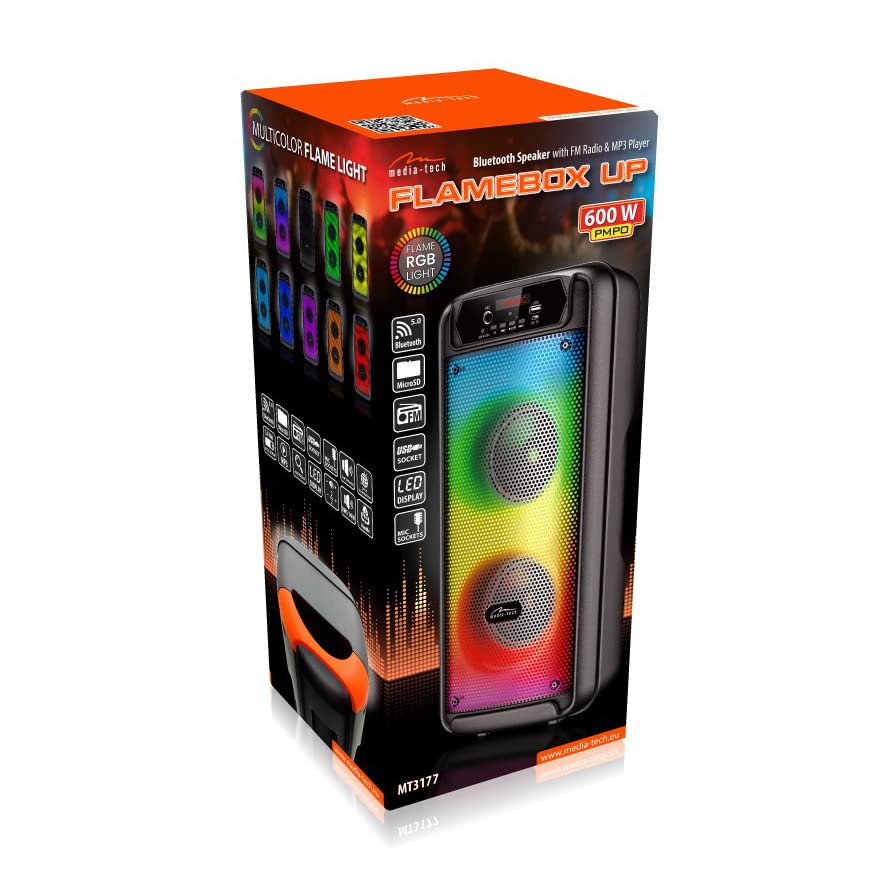
Image: The product packaging box, showing the speaker and its features.
4. Product Features
- Integrated Bluetooth module for wireless audio streaming.
- Built-in FM radio tuner.
- MP3 player with support for USB and SD card media.
- Dynamic multicolor flame light speaker for visual effects.
- Microphone input for karaoke functionality.
- Portable design with integrated handle.

Image: Front angled view of the Media-Tech Flamezilla MT3177 boombox, showcasing its vibrant multicolor flame light.

Image: The boombox positioned on a coffee table in a home environment, demonstrating its compact size and aesthetic appeal.
5. Setup
5.1 Charging the Device
Connect the provided USB charging cable to the DC 5V port on the boombox and the other end to a compatible USB power adapter (not included) or a computer's USB port. The charging indicator will illuminate. Allow sufficient time for a full charge before first use.
5.2 Powering On/Off
Locate the OFF/ON switch on the control panel. Slide the switch to the ON position to power on the device. Slide it to the OFF position to power off.
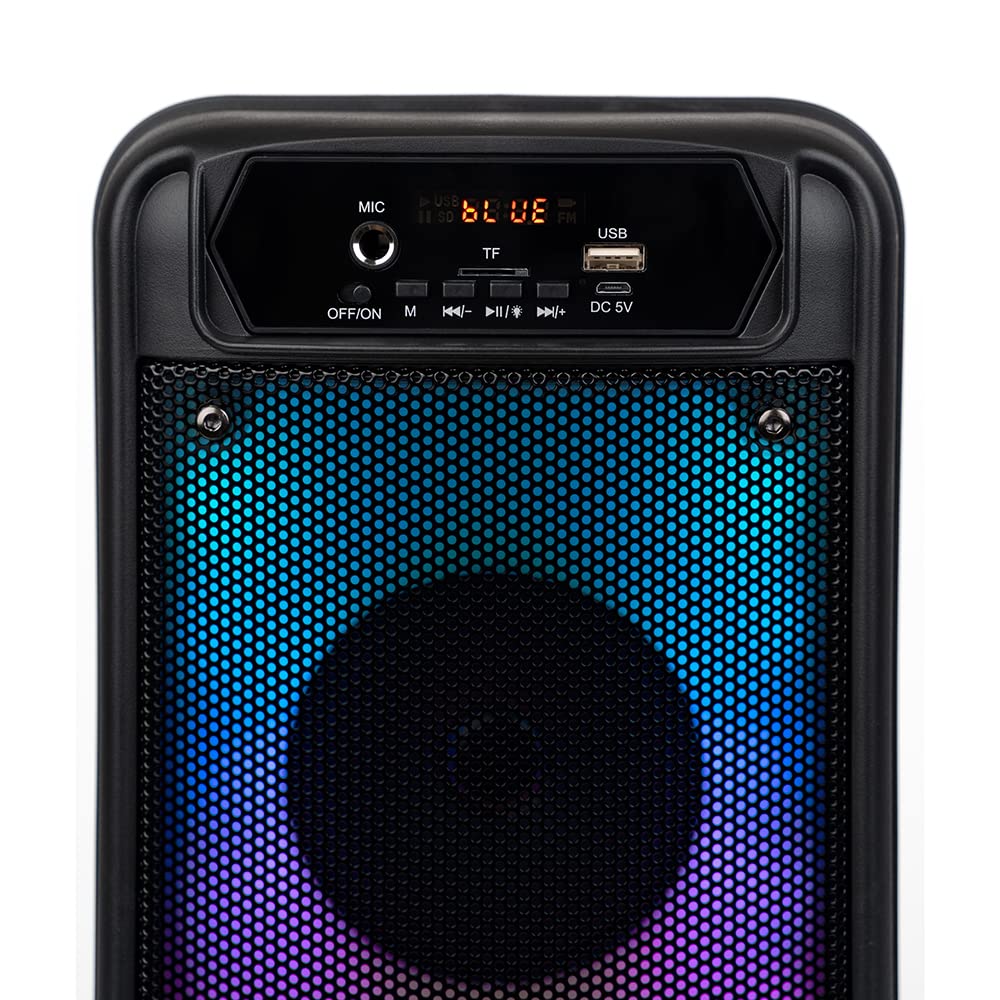
Image: Detailed view of the boombox's control panel, showing buttons for power, mode, playback, and input ports.
6. Operating Instructions
6.1 Mode Selection
Press the M (Mode) button on the control panel to cycle through available modes: Bluetooth, FM Radio, USB, and TF (SD Card). The display will indicate the current mode.
6.2 Bluetooth Mode
- Switch the boombox to Bluetooth mode. The display will show "BLUE" and a pairing indicator will flash.
- Enable Bluetooth on your mobile device (smartphone, tablet, etc.).
- Search for "MT3177" or "FLAMEZILLA" in your device's Bluetooth list and select it to pair.
- Once paired, the boombox will emit a confirmation sound, and the indicator will stop flashing. You can now play audio wirelessly.
6.3 FM Radio Mode
- Switch the boombox to FM Radio mode.
- Press and hold the Play/Pause button (►▮) to automatically scan and save available FM stations.
- Use the Previous (◀◀) and Next (►►) buttons to navigate between saved stations.
6.4 USB/SD Card Playback
- Insert a USB flash drive into the USB port or an SD card into the TF slot.
- The device will automatically switch to USB or TF mode and begin playing audio files.
- Use the Play/Pause (►▮), Previous (◀◀), and Next (►►) buttons to control playback.
6.5 Volume Control
Press and hold the Previous (◀◀) button to decrease volume, and press and hold the Next (►►) button to increase volume.
6.6 Microphone Input (Karaoke)
Connect a microphone (not included) to the MIC input port. Adjust the microphone volume using the dedicated knob if available, or through the main volume control.

Image: Straight-on front view of the boombox, highlighting the speaker grilles and the control panel.

Image: A collection of boomboxes showcasing the different color variations of the integrated flame light feature.
7. Maintenance
- Cleaning: Use a soft, dry cloth to clean the exterior of the device. Do not use abrasive cleaners or solvents.
- Storage: When not in use for extended periods, store the boombox in a cool, dry place away from direct sunlight and extreme temperatures.
- Battery Care: To prolong battery life, avoid fully discharging the battery frequently. Charge the device regularly, even if not in use.
8. Troubleshooting
| Problem | Possible Cause | Solution |
|---|---|---|
| No power | Battery is discharged; Power switch is OFF. | Charge the device; Slide the power switch to ON. |
| No sound | Volume is too low; Incorrect mode selected; Device not paired (Bluetooth). | Increase volume; Select correct mode; Re-pair Bluetooth device. |
| Bluetooth connection unstable | Device too far from boombox; Obstacles between devices. | Move devices closer; Remove obstacles. |
| USB/SD card not recognized | Unsupported file format; Corrupted card/drive; Incorrectly inserted. | Ensure files are MP3; Try another card/drive; Reinsert correctly. |
9. Specifications
| Feature | Detail |
|---|---|
| Model Number | MT3177 |
| Brand | Media tech |
| Dimensions (L x W x H) | 25.4 x 5.08 x 6.86 cm |
| Weight | 10.89 kilograms |
| Connectivity Technology | Bluetooth, USB, SD, FM Radio |
| Power Source | Battery Powered |
| Special Feature | Luminous speaker (Flame Light) |
| Recommended Uses | Home |

Image: Side view of the boombox, highlighting the integrated carrying handle and the rear panel.
10. Warranty and Support
For warranty information and technical support, please refer to the warranty card included with your product or visit the official Media-Tech website. Keep your purchase receipt as proof of purchase.
Manufacturer: Media tech
Related documentsMT3177


Ask a question about this manual
Ask about setup, troubleshooting, compatibility, parts, safety, or missing instructions. Manuals+ will review the question and use this page’s manual context to help answer it.