
BRIMFORD B0BWY6Y26G
Contents
BRIMFORD Programmable Mini Mechanical Keyboard User Manual
Model: B0BWY6Y26G
Introduction
This manual provides comprehensive instructions for the BRIMFORD Programmable Mini Mechanical Keyboard, Model B0BWY6Y26G. It covers setup, operation, maintenance, and troubleshooting to ensure optimal performance and user experience. This compact and versatile keyboard features tri-mode connectivity (2.4G wireless, Bluetooth 5.0, USB-C wired), hot-swappable switches, customizable RGB lighting, and a multi-functional rotary knob, designed for enhanced productivity and gaming.
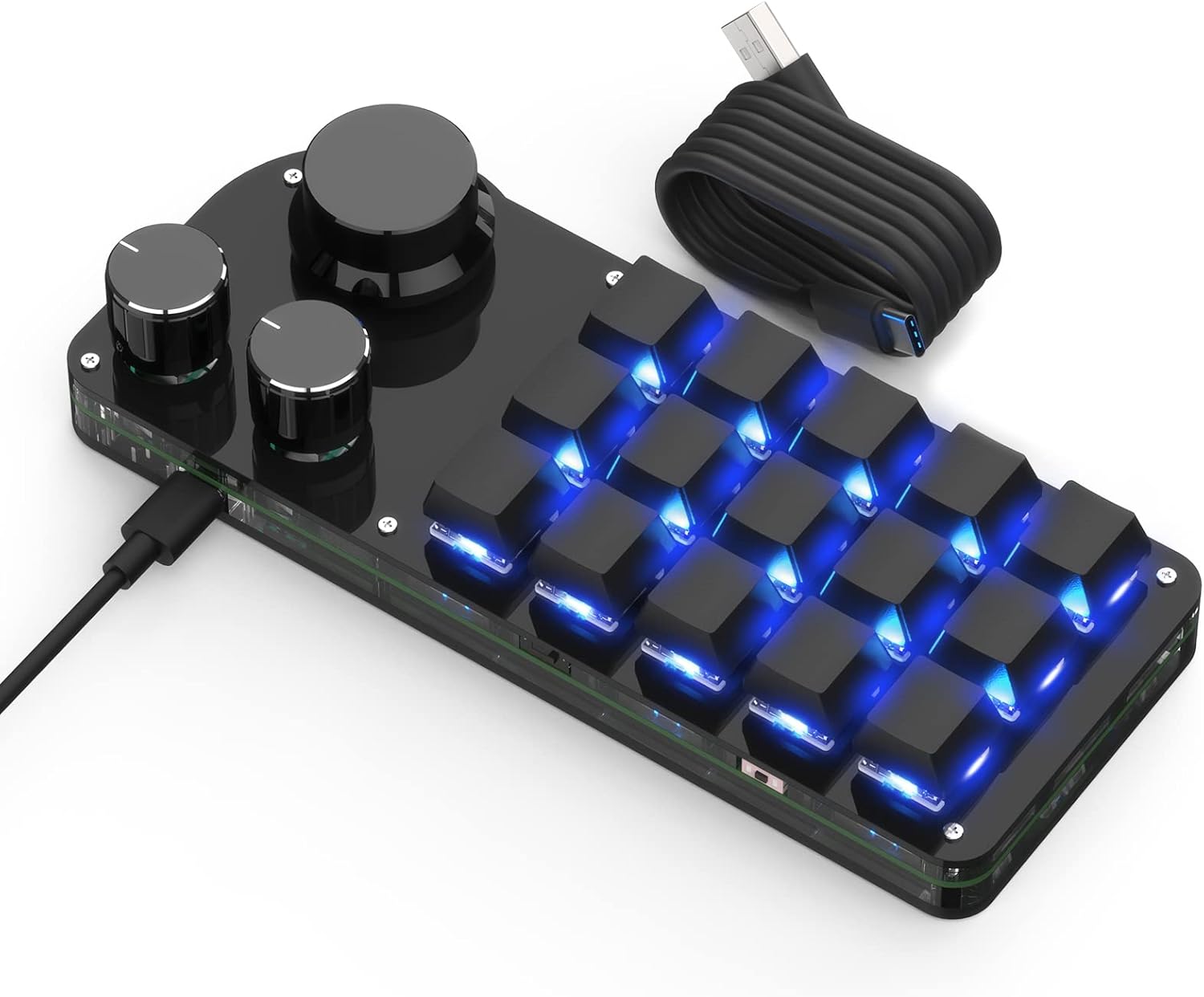
Image: The BRIMFORD programmable mini mechanical keyboard, showcasing its compact design, blue key backlighting, and the connected USB-C cable. The keyboard features 15 keys and 3 rotary knobs.
Setup
1. Package Contents
- BRIMFORD Programmable Mini Mechanical Keyboard
- USB-C Cable
- User Manual (this document)
2. Initial Connection and Software Installation
To fully customize your keyboard and program macros, it is necessary to connect the keyboard via USB-C cable and install the dedicated software. The software is compatible with Windows operating systems.
- Connect the keyboard to your computer using the provided USB-C cable.
- Download the software from the official support page: https://sikaicase.com/blogs/support/setting-for-logiciel
- Unzip the downloaded file and run the installer.
- Follow the on-screen instructions to complete the software installation.
- Once installed, launch the software to begin customization.
Note: For Mac users, please be aware that the software setup requires a Windows system. Command key corresponds to Win, Option to Alt, and Control to Ctrl for key mapping.

Image: A screenshot of the BRIMFORD keyboard's customization software, showing options to choose keys, define functions, and download settings to the device. It highlights the process of customizing each key.

Image: A visual guide illustrating the three steps for software setup: downloading the software, unzipping the file, and accessing the program to configure the mini keyboard.
Operating Instructions
1. Connectivity Modes
The BRIMFORD keyboard supports three connectivity modes:
- 2.4G Wireless: For ultra-fast, low-latency connection, ideal for gaming. Requires the included 2.4G receiver.
- Bluetooth 5.0: For convenient connection to multiple devices. Easily switch between paired devices.
- USB-C Wired: Provides a stable and reliable connection, also used for initial software setup and charging.

Image: The BRIMFORD mini keyboard positioned next to a laptop, demonstrating its 2.4G plug-and-play wireless capability, which enhances link stability and is suitable for desktops without Bluetooth ports.
2. Macro Programming and Customization
Utilize the dedicated software to program each key and create complex macros. This allows for automation of repetitive actions, insertion of passwords, launching applications, or typing custom text blocks with a single click.
- Each key can be programmed with up to 18 characters for single-key input.
- Multi-level keystroke macro programming is supported.

Image: A user engaged in computer work with the BRIMFORD mini keyboard, highlighting the feature that all keys are programmable, allowing for multi-character input for various professional applications.

Image: A detailed view of the software interface, showing distinct areas for setting individual keys and configuring the rotary knobs, enabling comprehensive customization of the keyboard's functions.
3. Multi-functional Rotary Knobs
The keyboard features three versatile rotary knobs. By rotating and pressing these knobs, you can control various functions, including:
- Volume level adjustment
- Brush size control in graphic design software
- Switching modes
- Input withdrawal
- Mouse wheel mode
- Other customizable functions via software

Image: A close-up view of the BRIMFORD keyboard, highlighting its three multi-functional rotary knobs. These knobs can be rotated and pressed to control various settings like volume, brush size, and input modes.

Image: A diagram showing the multi-functional knob on the BRIMFORD keyboard, illustrating how rotating and pressing it can change volume, brush size, switch modes, and control mouse wheel functions.
4. RGB Lighting Customization
The keyboard features customizable RGB lighting. You can select from 7 different colors and 5 lighting modes. The lighting can also be turned off.
Note: The RGB lighting will only illuminate when the data cable is connected.

Image: The BRIMFORD mini keyboard displaying its customizable RGB lighting, currently set to a vibrant blue. The image also shows a spectrum of available colors.
5. Hot-Swappable Switches
The BRIMFORD keyboard supports hot-swappable switches, allowing you to easily replace the keycaps and switches without soldering. This feature enables personalization and maintenance of your keyboard.

Image: A diagram illustrating the hot-swap feature of the BRIMFORD keyboard, showing how Outemu Red Switches can be easily removed and replaced, allowing for personalized keycap and switch configurations.

Image: An exploded view demonstrating how keycaps and switches are easily replaced and support hot-swapping. It highlights the lightweight, dust-proof red switch and the plug-and-play nature of the hot-swap switch body.
6. Battery Life and Charging
The keyboard is equipped with a 1000 mAh battery, providing up to two weeks of usage on a single charge. A green LED indicator signals when charging is complete.
Maintenance
1. Cleaning
To clean your keyboard, disconnect it from all power sources. Use a soft, dry cloth to wipe down the surface. For deeper cleaning, you may carefully remove keycaps (if hot-swappable) and use compressed air to clear debris from underneath.
2. Switch and Keycap Replacement
Thanks to the hot-swap feature, you can easily replace individual switches or keycaps. Gently pull the keycap straight up to remove it. Use a switch puller tool (not included) to carefully extract the switch. Align the new switch's pins with the sockets and press firmly until it clicks into place. Reattach the keycap.
Troubleshooting
1. Keyboard Not Responding
- Ensure the keyboard is charged.
- Check the connection:
- Wired: Ensure the USB-C cable is securely connected to both the keyboard and the computer. Try a different USB port.
- 2.4G Wireless: Ensure the 2.4G receiver is plugged into a USB port and the keyboard is in 2.4G mode.
- Bluetooth: Ensure Bluetooth is enabled on your device and the keyboard is properly paired. Try re-pairing.
- Restart your computer.
2. Software Not Detecting Keyboard
- Ensure the keyboard is connected via USB-C cable. The software requires a wired connection for initial setup and configuration.
- Verify that you have downloaded the correct software version from the official website.
- Try running the software as an administrator.
- Temporarily disable any antivirus or firewall software that might be blocking the connection.
3. RGB Lighting Not Working
- Confirm the keyboard is connected via USB-C cable, as RGB lighting requires a wired connection to function.
- Check the lighting settings within the customization software to ensure RGB is enabled and configured.
4. Macros Not Functioning Correctly
- Reconnect the keyboard via USB-C and open the software.
- Review your macro settings in the software for any errors or incorrect key assignments.
- Ensure you have saved and downloaded the new settings to the keyboard after making changes.
Specifications
| Feature | Detail |
|---|---|
| Brand | BRIMFORD |
| Model Number | B0BWY6Y26G |
| Color | Black |
| Connectivity Technology | USB-C, 2.4G Wireless, Bluetooth 5.0 |
| Number of Keys | 15 |
| Number of Knobs | 3 |
| Special Feature | Customizable Display Key, Hot-Swappable Switches, Programmable Macros, RGB Backlighting |
| Compatible Devices | PC (Desktop, Laptop), Windows/MacOS (software setup on Windows) |
| Operating System | Windows 10 (for software) |
| Battery Composition | Lithium-Polymer (1000 mAh) |
| Material | Plastic |
Warranty and Support
For warranty information, technical support, or any inquiries regarding your BRIMFORD Programmable Mini Mechanical Keyboard, please refer to the contact information provided on the BRIMFORD official website or the retailer's support channels where the product was purchased.
Software support and updates can be found at: https://sikaicase.com/blogs/support/setting-for-logiciel
Ask a question about this manual
Ask about setup, troubleshooting, compatibility, parts, safety, or missing instructions. Manuals+ will review the question and use this page’s manual context to help answer it.