
1. Introduction
Thank you for purchasing the eppfun SK001 USB Speakerphone. This device is designed to provide clear and efficient audio conferencing for home offices, remote work, and small to medium-sized meeting rooms. It features 360° voice pickup, smart voice enhancement, and broad compatibility with popular conferencing platforms.
2. Package Contents
Please verify that all items are present in your package:
- eppfun SK001 USB Speakerphone
- USB-C to USB-C Cable
- USB-A to USB-C Cable
- Instruction Manual (this document)
3. Product Overview
The eppfun SK001 features intuitive controls for managing your calls and audio settings.

Image: Top view of the eppfun SK001 speakerphone showing its control buttons. The buttons include microphone mute, microphone volume up/down, and speaker volume up/down.
Control Buttons:
- Microphone Mute Button: Press to mute or unmute the microphone. An indicator light will show the mute status.
- Microphone Volume Up/Down: Adjusts the microphone input sensitivity.
- Speaker Volume Up/Down: Adjusts the speaker output volume.
Ports:
- USB-C Port: For connecting to your computer using the provided USB cables.
4. Setup
The eppfun SK001 is a plug-and-play device, requiring no driver installation for most operating systems.
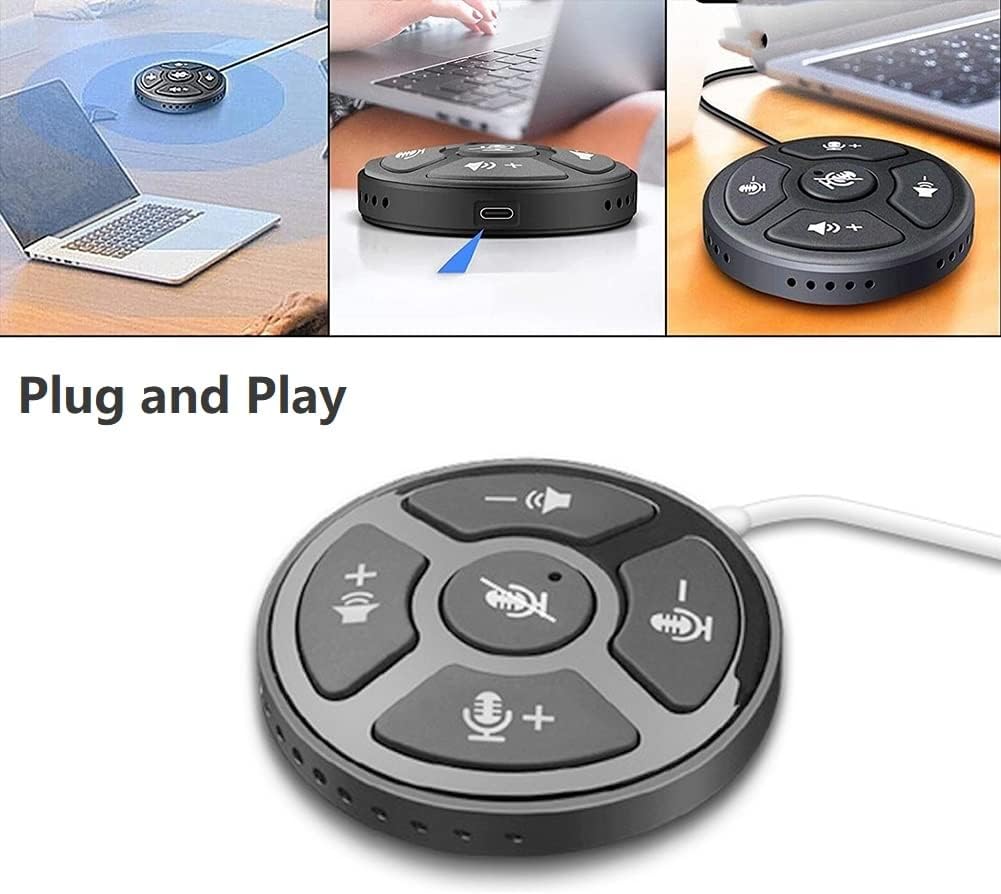
Image: A collage showing the eppfun SK001 speakerphone connected to a laptop via USB, highlighting its plug-and-play functionality.
- Connect the Speakerphone:
- Use the provided USB-C to USB-C cable or USB-A to USB-C cable.
- Connect one end of the cable to the USB-C port on the SK001 speakerphone.
- Connect the other end of the cable to an available USB port (USB-A or USB-C) on your computer (PC, laptop, or Mac).
- System Recognition: Your computer should automatically detect and install the necessary drivers. This process may take a few moments.
- Select as Audio Device:
- Open your operating system's sound settings (e.g., Windows Sound Settings, macOS System Preferences > Sound).
- Select "eppfun SK001" as your default input (microphone) and output (speaker) device.
- In your conferencing software (e.g., Zoom, Microsoft Teams, Skype), navigate to its audio settings and select "eppfun SK001" for both microphone and speaker.
5. Operating Instructions
Basic Call Management:
- Volume Adjustment: Use the speaker volume up (+) and down (-) buttons on the device to control the playback volume.
- Microphone Mute: Press the central microphone mute button to toggle the microphone on or off. A red indicator light typically signifies that the microphone is muted. This mute function is linked with Zoom Meeting certification.
- Microphone Sensitivity: Use the microphone volume up (+) and down (-) buttons to adjust the microphone's input sensitivity.
Key Features:
- 360° Omnidirectional Voice Pickup: The SK001 is equipped with high-performance microphones capable of capturing voices from all directions within a 5-meter radius, ideal for small to medium-sized conference rooms.
- Smart Voice Enhancement: Features echo cancellation, reverberation suppression, and noise reduction to ensure clear audio during calls.
- Zoom Meeting Certified: Guarantees high-quality calls and seamless integration with Zoom, including synchronized mute status.
6. Maintenance
- Cleaning: Use a soft, dry cloth to clean the surface of the speakerphone. Do not use liquid cleaners or aerosols.
- Storage: Store the device in a cool, dry place when not in use.
- Handling: Avoid dropping the device or exposing it to extreme temperatures or humidity.
7. Troubleshooting
- No Sound / Microphone Not Working:
- Ensure the USB cable is securely connected to both the speakerphone and your computer.
- Verify that "eppfun SK001" is selected as the default audio input and output device in your computer's sound settings and within your conferencing application.
- Check if the microphone is muted on the device (red indicator light) or within your software.
- Adjust the volume levels on both the speakerphone and your computer.
- Try connecting the speakerphone to a different USB port or a different computer to rule out port or system issues.
- Poor Audio Quality:
- Ensure the speakerphone is placed on a stable surface, away from obstructions.
- Confirm that the microphone sensitivity is appropriately set.
- Check for background noise in your environment. The device has noise reduction, but extreme noise can still affect quality.
- Verify your internet connection stability if experiencing issues during online calls.
- Device Not Recognized:
- Disconnect and reconnect the USB cable.
- Restart your computer.
- Try a different USB port on your computer.
- Ensure your operating system is up to date.
8. Specifications
| Feature | Detail |
|---|---|
| Model Number | SK001 |
| Brand | eppfun |
| Connectivity Technology | USB (USB-C, USB-A) |
| Microphone Form Factor | Mini |
| Polar Pattern | Omnidirectional (360°) |
| Audio Sensitivity | 30 Decibels |
| Sound Pickup Range | Up to 5 meters |
| Hardware Platform | Laptop, PC |
| Compatible Operating Systems | Windows XP/Vista/7/8/10/11, Mac OS |
| Item Weight | 80 Grams (2.82 ounces) |
| Package Dimensions | 6.1 x 4.72 x 1.3 inches |
9. Warranty and Support
The eppfun SK001 comes with a 12-month warranty from the date of purchase. This warranty covers manufacturing defects and malfunctions under normal use.
For technical support, warranty claims, or any questions regarding your eppfun SK001 speakerphone, please contact eppfun customer service. Refer to the contact information provided on the eppfun official website or your purchase documentation.
Please retain your proof of purchase for warranty purposes.