
Joso D3
Contents
Joso Mobile Game Controller
Model: D3
Introduction
The Joso Mobile Game Controller (Model D3) is a versatile wireless gamepad designed to transform your smartphone into a portable gaming console. It offers an enhanced gaming experience across multiple platforms, including iOS, Android, and PC. Featuring programmable buttons and an ergonomic design, this controller ensures comfortable and immersive gameplay for extended periods.

Image: The Joso Mobile Game Controller in black, holding a smartphone that displays a first-person shooter game. The controller features red accents on the joysticks and shoulder buttons, with standard ABXY buttons and a D-pad.
Package Contents
Please ensure all items are present in the package:
- 1 x Joso Mobile Game Controller (Model D3)
- 1 x USB-C Charging Cable
- 1 x User Manual
Setup Guide
1. Charging the Controller
Before first use, fully charge the controller. Connect the provided USB-C charging cable to the controller's Type-C charging port and plug the other end into a compatible USB power source (e.g., wall adapter, computer USB port).
- Charging Time: Approximately 2-3 hours
- Working Time: Approximately 15-18 hours on a full charge
- Battery Capacity: 400 mAh
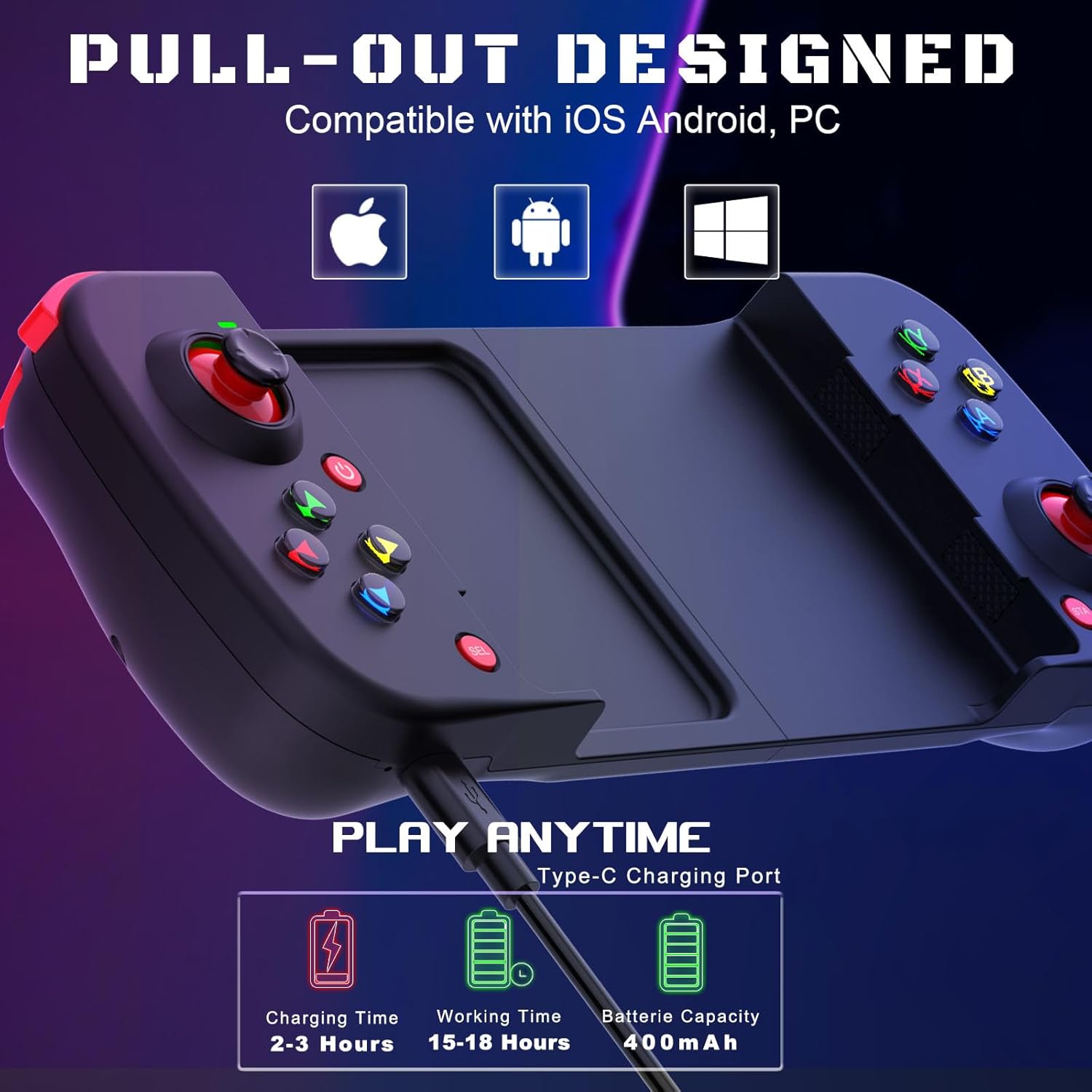
Image: The Joso Mobile Game Controller with a USB-C cable plugged into its charging port. An overlay highlights charging time (2-3 hours), working time (15-18 hours), and battery capacity (400 mAh).
2. Pairing with Your Device
The Joso Mobile Game Controller supports wireless connection to iOS, Android, and PC devices. Follow the specific pairing instructions for your operating system:
| Platform | Pairing Method | Bluetooth Name |
|---|---|---|
| iOS (14.0+) | Press and hold the "Y" button first, then press the "HOME" button. | Wireless Controller |
| Android (6.0+) | Press and hold the "A" button first, then press the "HOME" button. | D3 |
| PC (Windows 7+) | Press and hold the "RB" button first, then press the "HOME" button. | Xbox Wireless Controller |
After initiating the pairing sequence, go to your device's Bluetooth settings and select the corresponding Bluetooth name to connect.
Important Note for Call of Duty Mobile: When playing Call of Duty Mobile on Android, if prompted to choose a controller model, please select "XBOX" for optimal compatibility.
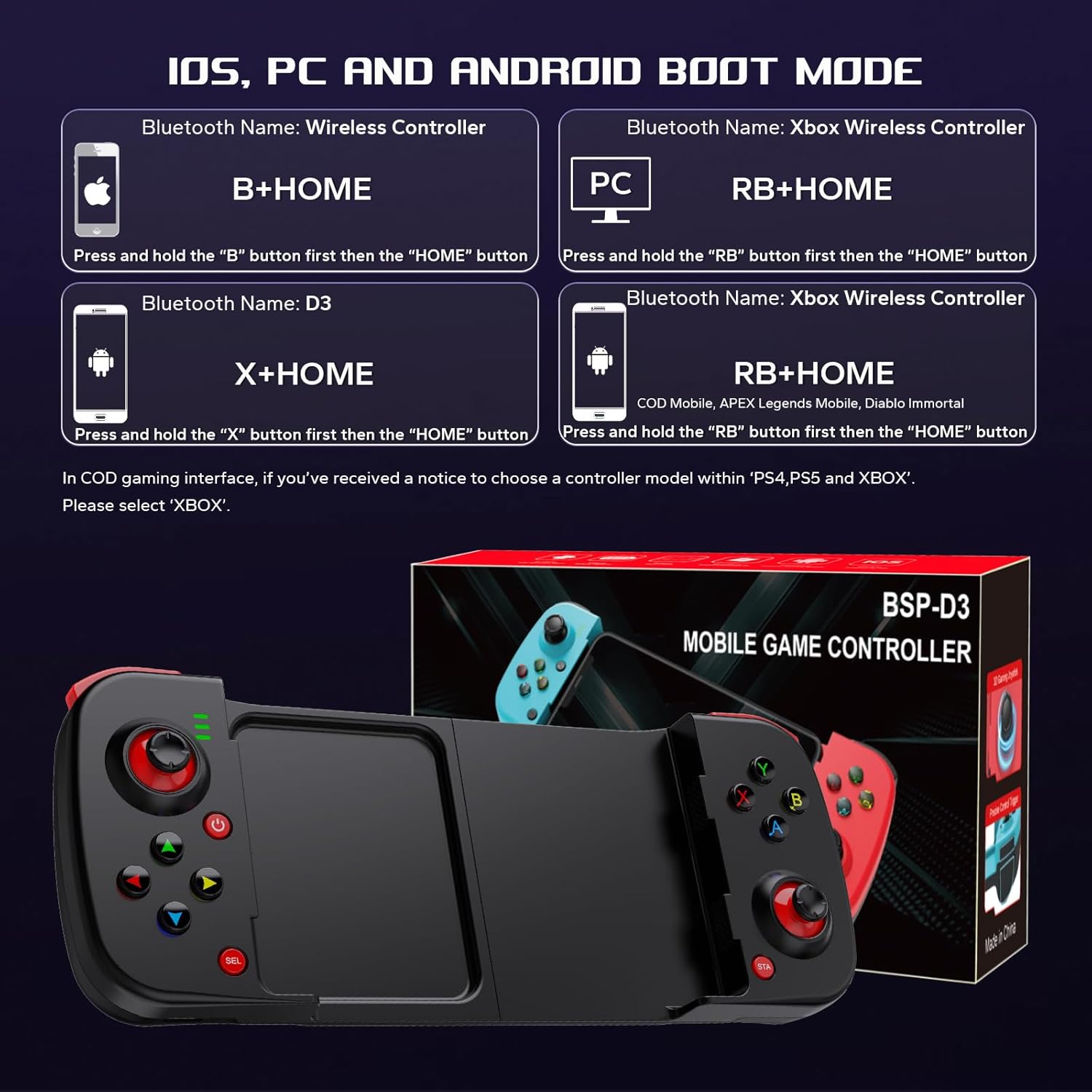
Image: A visual guide illustrating the button combinations (Y+HOME for iOS, A+HOME for Android, RB+HOME for PC) required to enter pairing mode for the Joso Mobile Game Controller on different platforms.
Operating Instructions
Controller Layout
Familiarize yourself with the buttons and features of your Joso Mobile Game Controller:

Image: An overhead view of the Joso Mobile Game Controller with a phone inserted, highlighting and labeling key components such as the left and right joysticks (L3/R3), A/B/X/Y buttons, D-Pad, START, SELECT, HOME buttons, M1/M2 programmable buttons, and indicator lights.
- Left Joystick (L3): For movement and camera control. Press down for L3 button function.
- Right Joystick (R3): For camera control and aiming. Press down for R3 button function.
- A/B/X/Y Buttons: Standard action buttons.
- D-Pad: Directional pad for precise movement or menu navigation.
- START Button: Typically used to pause games or open menus.
- SELECT Button: Often used for secondary menu functions.
- HOME Button: To power on/off or return to the device's home screen.
- LT/RT (Left/Right Triggers): Analog triggers for actions like accelerating or shooting.
- LB/RB (Left/Right Bumpers): Digital shoulder buttons for various in-game actions.
- M1/M2 Buttons: Programmable back buttons.
- Indicator Lights: Display connection status and battery level.
Programmable M1/M2 Buttons
The M1 and M2 buttons located on the back of the controller can be programmed to execute complex commands or frequently used button combinations, providing a competitive edge in games. Up to 16 buttons can be mapped to M1/M2, including A, B, X, Y, L, ZL, R, ZR, L3, R3, and D-Pad directions.

Image: A view of the back of the Joso Mobile Game Controller, highlighting the M1 and M2 programmable buttons. Text indicates that these buttons can be assigned functions of up to 16 other buttons for "one-click ultimate skill."
Smartphone Compatibility and Ergonomics
The controller features a pull-out design that accommodates smartphones with screen sizes ranging from 128mm to 175mm. The left side of the controller has a sunken design to ensure ample space for your phone's camera, preventing obstruction during gameplay. The textured surfaces provide a secure and comfortable grip, even during intense gaming sessions.
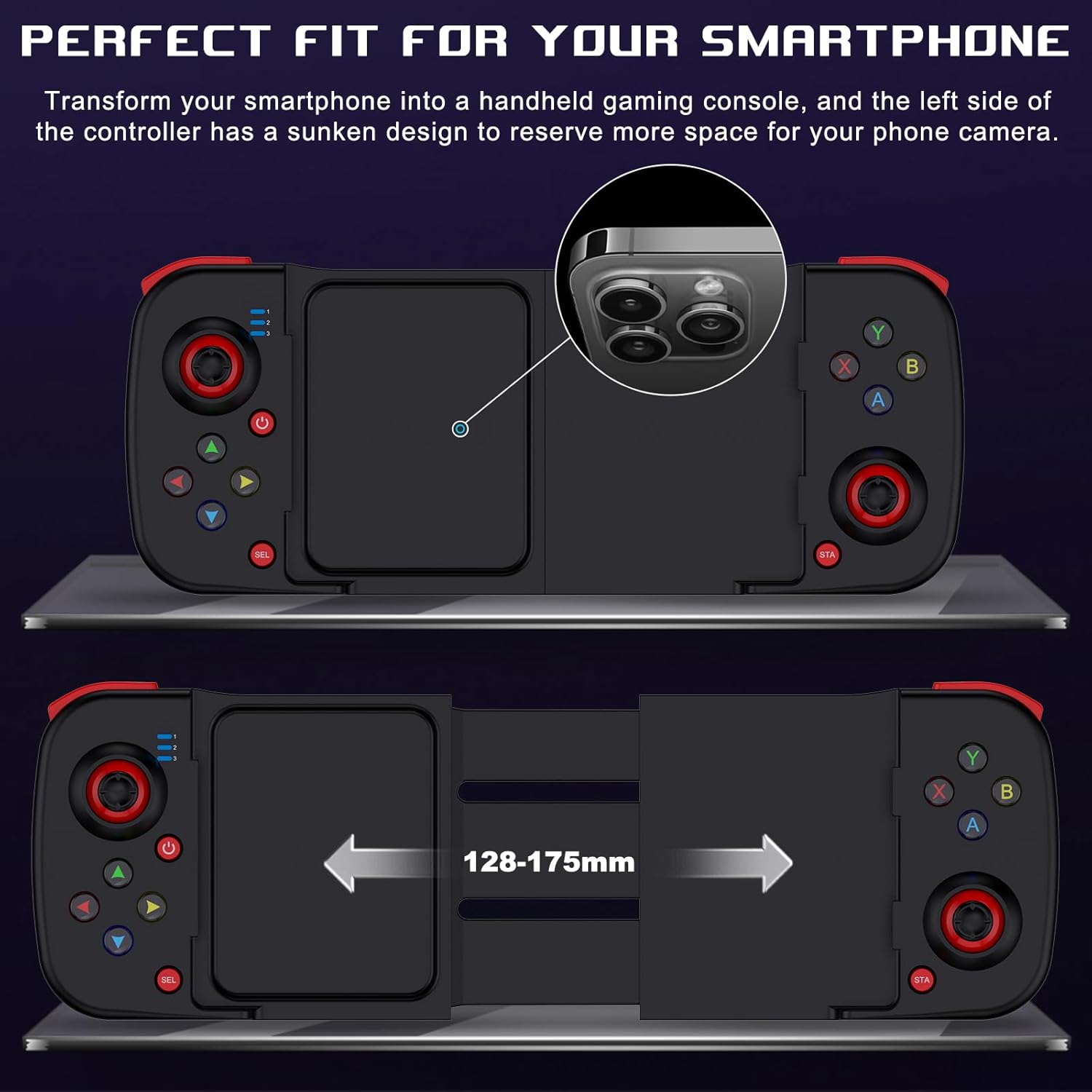
Image: A two-part image showing the Joso Mobile Game Controller. The top part illustrates the sunken design on the left side for camera clearance. The bottom part shows the controller extended, indicating its adjustable range of 128mm to 175mm to fit various smartphone sizes.
Game Compatibility
The Joso Mobile Game Controller is compatible with a wide range of popular games available on the App Store, Google Play, and Steam. This includes titles such as Call of Duty Mobile, Genshin Impact, Diablo Immortal, Minecraft, Pixel Gun 3D, and Asphalt 8/9.
For iOS users, you can connect and play directly without needing to download a specific application. For Android users, please note the specific compatibility for certain games:
- Genshin Impact: Supported on iOS 14.0+ versions. Not supported on Android systems.
- PUBG Mobile: Not supported on both iOS and Android.
To check for game compatibility and discover more supported titles, you can download the Ludu Mapp application:

Image: A collage of game icons and screenshots demonstrating the wide range of popular mobile games compatible with the Joso Mobile Game Controller, including Call of Duty Mobile, Genshin Impact, and Minecraft. QR codes for the Ludu Mapp app are also visible.
Maintenance
To ensure the longevity and optimal performance of your Joso Mobile Game Controller, follow these maintenance guidelines:
- Cleaning: Use a soft, dry cloth to wipe down the controller. Avoid using abrasive cleaners or solvents, as they may damage the surface.
- Storage: Store the controller in a cool, dry place away from direct sunlight and extreme temperatures.
- Battery Care: Do not overcharge the battery. If the controller will not be used for an extended period, charge it periodically (e.g., every 3 months) to maintain battery health.
- Handle with Care: Avoid dropping the controller or subjecting it to strong impacts, which can damage internal components.
Troubleshooting
If you encounter issues with your Joso Mobile Game Controller, please refer to the following common solutions:
Controller Not Turning On or Responding
- Check Battery: Ensure the controller is sufficiently charged. Connect it to the USB-C charging cable and allow it to charge for a few minutes.
- Reset Controller: If the controller is unresponsive, locate the small reset button (usually a pinhole) on the controller. Use a thin object like an ejection pin (not included) or a straightened paperclip to gently press and hold the reset button for a few seconds.
- Re-pair Device: After resetting, attempt to re-pair the controller with your device following the specific pairing instructions for your operating system (see "Pairing with Your Device" section).

Image: A close-up view of the Joso Mobile Game Controller's top edge, indicating the location of the Type-C charging port and a small pinhole labeled "Reset Button." Instructions for troubleshooting if the controller does not turn on are also provided.
Connection Issues (Lag, Disconnections)
- Distance: Ensure the controller is within the effective Bluetooth range (typically up to 10 meters) of your device.
- Interference: Move away from other wireless devices that might cause interference (e.g., Wi-Fi routers, other Bluetooth devices).
- Device Bluetooth: Turn off and on your device's Bluetooth, then try connecting again.
- Forget Device: On your device, "forget" or "unpair" the controller from your Bluetooth settings, then attempt a fresh pairing.
Game Specific Issues
- Unsupported Games: Remember that some games, like PUBG Mobile (on both iOS/Android) and Genshin Impact (on Android), are not fully supported by this controller. Refer to the "Game Compatibility" section or the Ludu Mapp application for details.
- In-Game Settings: Check the game's internal settings for controller options. Some games require enabling controller support or selecting a specific controller type (e.g., "XBOX" for Call of Duty Mobile on Android).
- Game Updates: Ensure your game is updated to the latest version, as updates can sometimes improve controller compatibility.
Specifications
| Brand | Joso |
| Model | D3 |
| Dimensions (L x W x H) | 22 x 10 x 4.5 cm |
| Weight | 200 g |
| Battery Capacity | 400 mAh |
| Battery Composition | NiMH |
| Charging Port | Type-C |
| Connectivity Technology | Bluetooth |
| Compatible Operating Systems | iOS 14.0+, Android 6.0+, Windows 7+ |
| Compatible Devices | iPhone, iPad, MacBook, Tablet, PC, Samsung Galaxy S Series, Xiaomi, OPPO |
| Special Features | Wireless, Programmable M1/M2 buttons |
| Number of Buttons | 14 |
Warranty and Support
This product comes with a standard manufacturer's warranty. For specific warranty terms and conditions, please refer to the documentation provided with your purchase or contact the seller directly.
If you have any questions, require technical assistance, or need support regarding your Joso Mobile Game Controller, please do not hesitate to contact Joso Direct, the seller, through the Amazon platform or visit the official Joso store:
Documents and downloads
Ask a question about this manual
Ask about setup, troubleshooting, compatibility, parts, safety, or missing instructions. Manuals+ will review the question and use this page’s manual context to help answer it.