
Labelife 3U4C-SLP-4*6-500-2PK-U
Labelife Thermal Direct 4x6 Shipping Labels User Manual
Model: Thermal labels 4x6 fan fold
1. Introduction
Thank you for choosing Labelife Thermal Direct 4x6 Shipping Labels. These high-quality fanfold labels are designed for efficient and reliable printing with a wide range of direct thermal label printers. This manual provides essential information for proper setup, operation, and maintenance to ensure optimal performance and longevity of your labels.
2. Product Overview
Labelife 4x6 inch direct thermal shipping labels are designed for various shipping and labeling needs. Each pack contains 2 stacks of 500 labels, totaling 1000 labels, in a commercial-grade fanfold format. They are engineered for clear black print on a white background.
Key Features:
- Dimensions: 4 x 6 inches (101.6mm x 152.4mm).
- Quantity: 2 stacks, 500 labels per stack (total 1000 labels).
- Print Color: Black print on white labels.
- Compatibility: Designed for direct thermal printers only. Compatible with major brands such as Rollo, Zebra, MUNBYN, iDRPT, Polono, Fargo, Elton, Phomemo, Datamax, Sato, Intermec, and NEX.
- Durability: Features waterproof, oil-proof, and fade-resistant properties to maintain clear information during transit.
- Ease of Use: Fanfold design prevents jamming and waste, with easy-to-tear perforations.
- Adhesive: Strong adhesive ensures secure attachment to various package surfaces.
- Safety: BPA and BPS free.
Product Visuals:

Image: A stack of Labelife 4x6 fanfold thermal labels, highlighting the quantity of 500 labels per stack.

Image: Labelife 4x6 labels next to a thermal printer, with a table indicating "4" x 6"" size and "Total 1000 labels" (2 stacks of 500).
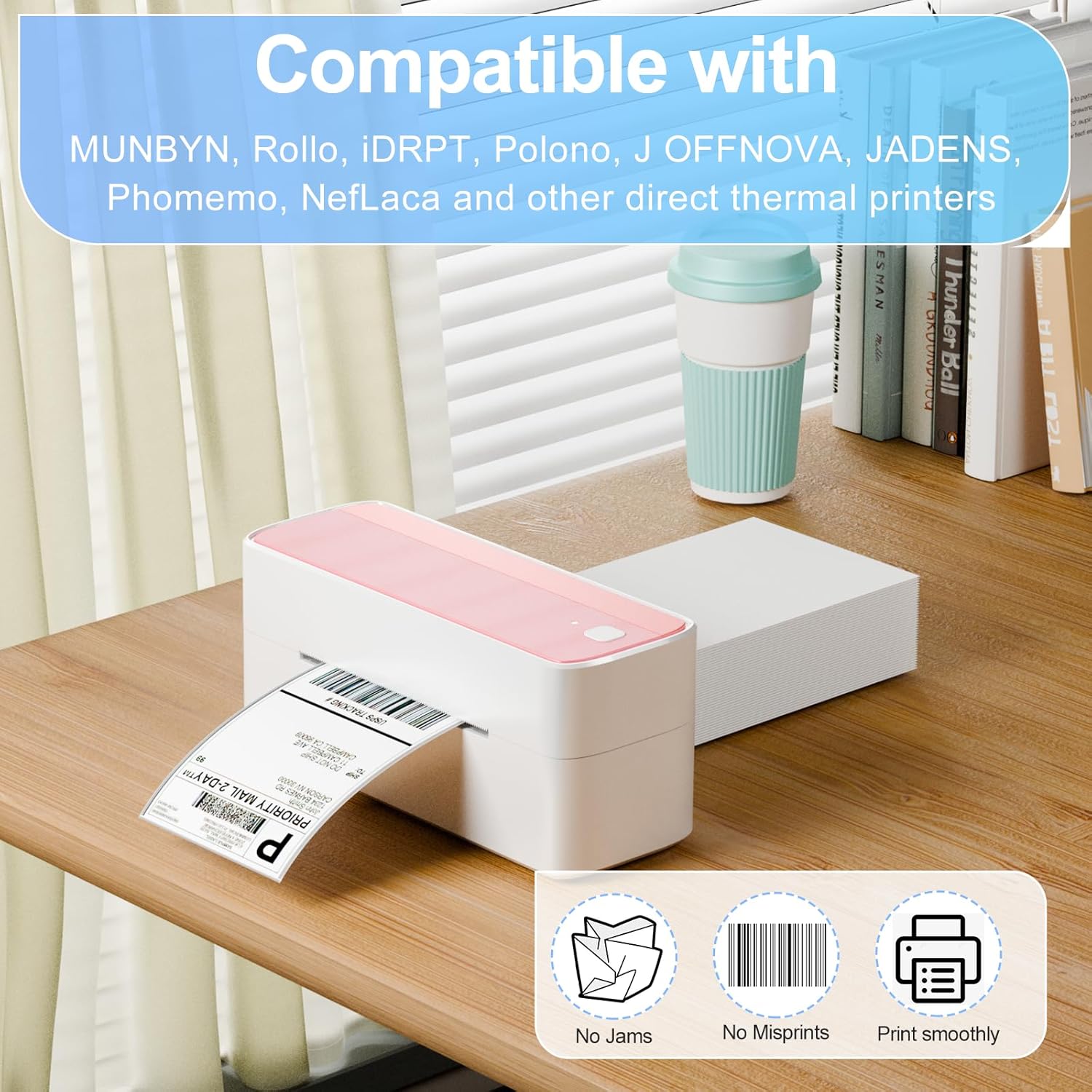
Image: Text overlay "Compatible with MUNBYN, Rollo, iDRPT, Polono, J OFFNOVA, JADENS, Phomemo, NefLaca and other direct thermal printers" with icons for "No Jams", "No Misprints", "Print smoothly".

Image: Four examples of label application: on cardboard boxes, a poly mailer, a large package with tape, and a person holding a package with a label.
3. Setup and Loading Instructions
Proper loading of fanfold labels is crucial for smooth printing and to prevent jams. Always refer to your specific thermal printer's manual for detailed loading instructions, as procedures may vary slightly between models.
General Loading Steps:
- Prepare Labels: Ensure the fanfold labels are neatly stacked and free from bends or creases.
- Open Printer: Open the label compartment or feeder of your thermal printer.
- Insert Labels: Carefully feed the labels into the printer's input slot. Ensure the printed side is facing up. The labels should feed smoothly without resistance.
- Adjust Guides: Adjust the label guides on your printer to snugly fit the width of the 4x6 labels. This prevents skewing during printing.
- Close Printer: Close the printer's cover or compartment.
- Calibrate (if necessary): Some printers may require calibration after loading new labels. Follow your printer's instructions for calibration to ensure proper label detection and print alignment.
Important Note on Label Orientation:

Image: Illustration showing the correct way to load fanfold labels into a thermal printer (printed side up, green checkmark) versus the incorrect way (printed side down, red X).
Always ensure the side of the label intended for printing is facing upwards when loading into your thermal printer. Incorrect orientation will result in blank labels or misprints.
4. Operating Instructions
Once the labels are properly loaded and your thermal printer is connected to your computer or system, you can begin printing. These labels are designed for clear and efficient output.
Printing Process:
- Software Setup: Ensure your shipping software or application is configured to print to your thermal label printer and that the label size is set to 4x6 inches.
- Print Command: Send the print command from your software. The printer will automatically feed and print on the Labelife thermal labels.
- Peeling Labels: After printing, the labels are easy to peel off from their backing thanks to the perforated line between each label.
- Applying Labels: Apply the printed label firmly to your package or item. The strong adhesive ensures it stays in place during transit.
Demonstration Video:
Video: A demonstration of unboxing, loading, printing, peeling, and applying Labelife 4x6 shipping labels. It highlights ease of use and durability features.
Label Features in Use:

Image: A hand demonstrating the easy tear/peel-off feature of the labels, showing the perforated line.
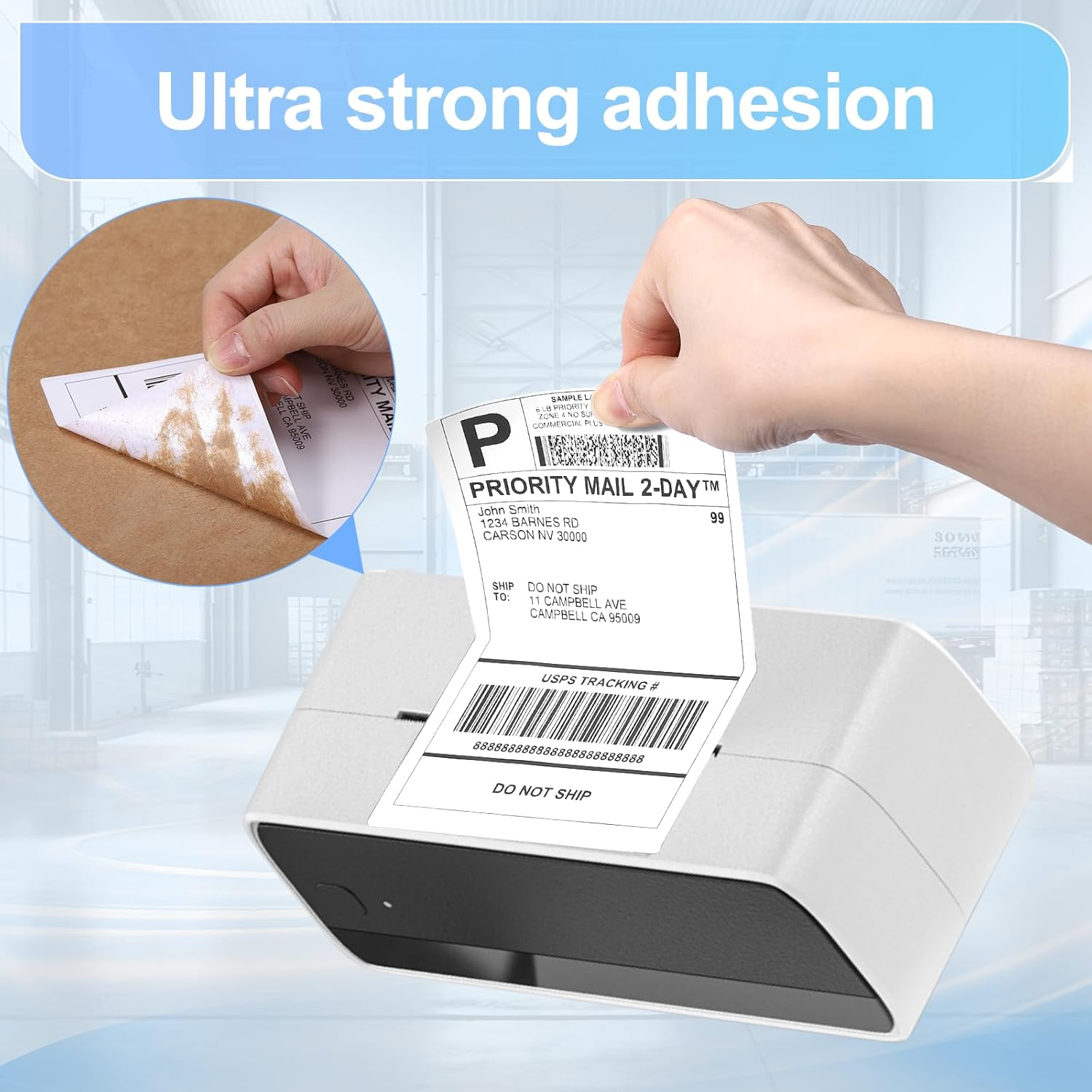
Image: A hand applying a label to a package, illustrating the strong adhesive quality.

Image: Three labels demonstrating resistance: one being scratched (abrasion resistant), one with oil drops (oil resistant), and one with water drops (water resistant).
5. Maintenance and Storage
Proper maintenance and storage of your Labelife thermal labels will ensure their quality and performance over time.
- Storage: Store labels in a cool, dry place away from direct sunlight, heat, and humidity. Extreme conditions can affect the thermal coating and adhesive.
- Packaging: Keep unused labels in their original packaging to protect them from dust and environmental factors.
- Handling: Handle labels by the edges to avoid transferring oils or dirt from your hands to the thermal surface, which can affect print quality.
- Printer Maintenance: Regularly clean your thermal printer's print head and rollers as per the printer manufacturer's instructions. A clean printer ensures optimal print quality and extends the life of both the printer and the labels.
6. Troubleshooting
If you encounter issues while using your Labelife thermal labels, consider the following common solutions:
| Problem | Possible Cause | Solution |
|---|---|---|
| Blank or Faint Prints |
|
|
| Labels Jamming |
|
|
| Labels Not Peeling Easily |
|
|
| Labels Not Sticking |
|
|
7. Specifications
| Attribute | Detail |
|---|---|
| Brand | Labelife |
| Model Number | 3U4C-SLP-4*6-500-2PK-U |
| Item Model Name | Thermal labels 4x6 fan fold |
| Label Dimensions | 4'' x 6'' (101.6mm x 152.4mm) |
| Quantity | 2 stacks, 500 labels per stack (Total 1000 labels) |
| Color | Black Print on White Label |
| Material Type | Shipping Labels Paper |
| Shape | Rectangular |
| Paper Finish | Smooth, Durable Finish |
| Features | Waterproof, Oil-proof, Fade Resistant, Strong Adhesive, Easy to Tear/Peel Off, BPA/BPS Free |
| Item Weight | 4.97 pounds |
| Product Dimensions | 9.45 x 6.5 x 3.35 inches (packaging) |
8. Warranty and Support
Labelife is committed to providing high-quality products. While specific warranty details are not provided in this manual, we stand behind the quality of our thermal labels. If you experience any issues or have questions regarding your Labelife Thermal Direct 4x6 Shipping Labels, please contact our customer support team.
For assistance, please refer to the contact information provided on the product packaging or visit the official Labelife website. Our automated production line and rigorous testing ensure consistent quality, and our support team is ready to assist you.

Image: A customer support representative with a headset, symbolizing Labelife's commitment to customer service.
Related documents3U4C-SLP-4*6-500-2PK-U


Ask a question about this manual
Ask about setup, troubleshooting, compatibility, parts, safety, or missing instructions. Manuals+ will review the question and use this page’s manual context to help answer it.