
1. Introduction
This manual provides detailed instructions for the installation, operation, and maintenance of your CP PLUS CP-Z32G 3MP 4G Pan/Tilt Camera. This advanced security camera features a 3MP CMOS image sensor, 4G SIM support for remote connectivity, two-way audio communication, and pan/tilt capabilities for comprehensive surveillance. Please read this manual thoroughly before using the product to ensure proper setup and optimal performance.
2. Package Contents
Verify that all items listed below are included in your package. If any items are missing or damaged, please contact your retailer.
- CP PLUS CP-Z32G 3MP 4G Pan/Tilt Camera
- Power Adapter
- Mounting Screws and Plugs
- Quick Start Guide (if applicable)
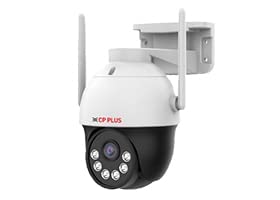
Image: CP PLUS CP-Z32G camera unit with antennas and mounting bracket.
3. Product Features
The CP PLUS CP-Z32G camera is equipped with a range of features designed for effective surveillance:
- High-Resolution Imaging: 1/2.8” 3MP CMOS Image Sensor with a 4mm fixed lens, providing clear video at up to 15fps.
- Advanced Video Compression: Supports H.265/H.264 for efficient storage and bandwidth usage.
- Flexible Connectivity: Features an RJ45 port for wired network connection and 4G SIM support for wireless connectivity.
- Two-Way Audio: Built-in microphone and speaker for real-time communication.
- Pan/Tilt Functionality: Offers a pan range of up to 263° and a tilt range of up to 90°, with support for 6 preset positions.
- Enhanced Night Vision: IR range up to 20-30 meters and white light illumination up to 15-20 meters for clear visibility in low-light conditions.
- Human Detection: Intelligent human detection capabilities, allowing the device to activate white light upon detecting human presence.
- Local Storage: Supports Micro SD Card up to 256GB for on-device recording.
- Durable Design: IP65 International Protection Rating.
4. Setup Guide
Follow these steps to set up your CP PLUS CP-Z32G camera:
- Insert SIM Card and Micro SD Card:
Locate the SIM card slot and Micro SD card slot on the camera. Carefully insert a 4G SIM card (ensure it is activated and has data) and a Micro SD card (up to 256GB, formatted if necessary) into their respective slots. Ensure they are inserted correctly until they click into place.
Image: Close-up of the camera, potentially showing SIM/SD card access or other ports.
- Mount the Camera:
Choose a suitable location for mounting the camera, ensuring good 4G signal reception and a clear view of the area to be monitored. Use the provided mounting screws and plugs to securely attach the camera to a wall or ceiling. Ensure the camera is positioned correctly for optimal pan/tilt movement.
- Connect Power:
Connect the provided power adapter to the camera's power input port and then plug it into a power outlet. The camera will power on and initiate its startup sequence.
- Download and Install App:
Download the official CP PLUS mobile application from your smartphone's app store (Android or iOS). Follow the on-screen instructions to create an account and add your camera device.
- Connect to Network:
Open the CP PLUS app, select "Add Device," and follow the prompts to connect your camera. If using 4G, the camera should automatically connect to the cellular network. If using RJ45, connect an Ethernet cable from the camera to your router.
- Initial Configuration:
Once connected, you can configure basic settings such as time zone, recording preferences, and motion detection sensitivity through the app.
5. Operating Instructions
Control and monitor your CP PLUS CP-Z32G camera using the mobile application.
- Live View:
Access the live video feed from your camera anytime, anywhere via the app. This allows real-time monitoring of your premises.
- Pan/Tilt Control:
Use the directional controls within the app to remotely pan (horizontal movement up to 263°) and tilt (vertical movement up to 90°) the camera lens. You can also set up to 6 preset positions for quick viewing of specific areas.
- Two-Way Audio:
Tap the microphone icon in the app to speak through the camera's speaker, and listen to audio from the camera's microphone. This feature is useful for communication or deterring intruders.
- Recording and Playback:
The camera automatically records footage to the inserted Micro SD card based on your settings (e.g., continuous, motion-triggered). Access recorded videos through the app's playback function.
- Human Detection and Alerts:
Enable human detection in the app settings. When a human figure is detected, the camera can automatically turn on its white light and send push notifications to your smartphone.
- Night Vision Modes:
The camera supports infrared (IR) night vision for black and white images in complete darkness and white light illumination for color night vision when triggered or manually activated.
6. Maintenance
Regular maintenance ensures the longevity and optimal performance of your camera.
- Cleaning:
Gently wipe the camera lens and body with a soft, dry cloth. Do not use harsh chemicals or abrasive cleaners, as they may damage the surface or lens coating.
- Firmware Updates:
Periodically check the CP PLUS app for available firmware updates. Keeping your camera's firmware updated ensures access to the latest features and security enhancements.
- SD Card Management:
If the Micro SD card is full, the camera will typically overwrite the oldest footage. For critical recordings, back them up regularly. Consider formatting the SD card periodically through the app to maintain performance.
- Power Supply:
Ensure the power adapter and cable are in good condition and free from damage. Use only the provided adapter.
7. Troubleshooting
If you encounter issues with your camera, refer to the following common problems and solutions:
- Camera Not Powering On:
Ensure the power adapter is securely connected to both the camera and a working power outlet. Check if the outlet is functional.
- Unable to Connect to App:
- Verify that the 4G SIM card has an active data plan and good signal strength, or that the Ethernet cable is properly connected.
- Ensure your smartphone is connected to the internet.
- Restart the camera and your smartphone.
- Try resetting the camera to factory defaults (refer to the quick start guide for reset button location).
- Poor Video Quality:
- Clean the camera lens.
- Ensure sufficient lighting in the monitored area, especially at night.
- Check your 4G signal strength or network bandwidth if streaming remotely.
- Pan/Tilt Not Responding:
- Check network connectivity.
- Restart the camera.
- Ensure there are no physical obstructions blocking the camera's movement.
- No Audio or Poor Two-Way Audio:
- Ensure microphone and speaker settings are enabled in the app.
- Check for obstructions around the microphone and speaker.
- Adjust volume settings in the app.
8. Specifications
Detailed technical specifications for the CP PLUS CP-Z32G camera:
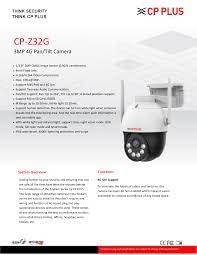
Image: Product sheet detailing CP-Z32G features and specifications.
| Feature | Specification |
|---|---|
| Model Name | CP Z32G |
| Image Sensor | 1/2.8” 3MP CMOS |
| Effective Still Resolution | 3 MP |
| Lens | 4mm Fixed Lens |
| Video Compression | H.265/H.264 |
| Frame Rate | Max. 15fps@3MP |
| Connectivity | RJ45 Port, 4G SIM Support (Wireless), Ethernet |
| Audio | Two-way Audio Communication |
| Pan Range | Up to 263° |
| Tilt Range | Up to 90° |
| Preset Positions | 6 |
| Night Vision (IR) | Up to 20-30 meters |
| White Light Range | 15-20 meters |
| Storage | Micro SD Card (up to 256GB) |
| Human Detection | Supported |
| International Protection Rating | IP65 |
| Power Source | Corded Electric |
| Dimensions (LxWxH) | 24 x 18 x 12 Centimeters |
| Item Weight | 450 g |
| Color | White |
9. Warranty and Support
For warranty information and technical support, please refer to the warranty card included with your product or visit the official CP PLUS website. You can also contact CP PLUS customer service for assistance with product setup, troubleshooting, or any other inquiries.
Official Website: www.cpplusworld.com