
Introduction
The Blackmagic Design ATEM Television Studio HD8 ISO is a powerful live production switcher designed for professional broadcast and streaming environments. This manual provides essential information for setting up, operating, maintaining, and troubleshooting your device.
Key features include ISO recording of all 8 inputs, support for up to 8 remote cameras via Ethernet (local or internet), and comprehensive tally and camera control.
Setup
This section guides you through the initial setup of your ATEM Television Studio HD8 ISO.
Unpacking and Inspection
Carefully unpack all components and inspect for any damage. Ensure all items listed in the "What's in the Box" section are present.
Connecting Power
Connect the provided AC power cable to the 'AC Power Input' on the rear panel. For redundant power, connect a DC power source to the 'DC Power Input'.
Video Input Connections
The ATEM Television Studio HD8 ISO features 8 SDI inputs. Connect your cameras and other video sources to these inputs.

Image Description: The rear panel of the ATEM Television Studio HD8 ISO. Labeled ports include AC Power Input, DC Power Input, Timecode In and Out, Ethernet, Remote, External Talkback, SDI Inputs, SDI Outputs, AUX Outputs, Program Out, HDMI Multiview Out, Stereo Audio In, and Talkback Connection.
Video Output Connections
Connect your program monitor to the 'Program Out' port. For multi-view monitoring, connect a display to the 'HDMI Multiview Out' port. Additional SDI outputs and AUX outputs are available for various monitoring and distribution needs.
Audio Connections
Connect external audio sources to the 'Stereo Audio In' ports. For talkback functionality, use the 'Talkback Connection' ports.
Network Connection
Connect an Ethernet cable from the 'Ethernet' port to your network for control, remote camera operation, and streaming.
USB Connection
The 'USB' port can be used for connecting external storage for ISO recording or for connecting to a computer for software control and updates.
Operating
This section covers the basic operation of your ATEM Television Studio HD8 ISO.
Front Panel Controls
The front panel provides direct access to all essential switching, audio, and effects controls.

Image Description: A top-down view of the ATEM Television Studio HD8 ISO's control surface. It features numerous illuminated buttons for camera selection (1-8), audio control, effects, and a central display screen showing preview and program feeds.
Program and Preview Switching
Use the program and preview rows of buttons to select your live output and next shot. The large T-bar allows for smooth manual transitions between sources.

Image Description: An angled view of the ATEM Television Studio HD8 ISO, showing the main control surface with the T-bar fader, program and preview buttons, and various effect controls.
ISO Recording
The HD8 ISO model supports ISO recording of all 8 inputs to separate video files. This allows for post-production editing of individual camera feeds. Ensure an external USB drive is connected to the USB-C port for recording.
Remote Camera Control
Connect up to 8 remote cameras via Ethernet for integrated tally and camera control directly from the switcher.
Audio Mixing
The switcher includes a built-in audio mixer. Adjust audio levels for each input using the dedicated controls on the front panel or via the software control.
Effects and Transitions
Utilize various built-in effects and transitions, including dissolves, wipes, and DVE (Digital Video Effects) for dynamic live productions.
Maintenance
Cleaning
Keep the switcher clean by wiping it with a soft, dry cloth. Avoid using liquid cleaners or solvents. Ensure ventilation grilles are free from dust.
Software Updates
Regularly check the Blackmagic Design website for the latest software updates. Updates can provide new features, performance improvements, and bug fixes. Connect the switcher to a computer via USB for software updates.
Troubleshooting
This section addresses common issues you might encounter.
No Video Output
- Verify all video cables are securely connected.
- Ensure input sources are powered on and outputting a compatible signal.
- Check the program and preview selections on the front panel.
No Audio
- Confirm audio input levels are correctly set on the mixer.
- Check audio connections and ensure microphones/audio sources are powered.
Remote Camera Issues
- Verify Ethernet cable connection and network configuration.
- Ensure remote cameras are powered and properly configured for network control.
Specifications
| Feature | Detail |
|---|---|
| Brand | Blackmagic Design |
| Model Number | BM-SWATEMTVSTC/HD08ISO |
| Item Weight | 14.96 pounds |
| Product Dimensions | 23.03 x 14.76 x 6.34 inches |
| Color | Black |
| Impedance | 5 Ohms |
| Number of Channels | 8 |
| Maximum Range | 100 Meters |
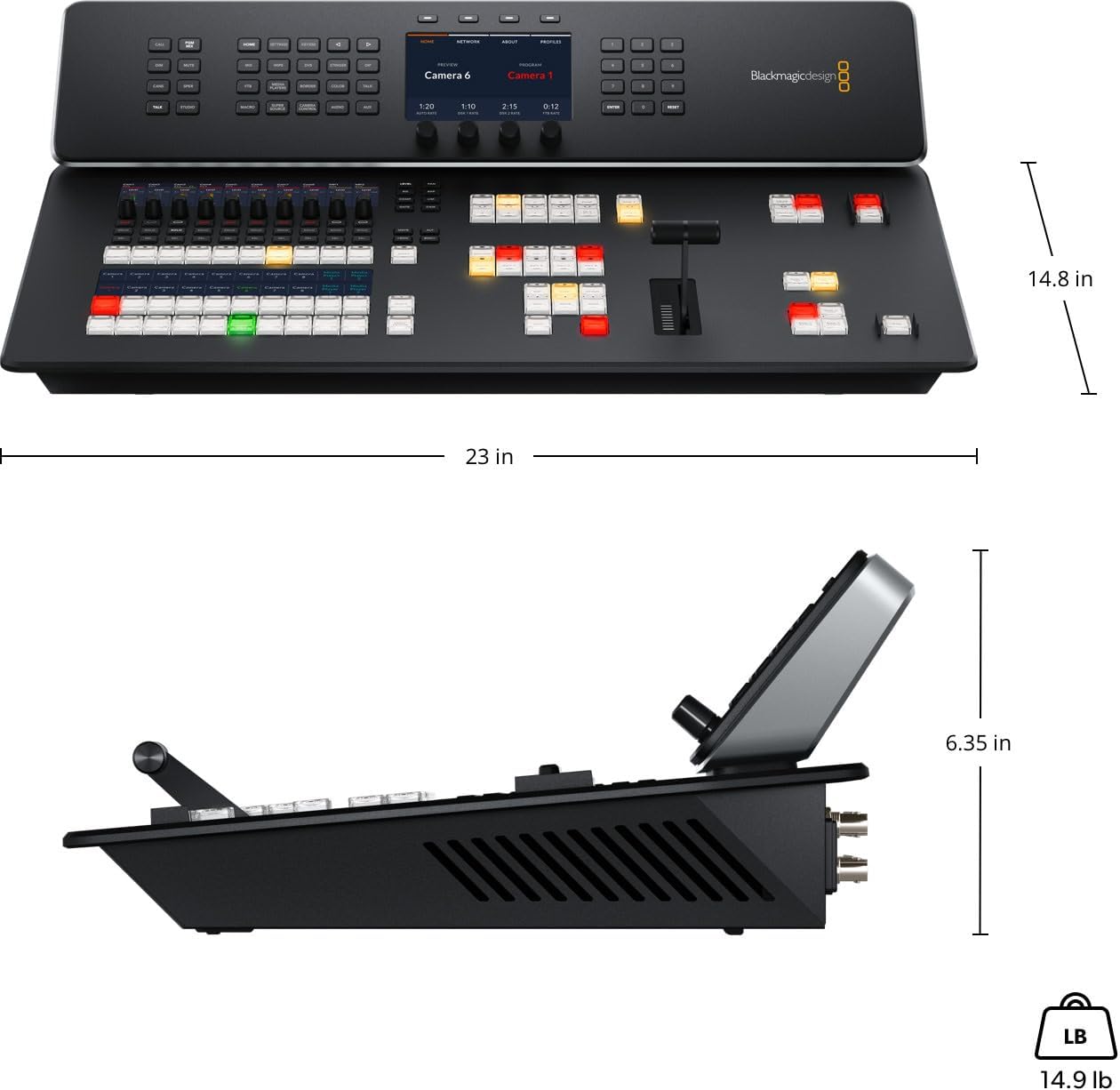
Image Description: A diagram illustrating the dimensions of the ATEM Television Studio HD8 ISO, showing a length of 23 inches, width of 14.8 inches, and height of 6.35 inches, with a weight of 14.9 pounds.
What's in the Box
- ATEM Television Studio HD8 ISO
- Welcome wallet with QR code for software download
Official Product Videos
OSEE Go Stream Switcher Decks Introduction
Video Description: This video provides an introduction to the OSEE Go Stream Switcher Decks, detailing their features, connectivity options including HDMI and SDI inputs, and overall functionality for live streaming and video production workflows.
Warranty and Support
For warranty information, technical support, and service, please refer to the documentation included with your product or visit the official Blackmagic Design website.